M20_Ope_E.pdf - 第393页
Chapter 13 Utility Menus 13-3 Clear List box If you do right-click on the list box of the Ba ckup Dir., the <Clear the list box> button will appear. Click the button if you want to clear the history of the list b…
Chapter 13 Utility Menus
13-2
13-1 Backup & Restore
Note: For information on backing up and restoring system parameters, see Chapter 9, System
Parameter.
13-1-1 Backing Up Data
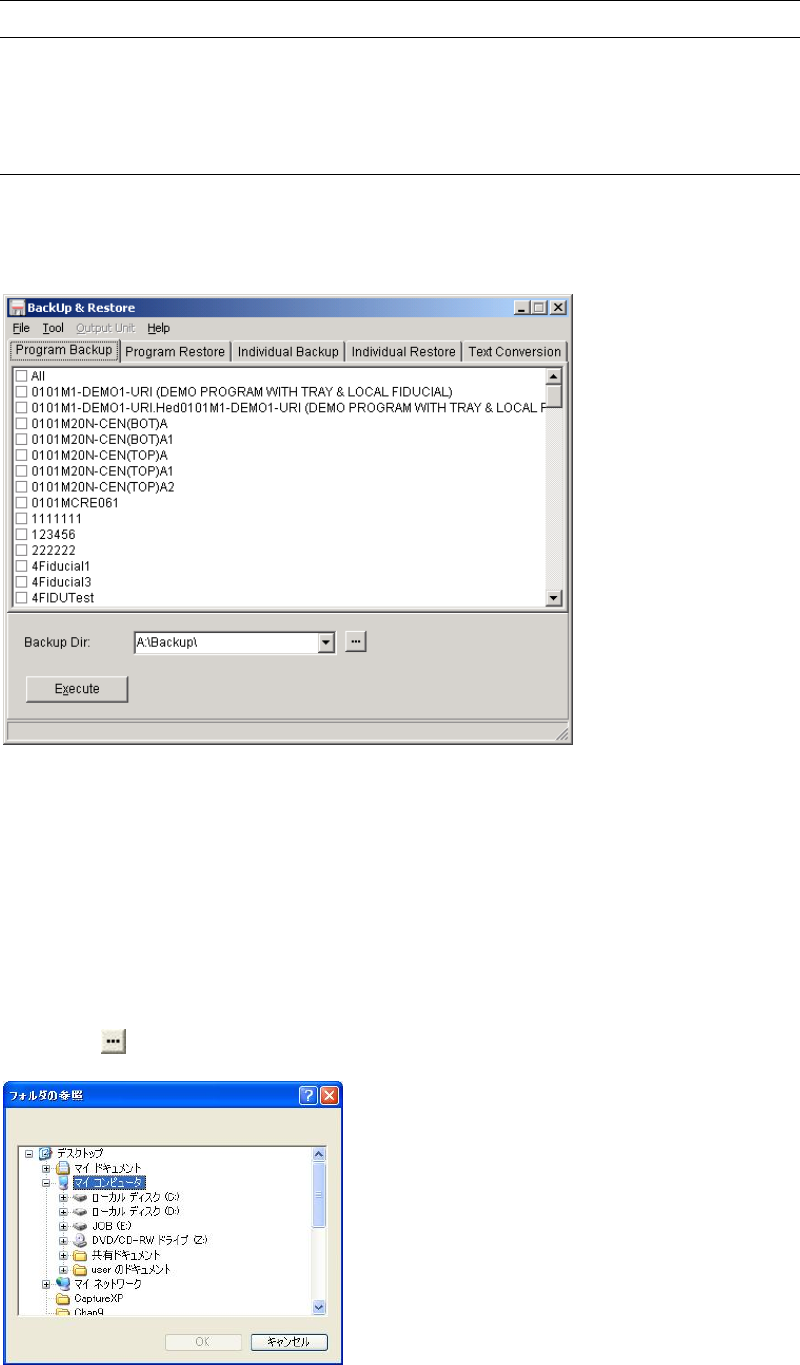
Menu: Tool>Backup&Restore>Program BackUp
This menu allows you to copy user data (user parameters, library data, programs, and others)
from the mounter hard disk to an USB memory.
Action:
① Connect an USB memory to the port on a machine.
② Select data to back up.
③ Click <Execute> button.
Changing the Backup Directory
Action:
① Click
button to open the Browse for Folder dialog box.
② Select “Removable Disk (G:)” or a folder in Network Neighborhood and click <OK>
button.
Note: The hard disk drive of the mounter cannot be specified as the backup directory.

Chapter 13 Utility Menus
13-3
Clear List box
If you do right-click on the list box of the Backup Dir., the <Clear the list box> button will
appear. Click the button if you want to clear the history of the list box.
13-1-2 Restoring Data
Menu: Tool>Backup&Restore>ProgramRestore
This menu allows you to restore data saved on an USB memory to the mounter hard disk.
Action:
① Connect an USB memory containing the saved data to the port on a machine .
② Select data to restore.
③ Click <Execute> button.
Chapter 13 Utility Menus
13-4
13-1-3 Converting Machine Data to Text Data
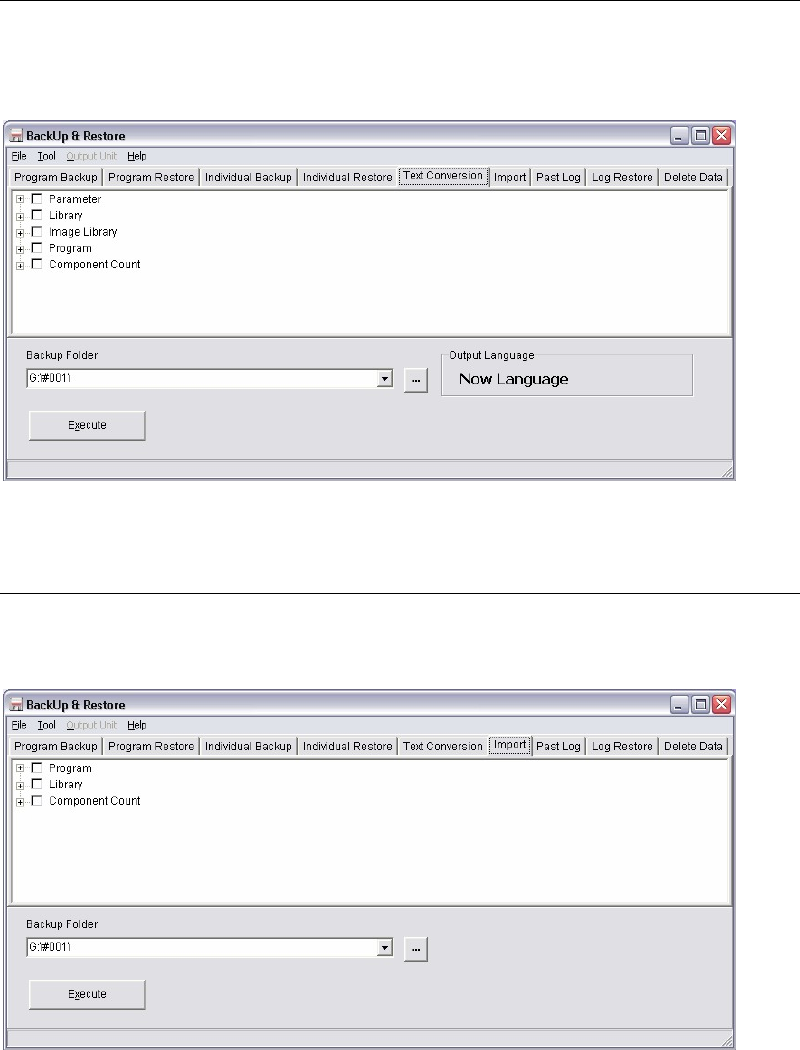
Menu: Tool>Backup&Restore>TextConversion
This menu allows you to convert data on the mounter hard disk into a CSV file. The converted
file can be edited via general-purpose spreadsheet program.
13-1-4 Import
Menu: Tool>Backup&Restore>Import
Program data can be imported from the CSV format data.