M20_Ope_E.pdf - 第398页
Chapter 13 Utility Menus 13-8 13-4-1 System restore under abnormal MMI conditions Restore the system programs(the MMI program and the controller program) that have been backed up. Follow the procedure below when System&g…
Chapter 13 Utility Menus
13-7
13-3 System Backup
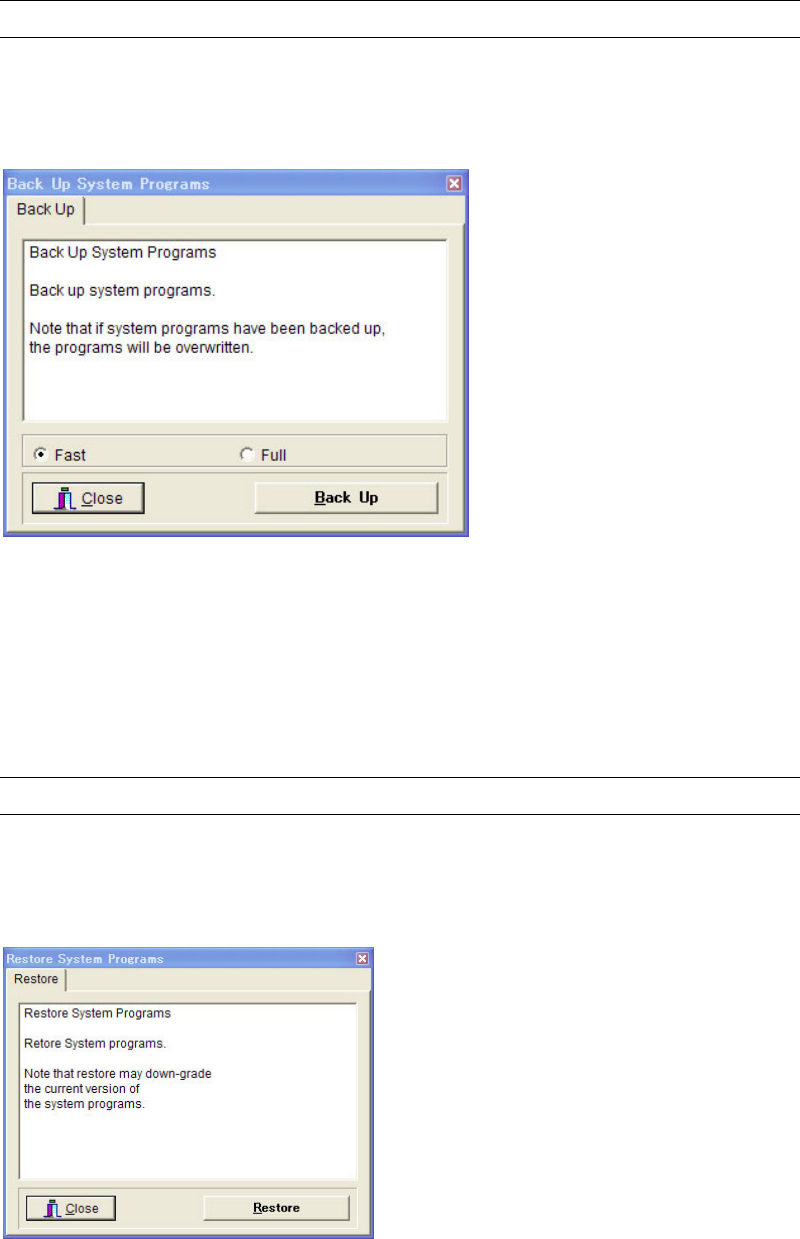
Menu: System>SystemBackup
This menu allows you to back up the system programs (the MMI program and the controller
program) to the backup storage directory on the hard disk.
Window:
Fast: Only the updated programs from the last time backup are taken as
backup.
Full: All system programs are taken as backup.
Note: After the software has been upgraded, it is recommended to execute the system backup.
13-4 System Restore
Menu: System>SystemRestore
This menu allows you to restore the system programs (the MMI program and the controller
program) that have been backed up.

Chapter 13 Utility Menus
13-8
13-4-1 System restore under abnormal MMI conditions
Restore the system programs(the MMI program and the controller program) that have been
backed up.
Follow the procedure below when System>System Restore is not available such as upgrading
work failure.
Action:
① Click the mounter icon (iMS-Task) shown in the bottom right of the screen. The following
“Information” window appears.
② Left click the “Information” window to make it active.
③ Press RESTORE on the keyboard. There is no change on the screen.
④ Move the mouse pointer to the monitor part of the mounter, and right click.
“Are you sure to restore MMI system?” message appears. Click <OK> to restore the
system.

Chapter 13 Utility Menus
13-9
13-5 Troubleshooting (at Mounter-Start)
If the machine system does not start properly when the power is turned ON (e.g. the screen
turns blue when Windows starts up, and then Windows freezes), the following
troubleshooting may be helpful.
■Restoring the Hardware Profile/Configuration
Use the Windows hardware setting recovery function to restore the hardware settings that
were in effect previously when Windows started correctly.
Action:
① Turn ON the [MAIN] switch to turn ON the power to the mounter.
② When “BIOS Setting Screen ”Award....”” appears in the screen, press the [Space] key.
③ “Hardware Profile/Configuration Recovery Menu” appears, so press the [L] key and then
[Enter] key.
④ If recovery is successful, Windows will start automatically, followed by MMI.
■System Restore / Hard Disk Recovery
If the machine system does not start properly even if the above “Hardware
Profile/Configuration Recovery” is executed, restore the system or recover the hard disk to
restore the machine system.
For details on the system restoring method, refer to
“
Backing Up & Restoring Data
”
in
Chapter 11
.
Additionally, for details on the hard disk recovery method, refer to “Hard Disk Recovery
Procedure”.