M20_Ope_E.pdf - 第405页
Chapter 14 Intelligent Feeder 14-5 14-1-3 Installing the Software Programs This section explains how to install the intelligent feeder related software programs (i.e. server software, barcode input software, barcode prin…
Chapter 14 Intelligent Feeder
14-4
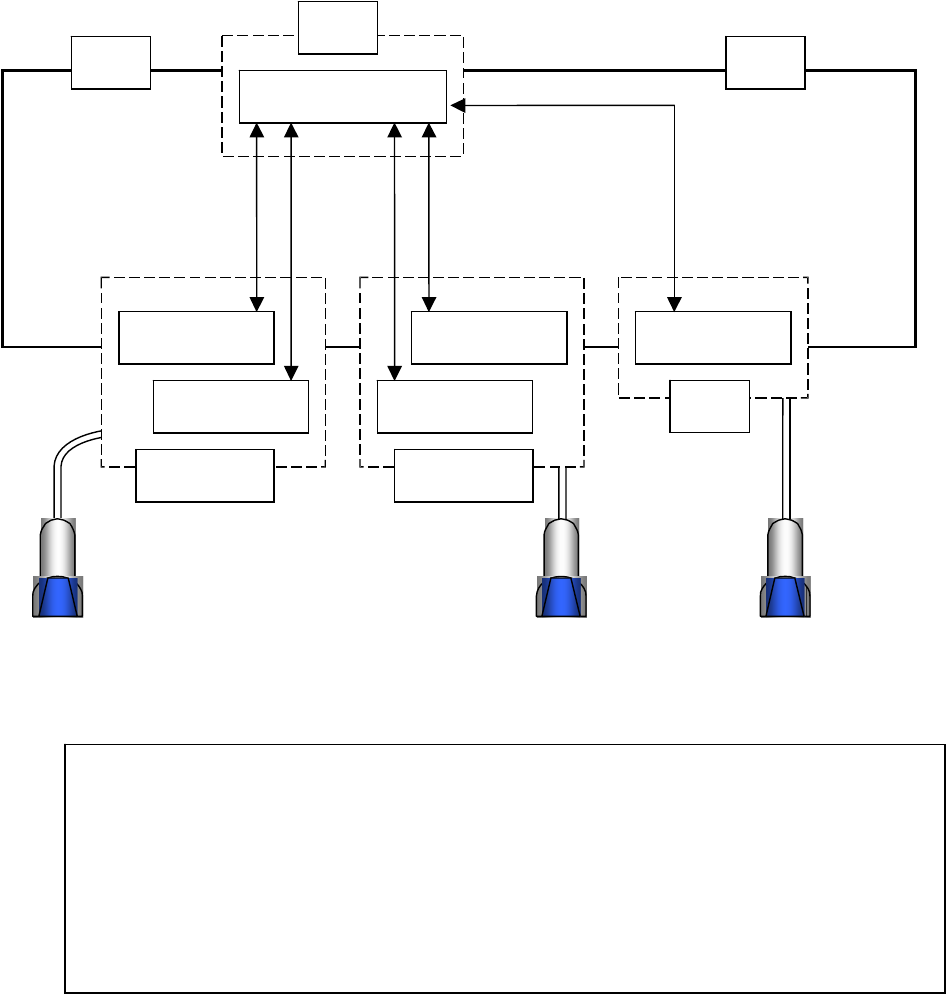
■Using the Intelligent Function by Two or More Mounters
Features
・Unified management of feeder ID and component barcodes registered by two or more
mounters is possible.
・Unified database management allows you to use feeder ID and component barcodes
for two or more mounters once they are registered.
・Databases can be created in any location (mounter, PC) since registration can be
performed on the PC.
LAN
Barcode input
software
Client software
Mounter
PC
Mounter
PC
Server software
LAN
Client software
Barcode input
software
Barcode input
software
Chapter 14 Intelligent Feeder
14-5
14-1-3 Installing the Software Programs
This section explains how to install the intelligent feeder related software programs (i.e. server
software, barcode input software, barcode print software) to a PC.
Action:
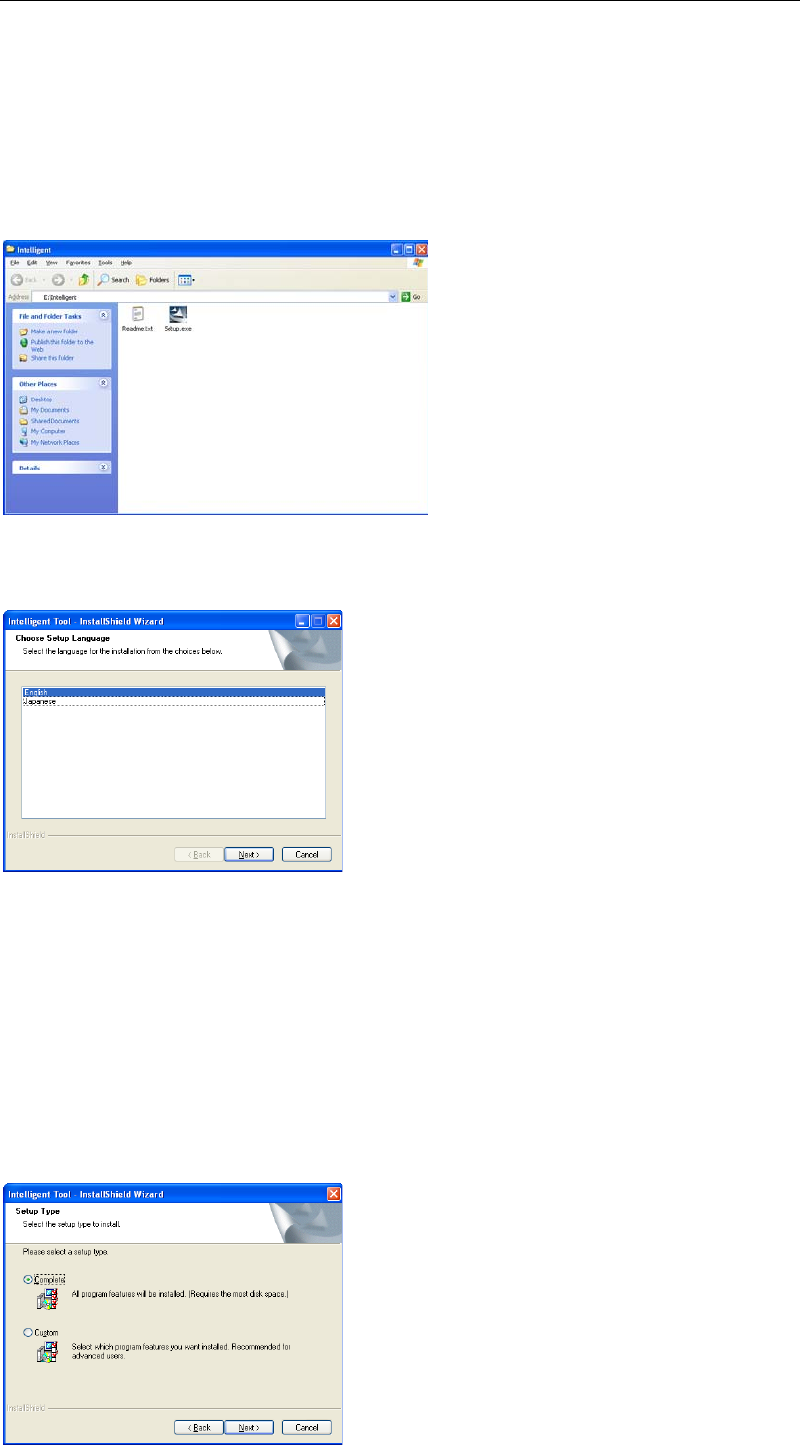
① Display the contents of the recovery CD-ROM (supplied with the mounter) using
Windows Explorer etc.
② Open the “Intelligent” folder on the CD-ROM and double-click “Setup.exe” to start the
installer.
③ The following language selection window appears, so select the desired language and
then click <Next> button.
④ Intelligent Tool Setup window appears, so check the contents and then click <Next>
button.
⑤ [Choose Destination Location] window appears. If you want to install the software in a
folder other than the default folder, specify the desired folder. (Default folder is
“C:¥Program Files¥Intelligent”.) After the folder is specified, click <Next> button.
⑥ The Setup Type window appears, so select the desired setup method.
→To install all the software programs, select [Complete] and click <Next> button.
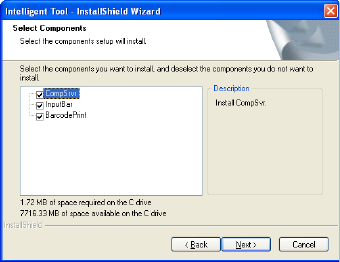
→To install only the necessary software programs, select “Custom” and click <Next>
button. The Select Components window appears, so check the checkboxes for the software
programs to be installed, and then click <Next> button.
Chapter 14 Intelligent Feeder
14-6
⑦ The [Ready to Install the Program window] appears, so click <Install> button to start
installation.
⑧ When installation is complete, the [Install Shield Wizard Complete] window appears, so
click <Finish> button to finish installation.
Note: To uninstall the intelligent feeder related software programs (i.e. server software, barcode
input software, barcode print software), select Control Panel > Add or Remove Programs >
Intelligent Tool > and then click [Change/Remove] button.
Component selection
window for custom
installation