M20_Ope_E.pdf - 第407页
Chapter 14 Intelligent Feeder 14-7 14-1-4 Connecting to a Server Communication with the server software, client software and barcode input software is carried out using TCP/IP. An explanation of how to make necessary com…
Chapter 14 Intelligent Feeder
14-6
⑦ The [Ready to Install the Program window] appears, so click <Install> button to start
installation.
⑧ When installation is complete, the [Install Shield Wizard Complete] window appears, so
click <Finish> button to finish installation.
Note: To uninstall the intelligent feeder related software programs (i.e. server software, barcode
input software, barcode print software), select Control Panel > Add or Remove Programs >
Intelligent Tool > and then click [Change/Remove] button.
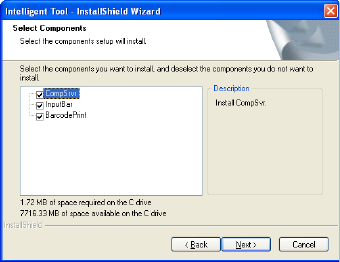
Component selection
window for custom
installation
Chapter 14 Intelligent Feeder
14-7
14-1-4 Connecting to a Server
Communication with the server software, client software and barcode input software is carried
out using TCP/IP. An explanation of how to make necessary communication settings is given
below.
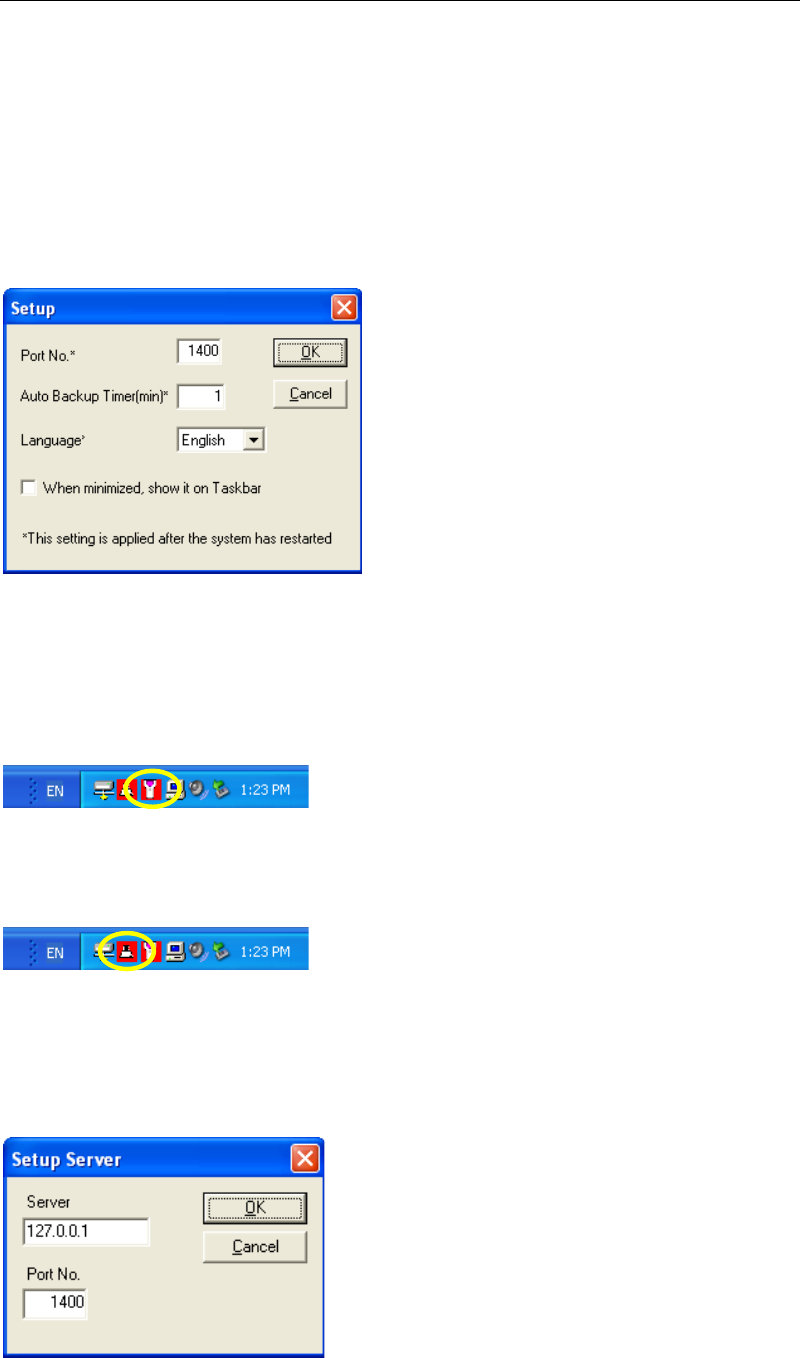
■Setting the Server Software
From the taskbar of the server software window, select Option > Setup. (Or right-click on the
server software icon and select “Setup”.)
The following dialog box appears, so enter a port No. in [Port No.]. (The default is “1400”.
Normally, the default setting is satisfactory, so do not change it.)
■Setting the Barcode Input Software and Client Communication Software
From the taskbar of the barcode input software window, select Option > Setup Server. (Or
right-click on the barcode input software icon on the Windows task bar and select “Setup
Server”.)
For the client software, right-click on the client software icon on the Windows task bar and
select “Setup Server”.)
The Setup Server window appears, so specify the server’s IP address and port No. By default,
“127.0.0.1” is set for the IP address, and “1400” for the port No. Make sure that the same port
No. as that for the server software is set. When using the server software by only one mounter,
the default IP address and port No. can be left unchanged. When using the server software for
another mounter or PC, the IP address by which the server software is run must be specified.
Chapter 14 Intelligent Feeder
14-8
After the IP address and port No. are been set, select Option > Connect in the case of barcode
input software. (Or right-click on the barcode input software icon on the Windows task bar and
select “Connect”.)
(For the client software, right-click on the client software icon on the Windows task bar and
select “Connect”.)
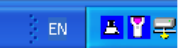
When connection is established, the background color for the icon will change to blue.
If connection has failed, check whether the settings are correct.
Once the settings are made, an attempt to establish connection with the server software will be
made automatically when the software starts up next time.
Note: To run the server software on a PC, make sure that the server software is started up before the
client software and barcode input software.