M20_Ope_E.pdf - 第410页
Chapter 14 Intelligent Feeder 14-10 Note 1: Before registering component barcodes, make sure t hat InputBar is already running. Note 2: The scanned barcode can be entered automatically only if the “Set Comp. Name from Ba…
Chapter 14 Intelligent Feeder
14-9
14-2 Creating a Database
14-2-1 Registering Component Barcodes
This section explains how to register the link information between component codes and
component barcodes to the server’s database.
Up to 12,000 component barcodes can be registered.
Action:
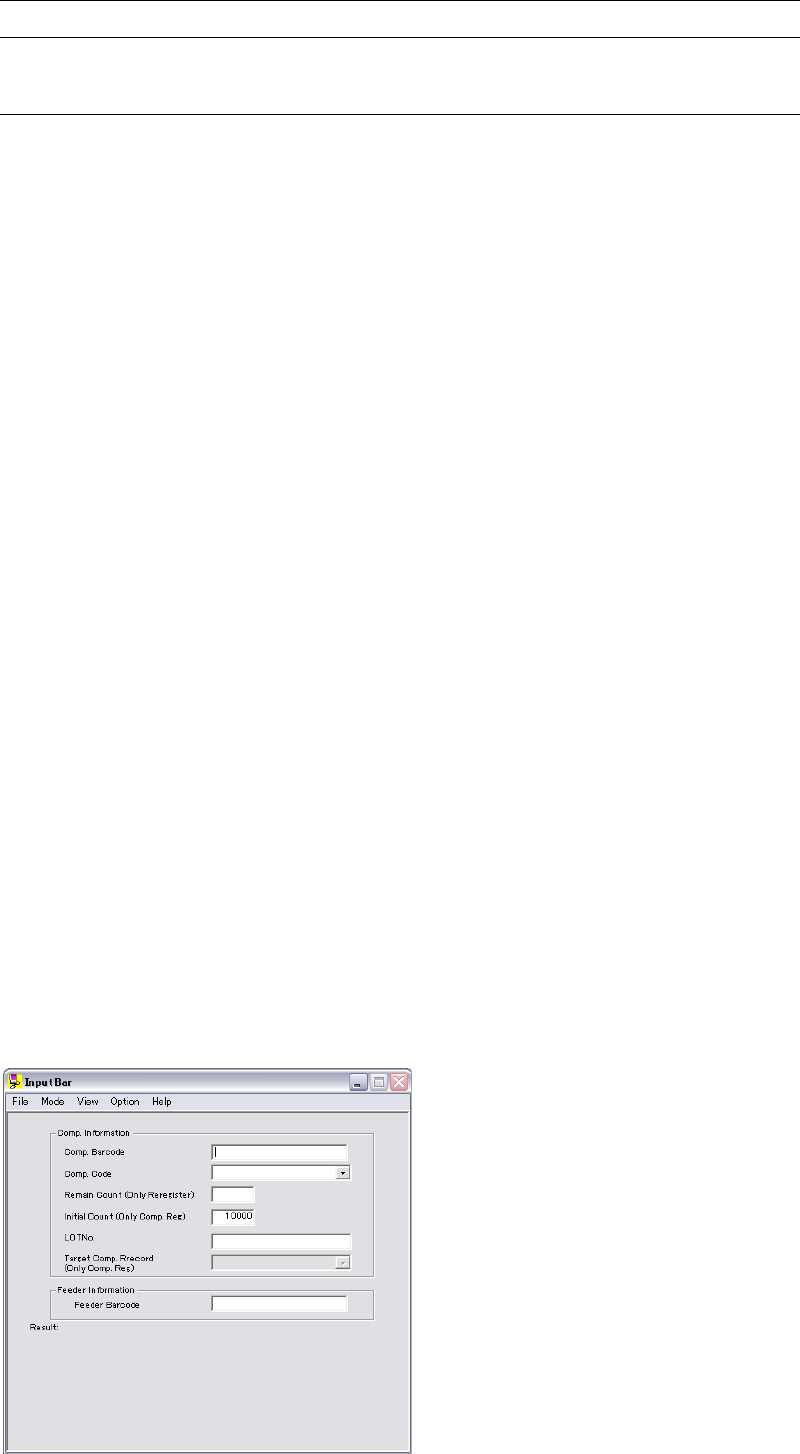
① Scan the "Show / Hide" barcode to display the ID registration window (InputBar). (Note
1)
② Scan the component’s barcode.
The scanned barcode will be input in [Comp. Barcode] and [Comp. Code] under [Comp.
Information]. (Note 2)
If you want to link the component code with an existing component code registered to the
mounter’s component library, select that component code from the Comp. Code combo
box. (Note 3)
③ The default initial component count that has been set will be entered in [Initial Count]. If
necessary, enter a desired component count. (Note 4)
If the “EIAJ” checkbox is checked (the checkbox is displayed when Option > Setup is
selected), the component count written on the barcode will be set in [Initial Count] when
an EIAJ-compatible barcode is scanned.
Example: 3N1CR1/8-100JV 5000
In this example, “5000” given after a space will be set as the initial component value.
In fact, the first and next spaces are searched and the number found between the spaces
will be set.
④ The lot No. that has been set for Lot No. in the Setup window will be entered in [Lot No.].
If necessary, enter a desired lot No. (Note 5)
⑤ From the Target Comp. Record combo box, select the component that is similar to the one
you are going to register. By setting the target component record, a component code can
be created and exported to the component library via a floppy disk. For details, refer to
“Registering to the Component Library”. (Note 6)
This setting is not necessary if the link with an existing component code has been set at
step ②. (Note 7)
⑥ Scan the "Register Comp." barcode.
⑦ “OK” will be displayed if registration is completed successfully. If registration has failed,
read the displayed message, make necessary corrections, and then scan the "Register
Comp." barcode again.
⑧ Scan the "Show / Hide" barcode to close the ID registration window (InputBar).
Chapter 14 Intelligent Feeder
14-10
Note 1: Before registering component barcodes, make sure that InputBar is already
running.
Note 2: The scanned barcode can be entered automatically only if the “Set Comp. Name
from Barcode” checkbox is checked (the checkbox is displayed when Option >
Setup is selected).
Note 3: The feeder types displayed in the combo box are obtained from the library file
present in the location set in [Library path] in the Setup window (that appears
when Option > Setup is selected).
→When referring to a mounter’s library from the server PC, the path for the
library to be referred to can be specified. For details of setting method, refer
to “Setup”.
Note 4: The initial component count can be set in [Default Comp. Initial count] in the
Setup window (that appears when Option >Setup is selected).
Note 5: The Lot No. is extracted from the barcode affixed on a component reel.
For more details, refer to “Component Barcode Extraction Method” hereafter.
Note 6: This setting can be made only if the “Create Comp. Library when registering
Comp. Barcode” checkbox is checked (the checkbox is displayed when Option
> Setup is selected).
Note 7: The “Create Comp. Library when registering Comp. Barcode” checkbox must be
unchecked (the checkbox is displayed when Option > Setup is selected).

Chapter 14 Intelligent Feeder
14-11
14-2-2 Component Barcode Extraction Method
Use this function when you want to extract a part of the barcode.
■Barcode Extraction Method
Specify the item to extract.
■Between Keyword
Use this when there are common characters in barcodes.
■Keyword
Specify the separating characters in the barcodes for extraction.
■Position
Specify the position of the key word starting from “0”.
Example:
1111/2222/3333
When acquiring “1111” as a component barcode, select “Comp. Barcode” for [Barcode
Extraction Method], “/” for [Keyword], and “0” for [Position].
When acquiring “3333” as a component barcode, select “Lot No.” for [Barcode Extraction
Method], “/” for [Keyword], and “2” for [Position].
When acquiring “1111/2222” as a component barcode, select “Initial Count” for [Barcode
Extraction Method, “/3” for [Keyword], and “0” for [Position].
1111 / 2222 / 3333
0 1 2
1111 / 2222 / 3333
0 1 2
1111/2222 /3 333
0 1