M20_Ope_E.pdf - 第419页
Chapter 14 Intelligent Feeder 14-19 ■ Backing up a Component Table Action: ① From the taskbar, select File > Backup Comp. Table. ② The following dialog box will appear, so enter the name of the file to be saved and th…
Chapter 14 Intelligent Feeder
14-18
■Backing up the ID Database
Action:
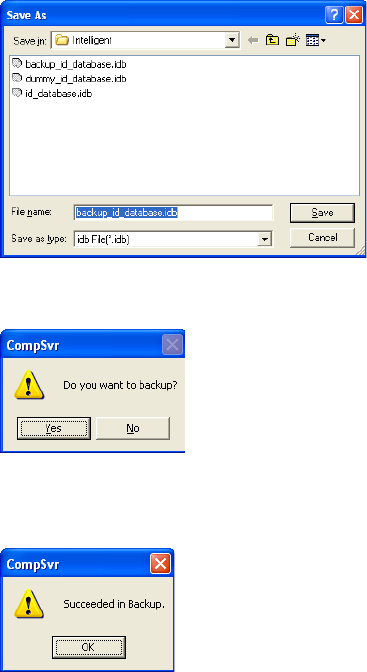
① From the taskbar, select File > Backup ID Database.
② The following dialog box will appear, so enter the name of the file to be saved and the
directory in which the file is to be saved, and then click <Save>.
→The default backup file name is “backup_id_database.idb”.
③ A message “Do you want to backup?” appears, so click <Yes>.
④ When the file is backed up successfully, a message informing you will appear, so click
<OK> button.
Note: It is recommended that the ID database be backed up frequently.
When backing up the ID database, the component table must also be backed up at the same
time to ensure consistency.
■Restoring the ID Database
Action:
① From the taskbar, select File > Restore ID Database.
② A dialog box appears, so select the file that was backed up (see “Backing up the ID
Database”), and click <Open>.
③ A message “Do you want to restore?” will appear, so click <Yes>.
④ When the file is restored successfully, a message informing you will appear, so click
<OK> button.
Note: When restoring the ID database, the component table must also be restored at the same time to
ensure consistency.
Chapter 14 Intelligent Feeder
14-19
■Backing up a Component Table
Action:
① From the taskbar, select File > Backup Comp. Table.
② The following dialog box will appear, so enter the name of the file to be saved and the
directory in which the file is to be saved, and then click <Save>.
→The default backup file name is “backup_comp_table.tb”.
③ A message “Do you want to backup?” appears, so click <Yes>.
④ When the file is backed up successfully, a message informing you will appear, so click
<OK> button.
Note: It is recommended that the component tables be backed up frequently.
When backing up component tables, the ID database must also be backed up at the same time
to ensure consistency.
■Restoring a Component Table
Action:
① From the taskbar, select File > Restore Comp. Table.
② A dialog box appears, so select the file that was backed up (see “Backing up a Component
Table”), and click <Open>.
③ A message “Do you want to restore?” will appear, so click <Yes>.
④ When the file is restored successfully, a message informing you will appear, so click
<OK> button.
Note: When restoring a component table, the ID database must also be restored at the same time to
ensure consistency.
Chapter 14 Intelligent Feeder
14-20
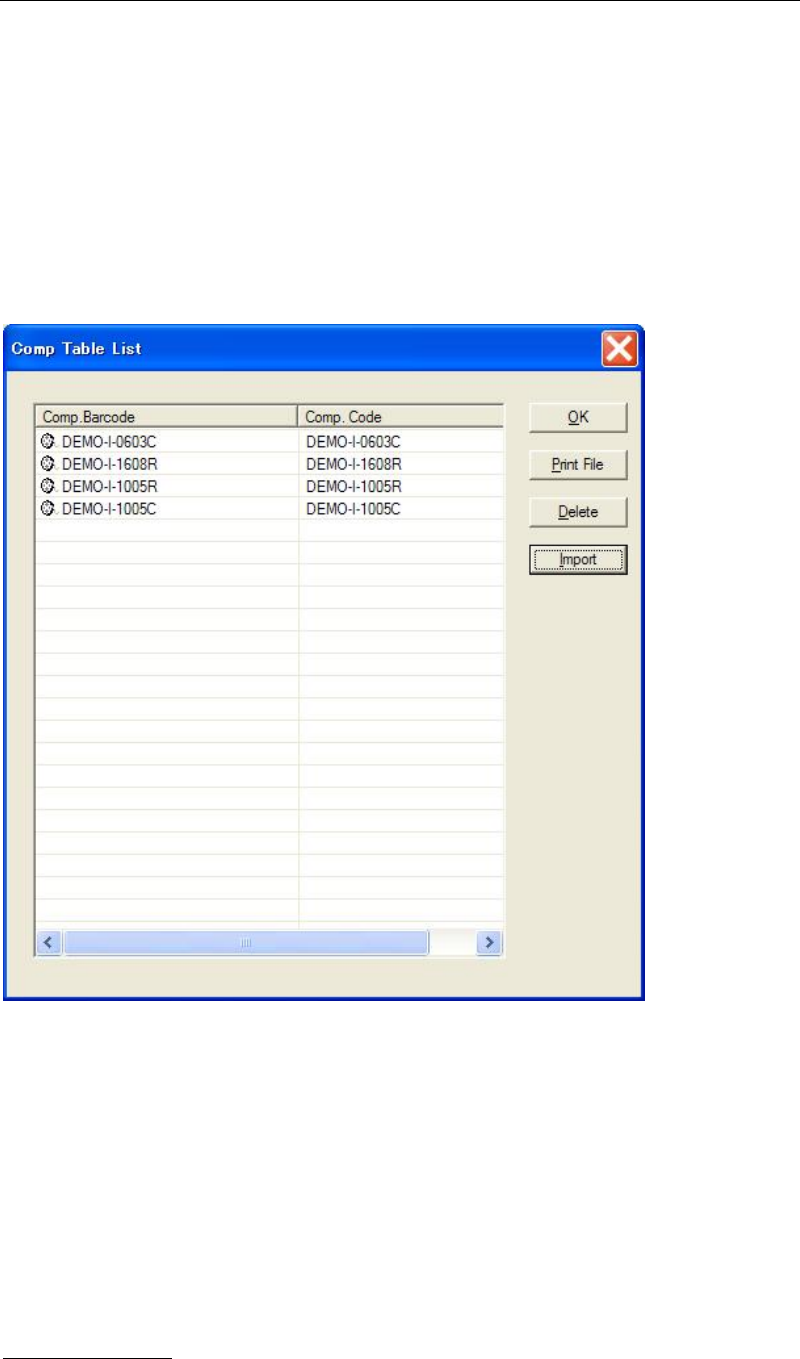
14-3-4 Component Table List
A list of registered component tables can be displayed.
This section explains how to delete a component table and create a barcode print file.
■ Importing a Component Table
Action:
① From the taskbar, select Option > Comp. Table to display the Comp Table List window.
② Click the <Import> button, and select a CSV file to import from the list.
③ When a dialog box appears for your confirmation, click <Yes> to start the import.
Note: The CSV file format should be followed as the figure-1 below:
<Figure-1>
ABC1234567890,1005C,10000
HR00001,1005R,
HR00002,1005R,,
MAZT10000,SOP08,100
Comp.Barcode (necessary), Comp.Code (necessary), Comp.InitialCount (Not necessary)
* If the Comp.InitialCount is not specified, the default value (10,000) would be set for it.
Available Key input
Comp.Barcode: Within 38 letters consisting of the acceptable letters such as uppercase
alphabet, numeric character, +, -, ., space, $, /, %.