M20_Ope_E.pdf - 第421页
Chapter 14 Intelligent Feeder 14-21 Comp.Code : Within 38 letters Comp.InitialCount : 1~9 , 999 , 999 Note: If there is a registration of the same Comp.Barco de, select whether to overwrite it or cancel the import. When …
Chapter 14 Intelligent Feeder
14-20
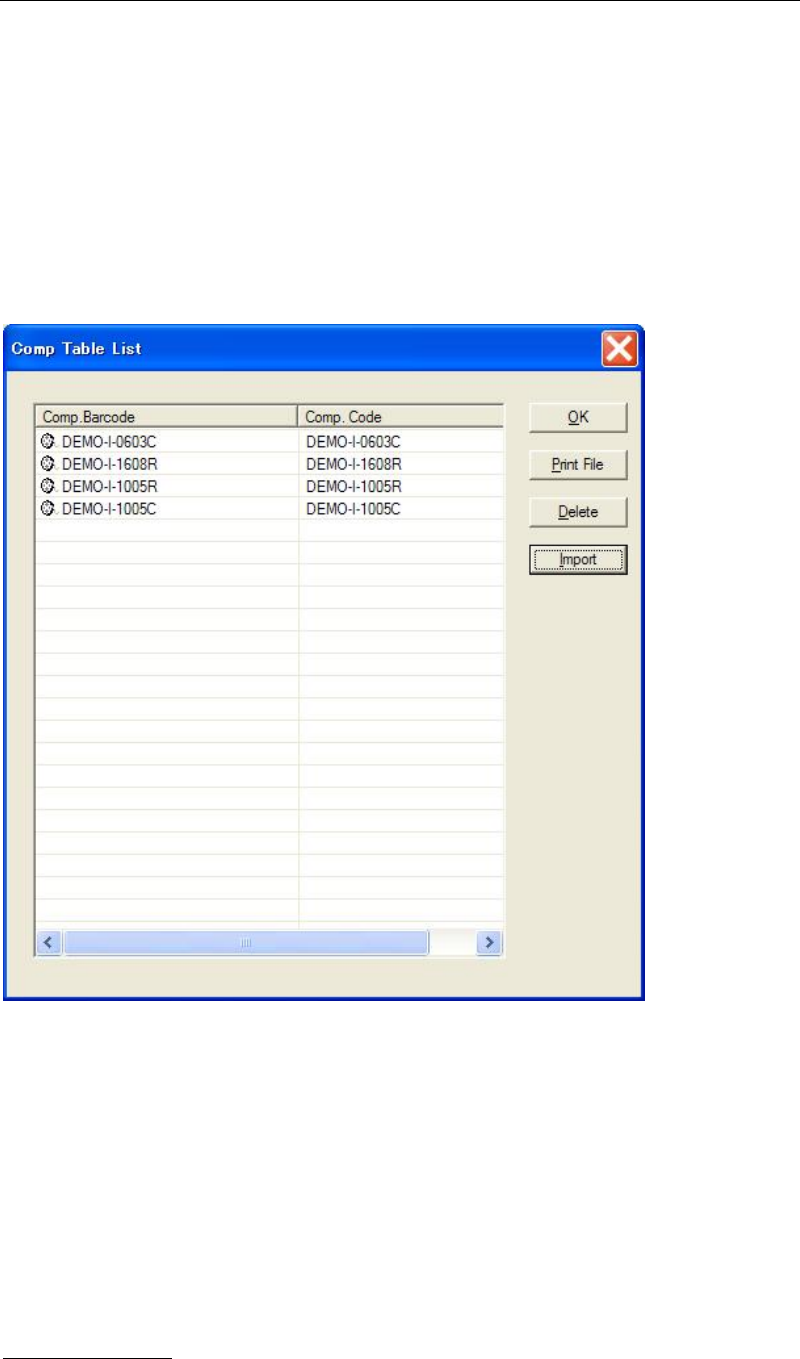
14-3-4 Component Table List
A list of registered component tables can be displayed.
This section explains how to delete a component table and create a barcode print file.
■ Importing a Component Table
Action:
① From the taskbar, select Option > Comp. Table to display the Comp Table List window.
② Click the <Import> button, and select a CSV file to import from the list.
③ When a dialog box appears for your confirmation, click <Yes> to start the import.
Note: The CSV file format should be followed as the figure-1 below:
<Figure-1>
ABC1234567890,1005C,10000
HR00001,1005R,
HR00002,1005R,,
MAZT10000,SOP08,100
Comp.Barcode (necessary), Comp.Code (necessary), Comp.InitialCount (Not necessary)
* If the Comp.InitialCount is not specified, the default value (10,000) would be set for it.
Available Key input
Comp.Barcode: Within 38 letters consisting of the acceptable letters such as uppercase
alphabet, numeric character, +, -, ., space, $, /, %.

Chapter 14 Intelligent Feeder
14-21
Comp.Code : Within 38 letters
Comp.InitialCount : 1~9,999,999
Note:
If there is a registration of the same Comp.Barcode, select whether to overwrite it or cancel the
import. When you select “overwrite”, and if the record has been related with feeder already,
the relation would be rearranged with the new setting. Then, the Comp InitialCount would be
initialized.
If there are any problems in the file to import, the import processing would be canceled.
Correct the problem cause, and try the importing again. (At that time, no record would be
imported.)
If the maximum number of registration were achieved during the importing, the import
processing would be quitted. (The importing would be performed until the total registration
would be the maximum.)
This function can be performed at non-production state.
■Deleting a Component Table
Action:
① From the taskbar, select Option > Comp. Table to display the Comp Table List window.
② Select the component table(s) to be deleted. To select two or more component tables
collectively, drag the mouse while holding down the left button of the mouse.
③ After a component table record(s) is selected, click <Delete> button. A message “Do you
want to delete selected item?” will appear, so click <Yes>.
Note: The feeder linked with the component to be deleted will be deregistered. The deregistered
feeder needs to be re-registered to the database.
Chapter 14 Intelligent Feeder
14-22
■Creating a Component Table Barcode Print File
Action:
① From the taskbar, select Option > Comp. Table to display the Comp Table List window.
② Select the component table(s) whose barcode is to be printed. To select two or more
component tables collectively, drag the mouse while holding down the left button of the
mouse.
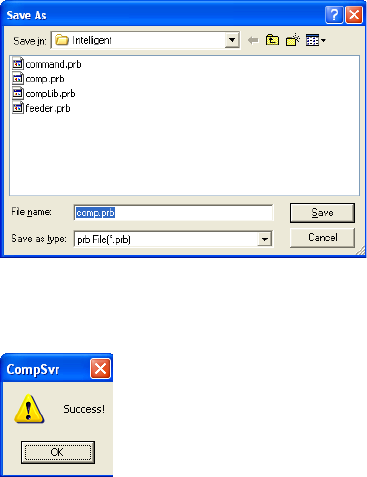
③ After a component table record(s) is selected, click <Print File> button. The following
dialog box will appear, so enter the name of the file to be saved and the directory in which
the file is to be saved, and then click <Save>.
④ When the print file is saved successfully, a message informing you will appear, so click
<OK> button.
⑤ Close the Comp Table List window.
REFERENCE: For component table barcode printing, refer to “Printing Barcodes”.
Creating a Print Command File
This section explains how to create a command barcode print file that is necessary for operation
of the intelligent feeder function. This file allows you to make duplication of command
barcodes when command barcode reading accuracy has dropped or when the barcode reader is
used in multiple locations.
■Creating a Command Barcode Print File
Action:
① From the taskbar, select File > Create Command File.
② The following dialog box will appear, so enter the name of the command print file to be
saved and the directory in which the file is to be saved, and then click <Save>.
→The default file name is “command.prb”.
③ When the print file is saved successfully, a message informing you will appear, so click
<OK> button.
REFERENCE: For command barcode printing, refer to “Printing Barcodes”.