M20_Ope_E.pdf - 第425页
Chapter 14 Intelligent Feeder 14-25 14-3-7 Printing Barcodes This section explains how to print feeder ID ba rcodes and component barcod es. Before printing them, make sure that a barcode pr int file is created and the b…
Chapter 14 Intelligent Feeder
14-24
Note: Characters that can be used for barcode printing are given below. No other characters can be
printed.
Alphabet (upper-case letters only), numeric character, space, - (minus), $, /, +, %, . (dot)
Note: Only one-byte characters can be used.
14-3-6 Machine List
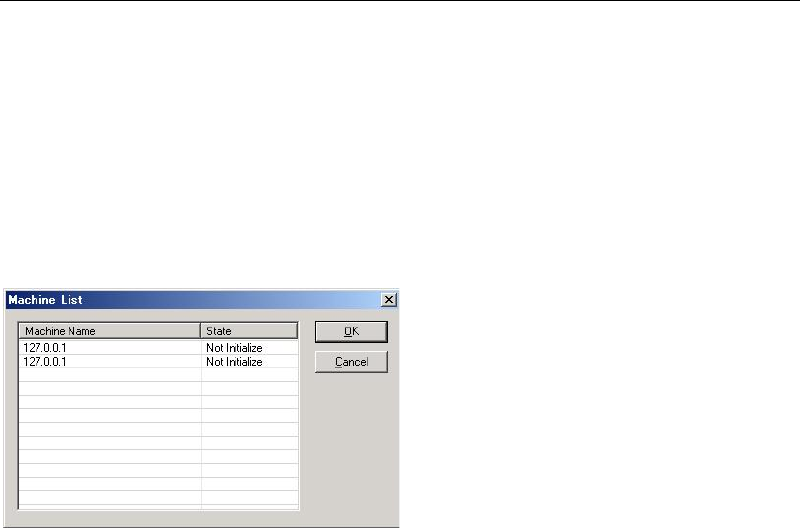
The machine list displays a list of IP addresses of the mounters connected to the server.
The status of the client (mounter) can still be checked if the server PC and mounter are
connected via LAN even though they are located at a distance from each other.
■Displaying the Machine List
Action:
① From the taskbar, select Option > Connected Machine List to display the Machine List
window.
Note: If the barcode input software (InputBar) is already running on the mounter (client), two of the
same IP addresses are displayed as shown above. However, only “Initialize” or “---” is
displayed for the barcode input software side.
② Check the name (IP address) and status of each machine.
One of the following is displayed in [Status].
Initialize
Setup
Drive
Edit & Teach
Setup Error
Run Error
Edit & Teach Error
Emergency Stop
System Error
Shutting down
Chapter 14 Intelligent Feeder
14-25
14-3-7 Printing Barcodes
This section explains how to print feeder ID barcodes and component barcodes. Before printing
them, make sure that a barcode print file is created and the barcode print software
(BarCodePrint.exe) is installed in the PC to which a printer is connected.
■Printing Barcodes
Action:
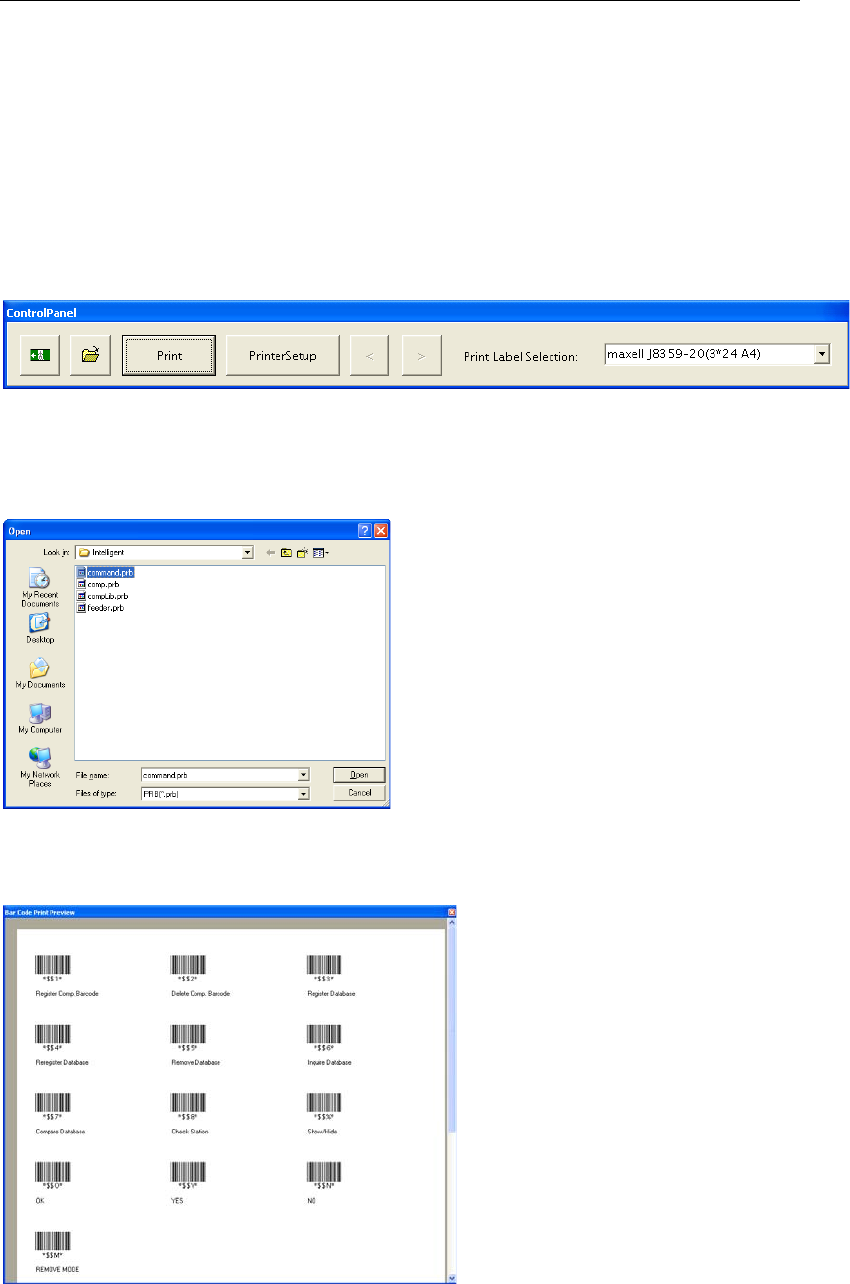
① Start the barcode print software (BarCodePrint.exe).
→Like ordinary Windows applications, select Start > Program > Intelligent >
BarcodePrint.
② Click <Open File> icon on the main menu. The following “Open” dialog box will appear.
③ Select a barcode print file that has been created, and click <Open> button.
④ The following barcode print preview will appear, so check whether the barcode names etc.
are correct.
⑤ If they are correct, click <Print> button to print the barcodes.
Note: Barcodes must be printed on commercially available labels (Maxell J8359-20(3×24 A4)).
Chapter 14 Intelligent Feeder
14-26
14-4 Data
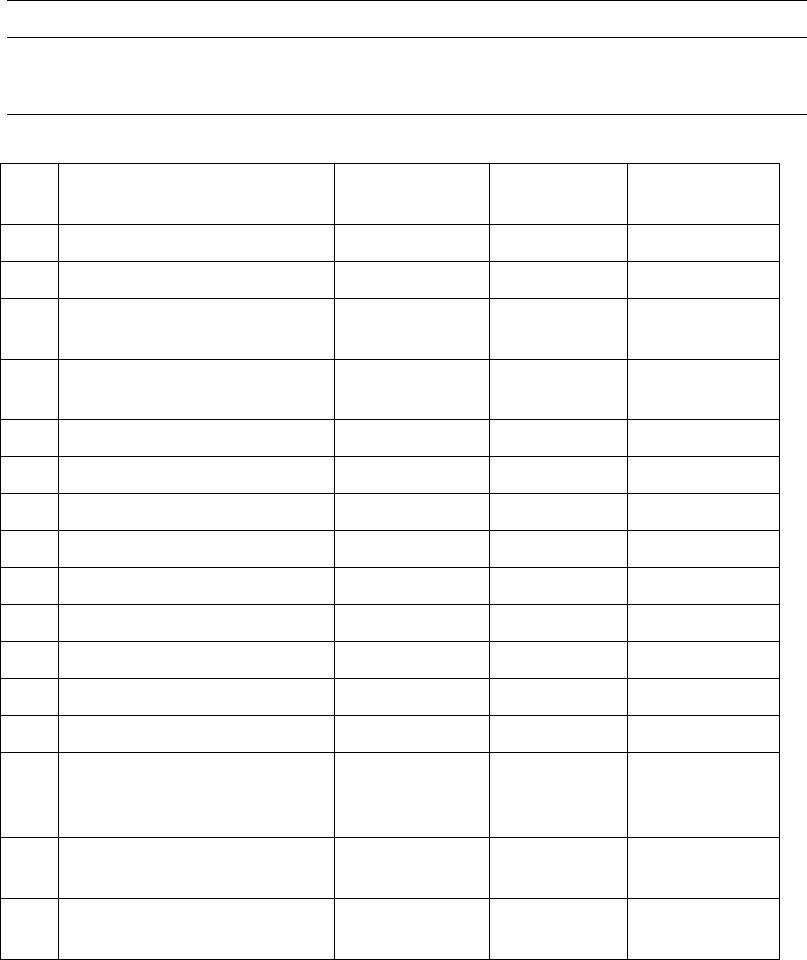
14-4-1 Feeder LED Display Contents
The LED on feeders indicates the feeder status and meaning of errors.
No. Status Color LED
Blinking
frequency (ms)
1 Wire-breakage None --- ---
2 Energized (Note) Yellowish green
Lit ---
3
Intelligent feeder recognized
(Note)
Green Lit ---
4
Component identification NG
(Mis-location)
Pink Flash 100
5 Component confirmation OK
Green Blink 500
6 Not used for production Blue Blink 500
7 Not registered to database Blue Flash 100
8 Component Exhaustion Orange Lit ---
9 Shortage alarm Orange/green
Lit alternately 500
10 Pickup NG skip Orange Flash 100
11 Feeder trouble Pink Lit ---
12 Removal lock Orange Blink 500
13 Simplified check Light blue Flash 100
14
Alternative position
Pickup-undefined lane
(Relocate)
Green/blue Lit alternately 500
15
Alternative position
Pickup-defined lane (Relocate)
Green/pink Lit alternately 500
16
Not used for production
Pickup-defined lane (Relocate)
Blue/pink Lit alternately 500
Note: These feeders are recognized as intelligent feeders when "START" button in the production
window is clicked. If a feeder is not recognized as the intelligent feeder, its feeder LED will be
lit continuously in yellowish green.