M20_Ope_E.pdf - 第46页
Chapter 2 Creating and Editing a Program 2-2 2-1 Customizing MMI Windows 2-1-1 Customizing the Font Menu: Tool>Font Regul ar , Italic , Bold , Bo ld Italic Selec t a font. Selec t a font c o l or . Selec t a font siz …
Chapter 2 Creating and Editing a Program
2-1
Chapter 2
Creating and Editing
a Program
Customizing the MMI Windows
Data Entry Methods
Editing Features
Working with Files
Entering Header and Editing Board Data
Creating and Editing a Program
Checking a Program
Chapter 2 Creating and Editing a Program
2-2
2-1 Customizing MMI Windows
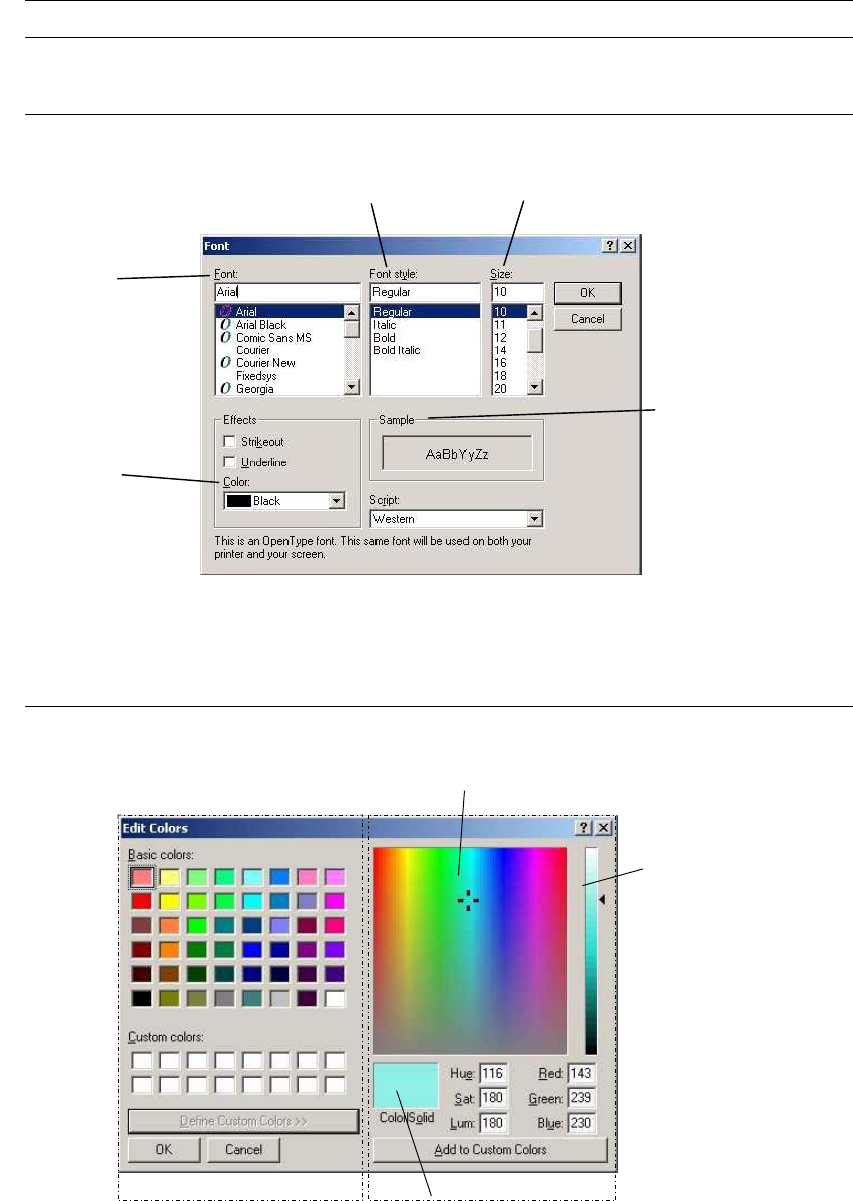
2-1-1 Customizing the Font
Menu: Tool>Font
Regular, Italic, Bold, Bold Italic
Select a font.
Select a font color.
Select a font size (points).
Display sample characters
with specified value
Note: If you enlarge the font size too far, the displayed text might be too large to fit into place.
2-1-2 Customizing the Background Color
Applied only to the Placement & Mark Data editor.
Menu: Program>Tool>Color
A
B
C
Window 1 Window 2
Action: Window 1: Click a desired color from [Basic colors] and choose <OK> button.
Window 2: This window appears when <Define Custom Colors> button is clicked. How to use this
window is shown below:
Chapter 2 Creating and Editing a Program
2-3
Defining a Custom Color:
① Click a color from the basic colors that is the closest to the desired color.
② Click <Define Custom Colors> button.
③ The window 2 appears. Move the cross cursor by dragging the mouse within the A area to
specify the hue and saturation. Then move the triangular cursor at the B area up or down to
specify the luminosity. While you perform adjustment, the C area constantly changes to show
the result.
④ Determine the adjusted color by clicking <Add to Custom Colors> button.
⑤ You will see the color is added to [Custom colors] of the window 1. Click the color.
⑥ Click <OK> button. You will see the specified color is applied to the windows background.
Note: The specified color applies only to the program editor.
Note: Avoid specifying the same or darker color relative to the text color; the text becomes hard to see.
2-1-3 Resizing Column Width and Row Height
2-1-3-1 Changing Column Width
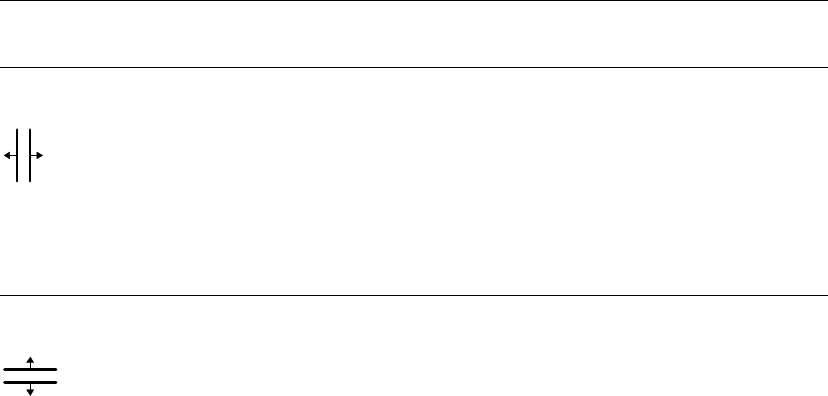
The mouse pointer changes when positioned over a column boundary of the title row.
Drag the boundary right or left to resize.
2-1-3-2 Changing Row Height
The mouse pointer changes when positioned over a row boundary of the No. column.
Drag the boundary up or down to resize.
Note: Some columns and rows are unresizable.