M20_Ope_E.pdf - 第487页
Chapter 16 Dispenser 16-17 16-3-1-3 Dispense Library - Dispense Check setting Menu: Dispense Data > Dispense Library - Dispense Check Action: ① Double-click [Dispense Code] of the dispense data to display the Dispense…
Chapter 16 Dispenser
16-16
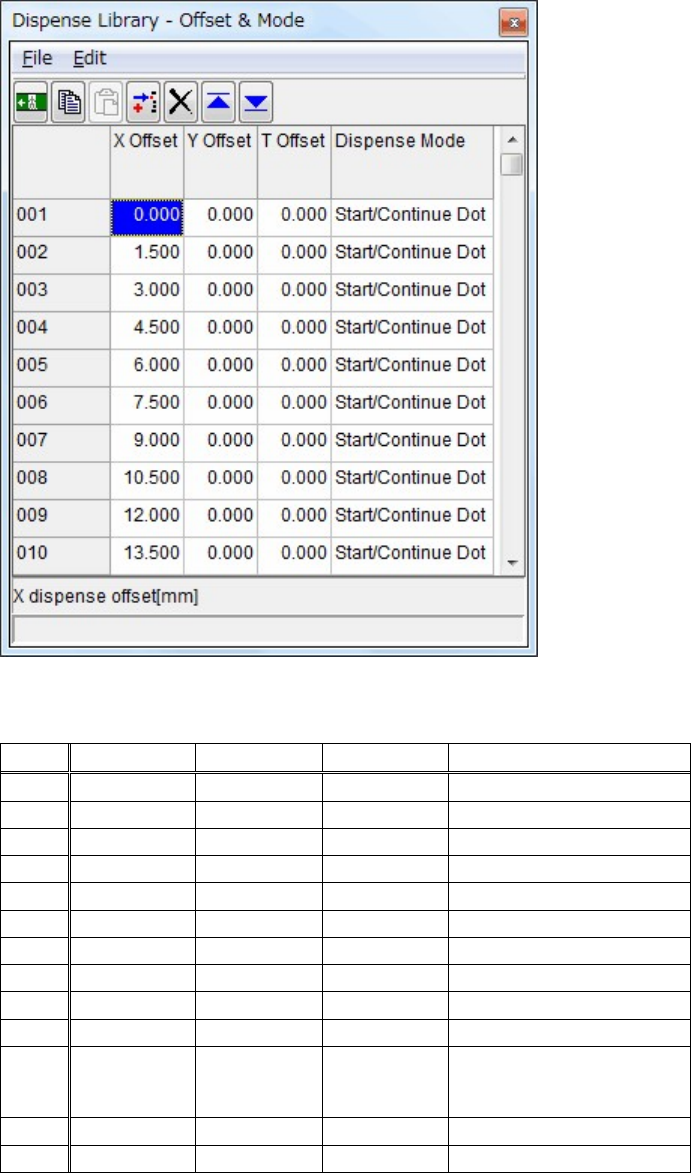
③ Double-click [Offset Count] to display the [Offset & Mode] window.
④ In this window, you can set the offsets to be dispensed onto the dot station.
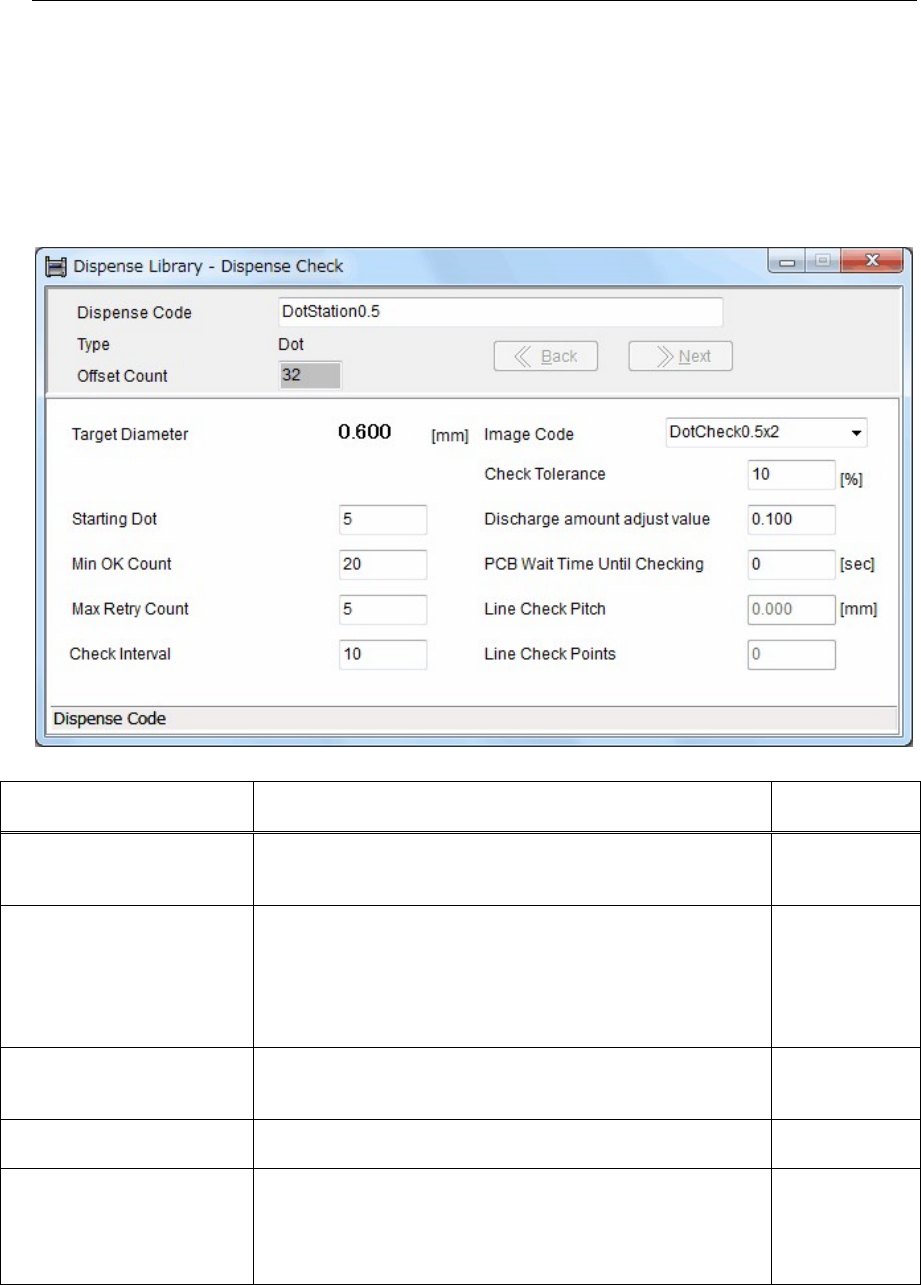
Recommended values: Dispense to 32 points with X Offset pitch of 1.5 mm as described in the table
below.
NO. X Offset Y Offset
T Offset Dispense Mode
001 0.000
0.00 0.00
Start/Continue Dot
002 1.500
0.00 0.00
Start/Continue Dot
003 3.000
0.00 0.00
Start/Continue Dot
004 4.500
0.00 0.00
Start/Continue Dot
005 6.000
0.00 0.00
Start/Continue Dot
006 7.500
0.00 0.00
Start/Continue Dot
007 9.000
0.00 0.00
Start/Continue Dot
008 10.500
0.00 0.00
Start/Continue Dot
009 12.000
0.00 0.00
Start/Continue Dot
010 13.500
Start/Continue Dot
·
·
·
·
·
·
·
·
·
·
·
·
·
·
·
45.000
0.00 0.00
46.500
0.00 0.00
Dot, End Dot/Line
Chapter 16 Dispenser
16-17
16-3-1-3 Dispense Library - Dispense Check setting
Menu: Dispense Data > Dispense Library - Dispense Check
Action:
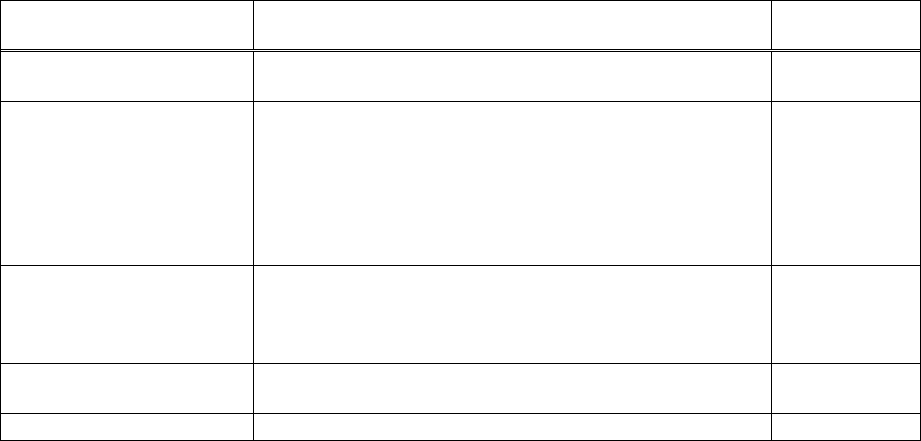
① Double-click [Dispense Code] of the dispense data to display the Dispense Library - Dispense Check
window.
Additionally, when clicking “Tool>Advanced Setting” of the System menu at the upper portion of
the window, the Dispense Library - Dispense Check window will appear.
② In this window, you can set dispense check parameters.
Item Contents
Recommended
value
Starting Dot
Specify what dispense point the dispense check is started.
Note that the dispense diameter and dispense shape of several
points after the dispense has started do not become stable.
5 (th point)
Min OK Count
When the image process of the dispense points more than this
count is determined as OK, the result is determined as OK. The
image process results of the dispense points are then
accumulated (averaged) to output the final results.
The reference dispense points for the dispense check are 2/3 of
the total count.
20 points
Max Retry Count
Specify maximum counts for the dispense correction.
(Retry counts) When this count is "0", only the dispense check
is performed and the correction is not performed.
5 (counts)
Check Interval
Specify a PCB interval, at which the dispense check is
performed.
Example: 10
(PCBs)
Check Tolerance [%]
A tolerance value that the dispense check is determined as OK.
When the accumulated (averaged) dispense area enters the
range of this check tolerance value (±), this is determined as
OK. The dispense area to be used as reference is calculated
from [Target Diameter] of the Image Library (image data).
10 (%)
Chapter 16 Dispenser
16-18
Item Contents
Recommended
value
Discharge Press. Change
At dispense corrections, the correction value is set as the ratio
when the dispense amount (hemisphere volume) is set as "1".
0.050 to 0.100
PCB Wait Time Until
Checking [Sec.]
If the PCB loading wait time exceeds the set value, the
dispense check is performed before the PCB count reaches the
value set in [Check Interval].
When the stop time becomes long if a component shortage or
trouble occurs in the pre-process or post-process equipment,
the dispense check is performed to make the dispense amount
stable.
0(sec)
Image Code
Select an image code of the Image Library (image data) for the
image process, and then enter it.
Additionally, double-clicking this cell will jump to the Image
Library (image data).
―
Line Check Pitch [mm]
Specify a pitch between line dispense check points.
Point No. 1 becomes the pitch from the start point.
4.000(mm)
Line Check Points Specify the number of points for the line dispense check. 4 (points)