M20_Ope_E.pdf - 第50页
Chapter 2 Creating and Editing a Program 2-6 ② [System Language] window appears. Confirm th e guidance on the window, which will help you to change the System Language correctly , and click the [Next] button to continue.…
Chapter 2 Creating and Editing a Program
2-5
2-1-8 Changing the Screen Display Language
The screen display language can be changed by the MMI language change function / system
language change function.
2-1-8-1 MMI Language Change Function
The MMI display language can be chosen from Japanese and English. This is possible for MMI
only. Windows messages are displayed in Japanese.
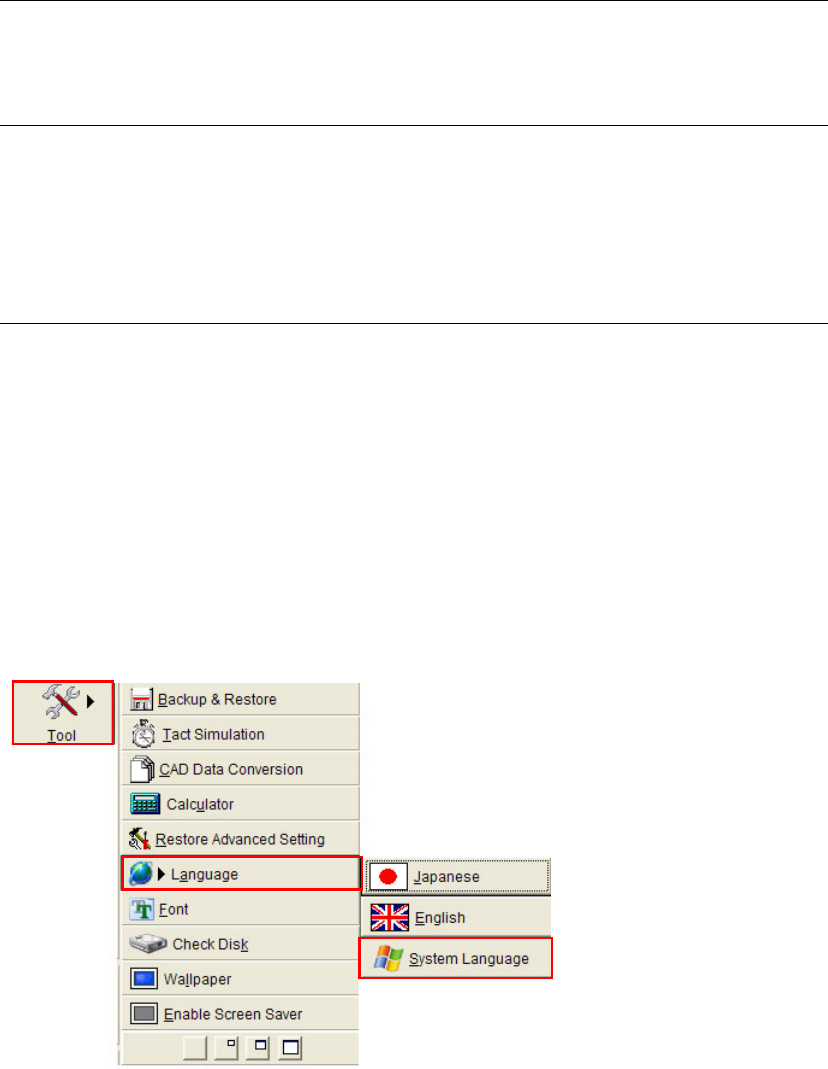
Menu: Tool>Language
2-1-8-2 System Language Change Function
The system display language can be chosen from Japanese, English, Korean and Chinese. (This is
possible for both MMI and Windows messages.)
Note: The system language can be changed only when a login has been made using a password that
allows edit of system parameters.
Menu: Tool>Language>SystemLanguage
Action:
① From the main menu, select >Tool>Language>SystemLanguage.
Chapter 2 Creating and Editing a Program
2-6
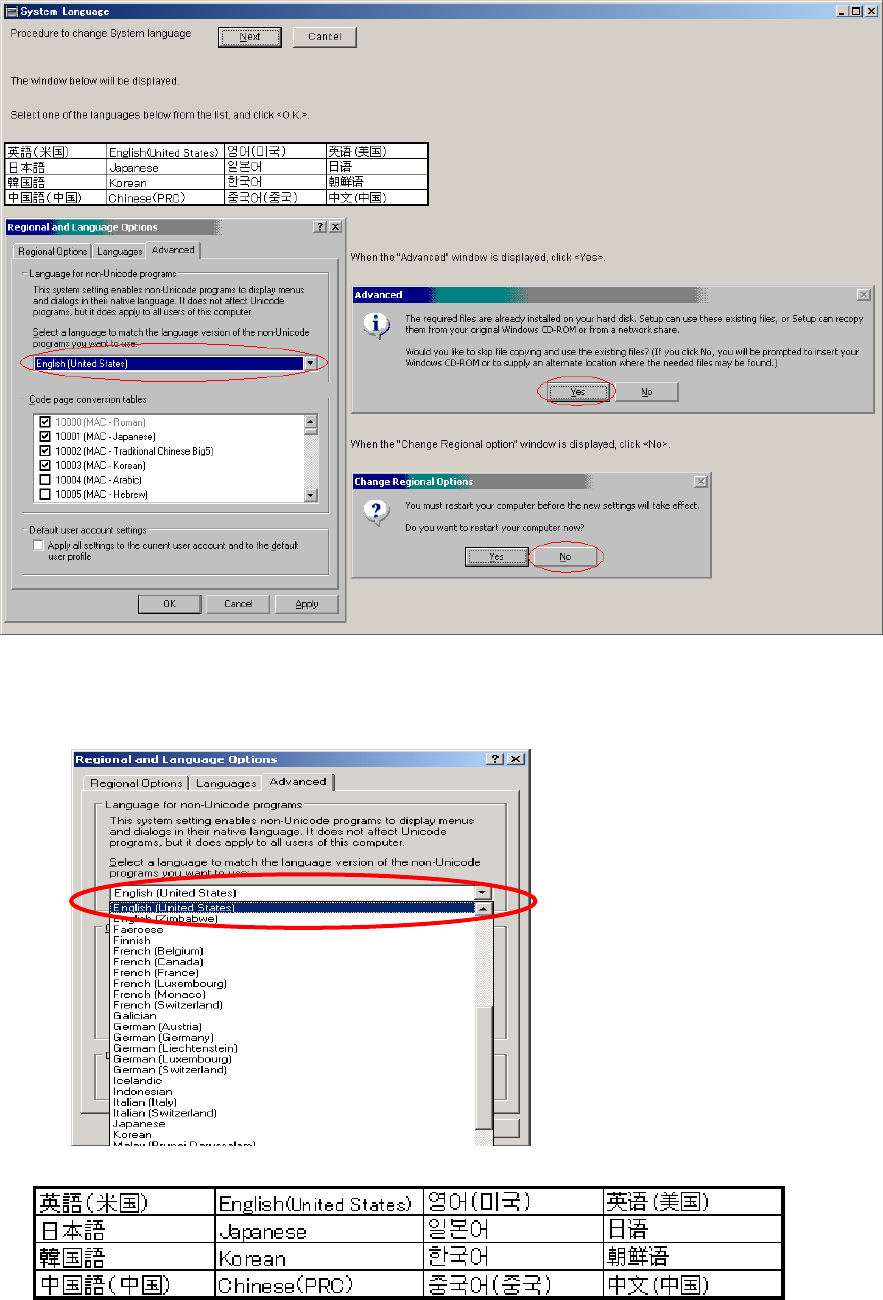
② [System Language] window appears. Confirm the guidance on the window, which will help
you to change the System Language correctly, and click the [Next] button to continue.
③ The following “Regional and Language Options” window appears, so click [Advance] tab
and select the desired language for each language group (Japanese, English, Korean, Chinese)
to be changed. (Refer to the table below.)
Chapter 2 Creating and Editing a Program
2-7
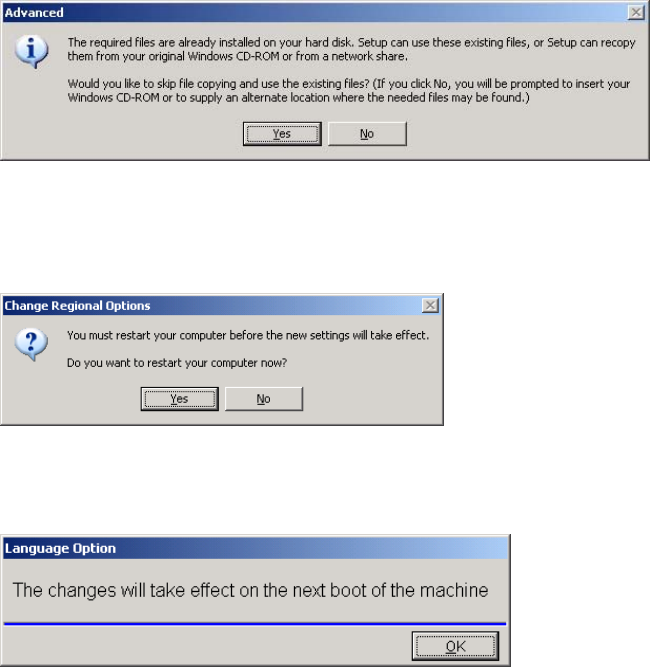
④ Click "OK" button. The Advanced Window appears, so click <Yes>.
⑤ The following “Change Regional Options” window appears. The computer cannot be
restarted at this time, so click <No>.
⑥ The following message appears, so click <OK> button.
⑦ Turn OFF the power of the mounter in the same way as you normally do. (i.e. MainMenu>
Exit>“Quite the System?” message appears. > Click <OK>)
⑧ Restart the mounter and check that the display language has been changed.