M20_Ope_E.pdf - 第52页
Chapter 2 Creating and Editing a Program 2-8 2-2 Data Entry Methods 2-2-1 Selecting a Cell for Data Entry To select a cell, click the cell or move the active cell 1 by using the arrow keys. Then type in data from the key…
Chapter 2 Creating and Editing a Program
2-7
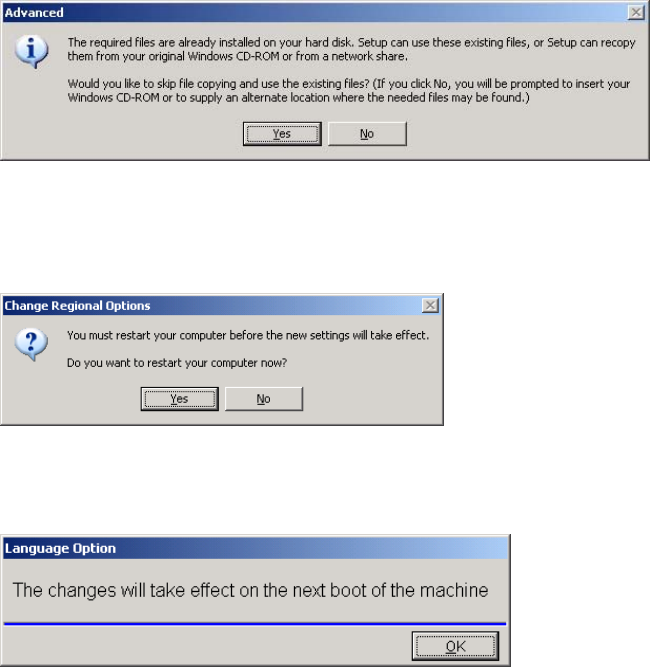
④ Click "OK" button. The Advanced Window appears, so click <Yes>.
⑤ The following “Change Regional Options” window appears. The computer cannot be
restarted at this time, so click <No>.
⑥ The following message appears, so click <OK> button.
⑦ Turn OFF the power of the mounter in the same way as you normally do. (i.e. MainMenu>
Exit>“Quite the System?” message appears. > Click <OK>)
⑧ Restart the mounter and check that the display language has been changed.
Chapter 2 Creating and Editing a Program
2-8
2-2 Data Entry Methods
2-2-1 Selecting a Cell for Data Entry
To select a cell, click the cell or move the active cell
1
by using the arrow keys. Then type in data
from the keyboard. Alternatively, right-click the mouse and select an item from the provided
combo box. To move directly to a specific line in the program editor/component library, use
Edit>GoTo menu. To move directly to a cell with specific text, use Edit>Find menu.
2-2-1-1 Moving to a Specific Line
Menu: Program>Edit>GoTo
Allows moving to a specified line.
Action:
① Select the line number you want to go to in the Go To dialog box.
② Click <Execute> button.
③ The active cell moves to the specified line.
Note: Each program/library editor has <First Line> and <Last Line> buttons. To move to the first line,
click <First Line> button. To move to the last line, click <Last Line> button.
First line button Last line button
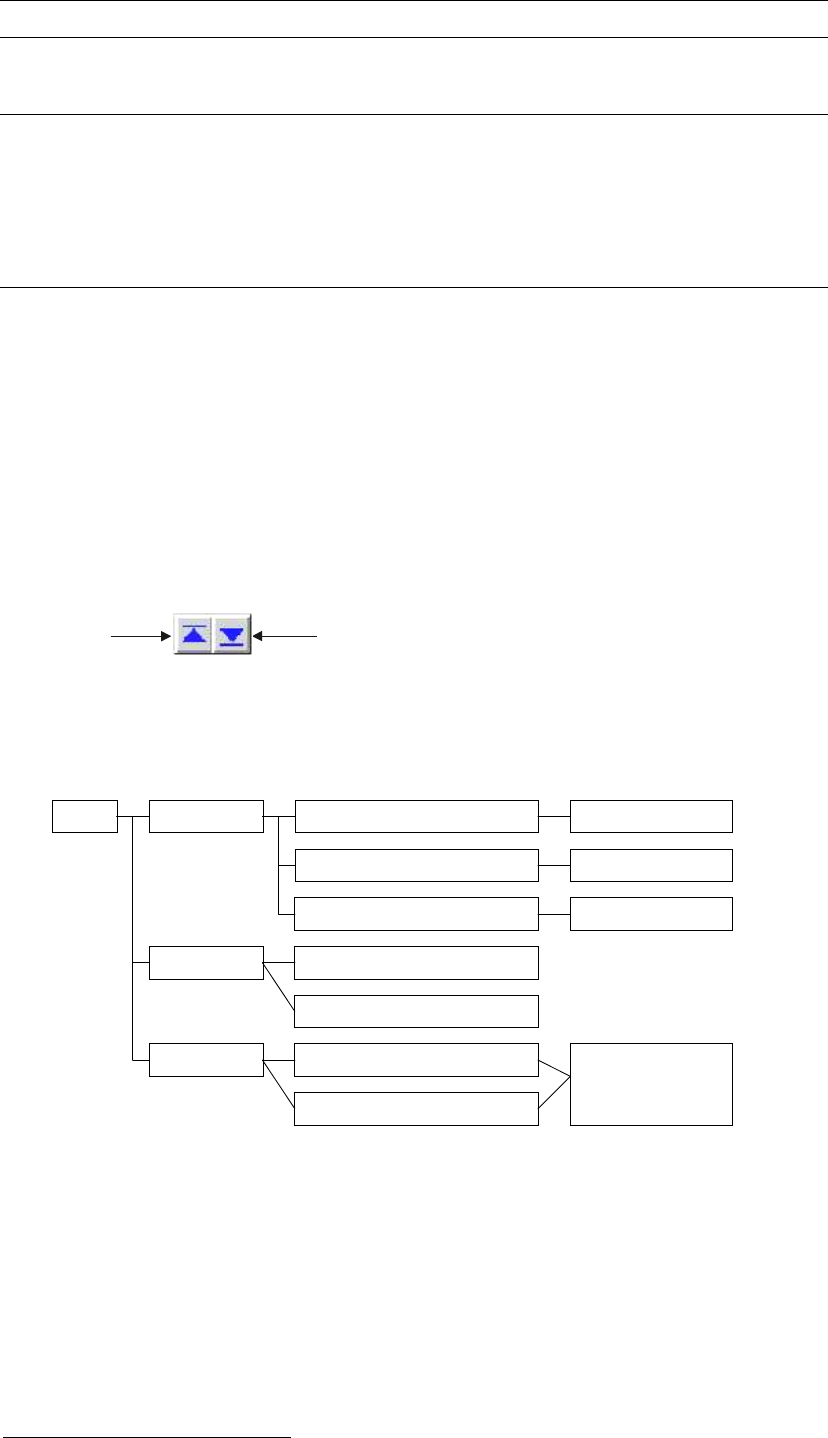
When particular data in the current editor is mapped to its correspondence in a different editor,
you can access the editor by double-clicking the data. See the below chart for access links.
Code Component Code Component Library > Component Code
Component Library > Image Code
Component Library > Nozzle No.
Feeder Library
Pallet Library
Packaging Library > Reject Location
Tray Library > Reject Location
Advanced Setting
Image Library
Nozzle Library
User Parameter >
Reject Location,
Reject Conveyor Offset
Feeder/Pallet
Packaging/Tray
Pickup Data
Placement&Mark Data
Libraries
1
Active cell: The currently selected cell for data entry. It is normally highlighted in blue.
Chapter 2 Creating and Editing a Program
2-9
2-2-1-2 Finding Text
Menu: Program>Edit>Find
Library>Component Library>Edit>Find
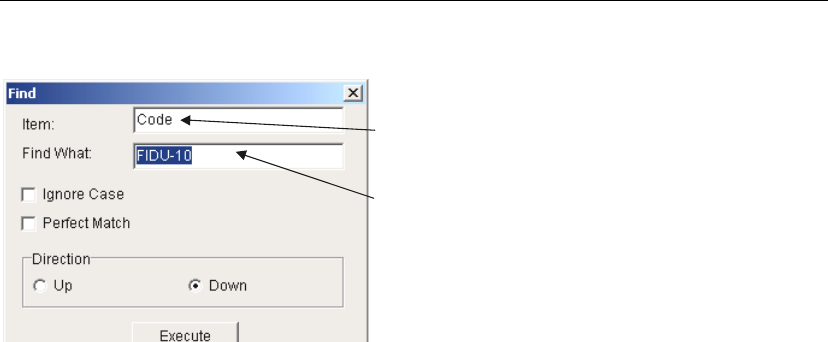
The item on which the active cell resides is shown.
Replacement is applied to this item.
Enter text to find.
Window: * Up to 38 characters can be searched.
Ignore Case: Specify whether to match capitalization of the text. For example:
When the Find What entry is “IC3”, ic3 is not found.
; When the Find What entry is “IC3”, ic3 is found.
Direction: Select searching direction Up or Down relative to the current cursor
position.
Entering the characters partially is also available.
E.g.) Entering “SOP” searches for “SOP-28”, “TSOP-32” and “TSOP-40” etc.
Note: Wildcard Search is available in [Find What] column. The asterisk (*) is used as a symbol that takes
the place of one or set of unknown characters. The question mark (?) takes the place of one
unknown character.