M20_Ope_E.pdf - 第61页
Chapter 2 Creating and Editing a Program 2-17 2-3 Editing Features 2-3-1 Selecting Lines in the Program Editor Menu: Program>Edit>SelectLine Program>Edit>EndSelection Click Program>Edit>SelectLine or b …
Chapter 2 Creating and Editing a Program
2-16
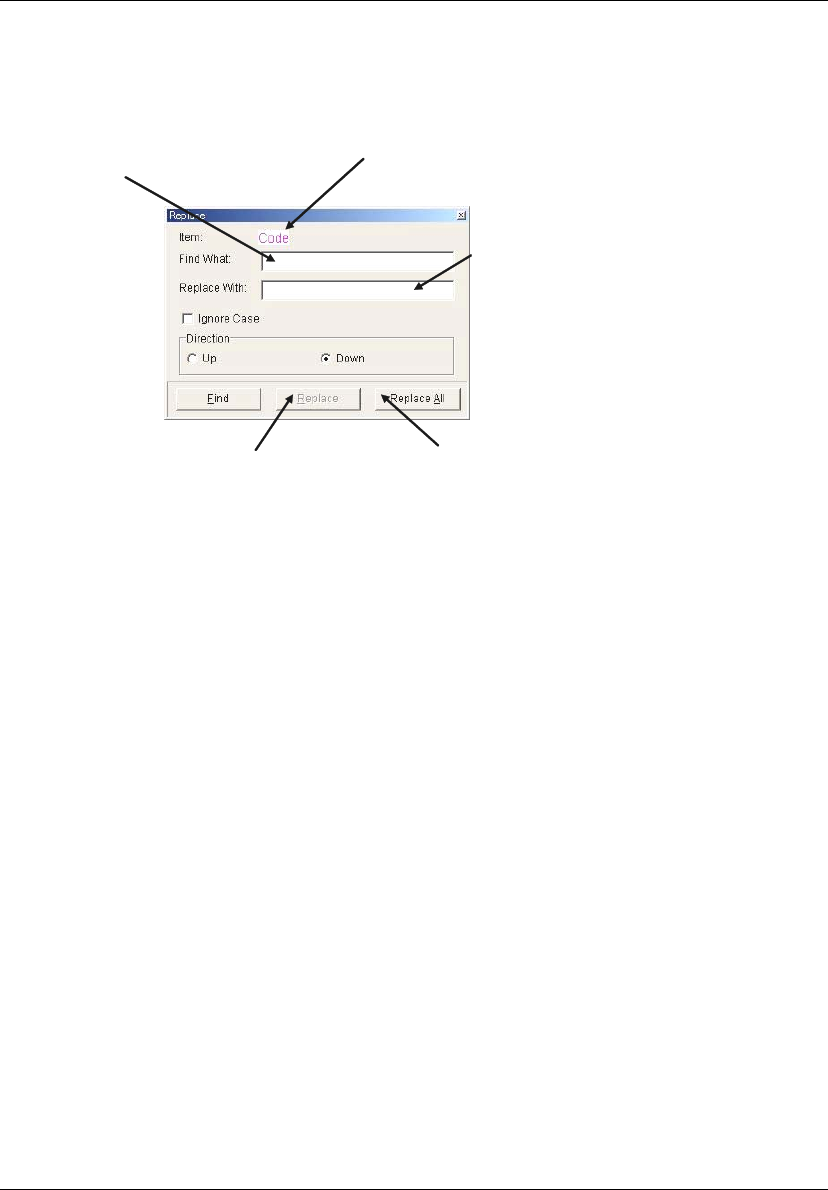
2-2-5 Replacing Text
Menu: Program>Edit>Replace
Library>Component Library>Edit>Replace
Finds specified text and replaces it with new text.
Type text to find.
Replaces all occurrences without
confirmation.
Replaces the current
occurrence.
Type replacement text.
The item on which the active cell
resides is shown. Replacement is
applied to this item.
Window:
Ignore Case: Specify whether to match capitalization of the text. For example:
When the Find What entry is “IC3”, ic3 is not searched.
; When the Find What entry is “IC3”, ic3 is searched.
Direction: Select searching direction Up or Down relative to the current cursor
position.
Find: Start searching to the specified direction. As the first text is found, the
window stops scrolling at where the text is found. Clicking <Find>
button again restarts searching.
Replace: Replace the first found text. To continue searching, click <Find>
button.
Replace All: Replace all the texts found in the specified direction without
confirmation.
Note: When you select some lines by “Select Line” function in advance to perform Replacing Text
command, only the selected lines would be the targets of the Replacing function.
See the description of “Selecting Lines in the Program Editor” on the next page.
Note: Wildcard Search is available in [Find What] column. The asterisk (*) is used as a symbol that takes
the place of one or set of unknown characters. The question mark (?) takes the place of one
unknown character.
2-2-6 Importing CAD Data
You can import CAD data (text files) to the system as an acceptable format program. See Chapter 4
for information.
Chapter 2 Creating and Editing a Program
2-17
2-3 Editing Features
2-3-1 Selecting Lines in the Program Editor
Menu: Program>Edit>SelectLine
Program>Edit>EndSelection
Click Program>Edit>SelectLine or button, then background color of the program editor
changes. In this state, click a line or drag lines to select. Then perform cut-and-paste or
copy-and-paste operation. To quit the Select Line mode, click Program>Edit>EndSelection.
Note: In the component library editor, you can select only a single line at a time.
2-3-2 Moving and Copying a Line
This feature is available only for the program editor and the component library editor. To perform
this feature, the CutLine or CopyLine menu is used in combination with the PasteLine menu.
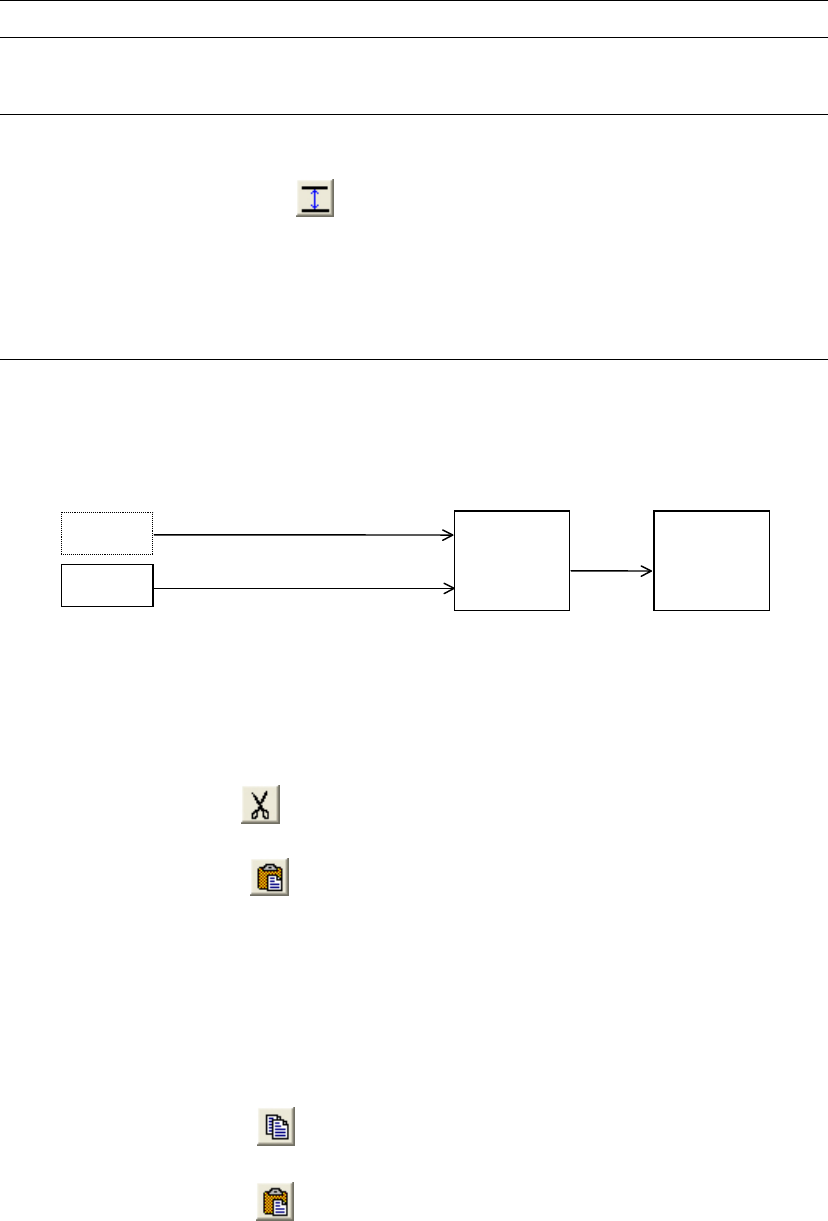
You can cut or copy a line and paste it to a desired location. This process is briefly explained as
follows:
Line
Line
Cut
Paste
Copy
Line is inserted
to the specified
position.
Data is stored to
the system
memory.
Remove the line. The next line moves up.
Leave the line undeleted.
Cut Line & Paste Line
Menu: Program>Edit>CutLine, PasteLine
Action:
① Select the line to cut.
② Click Edit>CutLine or button.
③ Click the line before which the cut line will be inserted.
④ Click Edit>PasteLine or button.
Note: The CutLine menu can be used also to delete a line/lines.
Copy Line & Paste Line
Menu: Program>Edit>CopyLine, PasteLine
Library>Component Library>Edit>CopyLine, PasteLine
Action:
① Select the line to copy.
② Click Edit>CopyLine or button.
③ Click the line before which the copied line will be inserted.
④ Click Edit>PasteLine or button.
⑤ To paste the line to other locations, repeat steps 3 through 4.
Note: The line you copied resides in the memory until you cut or copy something else to replace the data.
While the line resides in the memory, you can paste it as many times as you want.
Chapter 2 Creating and Editing a Program
2-18
2-3-3 Inserting a Line
Menu: Program>Edit>InsertLine
Library>Component Libary>Edit>InsertLine
Used to insert a blank line to a specified location.
Action:
① Click the line before which a blank line will be inserted.
② Click Edit>InsertLine or button.
Note: Only one line can be inserted at a time.
2-3-4 Deleting a Line
Menu: Program>Edit>DeleteLine
Library>Component Library>Edit>DeleteLine
Used to delete a line.
Action:
① Select the line to delete.
② Click Edit>DeleteLine or button.
③ “Are you sure to delete the line?” message appears. Click <OK>.
Note: Only one line can be deleted at a time.
2-3-5 Undoing the Previous Operation
Menu: Program>Edit>Undo
Used to reverse the last operation. Applied only to the operation of CopyLine, PasteLine,
DeleteLine, and Replace.
Note: Only the last operation can be reversed.