M20_Ope_E.pdf - 第62页
Chapter 2 Creating and Editing a Program 2-18 2-3-3 Inserting a Line Menu: Program>Edit>InsertLine Library>Component Libary>Edit> InsertLine Used to insert a blank line to a specified location. Action: ① C…
Chapter 2 Creating and Editing a Program
2-17
2-3 Editing Features
2-3-1 Selecting Lines in the Program Editor
Menu: Program>Edit>SelectLine
Program>Edit>EndSelection
Click Program>Edit>SelectLine or button, then background color of the program editor
changes. In this state, click a line or drag lines to select. Then perform cut-and-paste or
copy-and-paste operation. To quit the Select Line mode, click Program>Edit>EndSelection.
Note: In the component library editor, you can select only a single line at a time.
2-3-2 Moving and Copying a Line
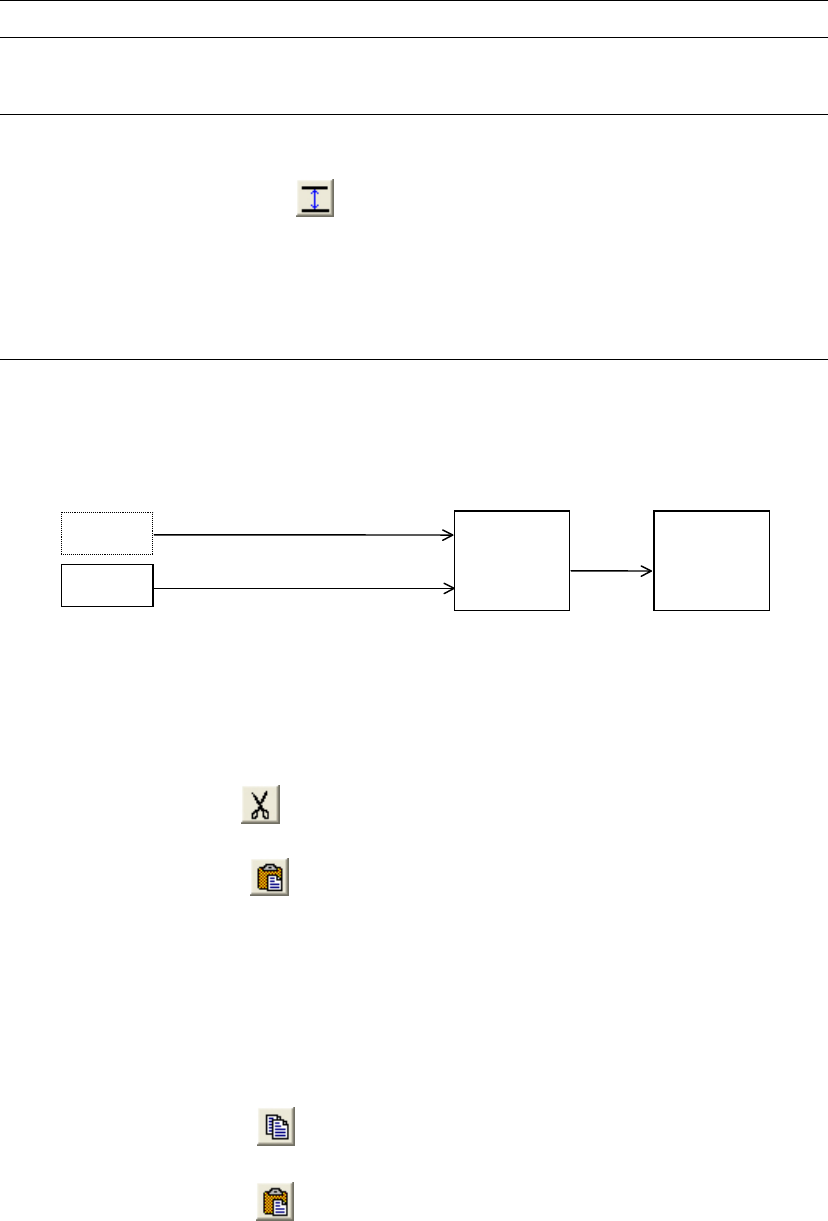
This feature is available only for the program editor and the component library editor. To perform
this feature, the CutLine or CopyLine menu is used in combination with the PasteLine menu.
You can cut or copy a line and paste it to a desired location. This process is briefly explained as
follows:
Line
Line
Cut
Paste
Copy
Line is inserted
to the specified
position.
Data is stored to
the system
memory.
Remove the line. The next line moves up.
Leave the line undeleted.
Cut Line & Paste Line
Menu: Program>Edit>CutLine, PasteLine
Action:
① Select the line to cut.
② Click Edit>CutLine or button.
③ Click the line before which the cut line will be inserted.
④ Click Edit>PasteLine or button.
Note: The CutLine menu can be used also to delete a line/lines.
Copy Line & Paste Line
Menu: Program>Edit>CopyLine, PasteLine
Library>Component Library>Edit>CopyLine, PasteLine
Action:
① Select the line to copy.
② Click Edit>CopyLine or button.
③ Click the line before which the copied line will be inserted.
④ Click Edit>PasteLine or button.
⑤ To paste the line to other locations, repeat steps 3 through 4.
Note: The line you copied resides in the memory until you cut or copy something else to replace the data.
While the line resides in the memory, you can paste it as many times as you want.
Chapter 2 Creating and Editing a Program
2-18
2-3-3 Inserting a Line
Menu: Program>Edit>InsertLine
Library>Component Libary>Edit>InsertLine
Used to insert a blank line to a specified location.
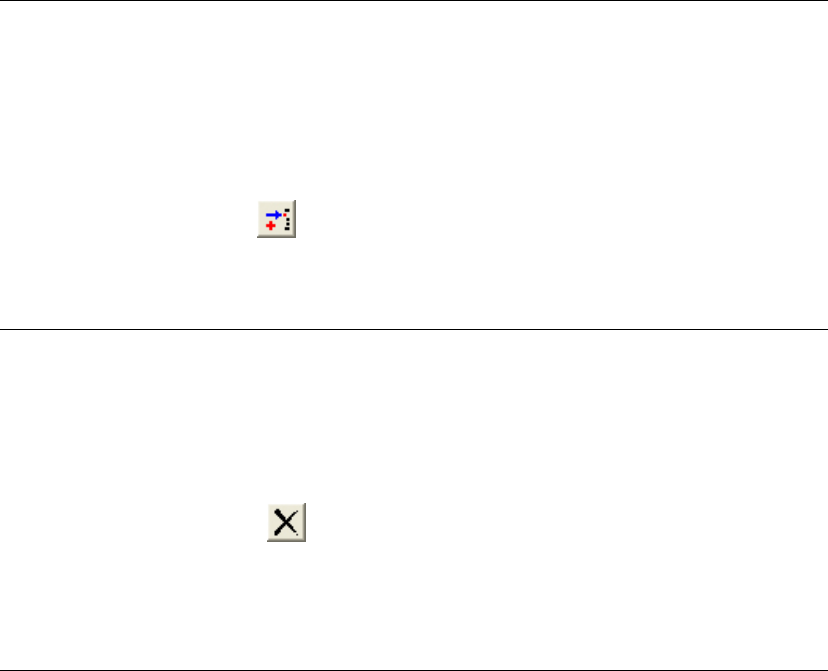
Action:
① Click the line before which a blank line will be inserted.
② Click Edit>InsertLine or button.
Note: Only one line can be inserted at a time.
2-3-4 Deleting a Line
Menu: Program>Edit>DeleteLine
Library>Component Library>Edit>DeleteLine
Used to delete a line.
Action:
① Select the line to delete.
② Click Edit>DeleteLine or button.
③ “Are you sure to delete the line?” message appears. Click <OK>.
Note: Only one line can be deleted at a time.
2-3-5 Undoing the Previous Operation
Menu: Program>Edit>Undo
Used to reverse the last operation. Applied only to the operation of CopyLine, PasteLine,
DeleteLine, and Replace.
Note: Only the last operation can be reversed.
Chapter 2 Creating and Editing a Program
2-19
2-4 Working with Files
File operations described in this section are for the program editor. But they can be similarly
applied to other editor windows.
2-4-1 Creating a New File
Menu: Program>File>New
Used to open a new file. Click File>New or button.
2-4-2 Opening a File
Menu: Program>File>Open
Used to open an existing file.
Action:
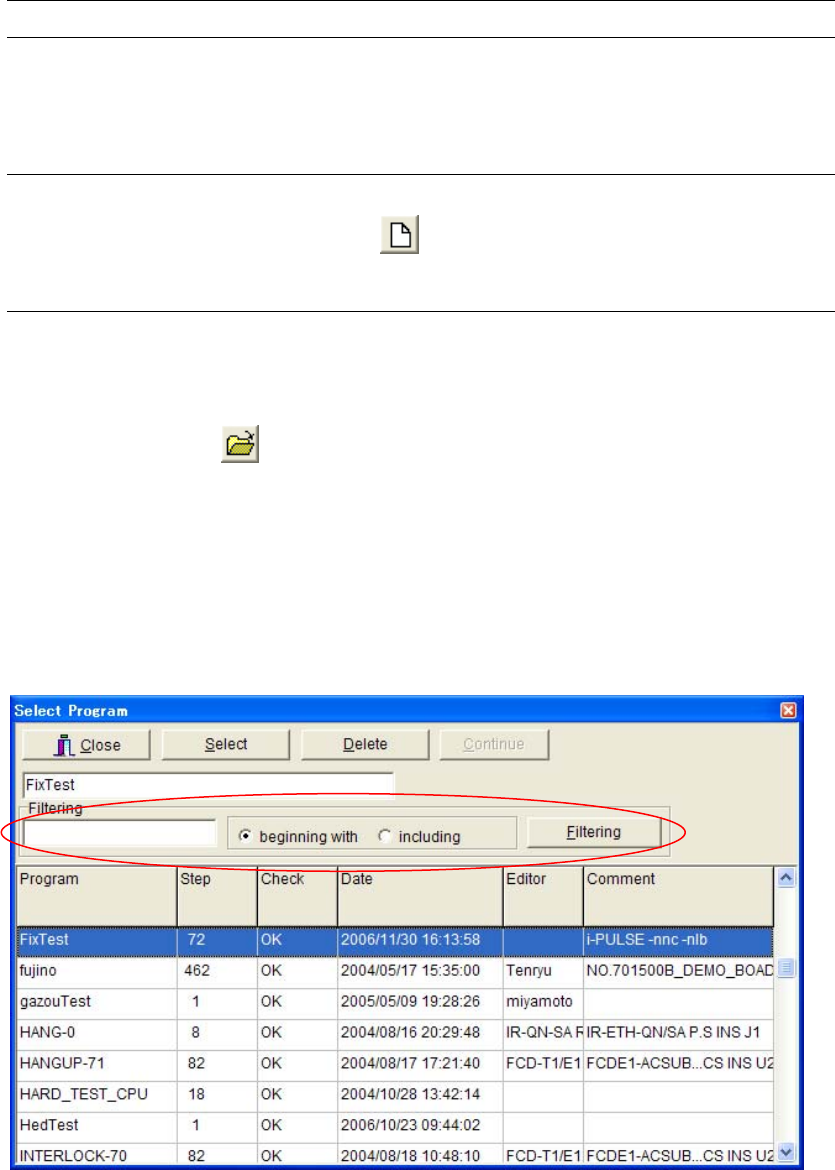
① Click File>Open or button. The Select Program dialog box appears.
② Sort the list of programs as necessary. Click <Ascending Order> or <Descending Order>
button. Then click a title field of a column (Program, Check, Date...) to be sorted. The column
is sorted in the specified order, based on which the entire list is sorted.
③ Click a program to open.
④ Click <Select> button.
Note: Program filtering or direct input of program name can be also done to find your desired program
easier.