M20_Ope_E.pdf - 第66页
Chapter 2 Creating and Editing a Program 2-22 2-5 Program Data 2-5-1 Program Data Window The program data window below shows each data contained in a program. Action: ① Click the View menu at upper part of the window. ② …

Chapter 2 Creating and Editing a Program
2-21
2-4-4-2 Saving an Existing File
Menu: Program>File>Save
To save an existing file, choose the Save menu. “Are you sure to overwrite?” message appears.
Click <Yes> button.
Note: To prevent losing your file accidentally, we recommend you to save your file as often as possible.
2-4-5 Creating a Duplicate File
Menu: Program>File>Open, File>SaveAs
To make a copy of a file, open the source file and save it under a different name using the SaveAs
menu.
Note: If you save the source file under the original name, the system merely overwrites the source file
and a copy won’t be created.
2-4-6 Copying Other File's Data
Menu: Program>Edit>CopyFile
To copy other file’s data onto the currently edited file, use this menu.
Action:
① Click Edit>CopyFile.
② The CopyFile window appears.
③ Click File>Open to open a list of files. Select a source file.
④ Drag the lines you want to copy in the CopyFile window.
⑤ Click Edit>CopyLine.
⑥ Close the CopyFile window.
⑦ In the program editor, click a line before which the copied lines will be pasted. Click
Edit>PasteLine.
Note: The currently edited file cannot be the source file.
2-4-7 Deleting a File
Menu: Program>File>Open
To delete an existing file, choose File>Open and click a file to delete. Then click <Delete> button.
2-4-8 Closing a File
Menu: Program>File>Exit
Used to close a file. Unsaved changes will be aborted.
Action:
① Click File>Exit
② “Save changes?” message appears. To save the changes, click <Yes> button. To abort the
changes, click <No> button.
Note: Closing a file without saving aborts the changes and preserves the original state.

Chapter 2 Creating and Editing a Program
2-22
2-5 Program Data
2-5-1 Program Data Window
The program data window below shows each data contained in a program.
Action:
① Click the View menu at upper part of the window.
② To show the data in the window, click the data check box you want to show
. Close the menu.
③ The selected data tabs appear.
All the necessary data, from “Program” to “Nozzle Data” are
included in one program.
z Program (=Placement & Mark Data)
z Comp Data (=Component Library)
z Feeder Data (=Feeder Library)
z Package Data (=Package Library)
z Pallet Data (=Pallet Data)
z Tray Data (=Tray Library)
z Nozzle Data (= Nozzle Library)
Image Data (= Image Library) is not included in a program.
Pro
g
ram
Nozzle Data
Pallet Data
Feeder Data
PCB Data
Comp Data
Ru
n
Pickup Data
Package Data
Tray Data
Program Check
Program Data Window
Chapter 2 Creating and Editing a Program
2-23
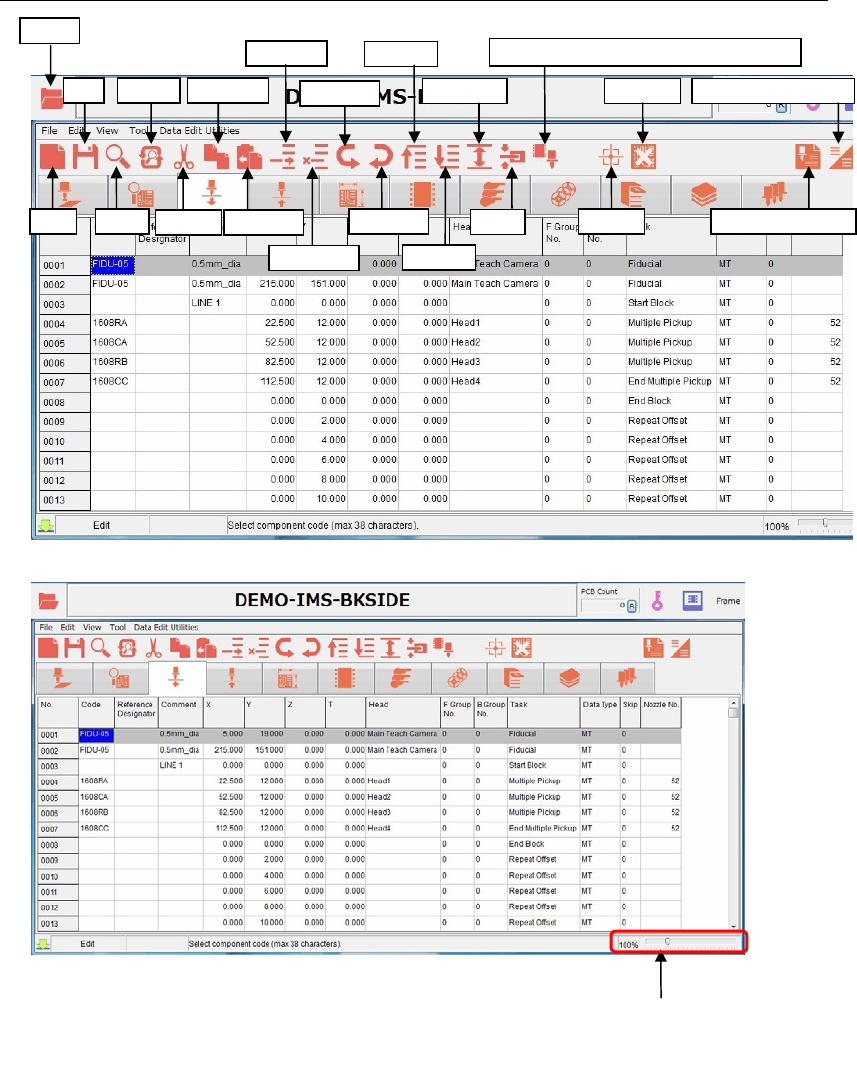
2-5-2 List of program data icons
Replace
Save
Ope
n
New Search
Cut
Copy Line
Paste Line
Insert Line
Delete Line
Bad Mark
Undo Edit
Redo Edit
Area Select
Clamp
Fiducial Data Auto Creatio
n
View (Simple/Detail)
First Line
Last Line
The window size
is zoomable with
the scroll bar.
Programmed Components & Nozzles