M20_Ope_E.pdf - 第74页
Chapter 2 Creating and Editing a Program 2-30 If the exit conveyor is not installed (exit buffe r is not available), the PCB unloading completion check with the exit sensor is not performed. Th erefore, if this time sett…

Chapter 2 Creating and Editing a Program
2-29
Anticipate transfer mode
If [Loading next board after passed arrival sensor] is checked on, the anticipate transfer mode will
be activated and the transfer time will be shortend.
Conveyor
configuration
Transfer time after
PCB passed the
arrival sensor
Conveyor Run Time
after Transfer Time in
Board Data
Delay for
PCB
Simul.
Transfer
Transfer time after
PCB passed the exit
sensor
Main After a
component-mounted
PCB has passed the
arrival sensor, and
then it has been
transferred only for
this period of time,
the PCB stopper will
be turned ON and
the next PCB is
loaded from the
previous process.
Not effective Not
effective
Not effective
Entrance &
Main
(with entrance
buffer)
After a
component-mounted
PCB has passed the
arrival sensor, and
then it has been
transferred only for
this period of time,
the PCB stopper will
be turned ON and
the next PCB is
loaded from the
entrance buffer.
After the next PCB has
been clamped, the
unloading operation is
performed only for this
period of time to
securely unload the
component-mounted
PCB that has been
transferred.
Not
effective
Not effective
Main & Exit
(with exit
buffer)
After a
component-mounted
PCB has passed the
arrival sensor, and
then it has been
transferred only for
this period of time,
the PCB stopper will
be turned ON and
the next PCB is
loaded from the
previous process.
Not effective Not
effective
After a
component-mounted
PCB has passed the
exit sensor, and then
it has been
transferred only for
this period of time,
the
component-mounted
PCB on the main
conveyor is
unloaded to the exit
buffer.
Entrance &
Main & Exit
(with entrance
buffer & exit
buffer)
After a
component-mounted
PCB has passed the
arrival sensor, and
then it has been
transferred only for
this period of time,
the PCB stopper will
be turned ON and
the next PCB is
loaded from the
entrance buffer.
Not effective Not
effective
After a
component-mounted
PCB has passed the
exit sensor, and then
it has been
transferred only for
this period of time,
the
component-mounted
PCB on the main
conveyor is
unloaded to the exit
buffer.
As the “Transfer time after PCB passed the arrival sensor” is changed, the transfer time can be
shortened. However, be sure to enter a numeric value exceeding 100 ms. If you enter a value that is
100 ms or less, the value you have entered is returned to the default value. If this time is too short,
the stopper may turn ON immediately after the arrival sensor has been turned OFF, causing the
PCB to be pushed up. In addition, please note that “Transfer time after PCB passed the arrival
sensor” is the time originating from when the sensor is turned OFF in the case of boards with
holes.
Caution
Chapter 2 Creating and Editing a Program
2-30
If the exit conveyor is not installed (exit buffer is not available), the PCB unloading completion
check with the exit sensor is not performed. Therefore, if this time setting is improper, a
component-mounted PCB may not be unloaded completely. So, take great care to make each time
setting.
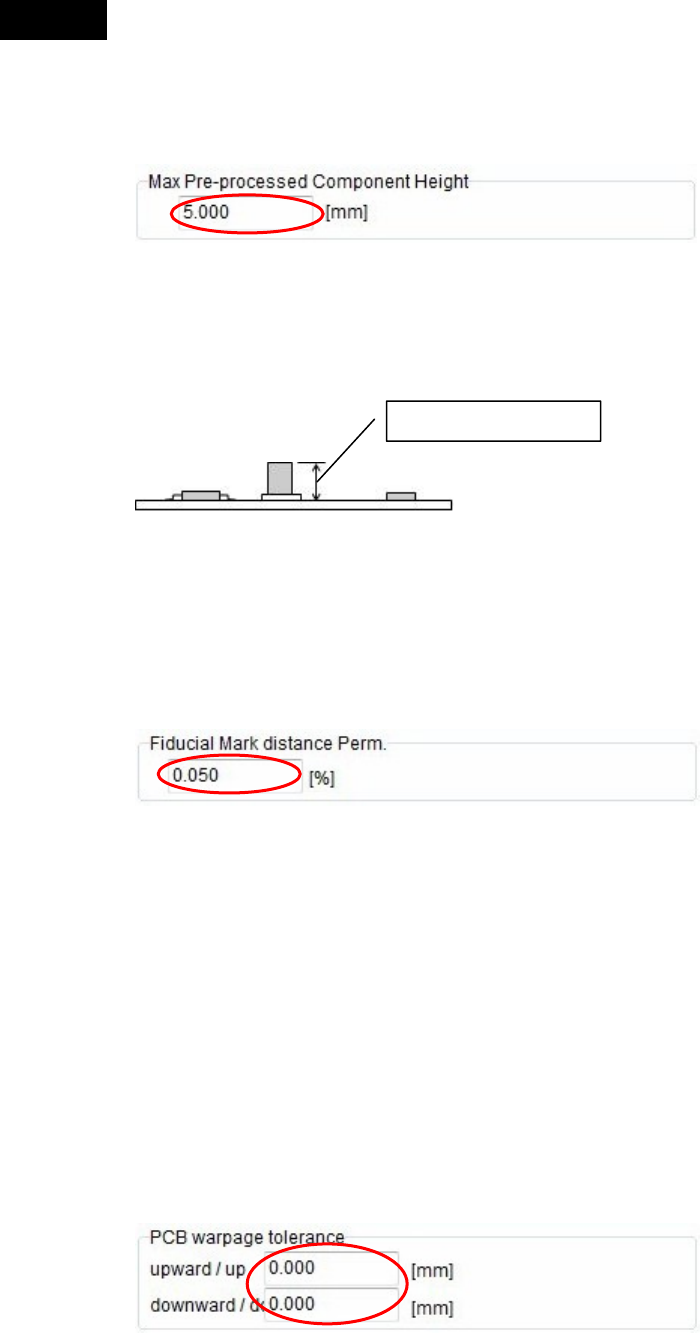
Max Pre-processed Component Height (Head travel height)
Enter the maximum component height already placed in the previous process.
First, the head travels over the PCB based on the setting, and then the head travel height is
adjusted based on the placed component height levels.
If there is no pre-processed component on the board, set “0.00”.
Fiducial Mark Distance Perm.
When the fiducial mark on the PCB is detected during production, the distance between the marks
is judged based on the distance between the marks of the fiducial mark coordinates set in the
program.
According to the results of this judgement, extended or contracted PCB or warped PCB can be
rejected without production.
Enter a permissible value (±%) in response to the reference distance value between the marks.
If the distance between the marks that have been detected exceeds this permissible value, relevant
error is given.
PCB warpage tolerance
Enter upward and downward PCB warpage tolerance values.
Tolerance values you can enter are 0 to 4.0 mm for the upward warpage tolerance and 0 to 1.0 mm
for the downward tolerance.
The force control is used in a range of “upward tolerance value + downward tolerance value” to
place components.
In particular, as you enter the downward warpage tolerance value, the placement height is made
low to take corrective actions against the PCB downward warpage.
Note: Basically, it is recommended to correct the PCB downward warpage using the push-up pin.
Caution
Max component height
Chapter 2 Creating and Editing a Program
2-31
2-7 Creating Program and Pickup Data
2-7-1 Creating a Program
Menu: Program
Create component placement data and fiducial/bad mark data in a program.
Program> View(Simple/Detail)
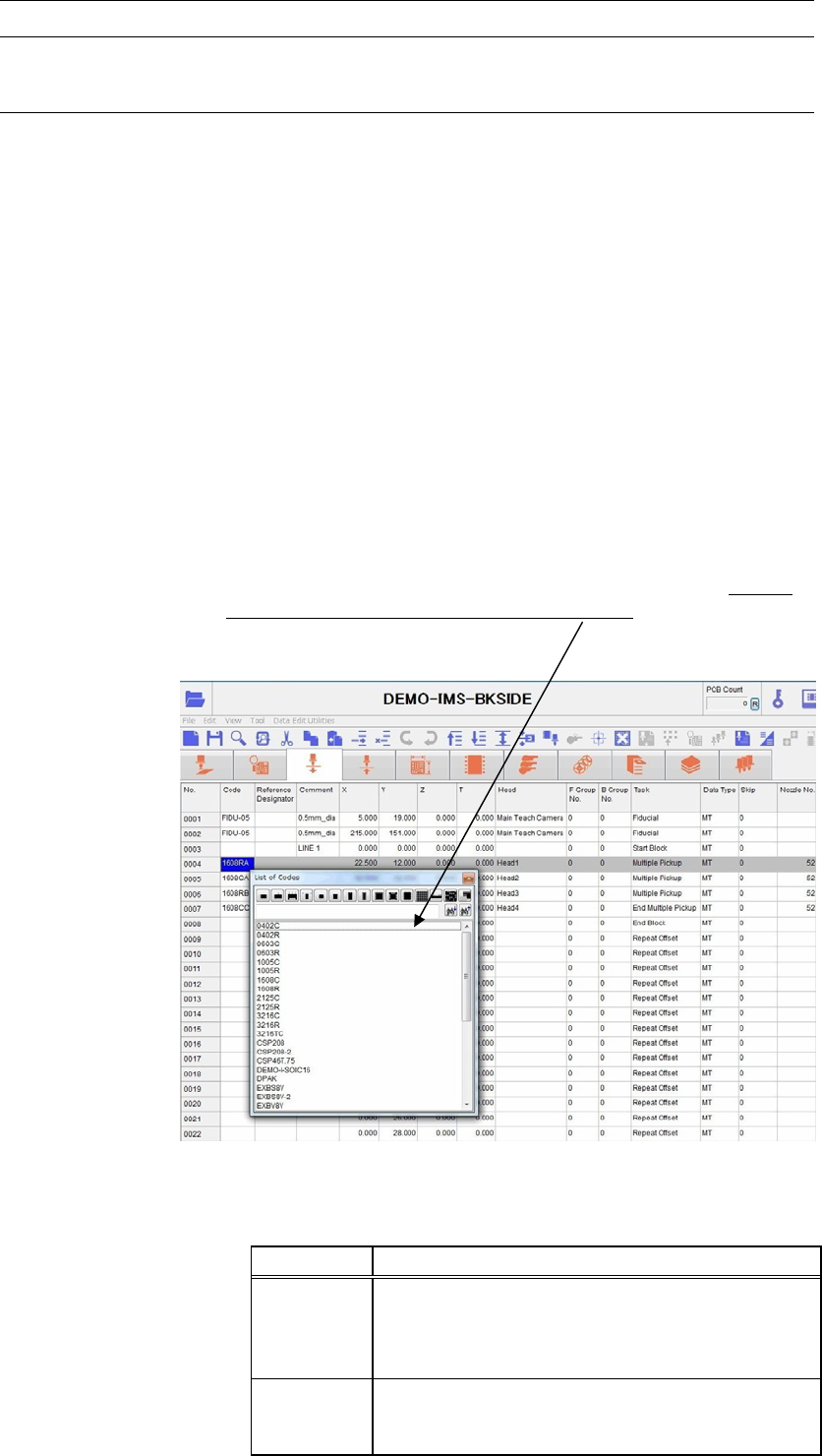
You can either show or hide the columns of [Reference Designator], [Comment], and [Type] by
selecting View(Simple/Detail).
Window:
No.: The order the program is executed.
* Up to 10000 steps per program
Code: Identification code for components and marks. It allows the operator to
tell what a step is for, a placement step or fiducial/bad mark step. Code
serves to link Placement & Mark Data, Pickup Data, and libraries with
each other, therefore a code is required for each step. To enter a code to
[Code] field, right-click the mouse with [Code] field selected and select
a code from the provided list, or type in a code. By selecting
component-type icon, you can extract the selected type of component
codes only in the list. There are two kinds of codes available,
component code and mark code. Right-click a desired cell to select a
code through the filtering by the component type or enter a code
directly through the keyboard.
* Up to 38 characters can be entered.
Note: To display the list of fiducial codes by right-clicking the mouse, enter “Fiducial” to [Task] field in
advance. To display the list of bad mark codes, enter “Bad Mark Positive Logic” or “Bad Mark
Negative Logic” to [Task] field in advance.
Code Links “Placement & Mark Data” To...
Component
code
* Pickup data—Component pickup coordinates and
others.
* Component library—Component characteristics
and size data.
Mark code
* Fiducial data
* Bad mark data
Used for mark sensing with the main teach camera.