M20_Ope_E.pdf - 第77页
Chapter 2 Creating and Editing a Program 2-33 ● B Mark Positive Logic: Bad mark process in positive logic. ● B Mar k Negative Logic: Bad mark process in negative logic. ● Fiducial: Fiducial process. This assign ment requ…
Chapter 2 Creating and Editing a Program
2-32
Reference Designator: Alphanumerals printed on a board used for identifying placed
components.
* Up to 14 characters can be entered.
Comment: Any annotation for the component. Used for user identification.
* Up to 40 characters can be entered.
X, Y, Z, T: Placement/mark coordinates. To perform teach entry for the current
step, click the right mouse button or click Tool>Teach.
* Increment—X/Y/Z : 0.01mm, T : 0.01deg.
T: Counter-clockwise in the downward-looking perspective indicates
positive T.
-
+
Plus sign (+) is not needed for positive values. Minus sign (-) can be
entered from the keyboard.
Head: Click the right mouse button and select a head from the given list. The
head assembly is configured as follows.
F Group No.: Specify the fiducial number.
0 : Global fiducial(default):
1-249 : Local fiducial
At a fiducial step, enter a number (0-249) you want to assign to the
fiducial step. At a placement step, enter the fiducial number assigned
to the fiducial step you want to use for the placement.
B Group No.: Click the right mouse button and select bad mark number.
0 : Standard bad mark
1-249 : Group bad mark
255 : Master bad mark
254 : Master bad mark (excluding group bad mark processes)
At a bad mark step, enter a number you want to assign to the bad mark
step. At a placement step, enter the bad mark number assigned to the
bad mark step you want to use for the placement.
Task: Click the right mouse button and select a task for the step. (See later in
this chapter for detailed description.)
● Start Block Placement: Flags the start of a program block in a repeat program. Repeat
programs are typically used for multi-up panels. Actual program
begins at the next step.
● End Block Placement: Flags the end of a program block in a repeat program. Repeat
programs are typically used for multi-up panels. Actual program ends
at the previous step.
● Repeat Offset: Indicates the program repetition occurs at this step. Consists only of
offset values. Repeat program is typically used for multi-up panels.
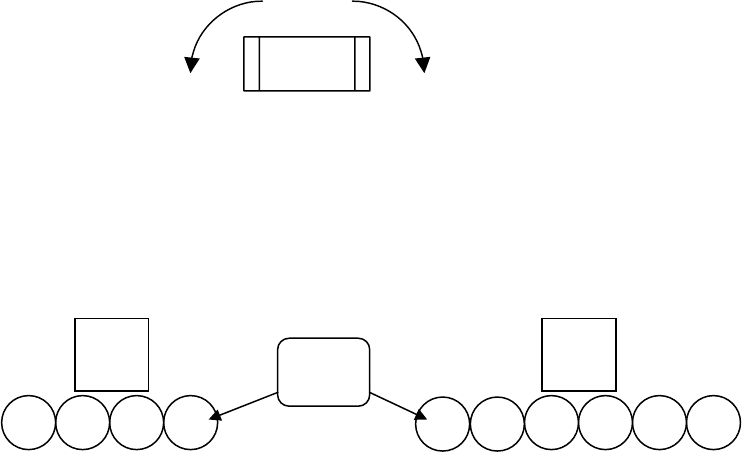
1
2 3 4
Main
teach
camera
4 heads s
p
ecs
(
To
p
view
)
1
2
3 4
5
6
6 heads s
p
ecs
(
To
p
view
)
Head
Nos.
Main
teach
camera
Chapter 2 Creating and Editing a Program
2-33
● B Mark Positive Logic: Bad mark process in positive logic.
● B Mark Negative Logic: Bad mark process in negative logic.
● Fiducial: Fiducial process. This assignment requires an image code for the
fiducial also.
● Skip: Designates the step to be skipped.
● Multiple Pickup: Multiple heads continuously pick up components from a pickup point
or points and place them. When a set of certain requirements are met,
heads simultaneously pick up components.
● End Multiple Pickup: The last of the multiple pickup steps.
● Single Pickup: A head picks up a component from a pickup point and place it.
Note: When [Task] setting is “Fiducial”, the list of fiducial codes is displayed by right-clicking the mouse.
When [Task] setting is “Bad Mark Positive Logic” or “Bad Mark Negative Logic”, the list of bad
mark codes is displayed. When [Task] setting is other item or blank, the list of component codes is
displayed.
Data Type: “MT” is the only option (fixed).
Skip: Skip assignment you make on [Skip Editor] is shown. See the section
on Skip Editor.
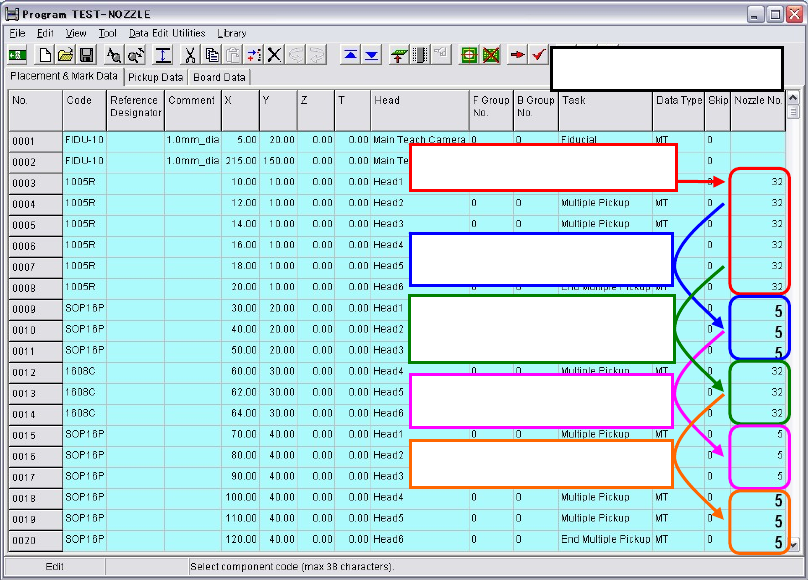
Nozzle No.: Displays linked nozzle No. entered in component data. Nozzles to be
exchanged are displayed in larger and bold letters. To change nozzle
Nos., click a Code cell to open and edit the component data.
The first pickup of each head:
Small letters
Need nozzle exchan
g
es:
Larger and bold letters.
No need to nozzle exchan
g
e for
similar sized components:
Small letters
No need to nozzle exchan
g
e:
Small letters
Need nozzle exchan
g
es:
Larger and bold letters.
Nozzle No. Display
Chapter 2 Creating and Editing a Program
2-34
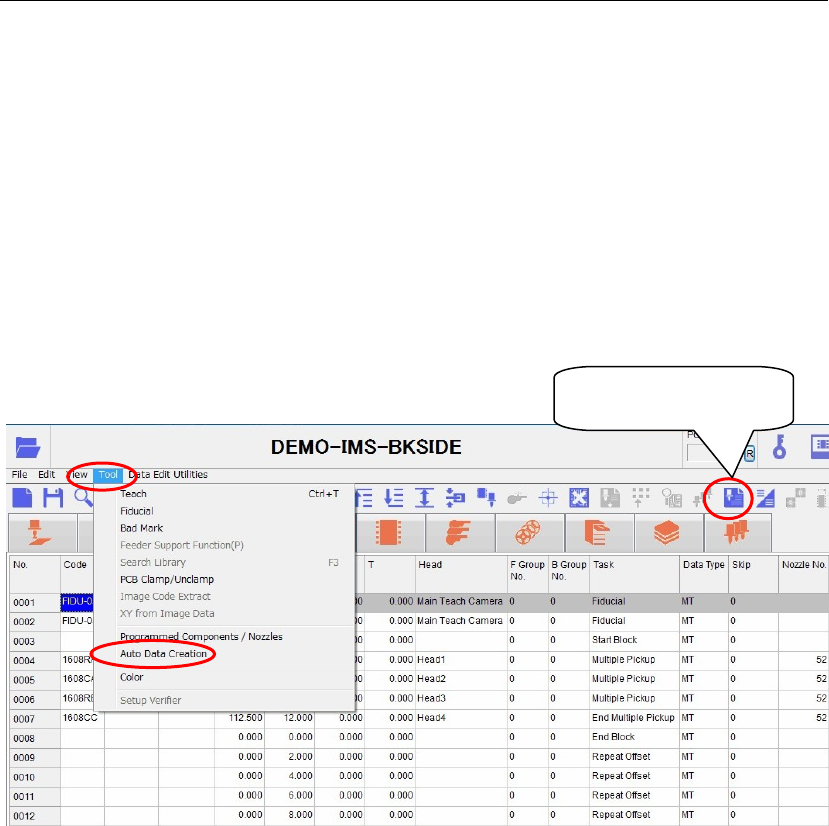
2-7-1-1 Auto Data Creation
Click [Tool]>[Auto Data Creation] or the [Auto Data Creation] icon to automatically create each
data.
The data to be automatically created is the component data, feeder data, package data, pallet data,
tray data, and nozzle data.
The data with the same code name is automatically copied from the user library and master
library.
Note: When the data with the same code name is present in both the user library and master library, the
user library has a high priority and the data is copied from this library.
Note: If no data with relevant code name is present in both the user library and master library, no data is
copied.
Note: When the data with the same code name is already present in the data, the data is not overwritten.
[Auto Data Creation]
icon