M20_Ope_E.pdf - 第78页
Chapter 2 Creating and Editing a Program 2-34 2-7-1-1 Auto Data Creation Click [Tool]>[Auto Data Creation] or the [Auto Data Creation] icon to automatically create each data. The data to be automatically created is th…
Chapter 2 Creating and Editing a Program
2-33
● B Mark Positive Logic: Bad mark process in positive logic.
● B Mark Negative Logic: Bad mark process in negative logic.
● Fiducial: Fiducial process. This assignment requires an image code for the
fiducial also.
● Skip: Designates the step to be skipped.
● Multiple Pickup: Multiple heads continuously pick up components from a pickup point
or points and place them. When a set of certain requirements are met,
heads simultaneously pick up components.
● End Multiple Pickup: The last of the multiple pickup steps.
● Single Pickup: A head picks up a component from a pickup point and place it.
Note: When [Task] setting is “Fiducial”, the list of fiducial codes is displayed by right-clicking the mouse.
When [Task] setting is “Bad Mark Positive Logic” or “Bad Mark Negative Logic”, the list of bad
mark codes is displayed. When [Task] setting is other item or blank, the list of component codes is
displayed.
Data Type: “MT” is the only option (fixed).
Skip: Skip assignment you make on [Skip Editor] is shown. See the section
on Skip Editor.
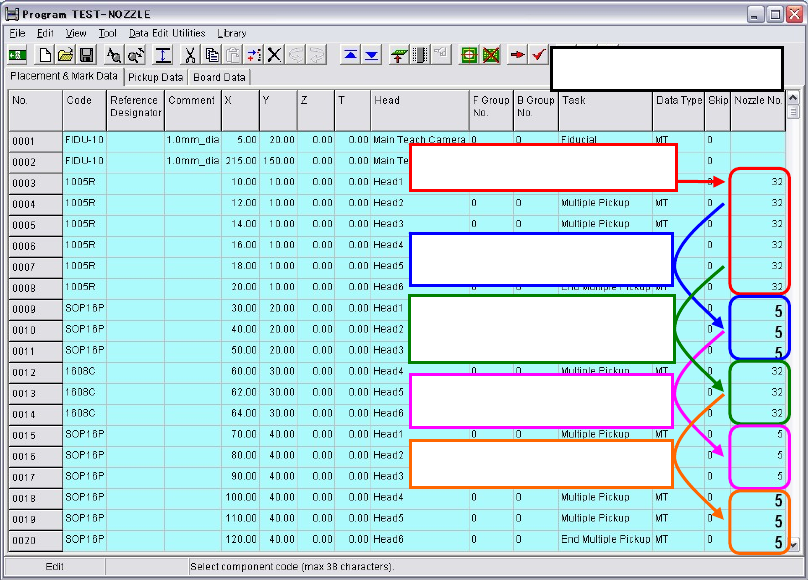
Nozzle No.: Displays linked nozzle No. entered in component data. Nozzles to be
exchanged are displayed in larger and bold letters. To change nozzle
Nos., click a Code cell to open and edit the component data.
The first pickup of each head:
Small letters
Need nozzle exchan
g
es:
Larger and bold letters.
No need to nozzle exchan
g
e for
similar sized components:
Small letters
No need to nozzle exchan
g
e:
Small letters
Need nozzle exchan
g
es:
Larger and bold letters.
Nozzle No. Display
Chapter 2 Creating and Editing a Program
2-34
2-7-1-1 Auto Data Creation
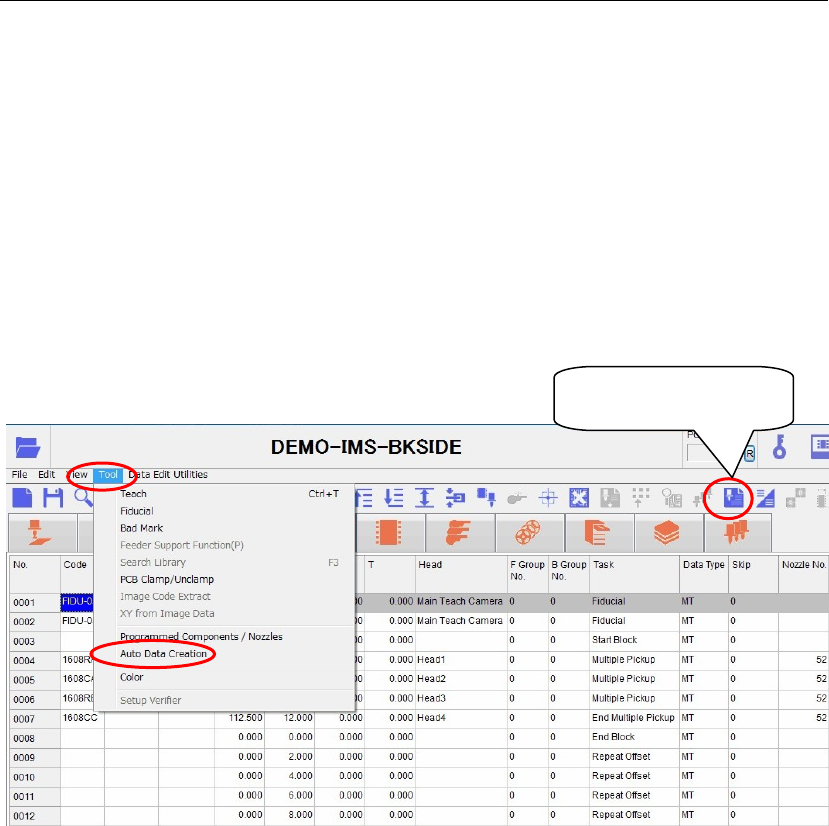
Click [Tool]>[Auto Data Creation] or the [Auto Data Creation] icon to automatically create each
data.
The data to be automatically created is the component data, feeder data, package data, pallet data,
tray data, and nozzle data.
The data with the same code name is automatically copied from the user library and master
library.
Note: When the data with the same code name is present in both the user library and master library, the
user library has a high priority and the data is copied from this library.
Note: If no data with relevant code name is present in both the user library and master library, no data is
copied.
Note: When the data with the same code name is already present in the data, the data is not overwritten.
[Auto Data Creation]
icon
Chapter 2 Creating and Editing a Program
2-35
2-7-1-2 Undo & Redo
Menu: Program / Libraries
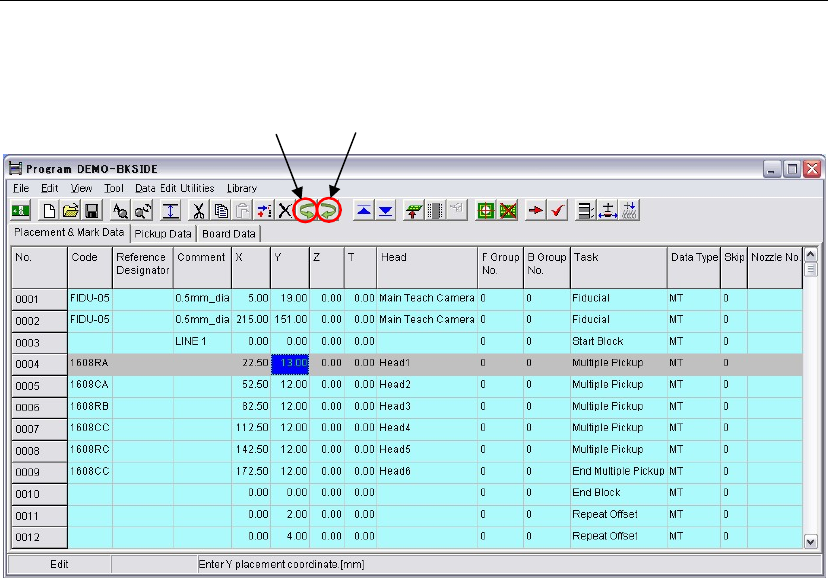
There are the <Undo (reverts the latest inputs)> button and the <Redo (reverses undo actions)>
button in a program edit window and a library edit window.
Note: Clicking the <Undo> button or the <Redo> button once resets all the actions after the window is
open.
Note: The redo and the undo functions are not available for the menus; Data Edit Utilities and Pickup
Priority. When using these menus, the undo and the redo are not available and the history of
actions are cleared.
Note: Pressing the [Esc] key either reverts the latest inputs as same as clicking the <Undo> button in a
program edit window or a library edit window as far as the cursor remains in the last input cell.
Undo
Redo