M20_Ope_E.pdf - 第92页
Chapter 2 Creating and Editing a Program 2-48 Programm ing Fiducial Process For a step to execute fiducial process, enter “Fiduc ial” to its Task field. Then follow one of the two programmings stated below: z Programm …
Chapter 2 Creating and Editing a Program
2-47
2-7-1-6 Fiducial Function
Menu: Program>Placement&Mark Data>Task>Fiducial
Program>Placement&Mark Data>Task>Fiducial
By using recognition results of the fiducials provided on a PCB, the fiducial function corrects the
PCB positioning error resulting from errors in machining the PCB contour and locate pin holes,
PCB claming mechanism fluctuations and local distortion or warps on the PCB.
There are one-point, two-point, or four-point fiducial functions. Two or four fiducials are used as a
set, but it is okay if each mark is different in shape.
Type Target correction Remark
One-point fiducial
X, Y
Two-point fiducial
X, Y, θ
When “Without stretch/shrink correction” is
selected
X, Y, θ, Stretch/shrink
correction
F group “0” only / All fiducial marks (select)
Four-point fiducial
X, Y, θ, Deform correction
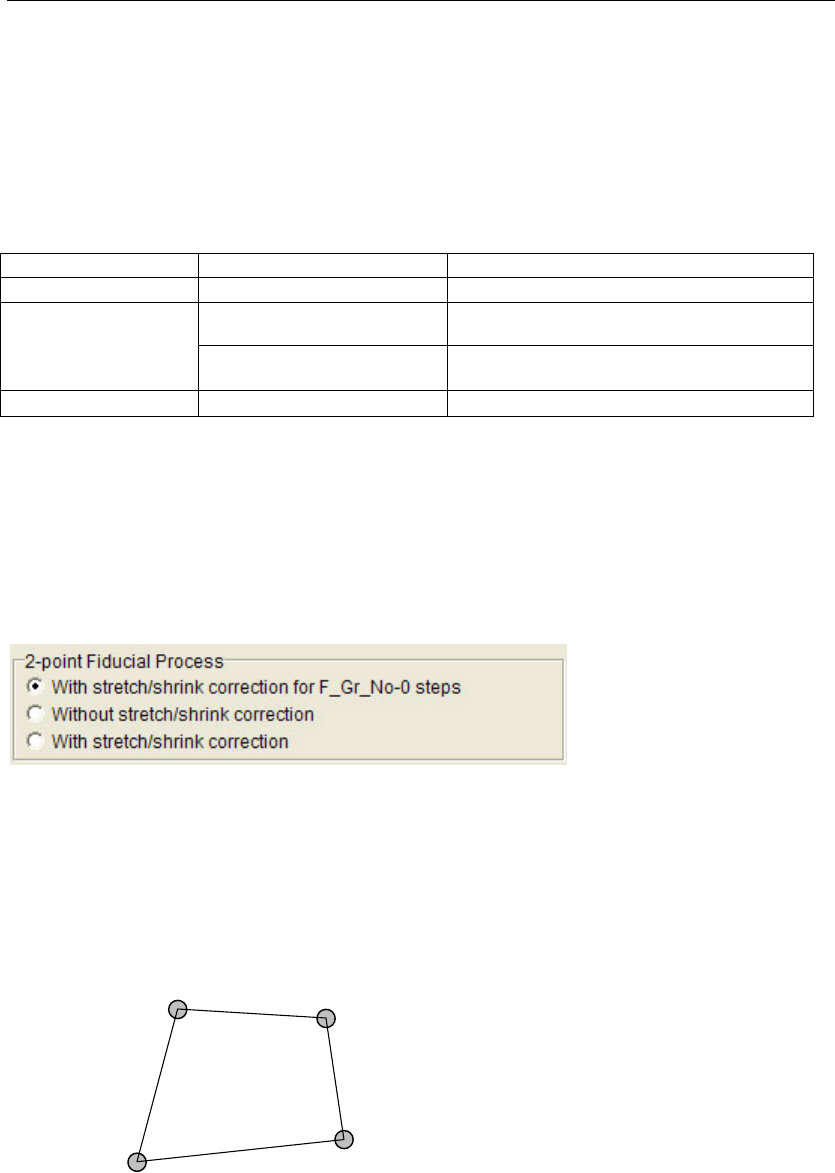
Note: In the case of two-point fiducial, it is possible to select whether stretch/shrink correction is to be
performed.
To use stretch/shrink correction, it is necessary to select whether correction is to be performed for
the global fiducial (F group “0”) only or all the fiducial marks including local fiducial marks.
Menu: Program>Board Data
Note: Stretch/shrink correction will be performed when a shared fiducial mark(F Group No. 255) is
specified.
Note: In case of the 4-point fiducial, the four marks must be positioned so that they make a square shape.
The lines AB and CD (or BC and DA) need not be parallel to each other. Each internal angle must
be smaller than 180 degrees.
A
B
C
D
Chapter 2 Creating and Editing a Program
2-48
Programming Fiducial Process
For a step to execute fiducial process, enter “Fiducial” to its Task field. Then follow one of the two
programmings stated below:
z Programming 1
For a step to execute global fiducial process, enter “0” (default) to its F Group No. field. For a step
for local fiducial process, enter “1” (fixed). The placement step immediately after a local fiducial
step applies the result in the previous step. Other steps with default “Fiducial=0” apply the result
of the global fiducial process. When there are more than one local fiducial steps with “Fiducial=1”,
each of them represents different local fiducial mark.
z Programming 2
For a step to execute global fiducial process, enter “0” (default) to its F Group No. field. For a step
for local fiducial process, enter “1-249”. The variation “1-249” means that up to 249 fiducial
numbers are available for identifying each local fiducial step. The placement step immediately
after a local fiducial step applies the result in the previous step. Other steps with default “F Group
No.=0” apply the result of the global fiducial process.
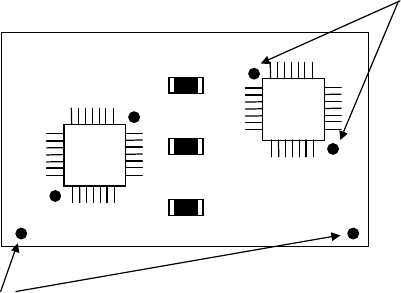
Example5:
Local fiducial
Global fiducial
As shown in the upper figure, suppose to orientate three chips with global fiducial, two ICs with
local fiducial. In this example, for global fiducial, two fiducials are provided, and for local fiducial,
two fiducials for each IC. Programming in use of this example will be as follows:
z Example for Programming 1 (local fiducial number is limited to 0 and 1)
F Group No. Task Description
0 Fiducial Global fiducial process (coordinates assignment)
0 Fiducial Global fiducial process (coordinates assignment)
0 Multiple Pickup Place chip (1) with global fiducial compensation
0 End Multiple Pickup Place chip (2) with global fiducial compensation
1 Fiducial Local fiducial process (coordinates assignment) for IC (1)
1 Fiducial Local fiducial process (coordinates assignment) for IC (1)
1 Single Pickup Place IC (1) with local fiducial compensation
1 Fiducial Local fiducial process (coordinates assignment) for IC (2)
1 Fiducial Local fiducial process (coordinates assignment) for IC (2)
1 Single Pickup Place IC (2) with local fiducial compensation
0 Multiple Pickup Place chip (3) with global fiducial compensation
As shown in the above program, after local fiducial compensation is used for a step, global fiducial
compensation can take effect merely with “Fiducial=0” (default) setting for a later step.
Re-assignment of the global fiducial coordinates is unnecessary.
Chapter 2 Creating and Editing a Program
2-49
z Example for Programming 2 (local fiducial number is selectable from 0-249)
F Group No. Task Description
0 Fiducial Global fiducial process (coordinates assignment)
0 Fiducial Global fiducial process (coordinates assignment)
0 Multiple Pickup Place chip (1) with global fiducial compensation
0 End Multiple Pickup Place chip (2) with global fiducial compensation
1 Fiducial Local fiducial process (coordinates assignment) for IC (1)
1 Fiducial Local fiducial process (coordinates assignment) for IC (1)
1 Single Pickup Place IC (1) with local fiducial compensation
3 Fiducial Local fiducial process (coordinates assignment) for IC (2)
3 Fiducial Local fiducial process (coordinates assignment) for IC (2)
3 Single Pickup Place IC (2) with local fiducial compensation
0 Multiple Pickup Place chip (3) with global fiducial compensation
Note: The programming 2 is recommended rather than the programming 1. Use the programming 1
when there are 250 or more local fiducials in a program.
Note: In producing multi-up panels, fiducial process is available for each board.
Fiducial Correction
z Local Fiducial Correction
A result of global fiducial process can correct coordinates of local fiducial marks. To enable this
function, check the “Correct local fiducial marks” box.
Menu: Program>Board Data
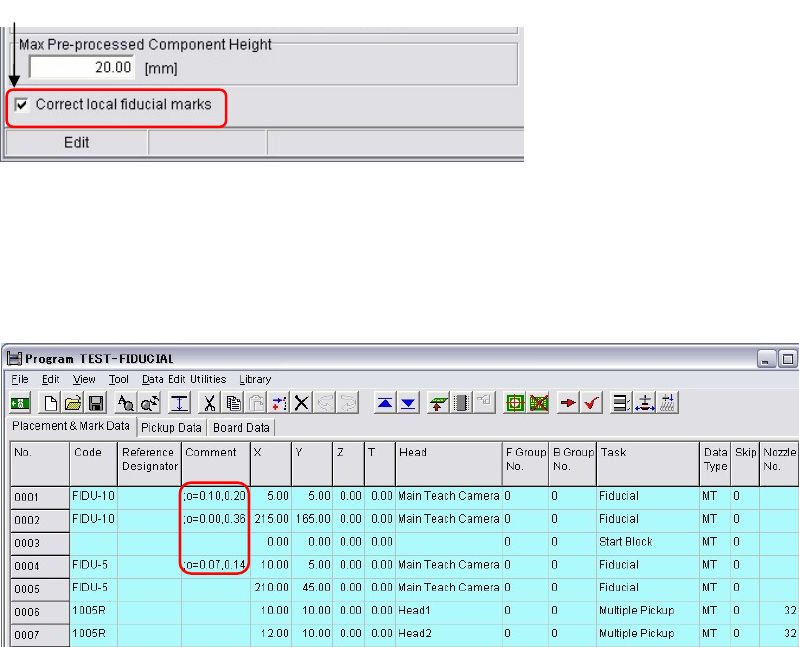
z Fiducial Correction by entering XY Correction Coordinates in the Comment Column
Entering XY correction coordinates in the Comment in fiducial steps correct fiducial points.
Use this function when an out of search area error occurs.
Menu: Program>Placement & Mark Data
The characters code “;o=” (semicolon, small letter o, and equal) in the comment column becomes
the command of fiducial correction. After entering the command sign (;o=”), enter in order of an X
correction coordinate, comma (,), and a Y correction coordinate without spaces.
A comment can also be entered in the Comment column. Insert a space after a Y correction
coordinate and enter a comment.
To enable the correction of local fiducial marks
,
check the box.