M20_Ope_E.pdf - 第99页
Chapter 2 Creating and Editing a Program 2-55 Shortage Alarm When the remaining componen t count drops to the level set here, the shortage alarm signal will be output. APC The amount of deviation that is measured by visi…

Chapter 2 Creating and Editing a Program
2-54
2-7-2 Pickup Data
Menu: PickupData
In simple display mode, items “X”, “Y”, “Z”, “θ” and “Shortage Alarm” can be hidden.
Item:
Component code Enter the component code. (Linked to the placement & mark data and
component libraries)
Specify the pickup-point information for this component. If there are
component codes that have been registered, the desired component
code can be selected from the combo box that appears when a
right-click is made.
★Up to 38 characters can be entered.
X, Y, Z Offset If necessary, set the X, Y and Z offset values for the pickup coordinates
that are registered prior to shipment of the mounter. When teaching of
a pickup-point is performed and its coordinates are determined, the
offset values will be entered for these items automatically. (To do this,
locate the cursor on a pickup-point under [ST No.], and select Tool >
Teach or right-click on one of the offset cells.) To use this function,
entries in [Feed Style] and [ST No.] must be made in advance.
★Unit: 0.01mm
θ Offset Set the offset value for the θ pickup coordinates that are registered
prior to shipment of the mounter.
★Unit: 0.01°
Feed Style Right-click in a [Feed Style] cell. A pop-up menu will appear, so select
the feeder location (feeder style) from which components are to be
picked up. The feeder location can be selected from ST-F (front station),
ST-R (rear station), and CTF (changeable tray feeder).
ST No. If ST-F/R is selected for “Feed Style”, select the desired pickup-point
No. (ST No.) Feeder station Nos. are shown on the mounter: they are
numbered from No.1 to No. 36 from right to left when viewed from the
front side, and No.1 to No. 36 from left to right when viewed from the
rear side. CTF (changeable tray feeder) is selected, specify any number
(1 to 199) for distinguishing purposes, however, the same ST No.
cannot be used twice in the same program.
In the case of PS-MS3, nine different feeder names (PS-MS3-A to –I) are
available, however, the ST No. for which MS3 is set will be used for
each of those feeders.
9 kinds of feeder names from PS-MS3-A to PS-MS3-I can be set for the
PS-MS3 multi-stick feeder. However, different feeder names share the
same station number (where electrical contact between the feeder bank
and PS-MS3 is made).
Accordingly, 16 kinds of feeder names from MSF-01 to MSF-16 can be
set for the MSF-1 multi-stick feeder. However, different feeder names
share the same station number (where electrical contact between the
feeder bank and MSF-1 is made).
Feeder / Pallet If ST-F/R is selected for “Feed Style”, select the desired feeder name
from the combo box that appears when a right-click is made. (Linked
with feeder names registered in the feeder library.) If a feed style other
than ST-F/R is selected, select the desired pallet name from the combo
box that appears when a right-click is made. (Linked with pallet names
registered in the pallet library.) If you want to use a new pallet name,
enter it manually to create it in the pallet library. For multi-stick feeder
names, refer to “Feeder Library” in “4. Libraries”.
Packaging / Tray If ST-F/R is selected for “Feed Style”, select the desired packaging
name from the combo box that appears when a right-click is made.
(Linked with packaging names registered in the packaging library.)
If a feed style other than ST-F/R is selected, select the desired tray
name from the combo box that appears when a right-click is made.
(Linked with tray names registered in the tray library.)
If you want to use a new packaging/tray name, enter it manually to
create it in the packaging/tray library.
Availability Select “Available” or “Not Available”.
Chapter 2 Creating and Editing a Program
2-55
Shortage Alarm When the remaining component count drops to the level set here, the
shortage alarm signal will be output.
APC The amount of deviation that is measured by vision process is applied
to the Pickup-point correction. Right-click in a [APC] cell to select
either “Enabled” or “Disabled”. The value of 7. Auto Pickup-point
Correction Interval and 8. Auto Pickup-point Correction Tolerance in
User Parameter>Parameters are used.
Optimization Select “Enabled” if the feeder set position (ST No.) can be changed by
optimization. If not, select “Disabled”. (Refer to 3. Optimization.)
Reject / Reuse Specify how the component that has caused an error is to be processed.
Select “Standard (Reject)”, “Specified Location” or “Reject Conveyor”
from the combo box that appears when a right-click is made.
Standard (Reject):
The component will be rejected into the front-side
reject tray if ST-F is selected in [Feed Style], or into the rear-side reject
tray if ST-R is selected. The component will be returned to the tray
from which it was picked up if a feed style other than ST-F and ST-R
(i.e. if any of MX-RT1, MX-ST2, MX-20, MXR(L) and MXR(R) is
selected).
Specified Location
: The component will be rejected into the location
(coordinates) specified in [Reject Location]. The reject location will be
linked with the location specified in the tab page displayed by selecting
System > User Parameter > Reject Location.
Reject Conveyor:
The component will be rejected onto the reject
conveyor attached to the station specified in [Reject Location]. The
reject location will be linked with the location specified in the tab page
displayed by selecting System > User Parameter > Reject Conveyor
Offset.
Note: The return-to-tray of the components picked up from CTF (changeable tray feeder) is performed
after component placement, if “Standard (Reject)” is selected, and after component pickup if
“Specified Location” or “Reject Conveyor” is selected.
Reject Location If “Specified Location” is selected in [Reject / Reuse], set the
component reject location No. (3 to 10) registered to the user
parameters.
If “Reject Conveyor” is selected in [Reject / Reuse], set the component
reject conveyor offset No. (1 to 10) registered to the user parameters.
Chapter 2 Creating and Editing a Program
2-56
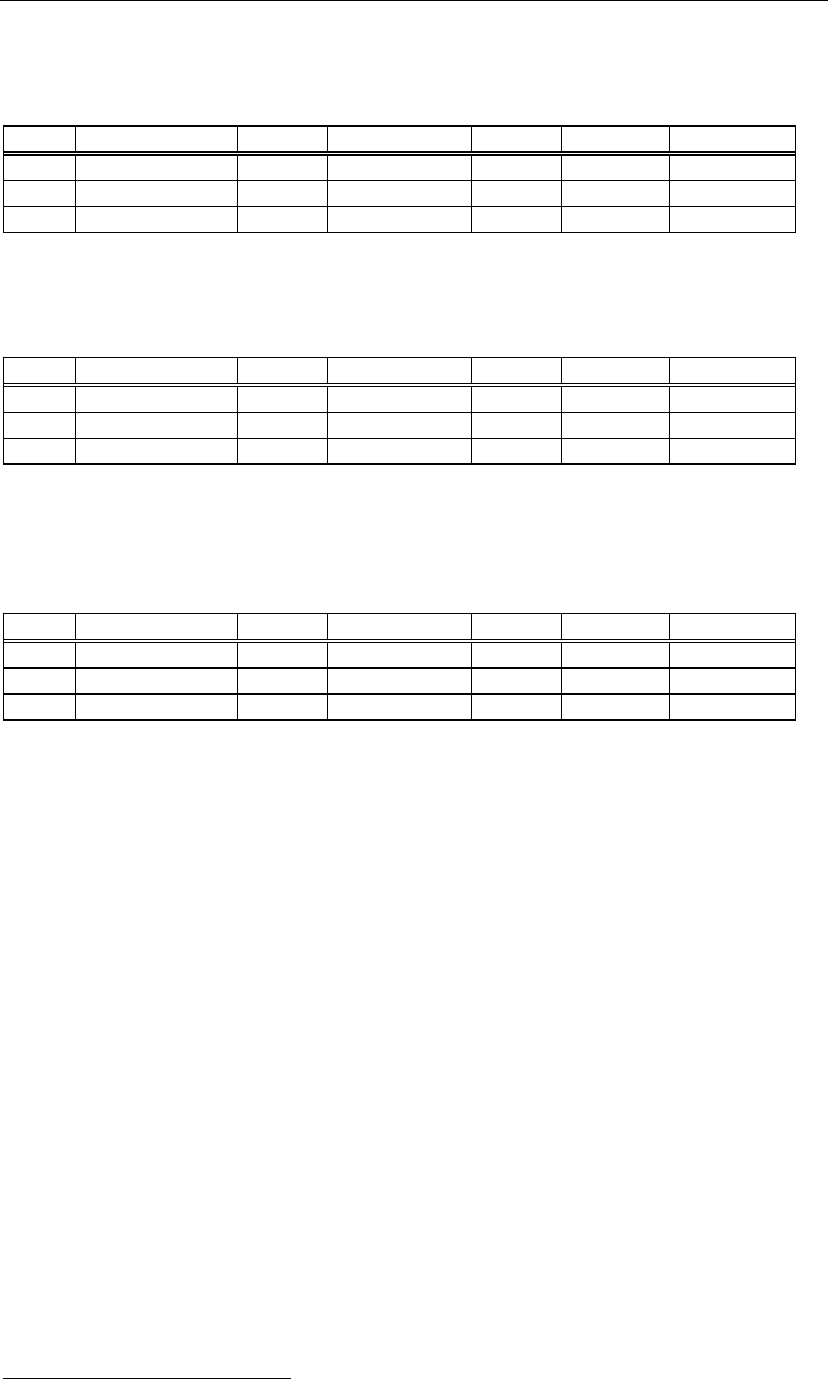
2-7-2-1 Automatic Feeder Link
1
When several pickup data share the same component code, same feeder, and same packaging,
they can be linked automatically. The link sequence is automatically optimized for minimizing the
head travel and for enabling simultaneous pickup.
Example:
No. Component Code -- Feed Style ST No.
Feeder Packaging
005 1608CHIP -- ST-F 10 PS-84 Kyokyu1
007 1608CHIP -- ST-F 16 PS-84 Kyokyu1
025 1608CHIP -- ST-R 23 PS-84 Kyokyu1
When pickup data of the PS-MS3 multi-stick feeder are entered as follows, they can be linked. In
use of PS-MS3, different feeder names (PS-MS3-A, -B, ...-I for each attachment position) share the
same station number (where electrical contact between the feeder bank and PS-MS3 is made).
Example:
No. Component Code -- Feed Style ST No.
Feeder Packaging
005 SOP-16 -- ST-F 16 PS-MS3-A Kyokyu2
006 SOP-16 -- ST-F 16 PS-MS3-C Kyokyu2
007 SOP-16 -- ST-F 16 PS-MS3-E Kyokyu2
Accordingly, when pickup data of the MSF-1 multi-stick feeder are entered as follows, they can be
linked. In use of MSF-1, different feeder names (MSF-01, -02, ...-16 for each attachment position)
share the same station number (where electrical contact between the feeder bank and MSF-1 is
made).
Example:
No. Component Code -- Feed Style ST No.
Feeder Packaging
005 SOP-16 -- ST-F 16 MSF-02 Kyokyu2
006 SOP-16 -- ST-F 16 MSF-04 Kyokyu2
007 SOP-16 -- ST-F 16 MSF-06 Kyokyu2
For information about link of trays, see Chapter 5.
1
Link: When a currently used feeder is emptied, link allows the head to move automatically to a spare feeder for
components. This can eliminate machine down time due to changeover.