00193687-04.pdf - 第43页
In stal latio ns- u nd K onf igura tio nsa nleit ung SIPL ACE Explo rer 3 I ns tall ation des SIP LACE Expl orer Au sgab e 12 /200 5 D E 3. 1 Erst ins tall ation von SI PLA CE Ex plor er 2 .0 SP 1 43 3. 1. 4 I nst all at…
3 Installation des SIPLACE Explorer Installations- und Konfigurationsanleitung SIPLACE Explorer
3.1 Erstinstallation von SIPLACE Explorer 2.0 SP1 Ausgabe 12/2005 DE
42
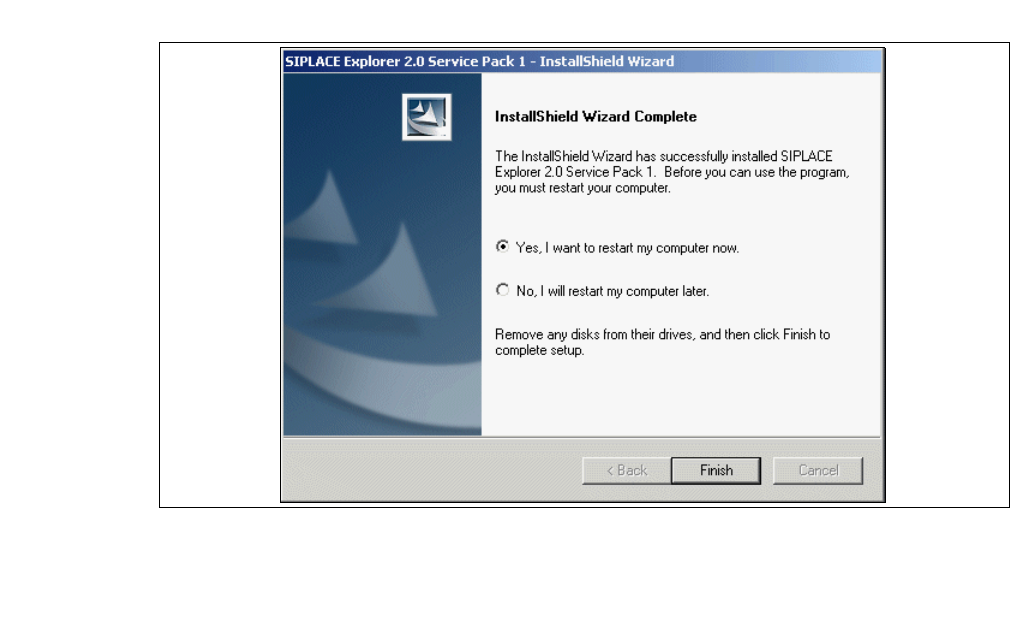
→ Wenn die Installation beendet ist, erscheint nachfolgendes Dialogfenster.
3
Abb. 3 - 24 SIPLACE Explorer Setup - Installation beendet
→ Klicken Sie auf Finish. Nach dem nächsten Start Ihres Computers können Sie SIPLACE
Explorer starten. Gehen Sie dazu vor, wie unter “SIPLACE Explorer starten” auf Seite 58
beschrieben.
Installations- und Konfigurationsanleitung SIPLACE Explorer 3 Installation des SIPLACE Explorer
Ausgabe 12/2005 DE 3.1 Erstinstallation von SIPLACE Explorer 2.0 SP1
43
3.1.4 Installationsvorgang Tomcat 5.5
HINWEIS
Sie müssen über Windows 2000 Administrator-Rechte verfügen, um die Installation ausführen zu
können. 3
HINWEIS
Bevor Sie Tomcat 5.5 installieren können, müssen Sie alle Versionen < 5.5 von Tomcat unbedingt
deinstallieren. 3
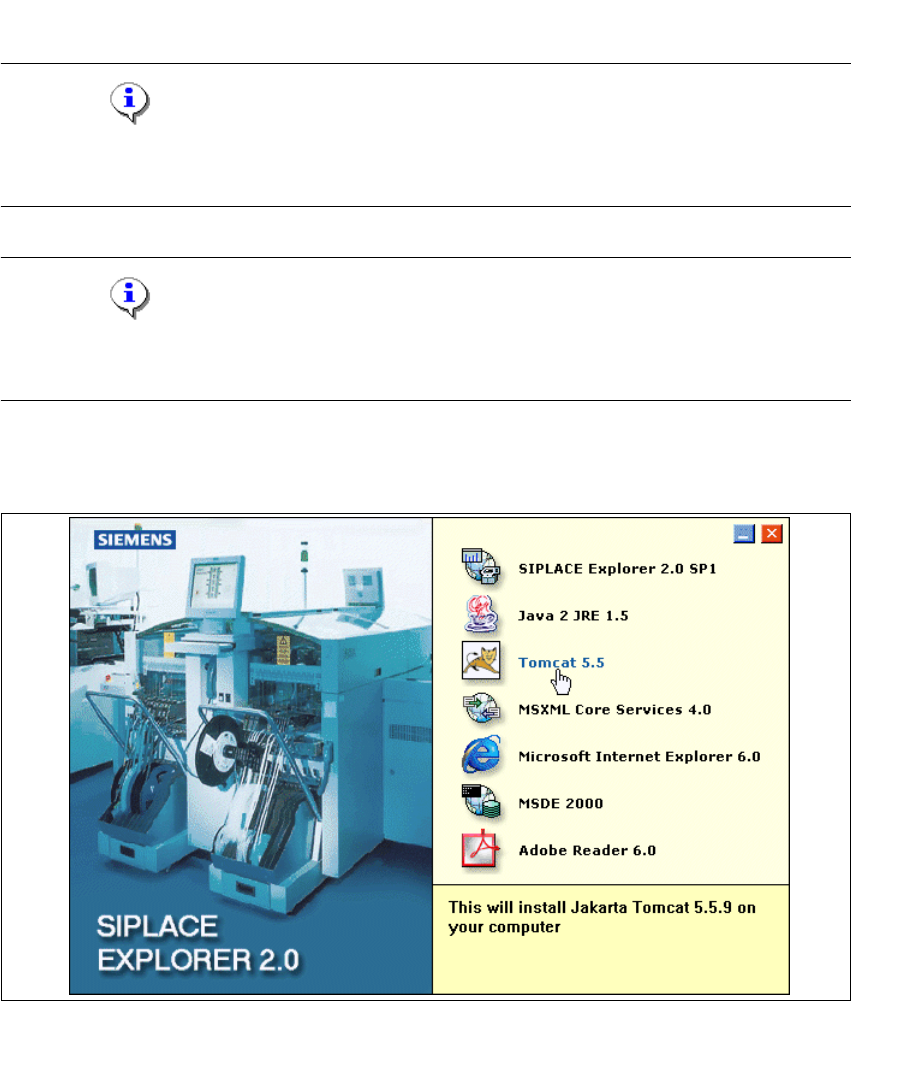
→ Legen Sie die SIPLACE Explorer CD in Ihr CD-Rom-Laufwerk ein. Es erscheint der Start
Screen.
3
Abb. 3 - 25 SIPLACE Explorer setup - Start Screen
→ Wählen Sie Tomcat 5.5 aus.
3 Installation des SIPLACE Explorer Installations- und Konfigurationsanleitung SIPLACE Explorer
3.1 Erstinstallation von SIPLACE Explorer 2.0 SP1 Ausgabe 12/2005 DE
44
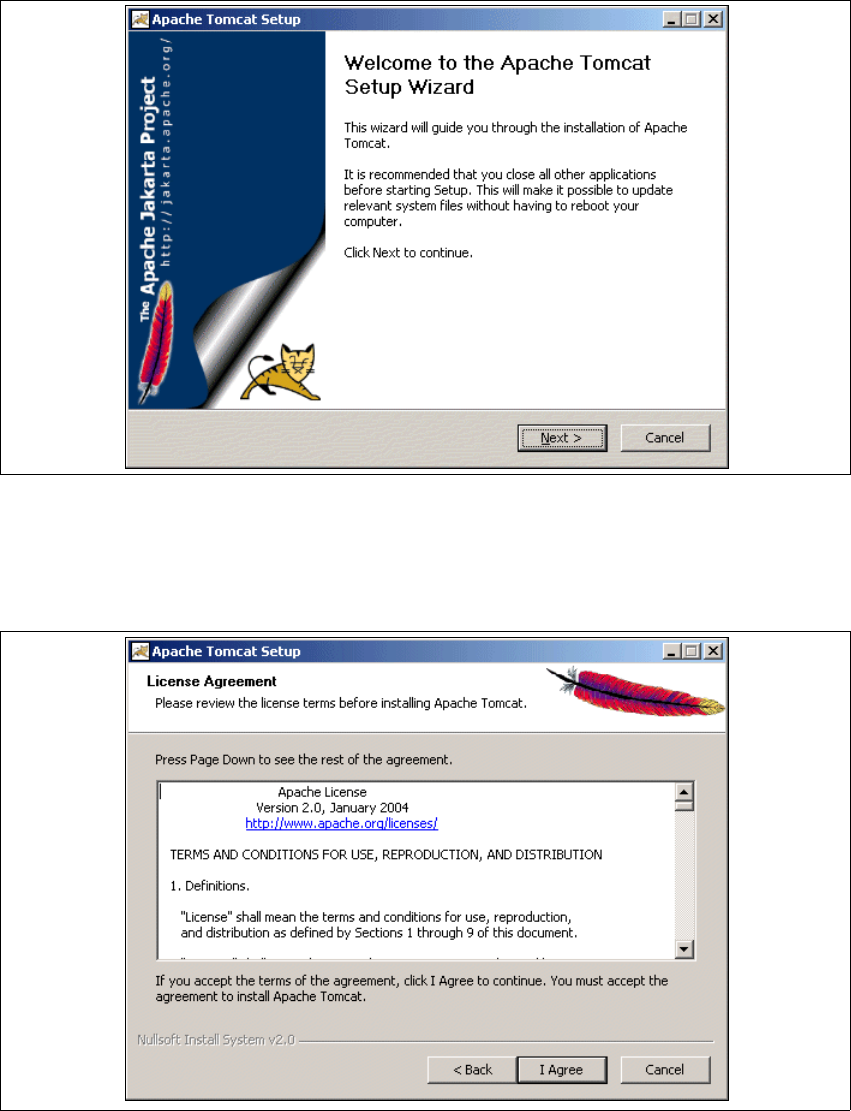
→ Die benutzergeführte Installation von Tomcat wird gestartet.
3
Abb. 3 - 26 Apache Tomcat Setup - Welcome Screen
→ Beenden Sie alle anderen Programme und klicken Sie dann auf Next (Weiter).
→ Lesen Sie die Lizenzbestimmungen. Wenn Sie zustimmen, I Agree anklicken, ansonsten
Cancel. Wenn Sie Cancel anklicken, wird die Installation beendet.
3
Abb. 3 - 27 Apache Tomcat Setup - Lizenzvereinbarungen