00193687-04.pdf - 第52页
3 In stal la tio n des S IPLAC E Expl ore r Inst all atio ns - und Konfi gu rat ions anle itun g SI PLA CE Exp lor er 3. 2 U pdate -In stal latio n von S IPLA CE E xplo rer 2.0 S P1 Au sga be 12 /200 5 D E 52 3. 2 Update…

Installations- und Konfigurationsanleitung SIPLACE Explorer 3 Installation des SIPLACE Explorer
Ausgabe 12/2005 DE 3.1 Erstinstallation von SIPLACE Explorer 2.0 SP1
51
3.1.5.1 Passwort für "sa" Zugang manuell ändern
Wollen Sie Ihr Passwort manuell ändern, können Sie das über die Eingabeaufforderung tun. 3
→ Öffnen Sie die Eingabeaufforderung an dem Computer, an welchem MSDE läuft und zu dem
Sie die Verbindung herstellen wollen.
→ Geben Sie das folgende Kommando ein, und betätigen Sie anschließend die Enter-Taste:
osql -U sa
3
Falls Sie den "sa" Zugang verwenden, werden Sie mit diesem Kommando als lokale,
standardmäßige Instanz von MSDE verbunden.
3
→ Geben Sie die folgenden Kommandos in zwei separaten Zeilen ein, und betätigen Sie
anschließend die Enter-Taste:
sp_password null, 'mynewpassword', 'sa'
3
go 3
HINWEIS
Ersetzen Sie 'mynewpassword' mit dem neuen Passwort. 3
→ Sie erhalten eine Mitteilung über die erfolgreiche Änderung Ihres Passwortes.

3 Installation des SIPLACE Explorer Installations- und Konfigurationsanleitung SIPLACE Explorer
3.2 Update-Installation von SIPLACE Explorer 2.0 SP1 Ausgabe 12/2005 DE
52
3.2 Update-Installation von SIPLACE Explorer 2.0 SP1
Um den Update von SIPLACE Explorer V2.0 nach SIPLACE Explorer V2.0 SP1 durchführen zu
können, muss sich auf Ihrem System schon eine lauffähige Version von SIPLACE Explorer V2.0
befinden.
3
Für den Update müssen Sie folgende Software-Komponenten aktualisieren: 3
– Java 2 SDK 1.4 nach Java 2 JRE 1.5 (siehe Seite 29)
Bevor Sie SIPLACE Explorer V2.0 SP1 installieren können, muss Java 2 JRE 1.5 auf Ihrem
Computer installiert sein. Installieren Sie Java 2 JRE 1.5 auf dem gleichen Computer wie
SIPLACE Explorer V.2.0 SP1.
3
– Tomcat 5.0 nach Tomcat 5.5 (siehe Seite 43)
Wenn Sie eine für das Web freigegebene Konfiguration installieren möchten, müssen Sie
die Option
Tomcat 5.5 ebenfalls installieren. Um Websiten über SIPLACE Explorer V.2.0
Runtime Environment und SIPLACE Explorer V.2.0 Factory Configuration Utility
bereitstellen zu können, benötigen Sie Tomcat 5.5.
3
Sie müssen Tomcat 5.5 nicht auf dem gleichen Computer wie SIPLACE Explorer V.2.0 SP1
installieren.
3
HINWEIS
Bevor Sie Tomcat 5.5 installieren können, müssen Sie alle Versionen < 5.5 von Tomcat
unbedingt deinstallieren. 3
→ Zusätzlich können Sie nach dem Update weitere Optionen zu SIPLACE Explorer installieren:
– Optionen zu SIPLACE Explorer V.2.0 SP1
Die beiden Optionen Backflush V1.0 und SIPLACE Traceability Option 1.0 müssen Sie
extra bestellen und installieren. Diese sind nicht im Leistungsumfang des SIPLACE
Explorer V2.0 SP1 enthalten.
3
HINWEIS
Führen Sie die Update-Installation nach folgender Reihenfolge durch:
- Java 2 JRE 1.5 (siehe Seite 29)
- Tomcat 5.5 (siehe Seite 43)
- SIPLACE Explorer 2.0 SP1 (siehe Seite 53) 3
Installations- und Konfigurationsanleitung SIPLACE Explorer 3 Installation des SIPLACE Explorer
Ausgabe 12/2005 DE 3.2 Update-Installation von SIPLACE Explorer 2.0 SP1
53
3.2.1 Installationsvorgang SIPLACE Explorer 2.0 SP1 - Update-Installation
HINWEIS
Sie müssen über Windows 2000 Administrator-Rechte verfügen, um die Installation ausführen zu
können. 3
→ Legen Sie die SIPLACE Explorer CD in Ihr CD-Rom-Laufwerk ein.
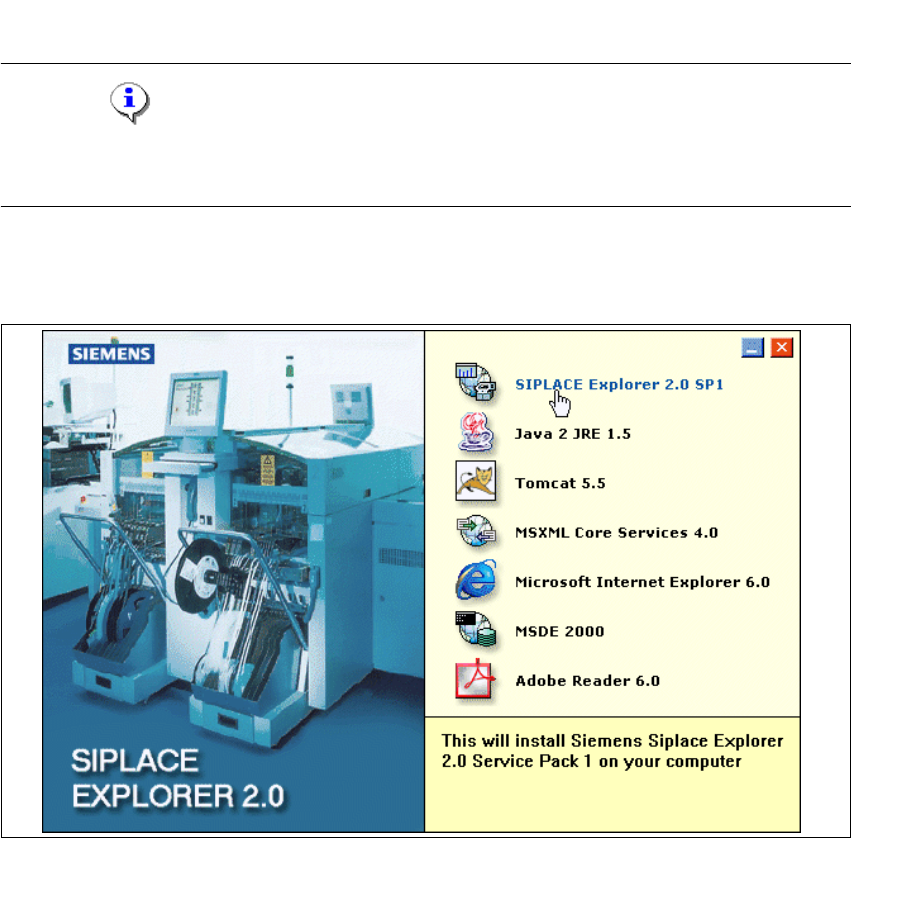
→ Es erscheint der Start Screen.
3
Abb. 3 - 37 SIPLACE Explorer setup - Start Screen
→ Wählen Sie SIPLACE Explorer 2.0 SP1 aus.