00193687-04.pdf - 第58页
3 In stal la tio n des S IPLAC E Expl ore r Inst all atio ns - und Konfi gu rat ions anle itun g SI PLA CE Exp lor er 3. 3 S IPL ACE E xplo rer star ten Au sga be 12 /200 5 DE 58 3. 3 SIPL ACE E xplore r starten → I n A …
Installations- und Konfigurationsanleitung SIPLACE Explorer 3 Installation des SIPLACE Explorer
Ausgabe 12/2005 DE 3.2 Update-Installation von SIPLACE Explorer 2.0 SP1
57
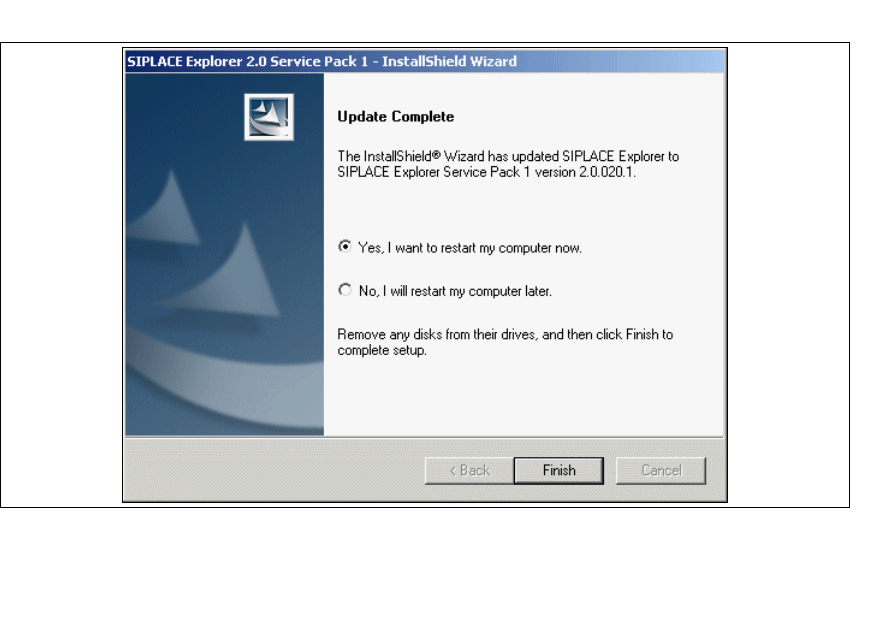
→ Wenn die Installation beendet ist, erscheint nachfolgendes Dialogfenster.
3
Abb. 3 - 42 SIPLACE Explorer Setup - Installation beendet
→ Klicken Sie auf Finish. Nach dem nächsten Start Ihres Computers steht Ihnen die Update-
Version SIPLACE Explorer V2.0 SP1 zur Verfügung. Zum Starten von SIPLACE Explorer
gehen Sie vor, wie unter “SIPLACE Explorer starten” auf Seite 58 beschrieben.
3 Installation des SIPLACE Explorer Installations- und Konfigurationsanleitung SIPLACE Explorer
3.3 SIPLACE Explorer starten Ausgabe 12/2005 DE
58
3.3 SIPLACE Explorer starten
→ In Abhängigkeit der ausgewählten Installationsoptionen können Sie SIPLACE Explorer aus
dem Menü
Programme → SIPLACE Explorer 2.0 in Windows starten.
→ SIPLACE Explorer V.2.0 Runtime Environment:
Runtime Environment wird bei jedem Neustart des Computers als Windows NT Service
automatisch gestartet. Sie sehen das Symbol in der Konsole. Mit dem rechten Mausklick
können Sie weitere Applikationen und Tools starten. Sie haben folgende
Auswahlmöglichkeiten:
3
– SE Manager
– SE Security Manager
– Line Configuration
– Performance Analyzer
–Console
– Language
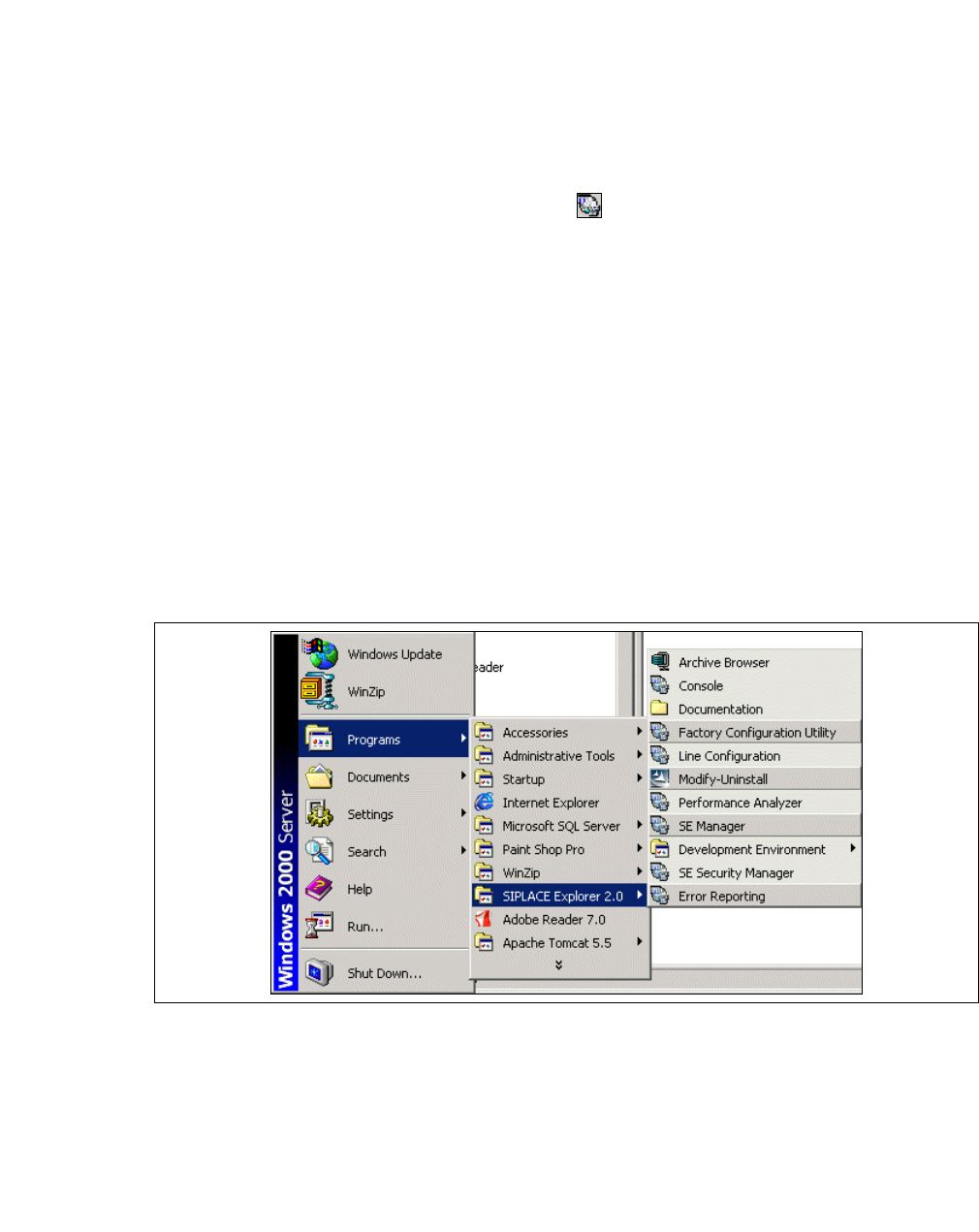
Sie können die weiteren Applikationen und Tools auch über das Windows-Menü
Programme
→ SIPLACE Explorer 2.0
starten. 3
3
Abb. 3 - 43 RTE Windows Start Menü
Sie haben folgende Auswahlmöglichkeiten: 3
– Archive Browser
–Console
– Line Configuration
– Performance Analyser
Installations- und Konfigurationsanleitung SIPLACE Explorer 3 Installation des SIPLACE Explorer
Ausgabe 12/2005 DE 3.3 SIPLACE Explorer starten
59
– SE Manager
– SE Security Manager
– Modify-Uninstall
– Documentation
→ SIPLACE Explorer V.2.0 Development Environment
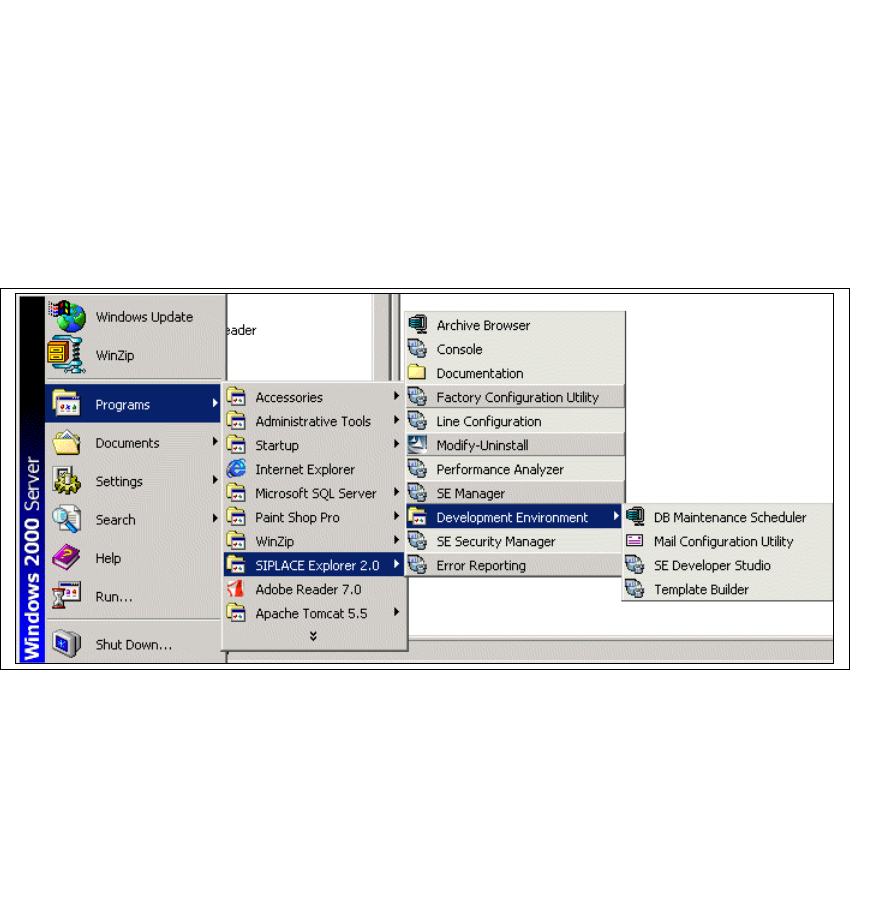
Starten Sie Development Environment über das Windows-Menü
Programme → SIPLACE
Explorer 2.0 → Developer Tools
. 3
3
Abb. 3 - 44 DE Windows Start Menü
Sie haben folgende weitere Applikationen und Tools zur Auswahl: 3
– DB Maintenance Scheduler
– Mail Configuration Utility
– SE Developer Studio
– Template Builder