YSi-X_Ope_E.pdf - 第53页
2-4 2 Basic operation 6 Change the conv ey or width. A dialog box for changing the conveyor width appears. Press the [Y es] button to change the conveyor width to match the board width. n NOTE A dialog box for changing t…
2-3
2
Basic operation
4
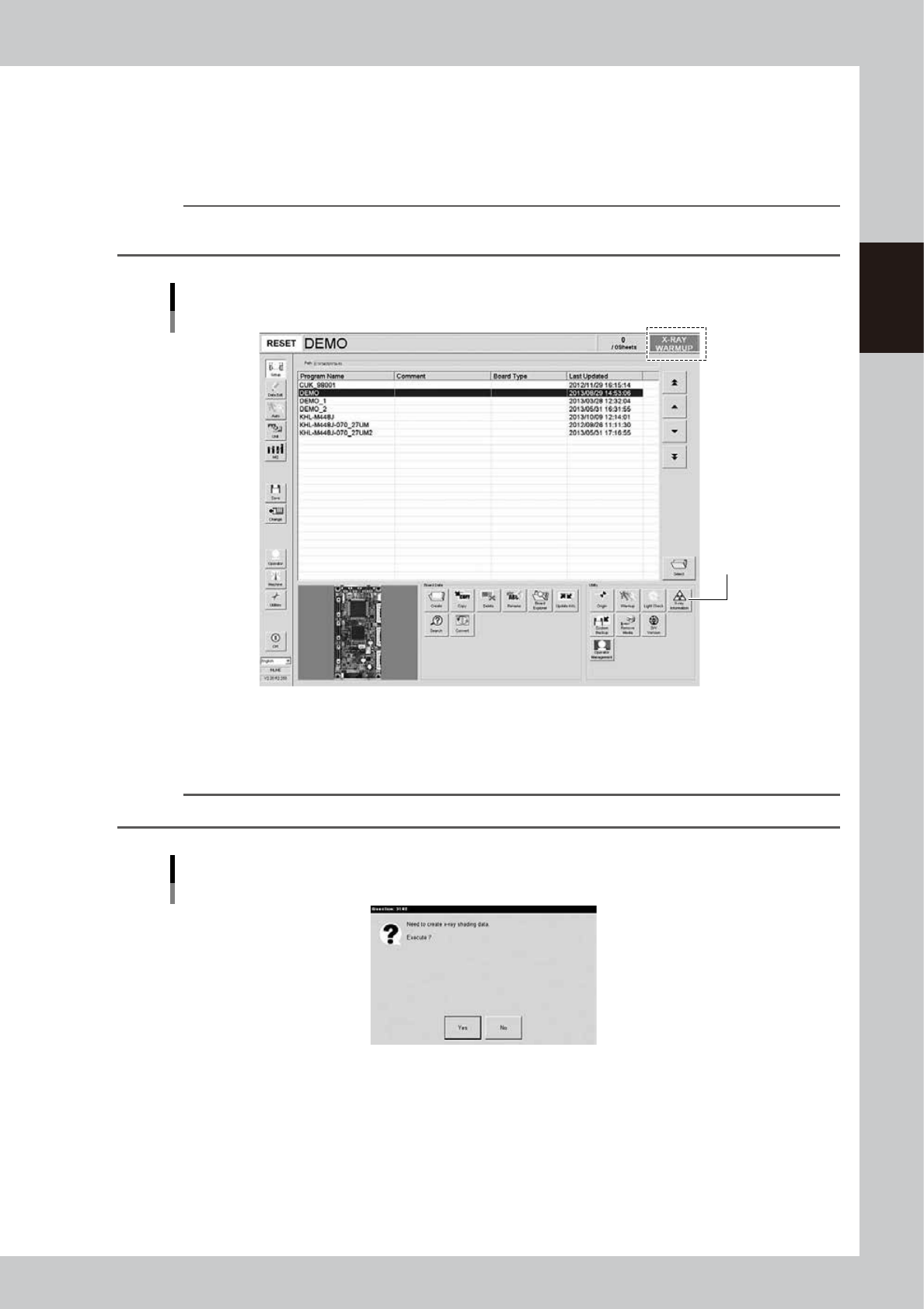
Perform an X-ray generator warm-up.
When return-to-origin is complete, the X-ray generator automatically starts warm-up. The message
“X-RAY WARM-UP” appears on the right end of the status bar.
To check the remaining warm-up time, press the [X-ray Information] button to open the X-ray
information screen and check the “Remaining warm-up time (sec.)” parameter.
n
NOTE
The X-ray generator does not start warm-up when the machine is restarted within 8 hours after turning off the main
power switch.
Screen showing X-ray warm-up in progress
[X-ray Information]
button
24203-M6-10
5
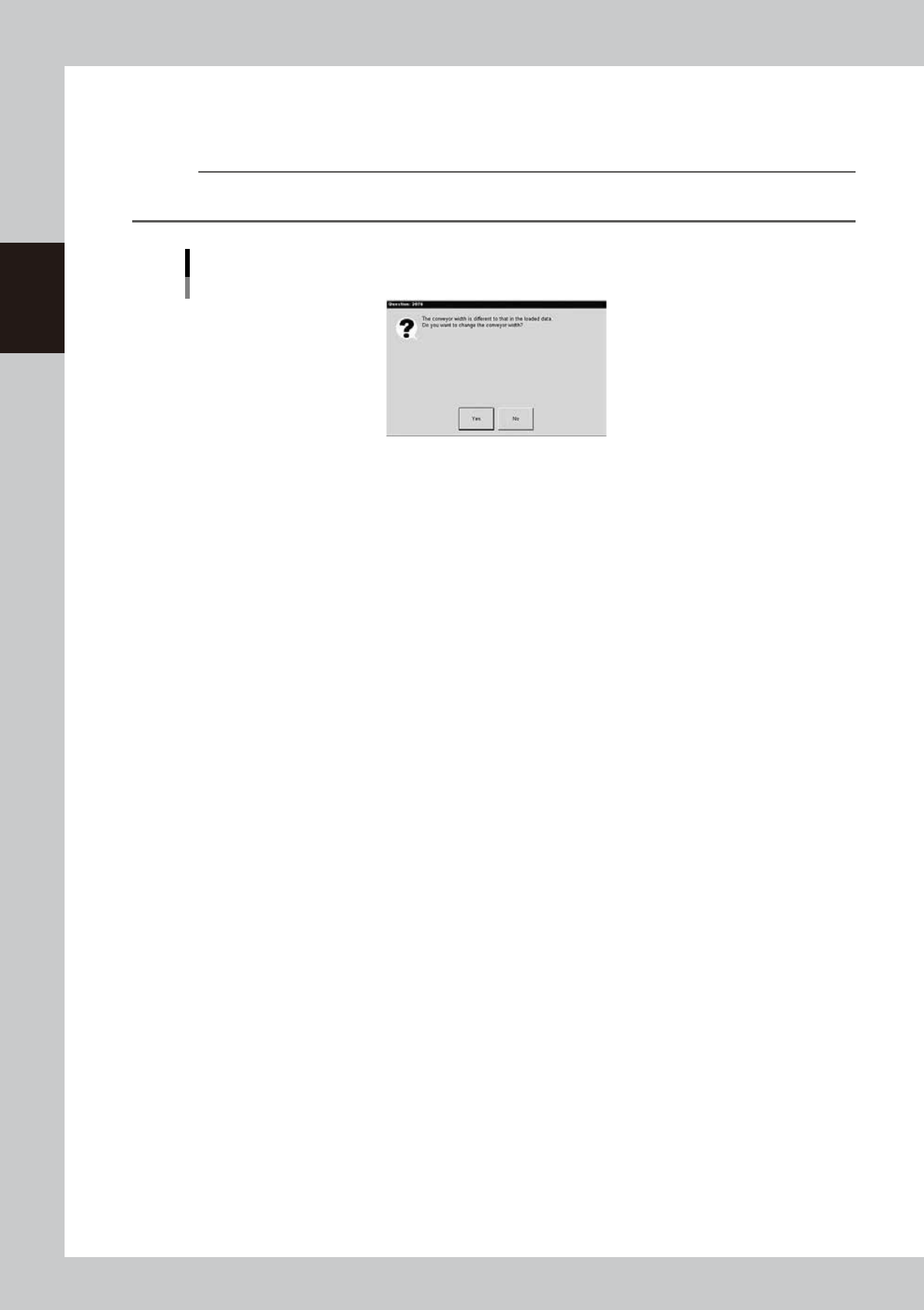
Create X-ray shading data.
When the X-ray generator warm-up is complete, a dialog box for creating X-ray shading data appears.
Press the [Yes] button to create the data.
TIP
X-ray shading data is created based on the machine setting cycle after X-ray generator warm-up.
Dialog box for creating X-ray shading data
24204-M6-00
2-4
2
Basic operation
6
Change the conveyor width.
A dialog box for changing the conveyor width appears. Press the [Yes] button to change the conveyor
width to match the board width.
n
NOTE
A dialog box for changing the conveyor width appears. Press the [Yes] button to change the conveyor width to
match the board width.
Dialog box for changing the conveyor width
24206-M6-00
2-5
2
Basic operation
2.2 Ending
To end the machine operation, follow these steps.
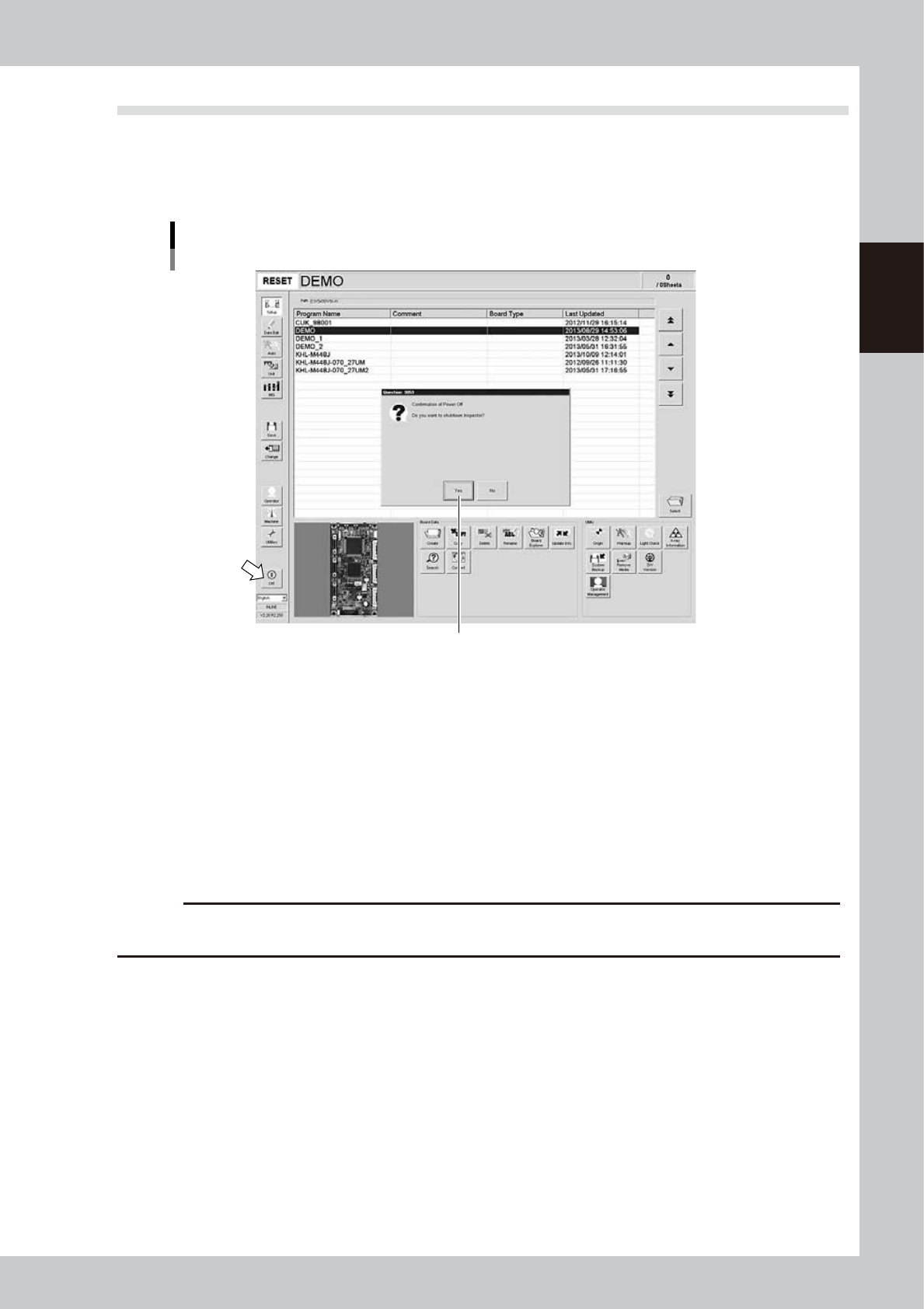
1
On the main screen, press the [Off] button.
A power-off confirmation dialog box appears. Press the [Yes] button.
Power-off confirmation dialog
Press the [Yes] button.
24205-M6-10
2
Move each axis back to its origin position.
When a dialog box for moving each axis appears, press the [Yes] button.
3
When a dialog box appears asking whether to end the operation, press the [Yes]
button.4
e
4
Press the emergency stop button.
When a dialog box for emergency stop appears, press the emergency stop button.
The YSi software end and Windows (OS) shuts down, displaying a message stating that you can turn off
the power.
c
CAUTION
Do not turn off the power until the above message appears. If you turn off the power without following the correct
sequence, the machine might be damaged.
5
Turn off the machine main switch.
When a power-off message appears, turn the main switch on the front lower right of the machine
counterclockwise to the OFF position.
6
Pull out the safety key.
Turn the X-RAY safety key to the “DISABLE” position and pull it out.