User Manual SIPLACE Linear Dipping Unit 2 X.pdf - 第43页
4 Operation 4.1 Settings in SIPLACE Pro User Manual SIPLACE Linear Dipping Unit 2 X 05/2020 43 Defining a dipping plate with multiple cavities ► In the Tools Tree View , select the dipping plate to be defined (1) . ► In…
4 Operation
4.1 Settings in SIPLACE Pro
42 User Manual SIPLACE Linear Dipping Unit 2 X 05/2020
► Click on the Insert icon(1) or, alternatively, right-click on the gray area and select Insert from
the menu(2)
.
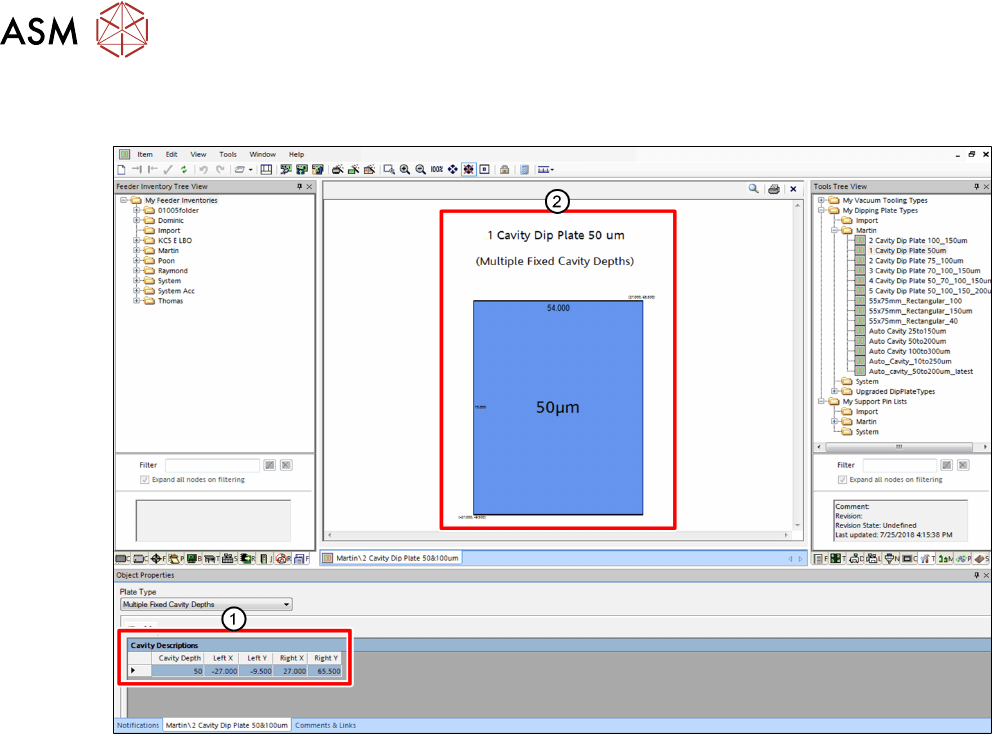
► Enter the appropriate coordinates and the cavity depth in the corresponding fields(1).
Cavity Depth: Depth of the cavity
Left X / Left Y: Lower left corner of the cavity
Right X / Right Y: Upper right corner of the cavity
The coordinates and the depth of the cavity are displayed in the display area(2).
4 Operation
4.1 Settings in SIPLACE Pro
User Manual SIPLACE Linear Dipping Unit 2 X 05/2020 43
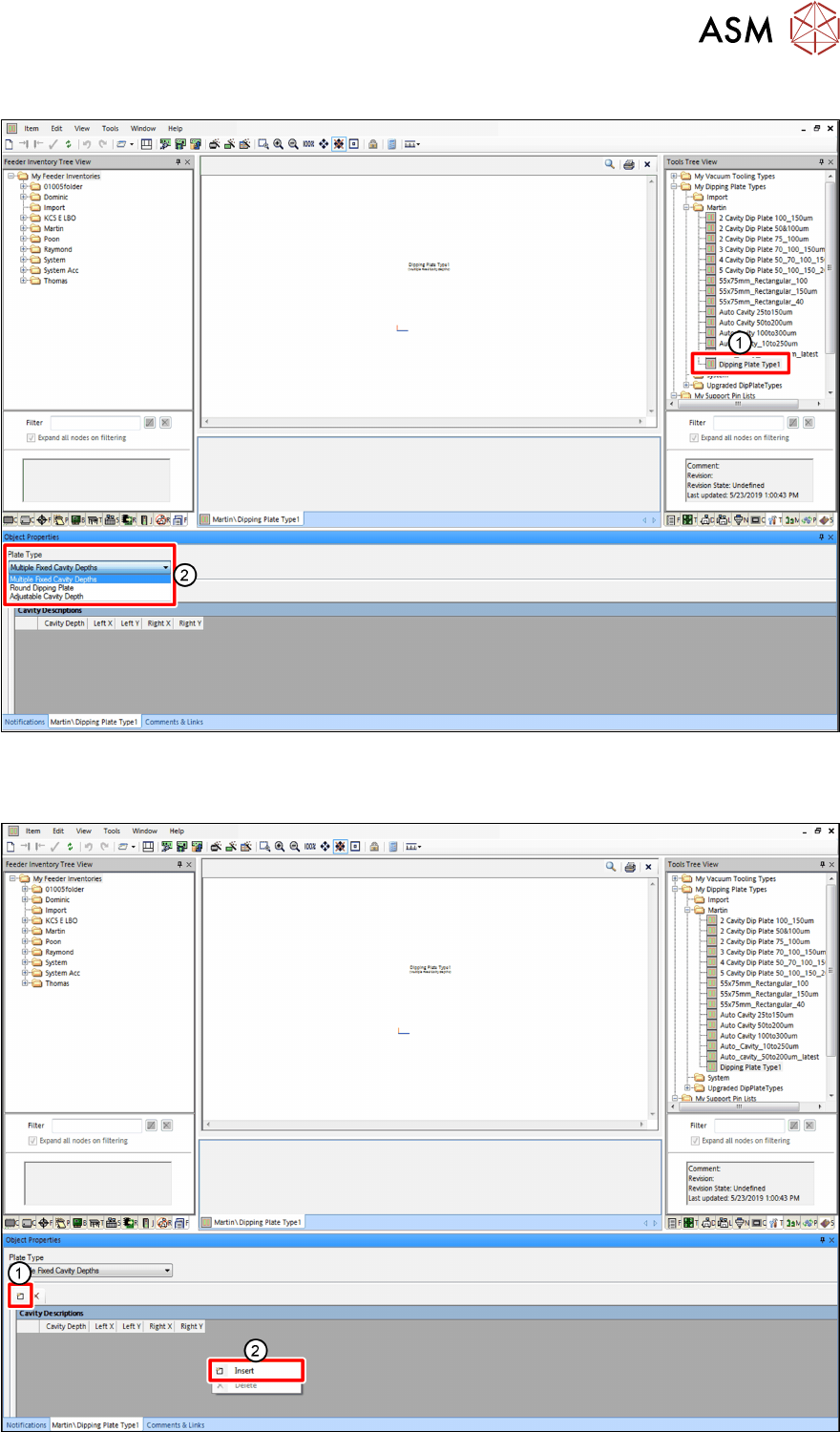
Defining a dipping plate with multiple cavities
► In the Tools Tree View, select the dipping plate to be defined(1).
► In the Object Properties area, select Multiple Fixed Cavity Depths from the Plate Type
menu(2).
4 Operation
4.1 Settings in SIPLACE Pro
44 User Manual SIPLACE Linear Dipping Unit 2 X 05/2020
► Click on the Insert icon(1) or, alternatively, right-click on the gray area and select Insert from
the menu(2)
.
A new row representing a cavity is inserted in the table.
► Repeat this step to insert multiple rows (cavities) to the table.
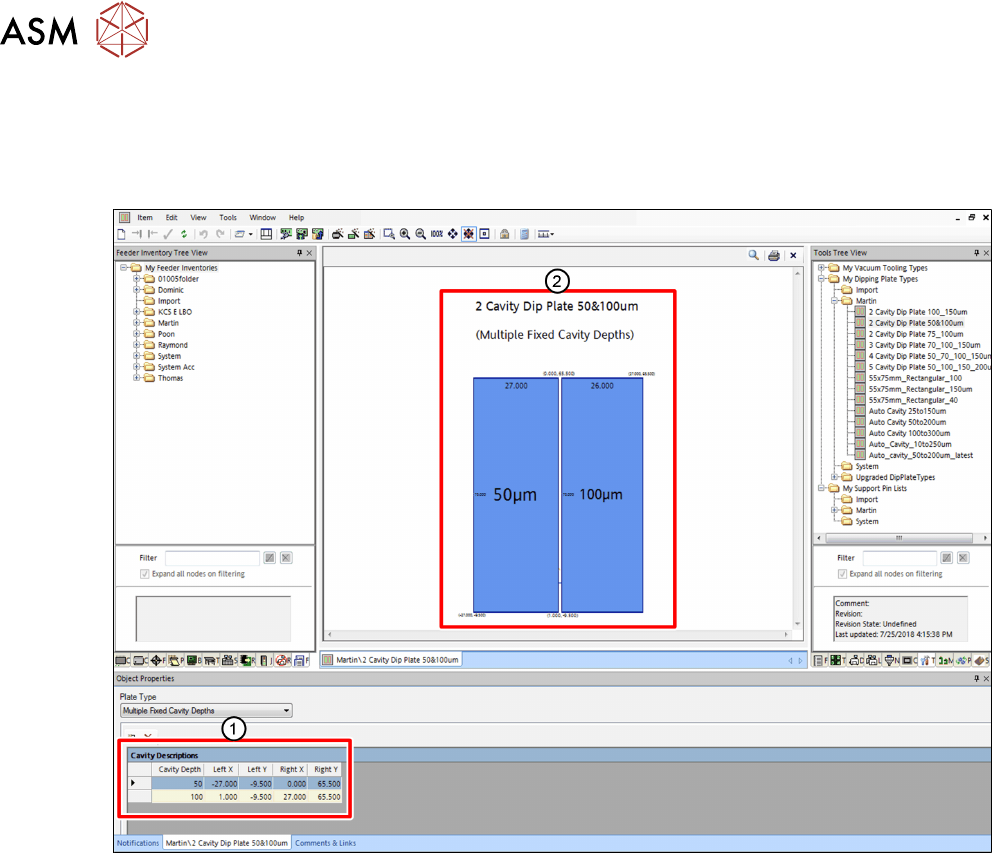
► Enter the appropriate coordinates and the cavity depth of every cavity in the corresponding
fields(1)
.
Cavity Depth: Depths of the cavities
Left X / Left Y: Lower left corners of the cavities
Right X / Right Y: Upper right corners of the cavities
The coordinates and the cavity depths of the cavities are displayed in the display area(2).