User Manual SIPLACE Linear Dipping Unit 2 X.pdf - 第47页
4 Operation 4.1 Settings in SIPLACE Pro User Manual SIPLACE Linear Dipping Unit 2 X 05/2020 47 Assigning a flux to the LDU 2 X ► Click on the blank field in the Processing Material column of the Dipping Division Paramet-…
4 Operation
4.1 Settings in SIPLACE Pro
46 User Manual SIPLACE Linear Dipping Unit 2 X 05/2020
4.1.3 Assigning a dipping plate and a flux to the LDU
On one placement machine, several LDU units can be used. Each LDU can be fitted with another
dipping plate type and filled with another flux, suitable to the dipping requirements of the compon-
ents. For this purpose, the appropriate dipping plate and flux material must be assigned to every
LDU set up.
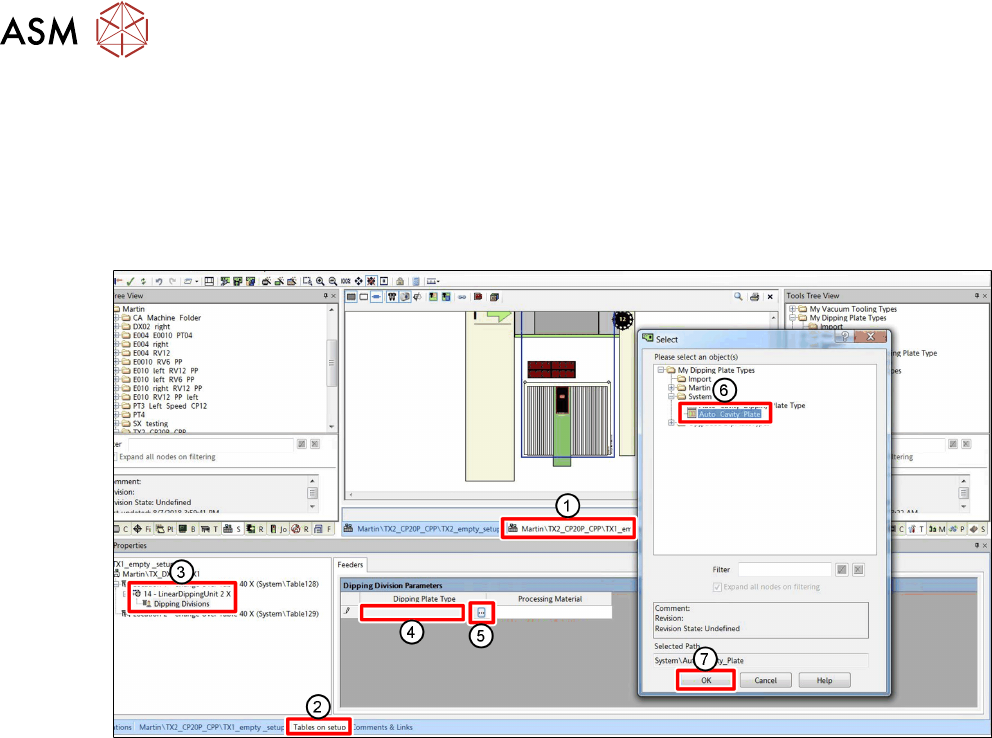
Assigning a dipping plate to the LDU 2 X
► In SIPLACE Pro, click on the tab of the Setup(1).
► Click on the Tables on setup tab(2) in the Object Properties view.
► In the Properties tree view, click on the Dipping Divisions folder of the desired LDU 2 X(3).
► Click on the blank field in the Dipping Plate Type column of the Dipping Division Paramet-
ers area(4).
A Select button with three points is displayed.
► Click on the Select button(5).
A dialog window is displayed.
► Click on the desired dipping plate in the tree view(6).
► Click OK(7).
4 Operation
4.1 Settings in SIPLACE Pro
User Manual SIPLACE Linear Dipping Unit 2 X 05/2020 47
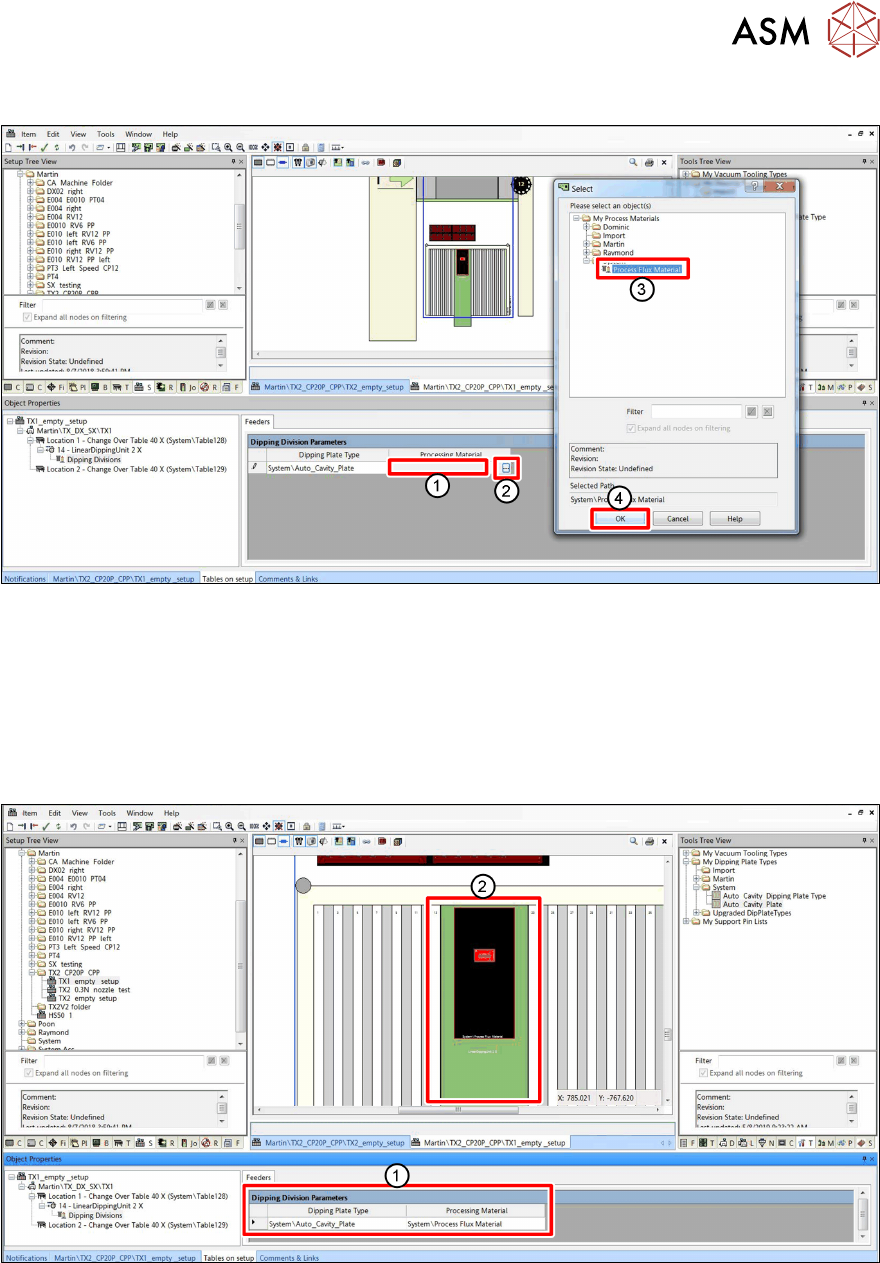
Assigning a flux to the LDU 2 X
► Click on the blank field in the Processing Material column of the Dipping Division Paramet-
ers area(1).
A Select button with three points is displayed.
► Click on the Select button(2).
A dialog window is displayed.
► Click on the desired flux material in the tree view(3).
► Click OK(4).
The dipping plate and the flux assigned to the LDU 2 X are now displayed in the Dipping Division
Parameters table in the Feeders area(1) and on the LDU 2 X symbol in the display area(2).
4 Operation
4.1 Settings in SIPLACE Pro
48 User Manual SIPLACE Linear Dipping Unit 2 X 05/2020
4.1.4 Selecting a component for dipping
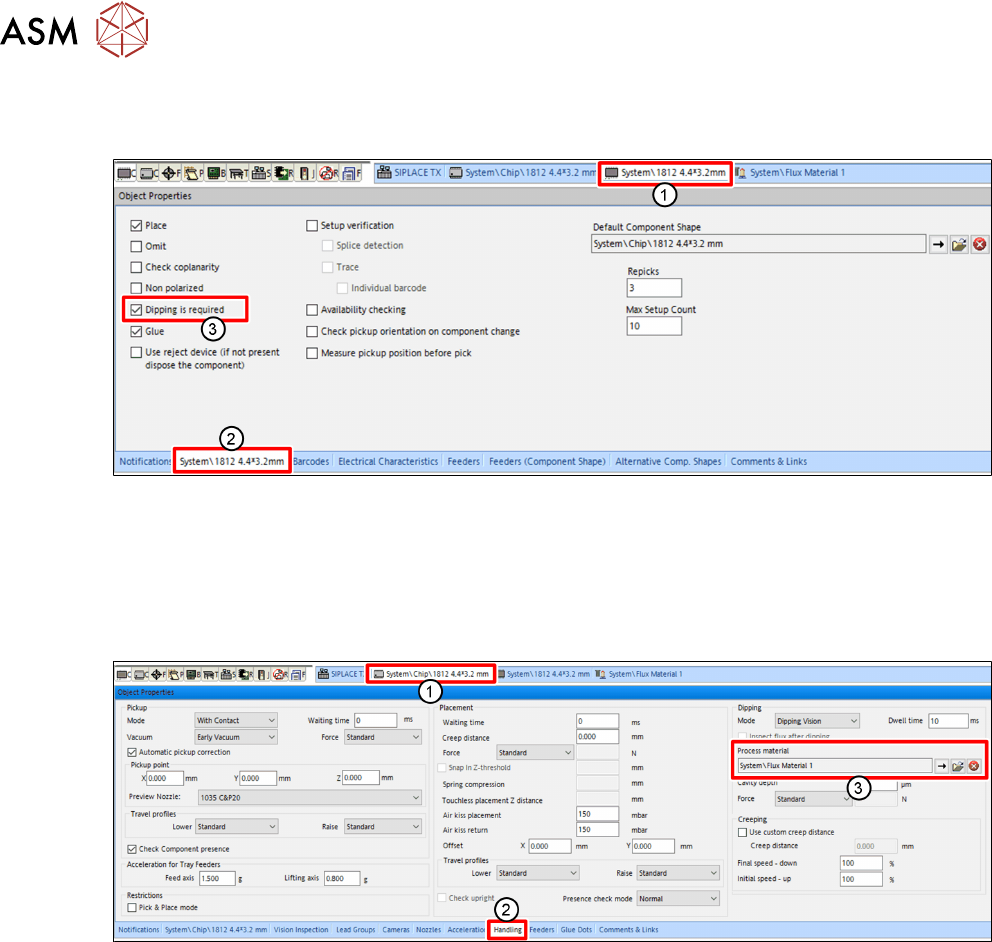
For every component used, the user can set that dipping is required:
► In SIPLACE Pro, click on the tab of the desired component(1).
► Click on the tab of the component(2) in the Object Properties view.
► Enable the Dipping is required option(3).
4.1.5 Assigning a flux to a component
The user must assign a flux to a component for which dipping is required.
► In SIPLACE Pro, click on the tab of the component shape of the desired component(1).
► Click on the Handling tab(2) in the Object Properties view.
► Click on the button with the arrow next to Process Material(3) in the Dipping area.
A dialog window is displayed to select the flux.
► Click on the desired flux in the tree view.
► Click on OK.