TR7600 SIII_Camera_Calibration_en_v_2_0_2 - 第26页
Test Research, Inc. 20 TR7600 SI II Series User Guide – Camera Ca libration 7) Put the center of the cross line at the center of the upper whi te hole. 8) Press [To Center] and two whi te square holes should have overlap…
Test Research, Inc.
TR7600 SIII Series User Guide – Camera Calibration 19
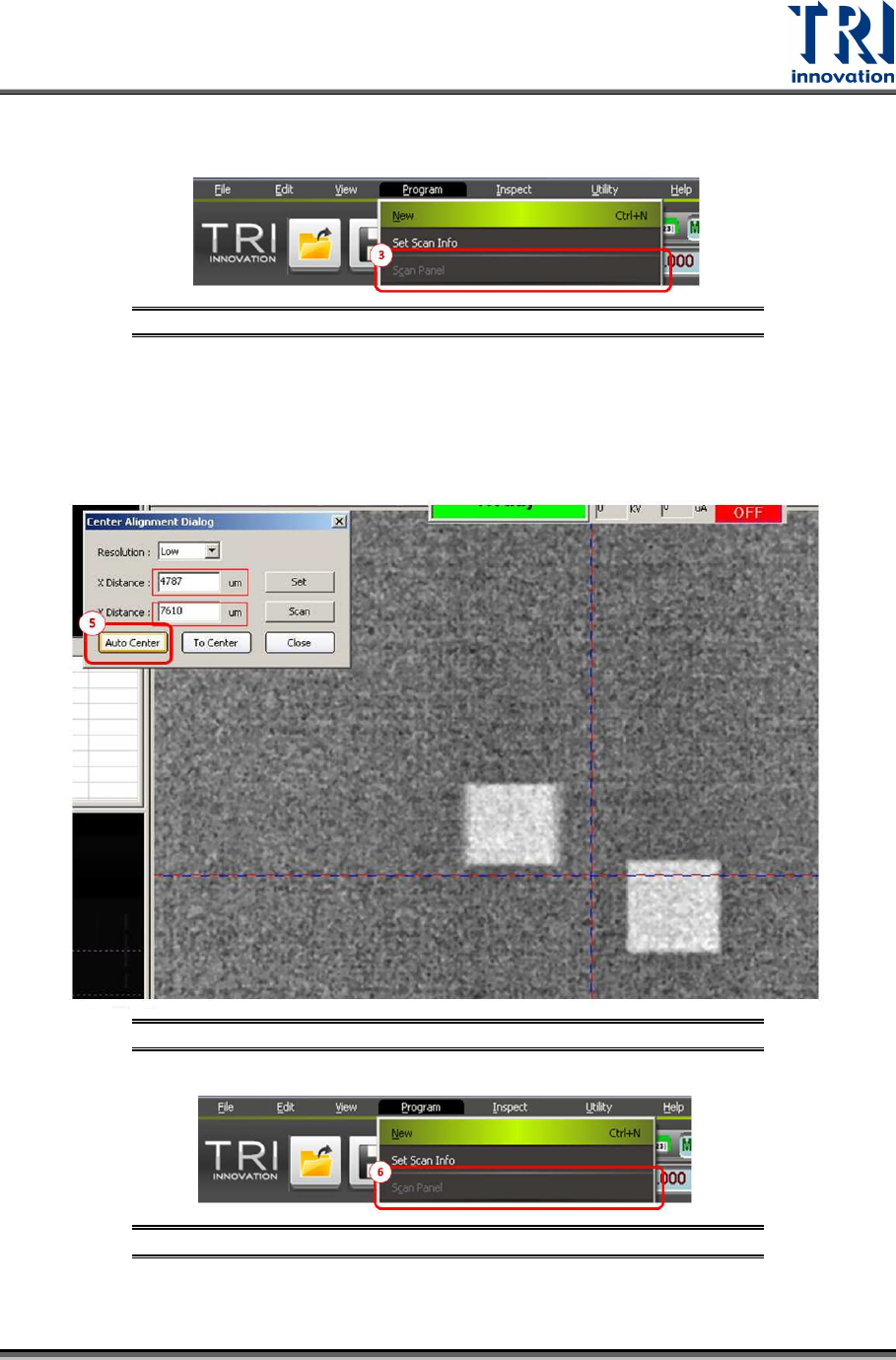
4) Put the center of the cross line at the center of the two white square holes in both X and
Y direction.
Figure 23: Center Alignment Calibration Step 4
5) Click “Auto Center”. After doing this, the values in the X and Y Distance dialogues will
change.
6) Go to [Program] and press [Scan Panel] again. Then two white square holes should
have overlapped in some areas.
Figure 24: Center Alignment Calibration Steps
Figure 25: Center Alignment Calibration Step 6
Test Research, Inc.
20 TR7600 SIII Series User Guide – Camera Calibration
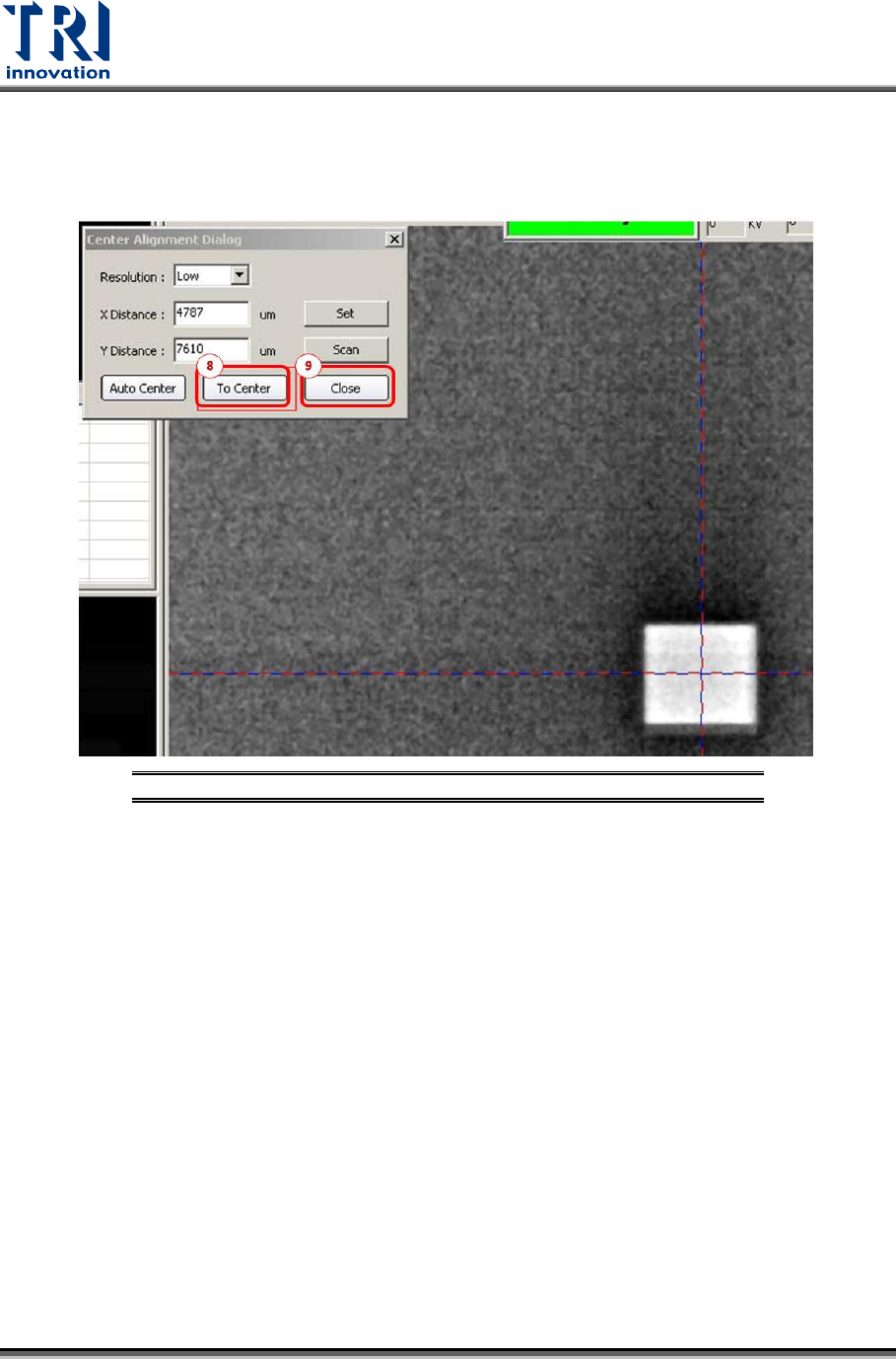
7) Put the center of the cross line at the center of the upper white hole.
8) Press [To Center] and two white square holes should have overlapped in most areas.
9) Click [Close] to complete this calibration.
Figure 26: Center Alignment Calibration Steps
Test Research, Inc.
TR7600 SIII Series User Guide – Camera Calibration 21
2.4 Height Calibration
Note: Generally, this calibration is not required. Please check with TRI FAEs before
performing this calibration. Without professional assistance, calibration that failed
may cause issues which are difficult to resolve.
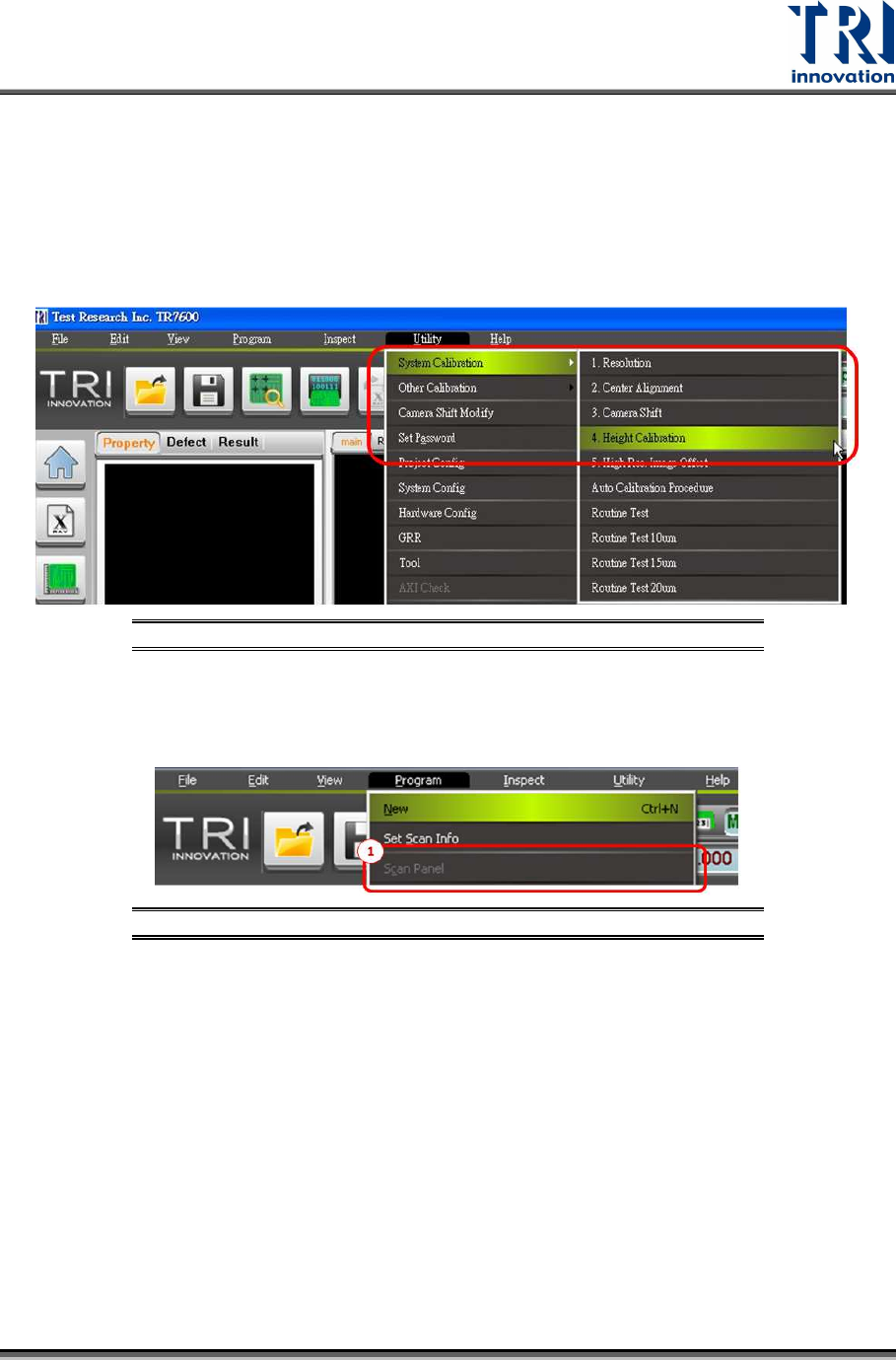
Go to [Utility] [System Calibration] [Height Calibration]
Figure 27: Utility/System Calibration/Height Calibration
Please follow the procedures below.
1) After the calibration dialogue appears, go to [Program] and press [Scan Panel].
Figure 28: Height Calibration Steps
2) Press the [S] key on the keyboard to switch the slice image to a 2D image and click [6]
or [4] on the keyboard to acquire the following image.