TR7600 SIII_Camera_Calibration_en_v_2_0_2 - 第37页
Test Research, Inc. TR7600 SIII Ser ies User G uide – Cam era Calibr ation 31 Turn on the main program click on [Uti lity] [Combo-System] choose [ Calibration]. Figure 44 : Combo S ystem Calibration Make sure the…
Test Research, Inc.
30 TR7600 SIII Series User Guide – Camera Calibration
• If only 2D calibration to be performed, execute step (1)~(6). If the calibration
result is not good, repeat 2D Resolution and Camera Rotate steps several times
until the [OK] message appeared.
• Execute step (7)~(11) for laser calibration.
2D Camera Calibration
1. 2D Resolution: Calibrate 2D camera resolution approximately.
2. Fiducial Setting: Set up Fiducial Mark.
3. Dot Board Rotate: Rotate calibration board if necessary.
4. Camera Rotate: Rotate 2D camera if necessary.
5. 2D Resolution: Calibrate 2D camera resolution precisely.
6. Camera Rotate: Re-confirm 2D camera angle.
Laser Calibration
7. 2D Offset: Align the coordinates of X-ray tube, scanned image and 2D image.
8. Amplifier: Set up amplifier to increase the accuracy of laser detection.
9. Laser offset: Use square hole’s position for laser positioning.
10. Zero Shift: Set up zero height for all Laser Sensors and Amplifiers.
11. Laser Sensor: Input the information of Laser Sensors and Amplifiers to registries.
Start the Calibration
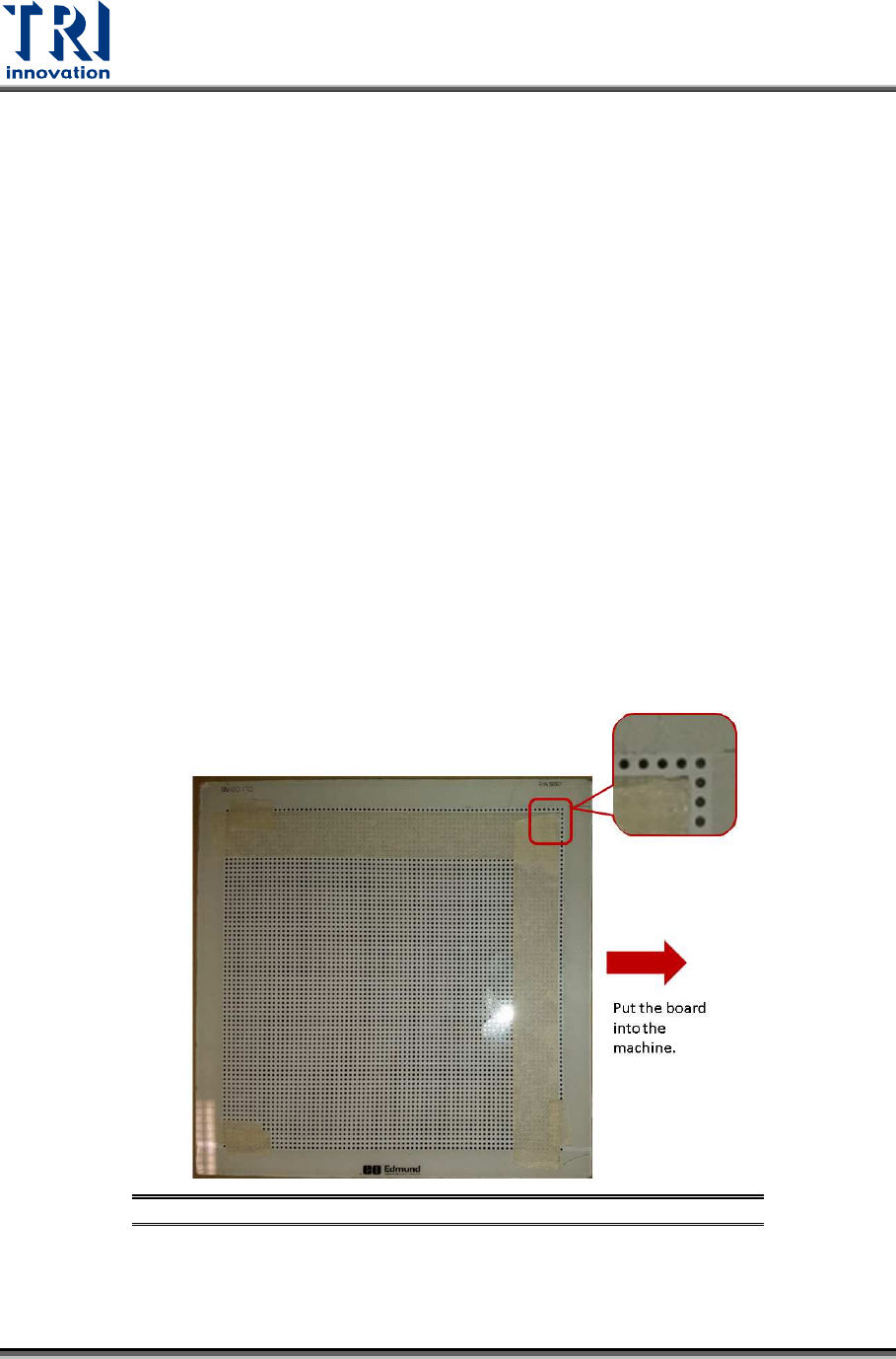
Input the calibration board into the machine manually. Put tape on the calibration board
(as shown below) by leaving one row circle and one column circle at the upper-right
boundary. Make sure that the calibration board surface is clean.
Figure 43: Calibration Board
Test Research, Inc.
TR7600 SIII Series User Guide – Camera Calibration 31
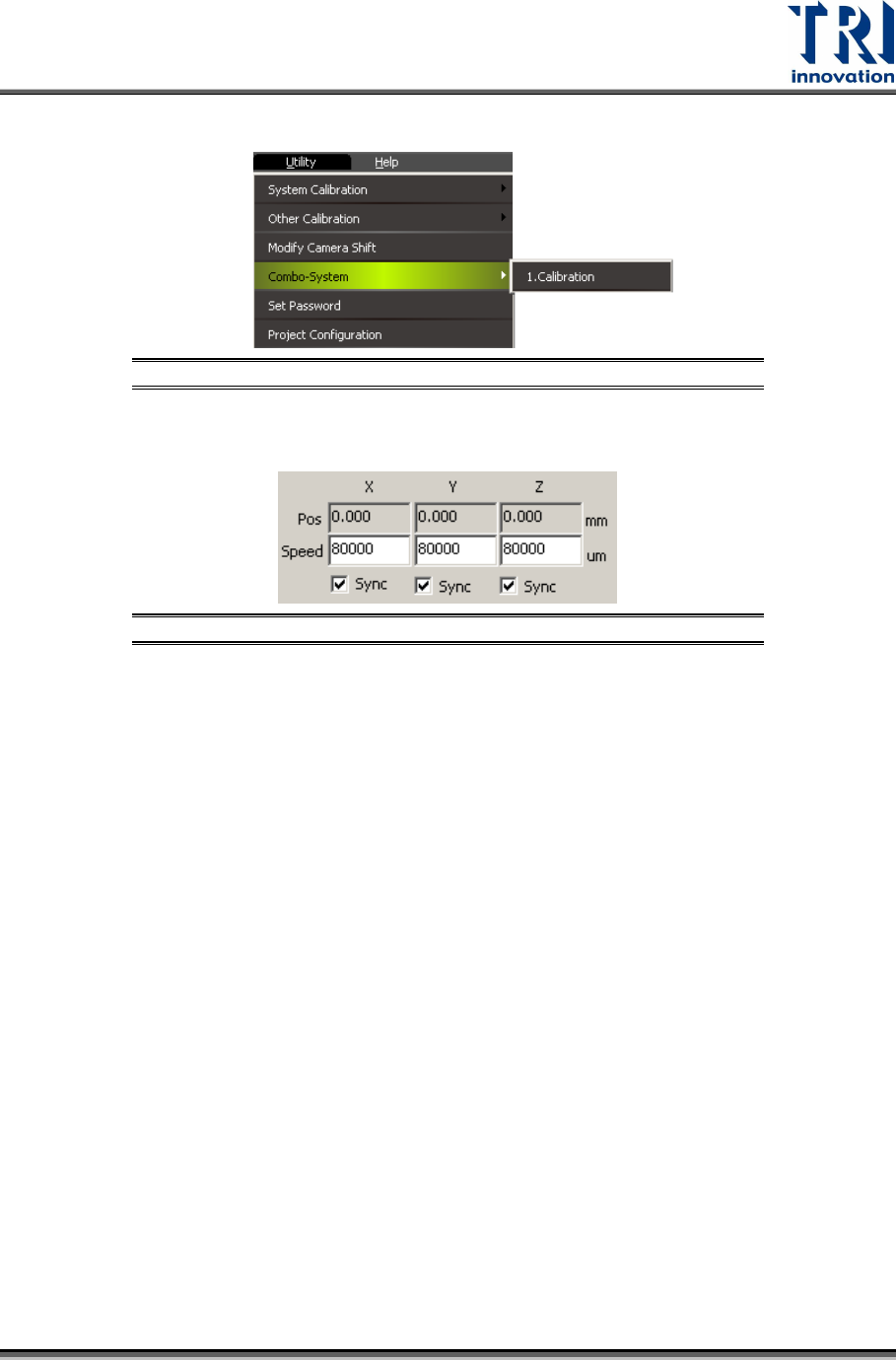
Turn on the main programclick on [Utility][Combo-System]choose [Calibration].
Figure 44: Combo System
Calibration
Make sure the [Sync X], [Sync Y], [Sync Z] functions are enabled during the calibration
process.
Figure 45: Make Sure All [Sync] Fields Are Enabled
Test Research, Inc.
32 TR7600 SIII Series User Guide – Camera Calibration
3.1 2D Resolution
This section is used to calibrate 2D camera approximately.
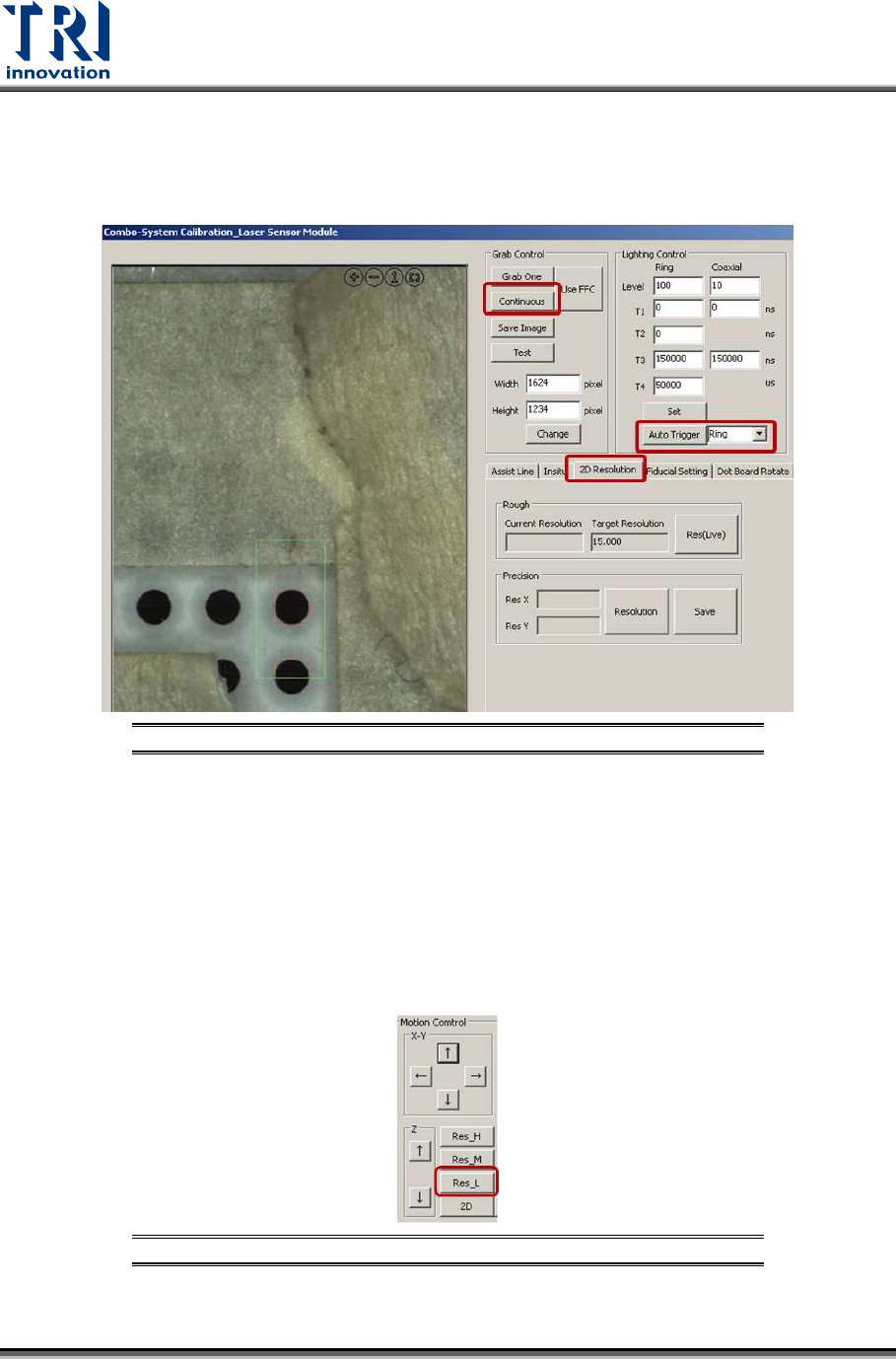
1) Click on [2D Resolution].
Figure 46: 2D Resolution
2) Click on [Auto trigger] and choose [Ring] in the drop down menu.
Note: It does not matter which type of laser source is choosed.
• [Ring]: Use ring type laser source. The number in the [Level] field should be set
within 0~127.
• [Coaxial]: Use coaxial type laser source.
• [MultI]: Use ring and coaxial type laser sources at the same time.
3) Click on [Continuous].
4) Click on [Res. L] to move 2D camera to a default height. By doing so, calibration time is
reduced.
Figure 47: Click [Res. L]