TR7600 SIII_Camera_Calibration_en_v_2_0_2 - 第42页
Test Research, Inc. 36 TR7600 SI II Series User Guide – Camera Ca libration 8) Click on [Save Pos] to save data to the registry . Figure 56 : Save Pos/Lo ad Reg/ Refresh/Record Z Axis Height 9) Click on [Load Reg] to loa…
Test Research, Inc.
TR7600 SIII Series User Guide – Camera Calibration 35
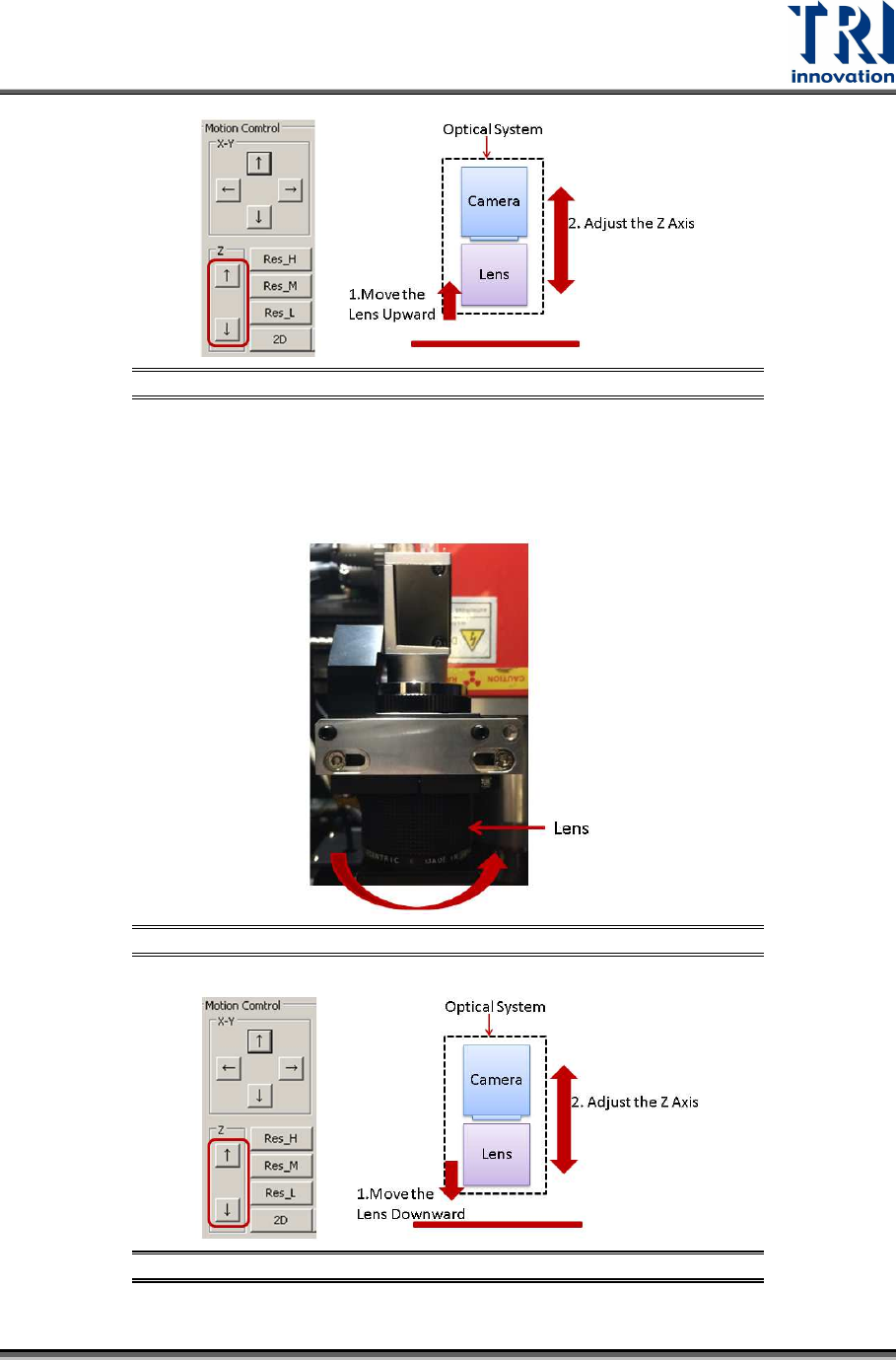
Figure 53: Adjust the Z Axis Height
c) If the current resolution is lower than the target resolution, turn the lens
counterclockwise to lower the lens (i.e. to lengthen the lens).
The image will become blur, use the [Up] or [Down] button to adjust the Z axis to
make the image clearer.
Figure 54: Turn the Lens Counterclockwise.
Figure 55: Adjust the Z Axis Height
Test Research, Inc.
36 TR7600 SIII Series User Guide – Camera Calibration
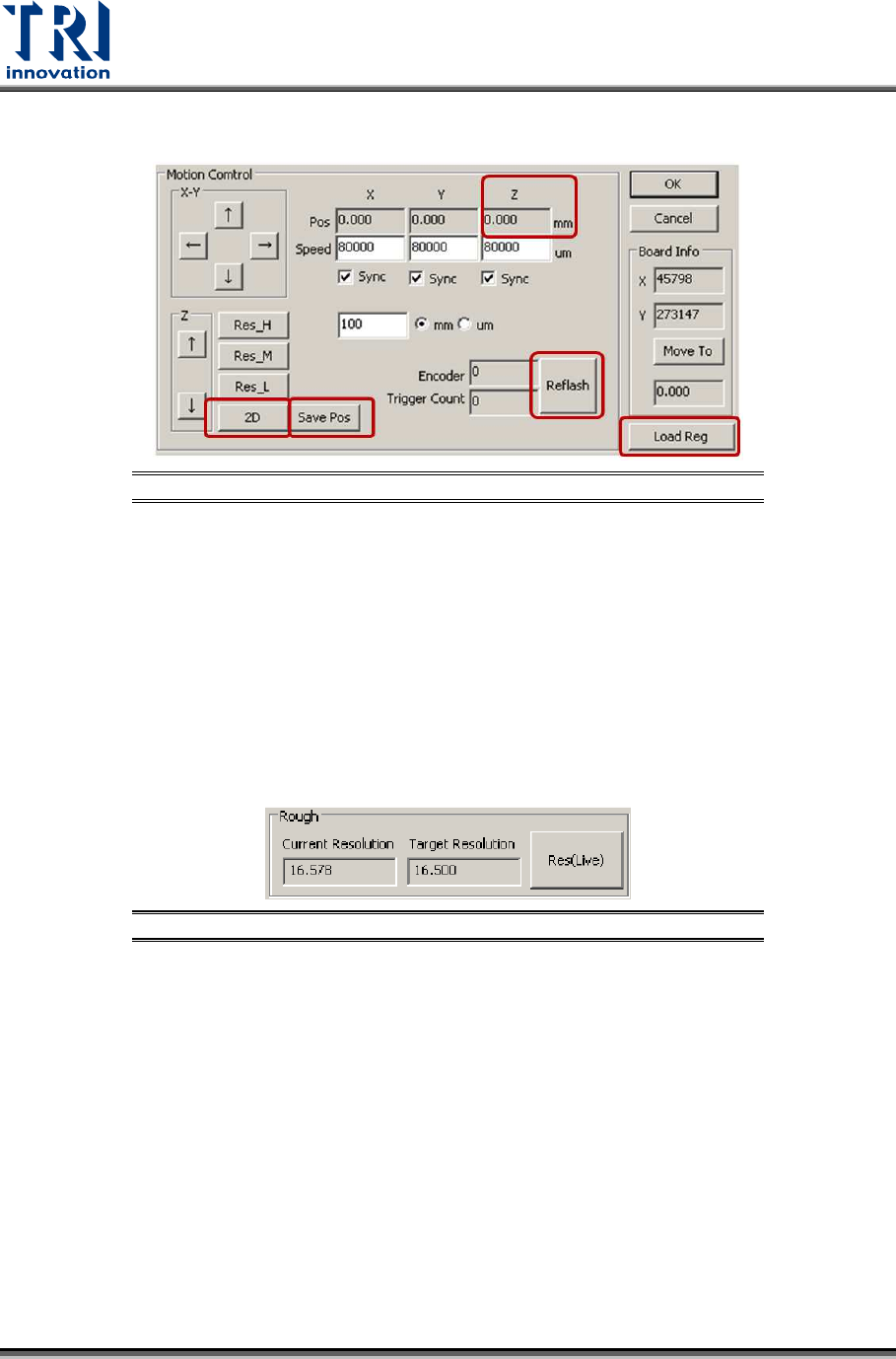
8) Click on [Save Pos] to save data to the registry.
Figure 56: Save Pos/Load Reg/Refresh/Record Z Axis Height
9) Click on [Load Reg] to load the registry in order to check if the data is saved. Do not
need to restart the main program.
10) Click on [Refresh] to update all values on the screen.
11) Record the Z axis height named as H1 in the Z position field.
12) Click on [Res_H] or [Res_M] buttons to change the current Z axis height.
13) Click on [2D] to move 2D camera to the assigned height.
14) Click on [Refresh] to update all values.
15) Check the Z axis height named as H2.
16) If H1 equals to H2, the data has been saved to the registry successfully.
17) Click on [Res(Live)].
Figure 57: Click on [Res(Live)]
18) Try different lens height and Z axis height until the difference between the current
resolution and target resolution is smaller than 0.1.
19) Fasten the screws.
Test Research, Inc.
TR7600 SIII Series User Guide – Camera Calibration 37
3.2 Fiducial Setting
Set up Fiducial Mark as the calibration reference point.
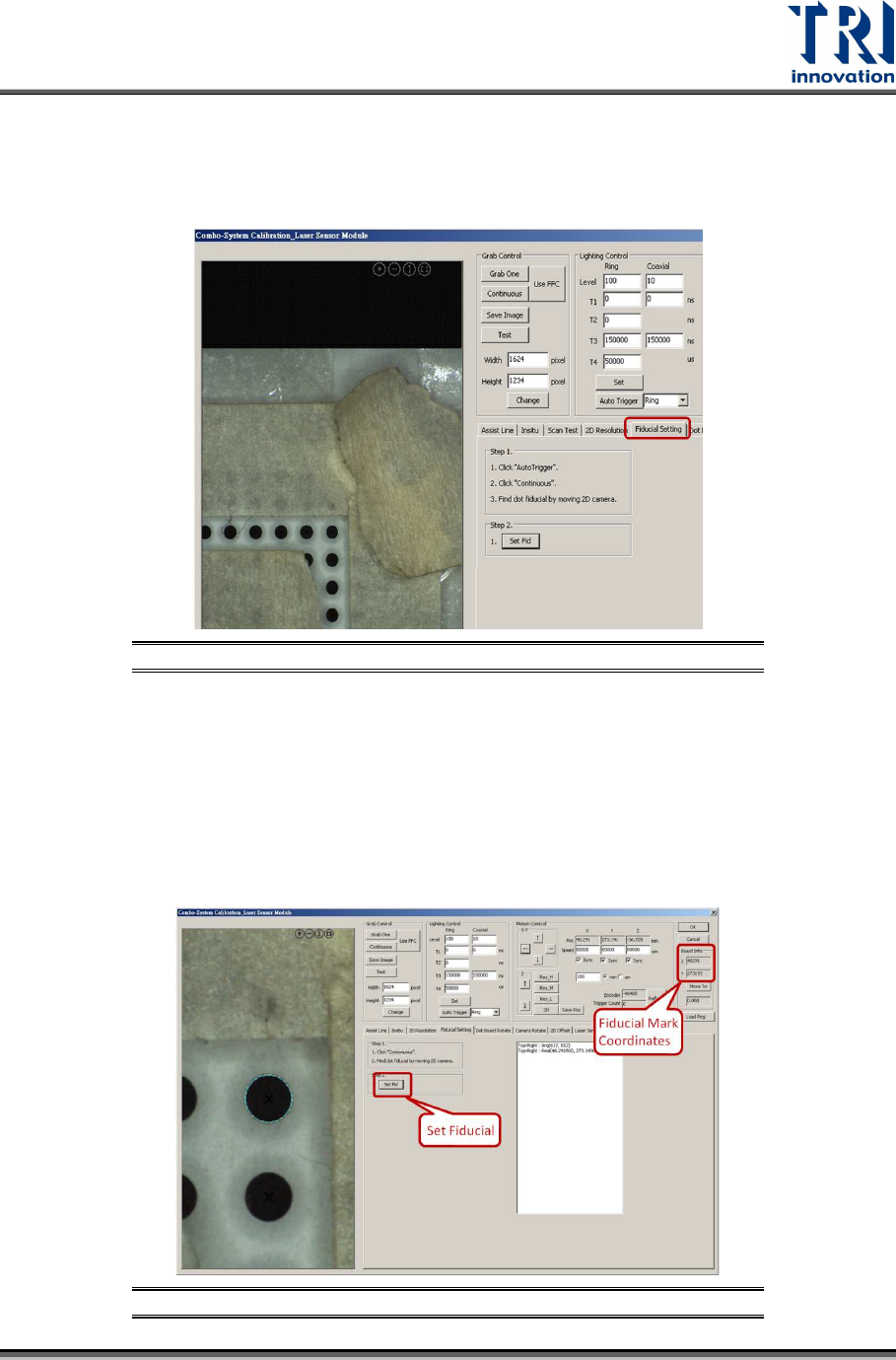
1) Click on [Fiducial Setting].
Figure 58: Fiducial Setting
2) Click on [Auto Trigger]. If the visible light is still on, do not need to click [Auto
Trigger].
3) Make sure the [Continuous] button is still checked.
4) Move the point located at uppermost right corner to the window center.
5) Click on [Set Fid] to set the point as the Fiducial Mark. If the setup is successful,
this point will be confined by a circle and its coordinates will be recorded in the [X]
and [Y] fields.
Figure 59: Set Up Fiducial Mark