TR7600 SIII_Camera_Calibration_en_v_2_0_2 - 第45页
Test Research, Inc. TR7600 SIII Ser ies User G uide – Cam era Calibr ation 39 3.4 Camer a Rotate : This step is used to align the coordinat es of camera to X and Y axes. 1) Click on [Camera Rotate] that is next to t he…
Test Research, Inc.
38 TR7600 SIII Series User Guide – Camera Calibration
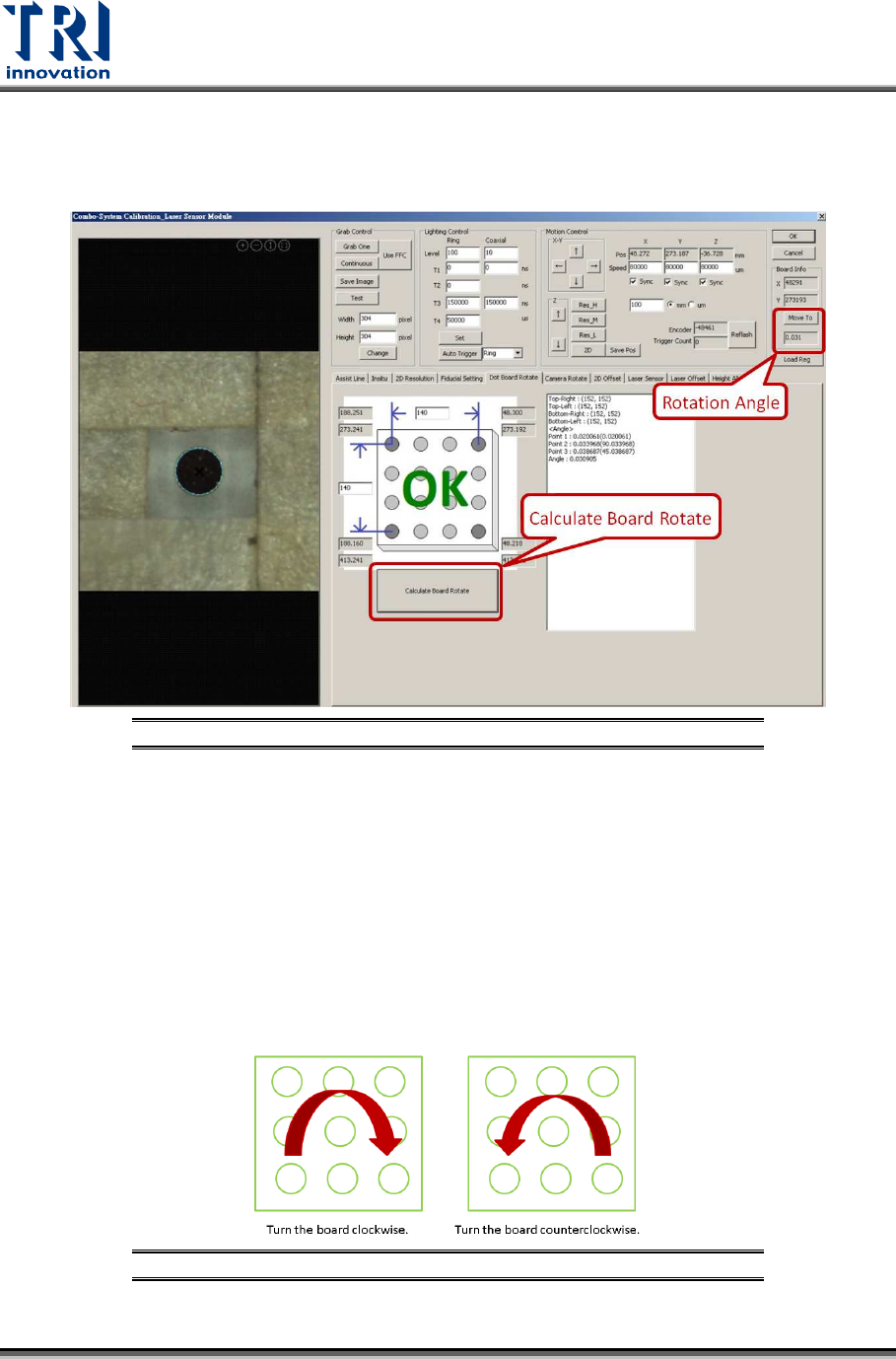
3.3 Dot Board Rotate:
1) Click on [Dot Board Rotate]
2) Click on [Calculate Board Rotate].
Figure 60: Dot Board Rotate
3) Confirm the angle in [Move To] field is within -4.5~+4.5 degrees. If yes, click on
[Camera Rotate] and move to the next step.
4) If the angle is not within -4.5~+4.5 degrees, rotate the calibration board until [OK]
message appeared.
5) From the value, users will know whether to turn the calibration board clockwise or
counterclockwise. Calibration board need to be turned manually when it is
clamped on the conveyor.
6) After the calibration board is turned, click on [Calculate Board Rotate] to re-
calculate the angle again. Repeat this step several times until [OK] message
appeared.
Figure 61: Turn the Board as Indicated
Test Research, Inc.
TR7600 SIII Series User Guide – Camera Calibration 39
3.4 Camera Rotate:
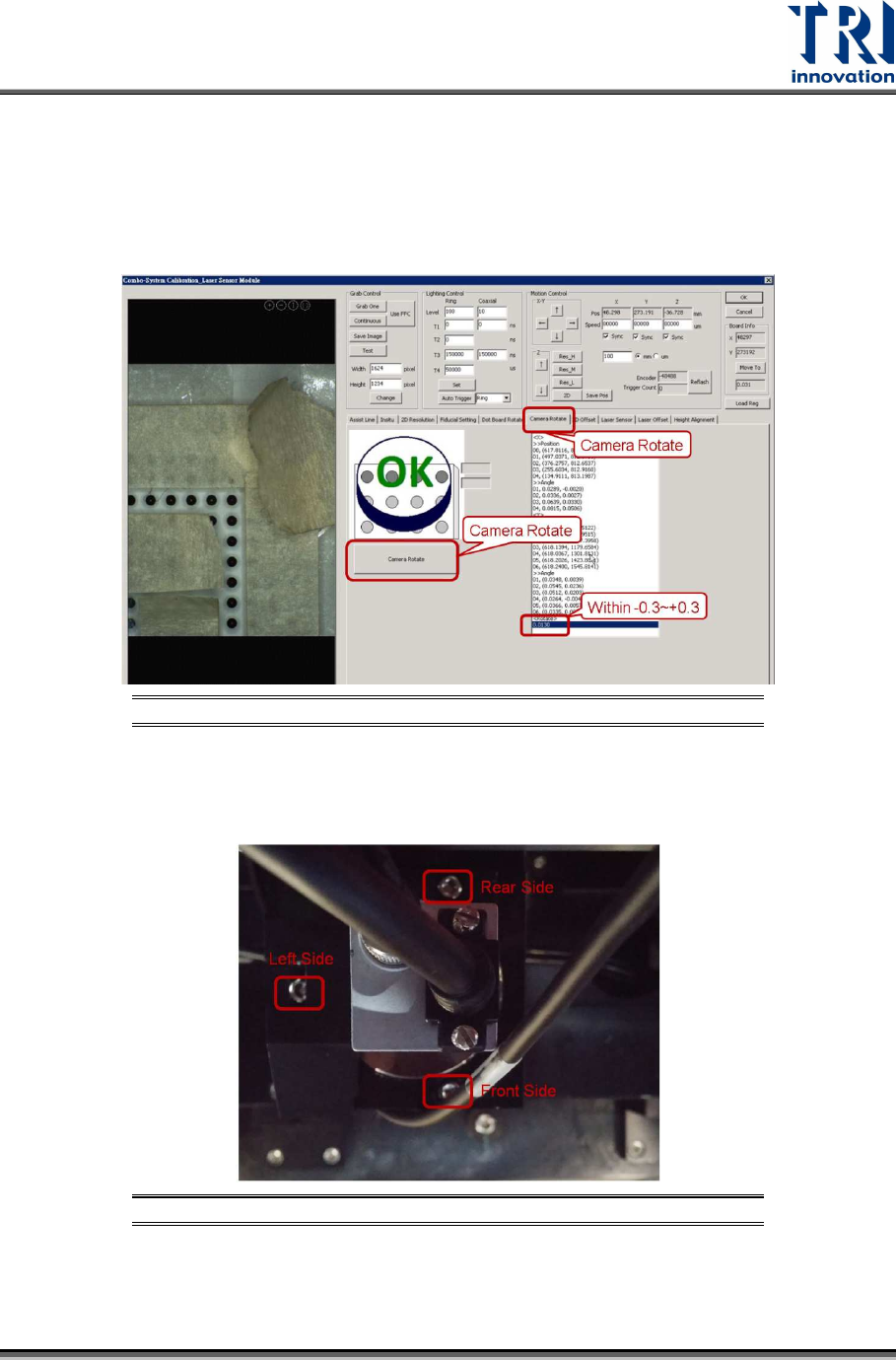
This step is used to align the coordinates of camera to X and Y axes.
1) Click on [Camera Rotate] that is next to the [Dot Board Rotate] button.
2) Click on [Camera Rotate] that is under the [OK] message as shown below.
3) If the [OK] message appeared, click on [2D Offset] and move to the next step.
Figure 62: Camera Rotate
4) If the [OK] message does not appeared, rotate the camera. Release the screws a
little bit first. The screws’ positions are indicated as below.
Figure 63: Screws Location/Top View of 2D Camera
Test Research, Inc.
40 TR7600 SIII Series User Guide – Camera Calibration
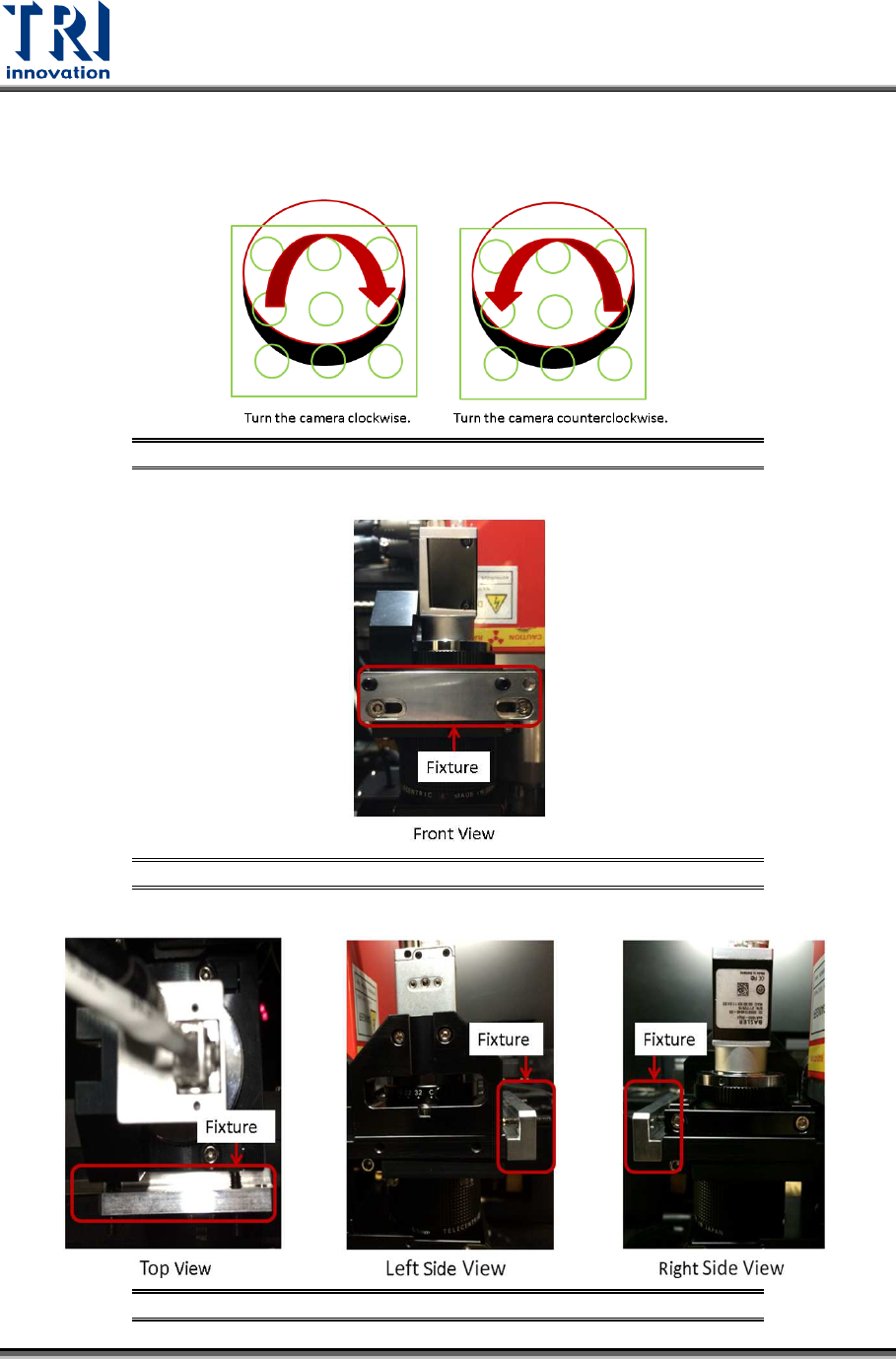
5) Use the fixture to rotate the camera to the direction indicated in figure below.
Figure 64: Rotate the Camera by the Direction Indicated
Figure 65: Fixture/Front View
Figure 66: Fixture/Top View/Right Side View/Left Side View