TR7600 SIII_Camera_Calibration_en_v_2_0_2 - 第49页
Test Research, Inc. TR7600 SIII Ser ies User G uide – Cam era Calibr ation 43 3.7 2D Offse t The below proc edure explai n how to perform Camera D ynamic O ffset and Camera Static Offset cali brations. Before perf or…
Test Research, Inc.
42 TR7600 SIII Series User Guide – Camera Calibration
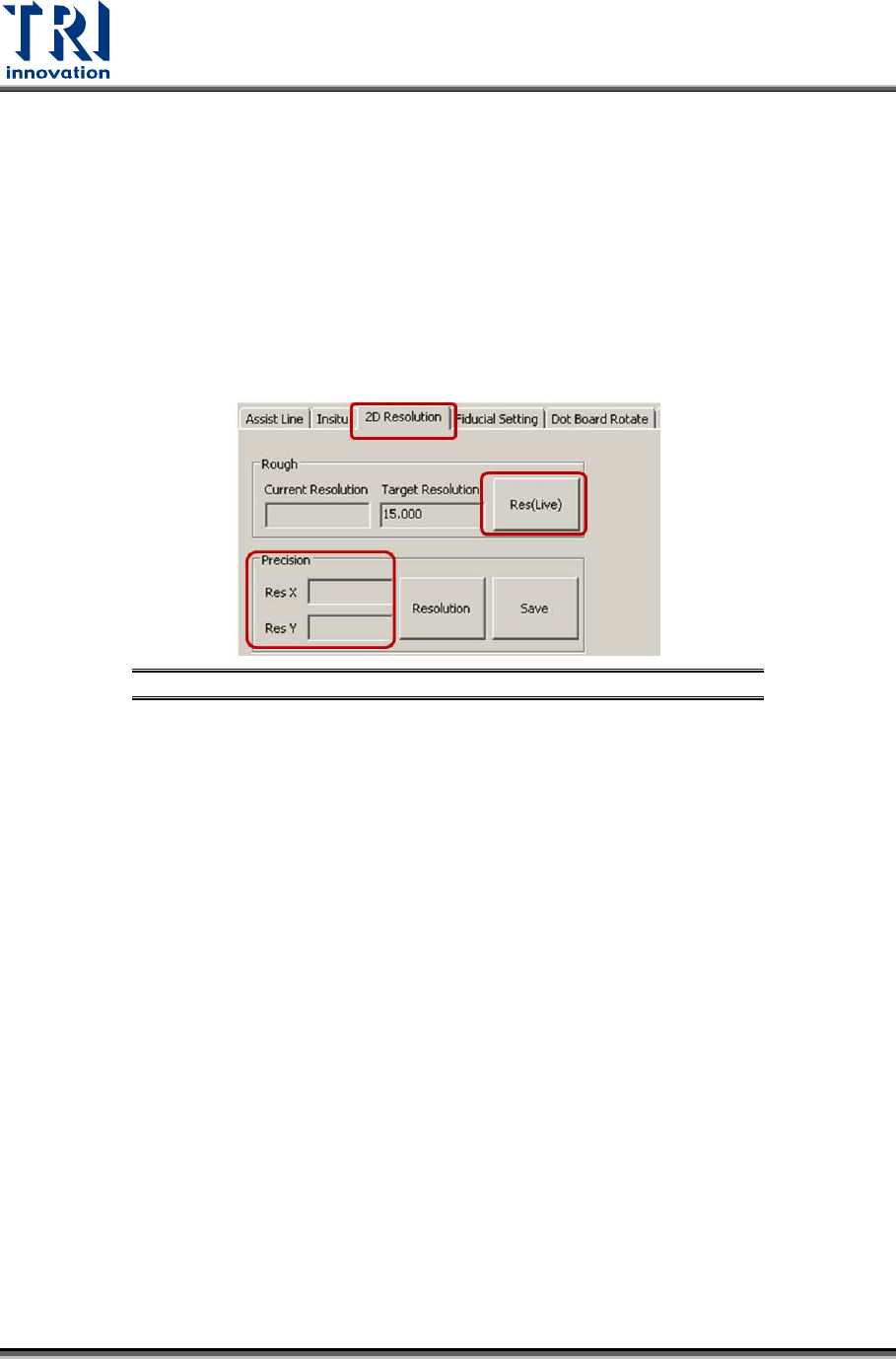
3.5 2D Resolution:
Calibrate 2D camera resolution precisely.
1) Click on [2D Resolution].
2) Click on [Res(Live)].
3) Calibrate the current resolution using the same procedure described in the Step 1.
2D Resolution.
4) If both the values in the [Res. X] and [Res. Y] fields are within the range from 16.4
to 17, the calibration is successful.
5) Click on [Save].
Figure 68: 2D Resolution
3.6 Camera Rotate
1) Please repeat the same procedure described in the Section 3.4 Camera Rotate
to check whether camera aligns to X and Y axes again.
2) If the result is not good, repeat the steps in Section 3.5 2D Resolution and
Section 3.4 Camera Rotate again until see the [OK] message appeared.
Test Research, Inc.
TR7600 SIII Series User Guide – Camera Calibration 43
3.7 2D Offset
The below procedure explain how to perform Camera Dynamic Offset and
Camera Static Offset calibrations.
Before performing Camera Dynamic Offset calibration, please confirm with TRI
FAE. Camera Dynamic Offset calibration may not be required and only Camera
Static Offset calibration need to be performed.
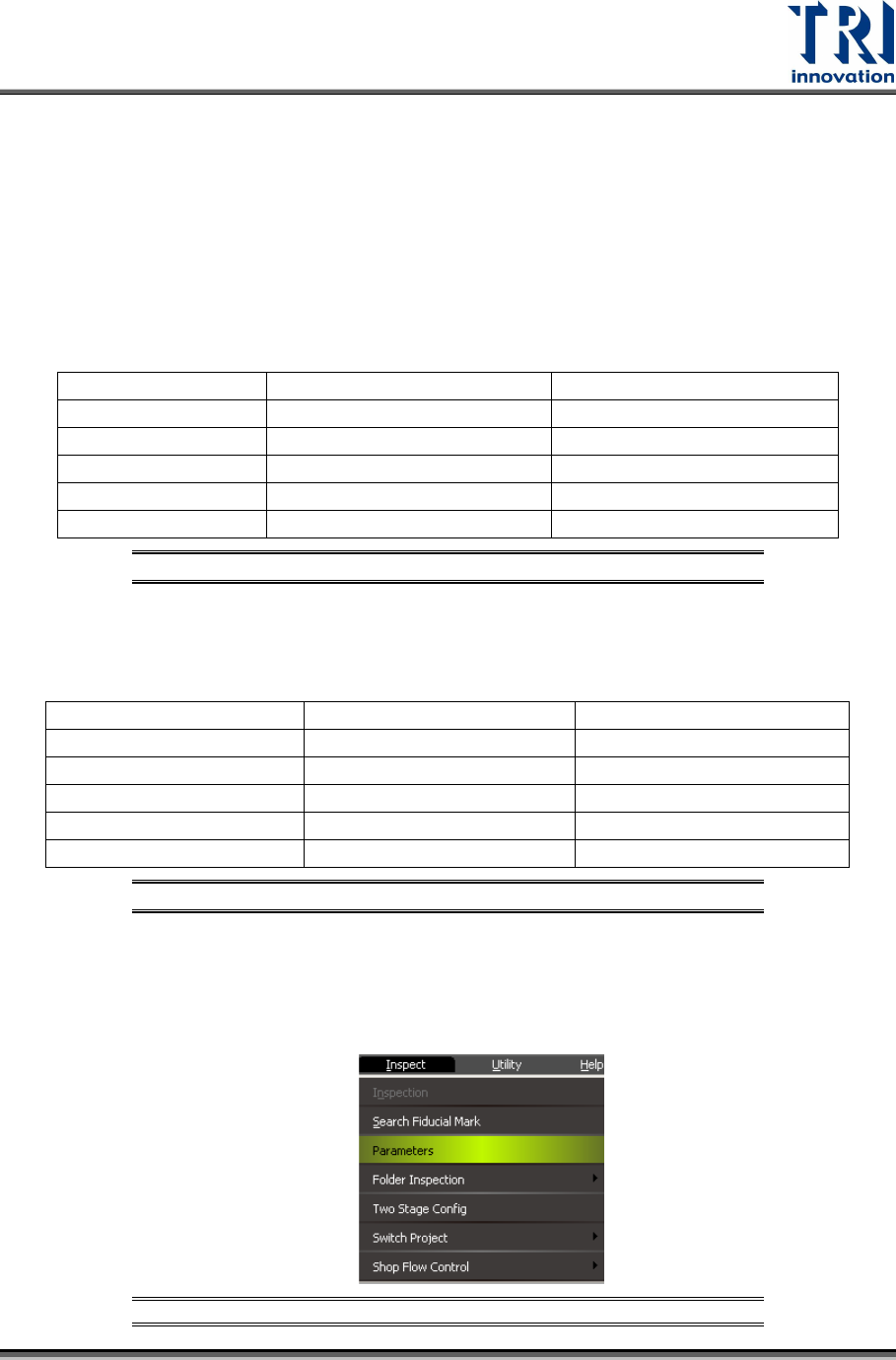
In order to execute Camera Dynamic Offset calibration (camera will move to
grab the image), repeat the procedure for these 6 conditions:
Condition 1 Normal Speed Mode Low Resolution
Condition 2 Normal Speed Mode Median Resolution
Condition 3 Normal Speed Mode High Resolution
Condition 4 High Speed Mode Low Resolution
Condition 5 High Speed Mode Median Resolution
Condition 6 High Speed Mode High Resolution
Figure 69: 6 Conditions for Dynamic 2D Camera
In order to execute Camera Static Offset calibration (camera grabs the image
without movement), repeat the procedure for these 6 conditions:
Condition 1 Normal Speed Mode Low Resolution
Condition 2 Normal Speed Mode Median Resolution
Condition 3 Normal Speed Mode High Resolution
Condition 4 High Speed Mode Low Resolution
Condition 5 High Speed Mode Median Resolution
Condition 6 High Speed Mode High Resolution
Figure 70: 6 Conditions for Static 2D Camera
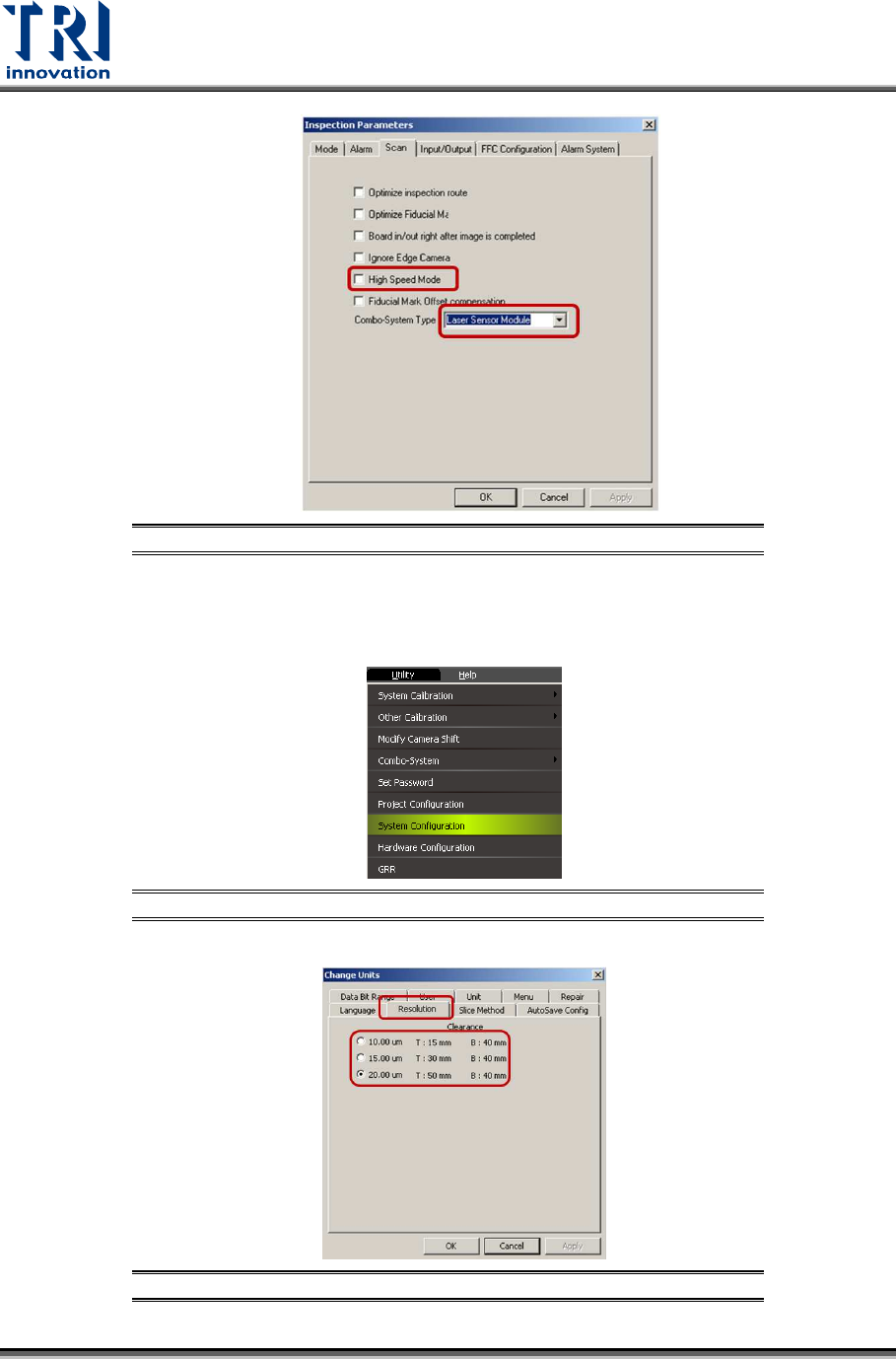
Once completed the calibration for one condition, go to [Inspect] [Parameters]
[Scan]enable or disable [High Speed Mode]. Always choose [Laser Sensor
Module] in the [Combo System Type].
Figure 71: [Inspect]
[Parameters]
Test Research, Inc.
44 TR7600 SIII Series User Guide – Camera Calibration
Figure 72: High Speed Mode
You also have to go to [Utility][System Configuration][Resolution]choose
different resolutions.
Figure 73: [Utility]
[System Configuration]
Figure 74: [Utility]
[System Configuration]