TR7600 SIII_Camera_Calibration_en_v_2_0_2 - 第59页
Test Research, Inc. TR7600 SIII Ser ies User G uide – Cam era Calibr ation 53 3) Click on [↑] or [↓] button to set [ou t] = [npn] and then click on [M ode] button. Figure 89 : npn /Mode 4) Click on [ ↑] or [↓] button to …
Test Research, Inc.
52 TR7600 SIII Series User Guide – Camera Calibration
3.8 Set Up Amplifier
In this calibration, put the calibration board in the machine manually and clamp it. In this
way, when the front door is opened and amplifier is set up, the calibration board can be
held and the zero height of its top surface can be fixed.
The amplifier is installed on the top of X-ray tube.
Basically, the amplifier should have been calibrated before sent to the customer site. In
this case, set up of the amplifier is not required.
However, if the machine does not have 2D camera and laser and users would like to
install them, follow the steps below.
Please reset the amplifier first.
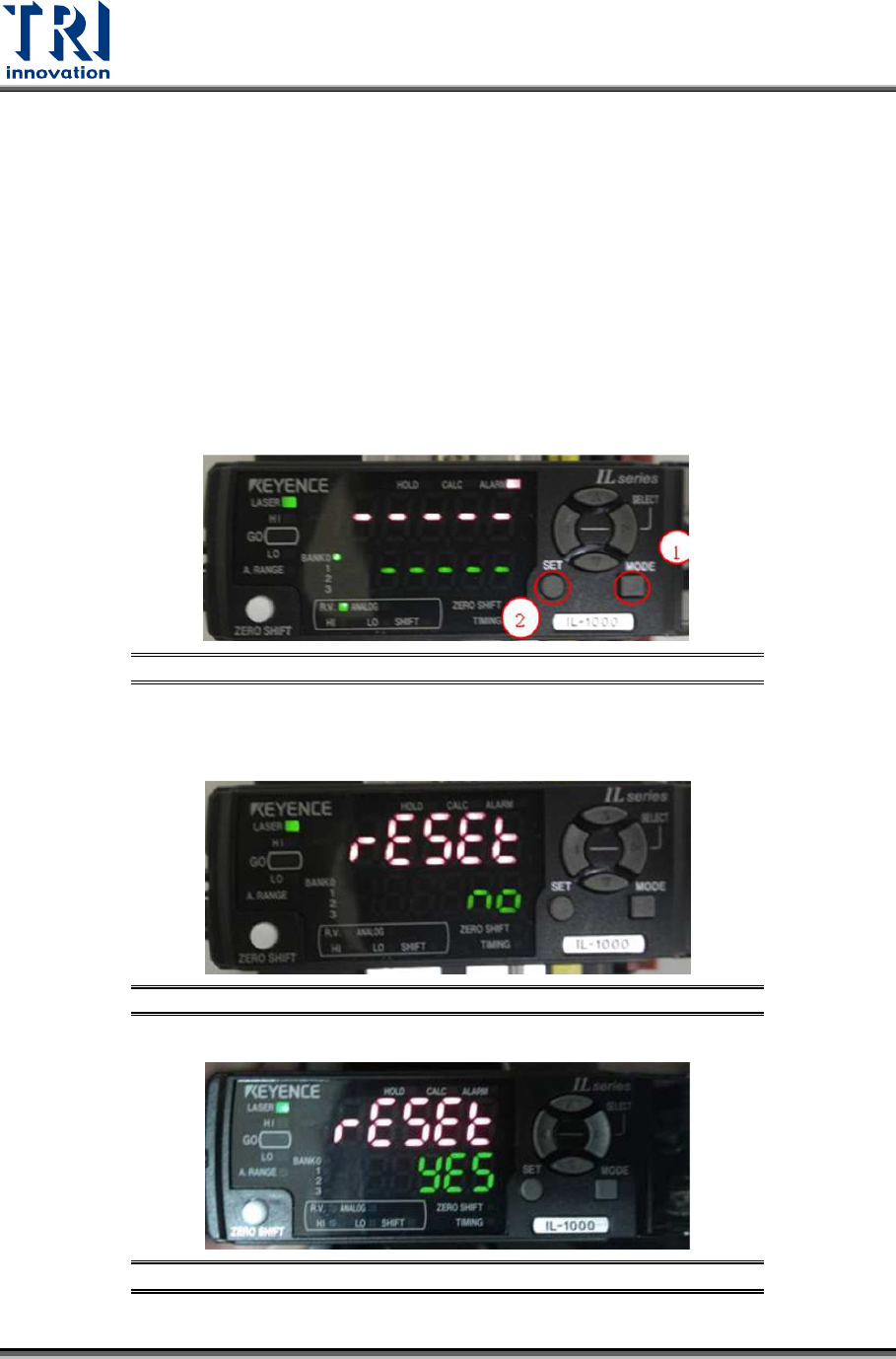
1) Please press [Mode] button and click on [Set] button 5 times at the same time.
Figure 86: Mode/Set
2)
Click on [
↑] or [↓] button to set [Reset] as [Yes] and then click on [Mode] button.
Figure 87: Reset/Yes/Mode
Figure 88: Reset/Yes/Mode
Test Research, Inc.
TR7600 SIII Series User Guide – Camera Calibration 53
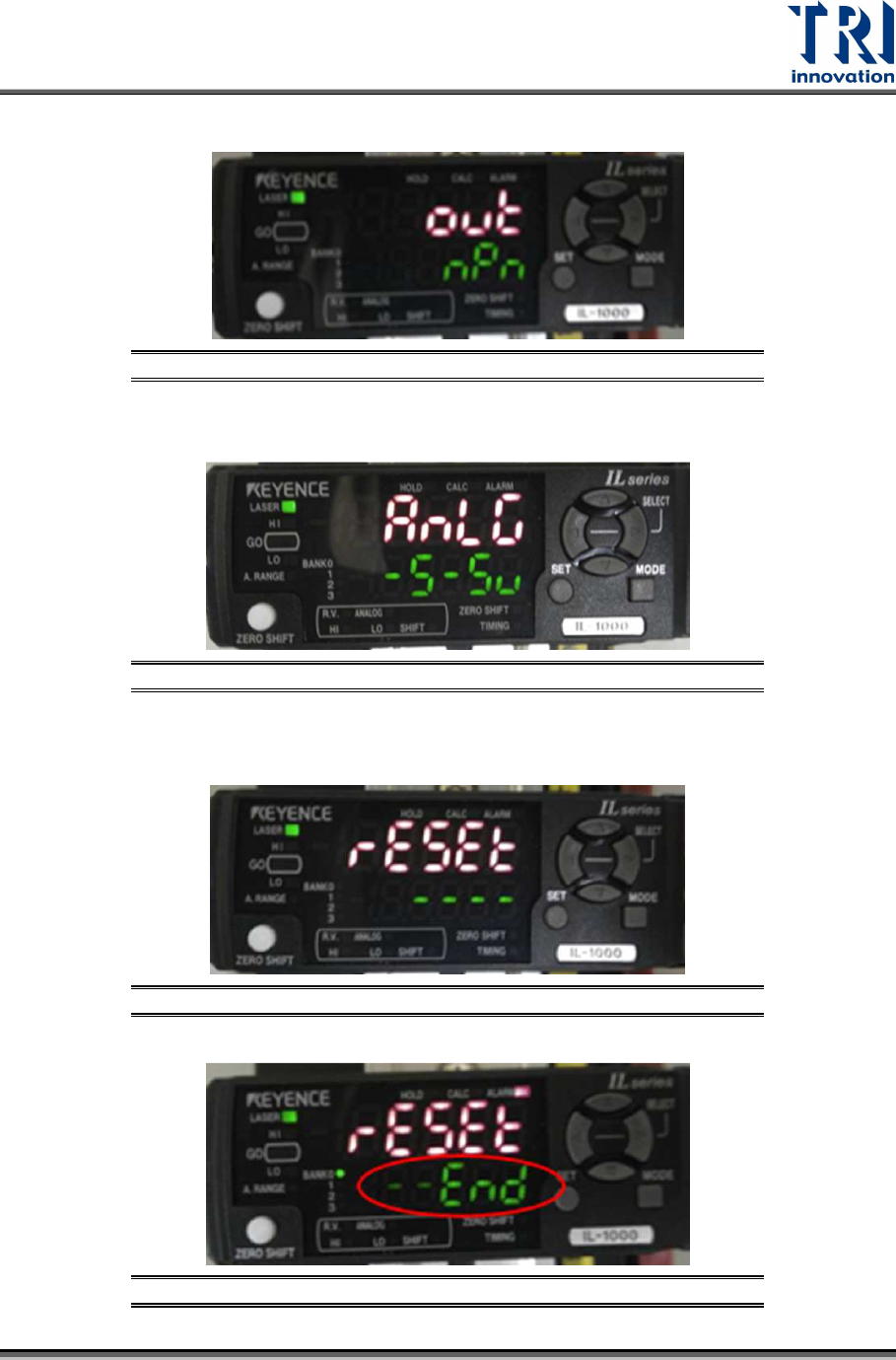
3) Click on [↑] or [↓] button to set [out] = [npn] and then click on [Mode] button.
Figure 89: npn/Mode
4) Click on [
↑] or [↓] button to set [Anlg] as [
-5~5v] and then click on [Mode] button.
Figure 90: Anlg/Mode
5) The device will reset automatically. After the reset is finished, the window will
show [End].
Figure 91: Reset
Figure 92: End
Test Research, Inc.
54 TR7600 SIII Series User Guide – Camera Calibration
Follow the steps below to set up the basic function.
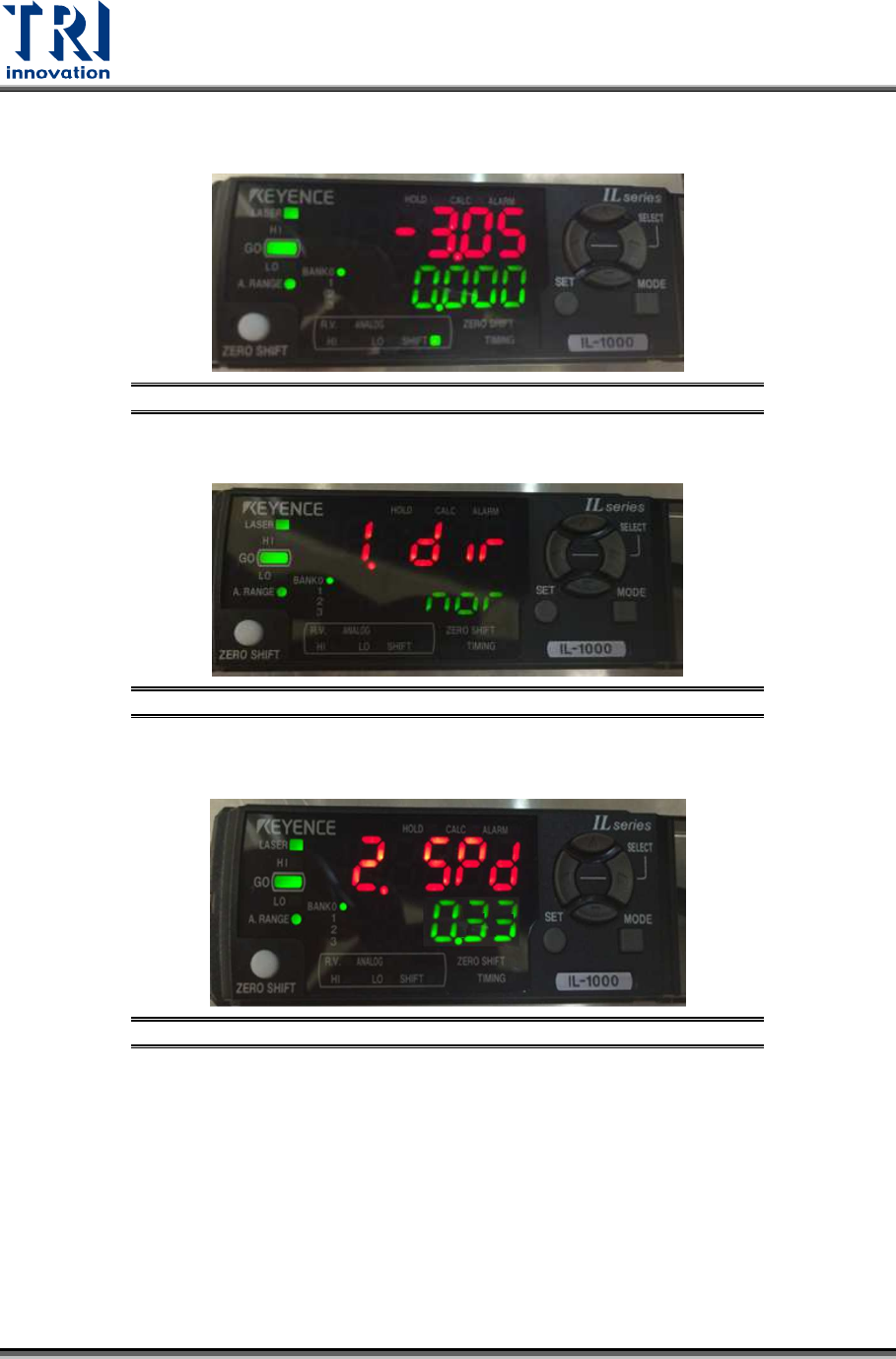
1) Press [Mode] button for 2 seconds.
Figure 93: Mode
2) Click on [↑] or [↓] button to set [1.dir] as [nor] and then click on [Mode] button.
Figure 94: 1.dir/Mode
3) Click on [
↑] or [↓] to set [2.SPD
] as [0.33] and then click on [Mode] button.
Figure 95: 2.SPD/Mode
4) Click on [
↑] or [↓] button to set [3.AVE] as [1] and then click on [Mode] button.
Note: After you have seen [1], you also can click on [
→], instead of [Mode], to
finish this step.