CP-842E-842ME System Reference-SYS-CP842-10E.pdf - 第73页
Machine System >> Basic Operation SYS-CP842-1.0E 4-37 Changing the Axis Group an d the Rapid Inching S peed The axes move at a very low speed when th ey are m oved using the inching controls. When moving axes longe…
Machine System >> Basic Operation
4-36
SYS-CP842-1.0E
4.1.12Inching
Moving an Axis With the Inching Keys
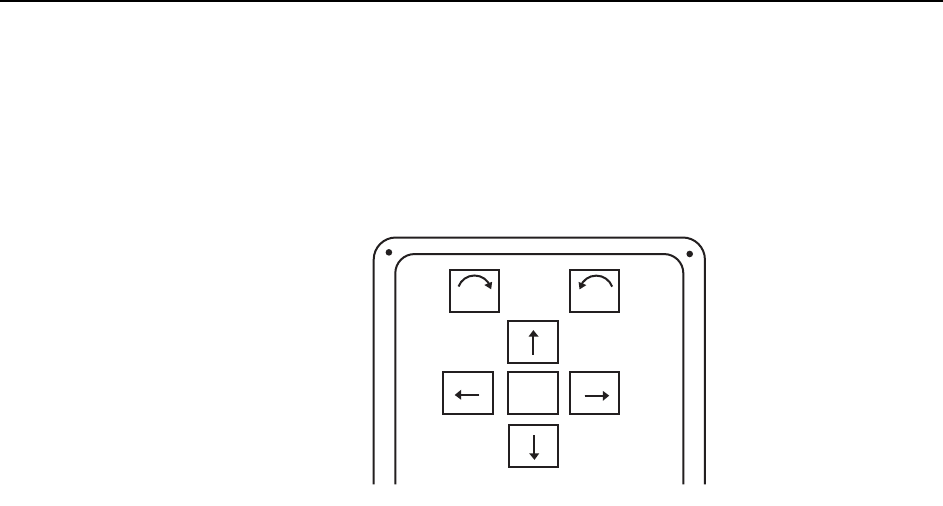
Inching is performed using the inching keys on the operation console. Inching can be
performed at any time except under the following conditions:
• When the machine is in START ready status
• During operation
• Before the cause of an emergency stop has been cleared
• When displaying the I/O command page
To inch an axis, press the inching key corresponding to the target axis and direction.
To move the target axis faster, hold down F (fast) as well as the chosen inching key for
rapid inching.
The axis combination displays at the [JOG] button in the command bar of the touch
screen.
F
θ
θ
C7SS2001
Machine System >> Basic Operation
SYS-CP842-1.0E 4-37
Changing the Axis Group and the Rapid Inching Speed
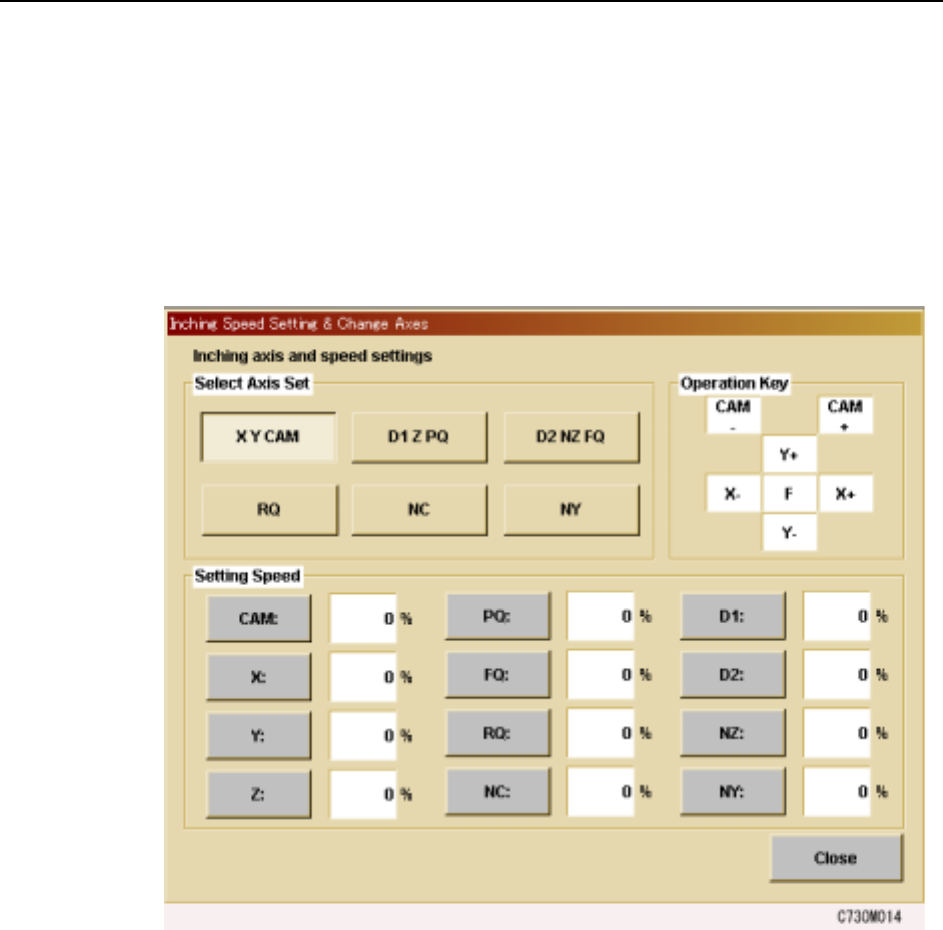
The axes move at a very low speed when they are moved using the inching controls.
When moving axes longer distances, use the F (fast) in combination with the inching
keys for Rapid Inching. The Rapid Inching speed can be specified at the machine
using the following procedure.
Procedure
1 Press [JOG] to display the [Inching Speed Setting & Change Axes] screen.
2 Under [Select Axis Set], press the combination of axes to be controlled using the
inching keys.
3 To change the rapid axis speed by selecting the target axis under “Speed”, and
entering the percentage of full speed at which the axis is to be moved during
Rapid Inching.
Machine System >> Basic Operation
4-38
SYS-CP842-1.0E
4.1.13Changing the Starting Sequence
Use this procedure to start assembly from a sequence other than sequence one.
Procedure
1 Press [Production] at the [Main] screen, and then press [Start Sequence].
2 Enter the number of the sequence from which production is to be commenced at
the numeric keypad.
3 Press [OK] when the sequence has been specified.
The specified sequence displays at the Current seq. no item at the [Production]
screen.
Note: The production start sequence number can only be specified after a panel is loaded to the
main conveyor.
4.1.14Skipping a Panel
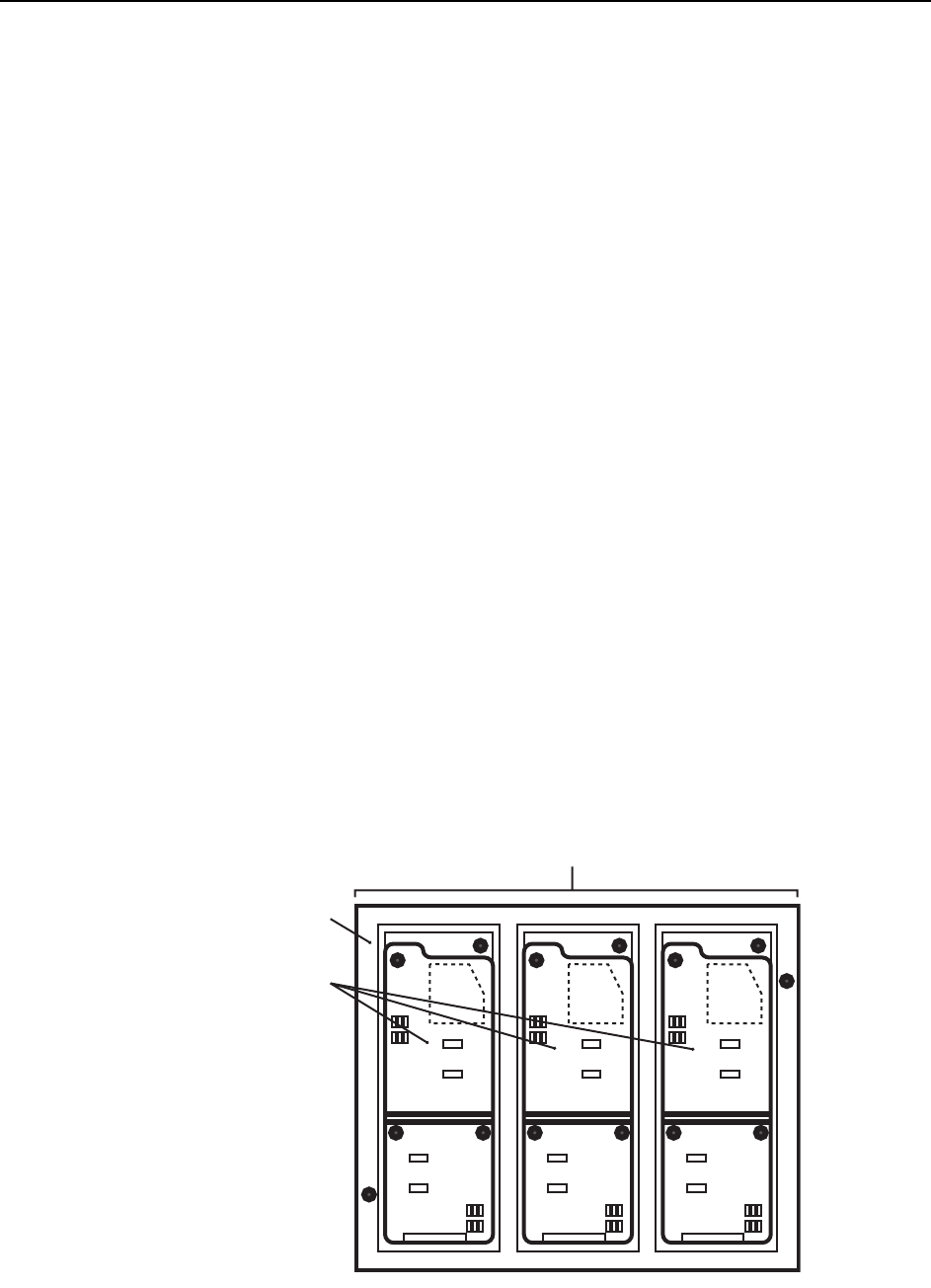
On a multiboard panel, if the operator decides there is a board (or boards) that should
not be assembled (i.e., skipped), there are three methods of preventing parts being
placed on that board.
• Setting board skips
Board skips can be set up in the program.
• Skip mark
An appropriate mark is attached to the target board. When the mark is
detected by the machine it knows not to produce that board.
Refer to your host system documentation about setting skip mark reading posi-
tions in the program.
• Manual board skips
Commands at the machine can be used to skip one board on certain panels, or
the same board on each panel.
Panel
Multiboard panel
Boards
C73OM002