CP-842E-842ME System Reference-SYS-CP842-10E.pdf - 第75页
Machine System >> Basic Operation SYS-CP842-1.0E 4-39 Global Skip Marks The use of global skip marks can reduce cycle ti me when productio n involves a multi- board panel. The user defines the global skip mark as a…
Machine System >> Basic Operation
4-38
SYS-CP842-1.0E
4.1.13Changing the Starting Sequence
Use this procedure to start assembly from a sequence other than sequence one.
Procedure
1 Press [Production] at the [Main] screen, and then press [Start Sequence].
2 Enter the number of the sequence from which production is to be commenced at
the numeric keypad.
3 Press [OK] when the sequence has been specified.
The specified sequence displays at the Current seq. no item at the [Production]
screen.
Note: The production start sequence number can only be specified after a panel is loaded to the
main conveyor.
4.1.14Skipping a Panel
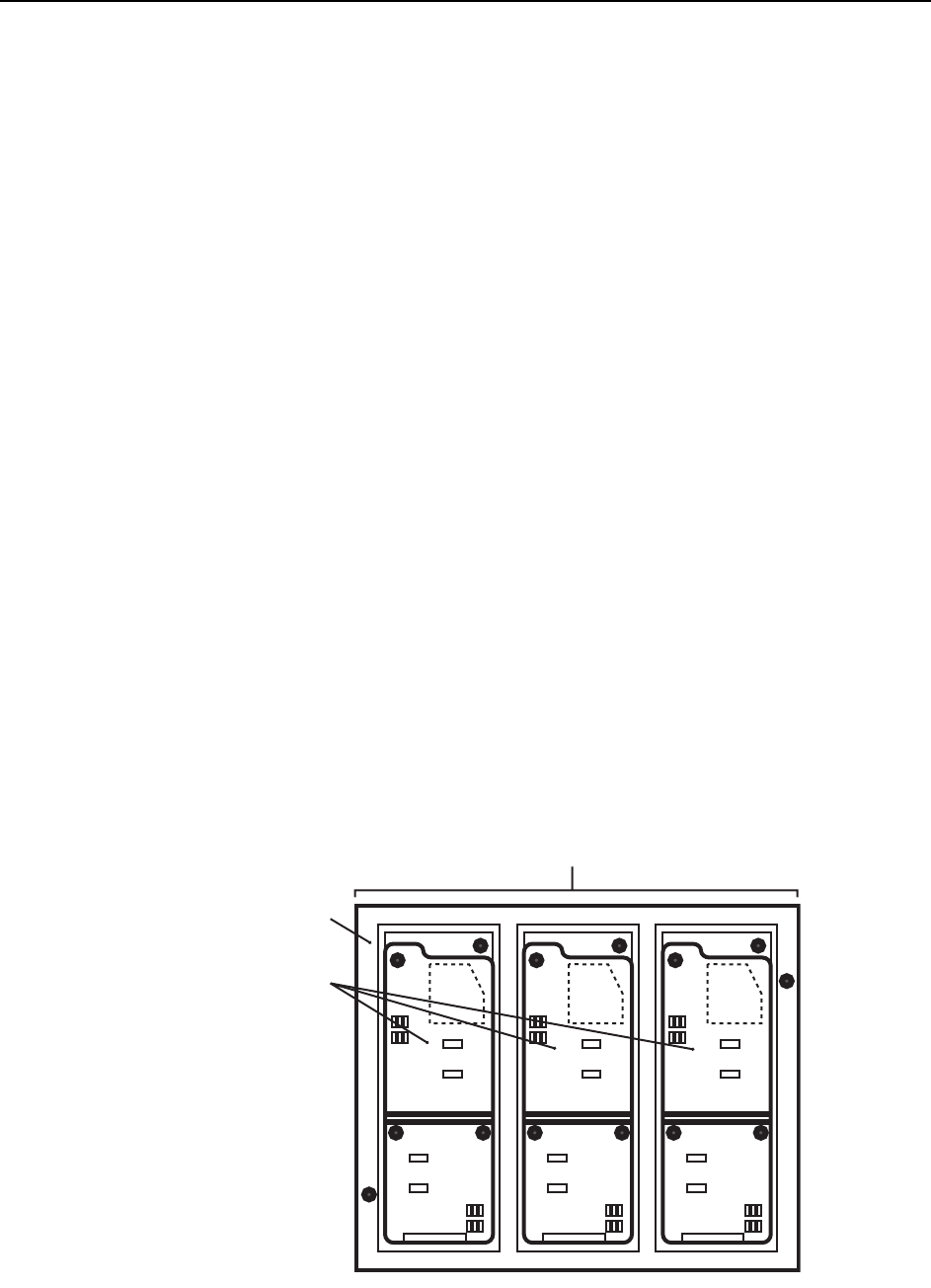
On a multiboard panel, if the operator decides there is a board (or boards) that should
not be assembled (i.e., skipped), there are three methods of preventing parts being
placed on that board.
• Setting board skips
Board skips can be set up in the program.
• Skip mark
An appropriate mark is attached to the target board. When the mark is
detected by the machine it knows not to produce that board.
Refer to your host system documentation about setting skip mark reading posi-
tions in the program.
• Manual board skips
Commands at the machine can be used to skip one board on certain panels, or
the same board on each panel.
Panel
Multiboard panel
Boards
C73OM002
Machine System >> Basic Operation
SYS-CP842-1.0E 4-39
Global Skip Marks
The use of global skip marks can reduce cycle time when production involves a multi-
board panel. The user defines the global skip mark as a skip mark on board 0 in the
production program. The machine checks for the global skip mark first. If the opera-
tor has put a mark at that position, the machine knows there is a board (or boards) to
be skipped on the current panel, and proceeds with the reading of all the skip marks.
If the machine does not detect a global skip mark, none of the skip mark positions are
inspected, and the machine proceeds with the placing of parts. Unnecessary inspec-
tion of skip marks is avoided.
Refer to your host system documentation for details of how to set up global skip marks
in the current production program.
Changing Settings at the Machine
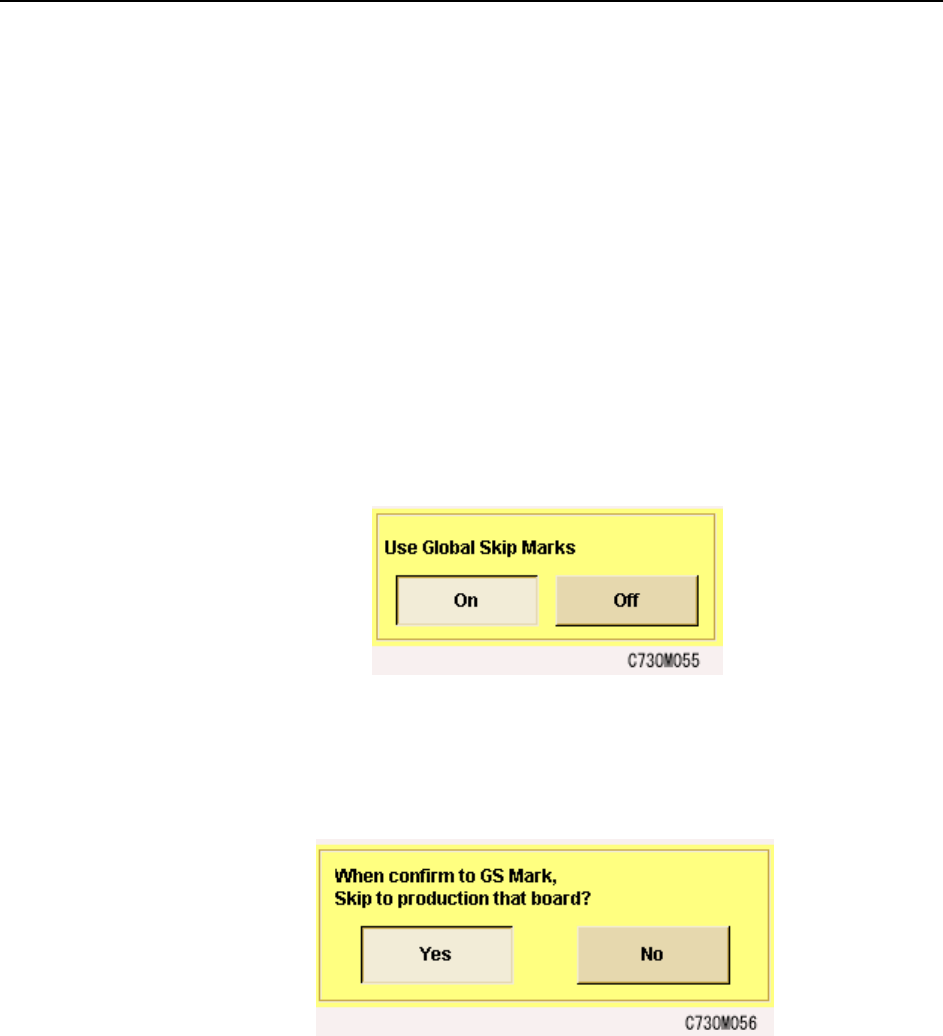
1 From the [Main] screen, select [Maintenance], [Configuration], then [Basic].
2 In the [Basic] screen, select “ON” under “Use global skip marks?”
3 It is possible to skip production on a board when global skip marks are detected.
To use this function, in the [Basic] screen, select [Special Configuration Data]
and select “Yes” under “When confirm to GS Mark, Skip to production that
board?”
Machine System >> Basic Operation
4-40
SYS-CP842-1.0E
Automatic Skipping of Boards
The machine will automatically skip a board if a skip mark is detected at the specified
position on the board. If you are using global skip marks, then this will be after the
machine found a global skip mark and has read the skip marks to determine which
board or boards are to be skipped. Parts are placed on the remaining boards on the
panel, and the panel is unloaded.
Refer to your host system documentation for details of how to set up skip marks in the
production program.
Forcing the Machine to Skip a Board (Manual Skip)
The operator can use commands at the machine to force the machine to skip a board.
Procedure
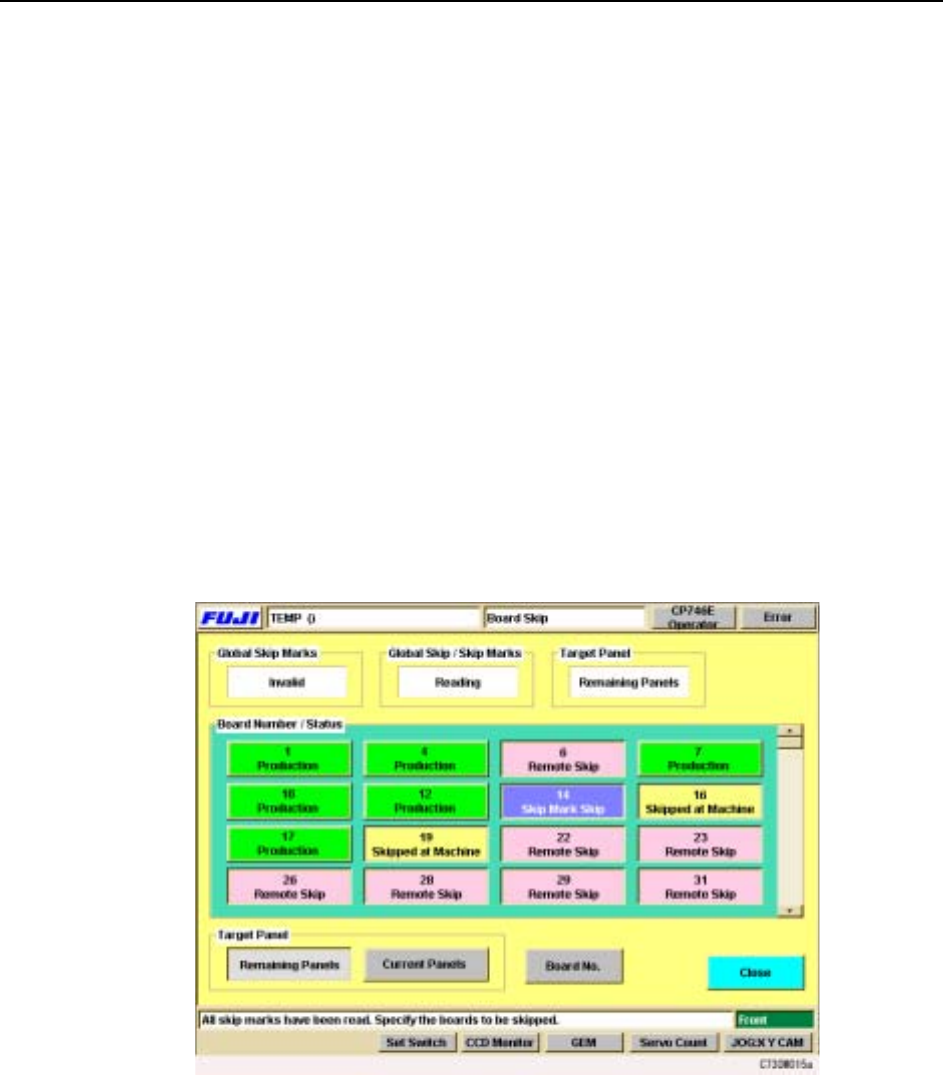
1 Press [Board Skip] at the [Main] screen. The [Board Skip] screen displays.
This screen is divided into color coded sections for each of the boards in the
panel. As is indicated in the color key on the screen, boards that have been
specified to be skipped in the production program are displayed in red, and
these cannot be changed at the machine. Boards that are to be produced display
in green.
2 Under Board Number & Status, press the panel(s) to be skipped.
The color immediately changes to yellow to indicate that a manual skip has
been set. It is also possible to undo a skip, by pressing that board again to
change the color back to green.
3 Select whether the board skip is applied to the current panel only, or to all the
remaining panels. Press [Remaining Panels] or [Current Panels] under Target
Panel.
4 Press [Close] to return to the [Main] screen.