CP-842E-842ME System Reference-SYS-CP842-10E.pdf - 第77页
Machine System >> Basic Operation SYS-CP842-1.0E 4-41 4.1.15V ision System Displaying the V ision Monitor The touch screen has a built in vision moni tor . Users can displa y the V ision Monit or and select bet wee…
Machine System >> Basic Operation
4-40
SYS-CP842-1.0E
Automatic Skipping of Boards
The machine will automatically skip a board if a skip mark is detected at the specified
position on the board. If you are using global skip marks, then this will be after the
machine found a global skip mark and has read the skip marks to determine which
board or boards are to be skipped. Parts are placed on the remaining boards on the
panel, and the panel is unloaded.
Refer to your host system documentation for details of how to set up skip marks in the
production program.
Forcing the Machine to Skip a Board (Manual Skip)
The operator can use commands at the machine to force the machine to skip a board.
Procedure
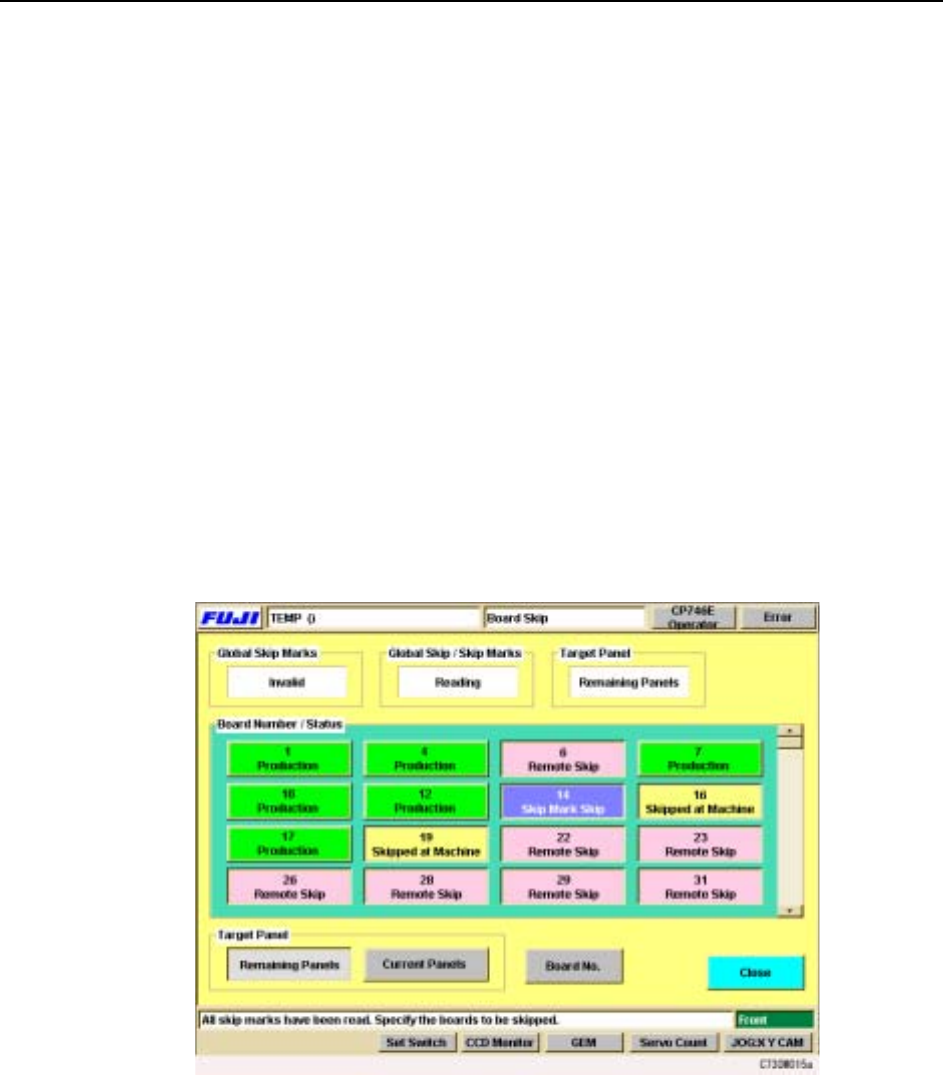
1 Press [Board Skip] at the [Main] screen. The [Board Skip] screen displays.
This screen is divided into color coded sections for each of the boards in the
panel. As is indicated in the color key on the screen, boards that have been
specified to be skipped in the production program are displayed in red, and
these cannot be changed at the machine. Boards that are to be produced display
in green.
2 Under Board Number & Status, press the panel(s) to be skipped.
The color immediately changes to yellow to indicate that a manual skip has
been set. It is also possible to undo a skip, by pressing that board again to
change the color back to green.
3 Select whether the board skip is applied to the current panel only, or to all the
remaining panels. Press [Remaining Panels] or [Current Panels] under Target
Panel.
4 Press [Close] to return to the [Main] screen.
Machine System >> Basic Operation
SYS-CP842-1.0E 4-41
4.1.15Vision System
Displaying the Vision Monitor
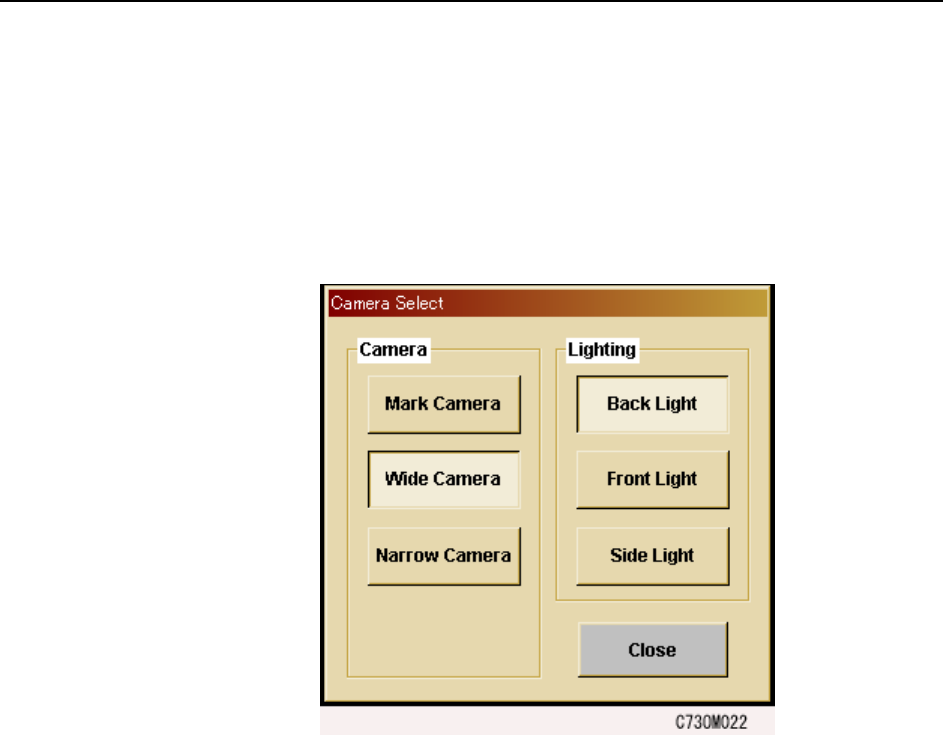
The touch screen has a built in vision monitor. Users can display the Vision Monitor
and select between the [Mark Camera], [Wide Camera] and [Narrow Camera] for the
acquired images displayed, by pressing [Vision] in the command bar. Press [Close] at
this screen to clear the Vision Monitor.
Note: During automatic operation, it is not possible to display the vision processing monitor in order
to view part images. Be sure to close the vision processing monitor before beginning auto-
matic operation.
Machine System >> Basic Operation
4-42
SYS-CP842-1.0E
Camera Monitor Settings
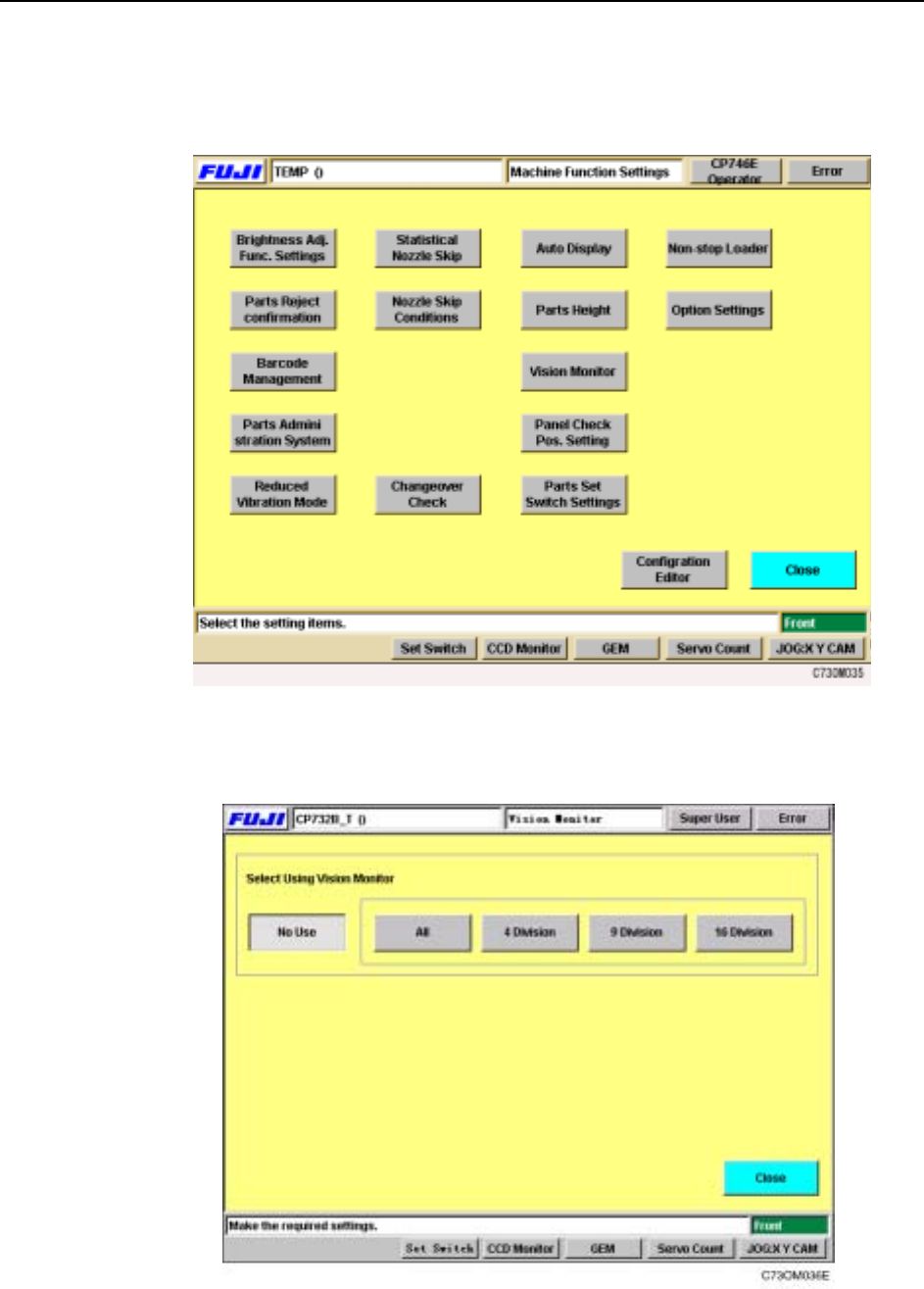
1 Select [Maintenance] [Configuration] [Vision Monitor] from the [Main] screen.
2 Select from [All], [4 Division], [9 Division] or [16 Division] for the display mode
at the external vision monitor.