CP-842E-842ME System Reference-SYS-CP842-10E.pdf - 第84页
Machine System >> Editing Production Pr ograms On the Machine 4-48 SYS-CP842-1.0E 6 Saving the edited program •Click the [Close] button at the test placement command screen to display a “save production program” di…

Machine System >> Editing Production Programs On the Machine
SYS-CP842-1.0E 4-47
Test Placement Command
Places a part and acquires an image of the placement position, and displays a wire
frame representation on the monitor.
1 Placing sequence
•The part is compared with the wire frame to check for feeder setup errors.
•The part is compared with the wire frame to check the part supply direction.
4.2.2 Editing Production Programs
The “simulation” and “test placement” commands can be used to locate and edit pro-
duction program data errors and coordinate value deviations.
Procedure
The editing procedure steps are explained below.
1 Program check using the simulation command
•Begin simulation in either the CONTINUOUS or STEP mode.
•Check the panel pattern and wire frame match.
2 Editing and rechecking the program
•Proceed to the data editing screen for the sequence to be edited, then edit the
data on the machine.
•Begin another simulation of the edited sequence. Repeated simulations can be
performed for a sequence which is being edited.
Note: The panel is not unloaded when the simulation is completed.
3 Saving the edited program
•Click the [Close] button at the simulation command screen to display a “save
production program” dialog box. When saved, production program over-
writing occurs.
4 Program check using the test placement command
•Begin a test placement in either the CONTINUOUS or STEP mode.
•Check the placed part and wire frame match.
5 Editing the program
•Proceed to the data editing screen for the sequence to be edited, then edit the
data on the machine.
•Execute the test placement command again.
Notes:
1. Another placement cannot be executed using edited data as this will result in a double
placement.
2. The panel is not unloaded when the test placement is completed.
Machine System >> Editing Production Programs On the Machine
4-48
SYS-CP842-1.0E
6 Saving the edited program
•Click the [Close] button at the test placement command screen to display a
“save production program” dialog box. When saved, production program
overwriting occurs.
7 Rechecking the data
•Execute the simulation command again and verify that the panel parts match
the wire frame.
•Load a new panel and execute the test placement command again to recheck
the results.
4.2.3 Commands for Editing Production Programs
on the Machine
Each of the commands are explained below.
Accessing the Commands for On-Machine Editing
The simulation and test placement commands can be accessed in the following two
ways.
1 At the [Production Mode] screen, select either [Simulation] or [Test Placement],
then begin automatic operation by clicking [Auto] at the [Main] screen.
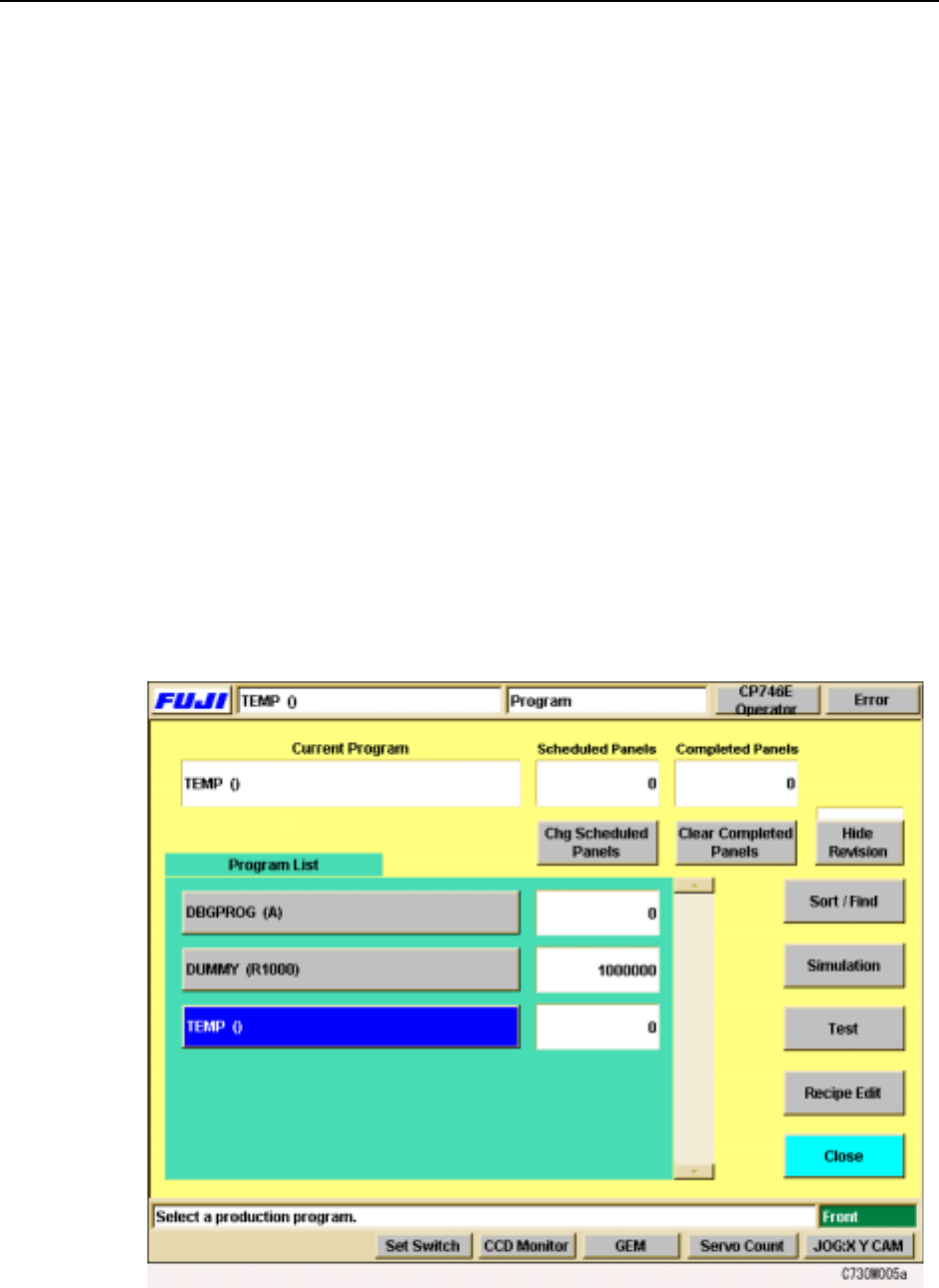
2 At the [Program] screen, click [Simulation] and [Test Placement].
Machine System >> Editing Production Programs On the Machine
SYS-CP842-1.0E 4-49
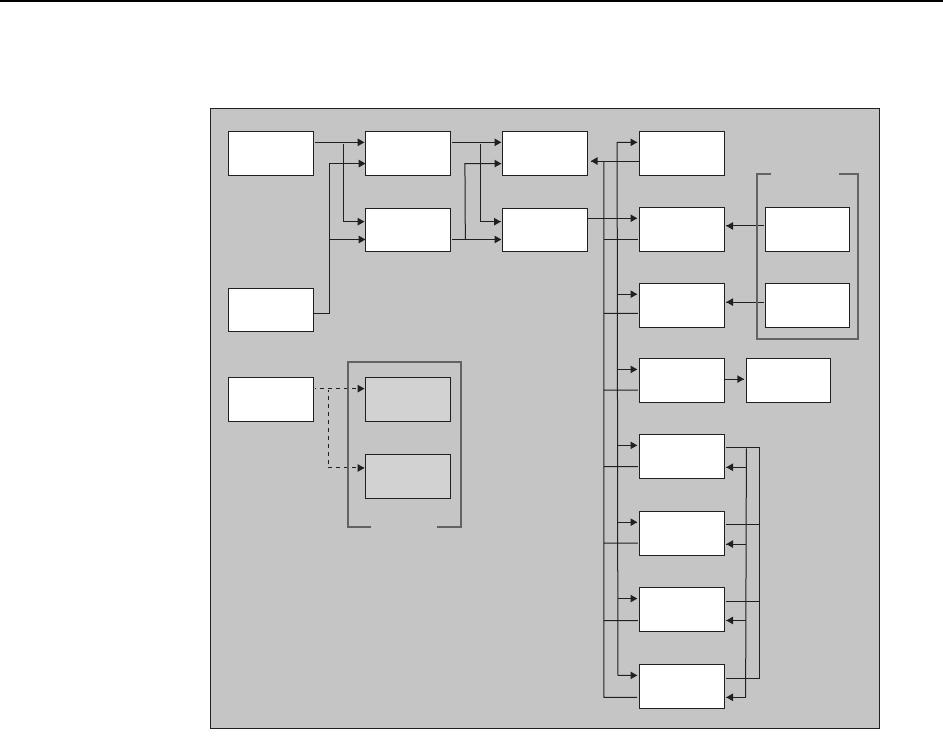
The command configuration is shown below.
Notes:
1. The F-mark (fiducial mark) data editing screen can be accessed by using the F-Mark
Vision Test command. A simulation of the F-mark sequence can be performed at this
screen.
2. The BS-mark (block skip mark) data editing screen can be accessed by using the BS-
Mark Vision Test command. A simulation of the BS-mark sequence can be performed
at this screen.
CP7S2022E
Program
switching
Automatic
Simulation
Sequence
search
Test
placement
If the START switch is pressed,
operation proceeds to the screen
which was specified in the Production mode.
Production
program
editing
Sequence
data editing
Production
mode
Simulation
Test
placement
F-mark
data editing
F-Mark
Vision Test
Vision
commands
Switching
between
these screens
is possible
BS-mark
data editing
Pickup
data editing
Pickup
data editing
Body
data editing
Vision
type editing
Element
data editing
Lead
data editing
BS-Mark
Vision Test
Setting
buttons