CP-842E-842ME System Reference-SYS-CP842-10E.pdf - 第92页
Machine System >> Editing Production Pr ograms On the Machine 4-56 SYS-CP842-1.0E Sequence Search 2 Screen Click the [ZOOM +] button on th e sequence search screen to zoom in (enlarge) on the modeling object. The d…

Machine System >> Editing Production Programs On the Machine
SYS-CP842-1.0E 4-55
Specifying A Sequence
A sequence can be specified in the following 3 ways.
1 By entering the sequence number directly.
A. Click the [Sequence No.] button to display a ten-key pad, then enter the
desired sequence number. If the modeling object is enabled, the part for
the specified sequence displays on the modeling object.
2 By entering a reference designator.
B. Click the [Reference Designator] button to display a ten-key pad, then
enter the search object reference designator. If the modeling object is
enabled, the part for the specified sequence displays on the modeling
object.
3 By moving the cursor to the desired position on the modeling object.
C. Click the [ZOOM+] button to enable the modeling object. The procedure
for specifying a sequence using the modeling object is explained on the fol-
lowing page (Sequence Search 2 Screen).
Machine System >> Editing Production Programs On the Machine
4-56
SYS-CP842-1.0E
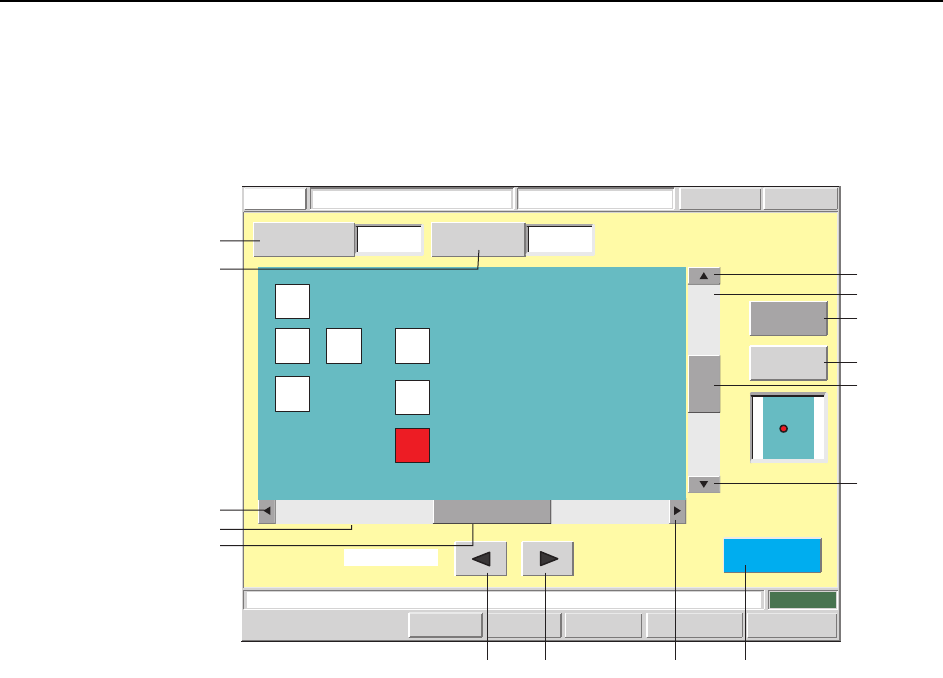
Sequence Search 2 Screen
Click the [ZOOM +] button on the sequence search screen to zoom in (enlarge) on the
modeling object. The desired sequence can then be selected from the modeling object.
Screen Button Explanations
A. [Sequence Number]: Displays a ten-key pad where the desired sequence
number (search object) can be entered.
B. [Reference Designator Search]: Displays a ten-key pad where the desired reference
designator (search object) can be entered.
C. [] (Leftward cursor movement): If the part for the specified sequence is notdis-
played, this key changes the sequence number to that of the upper right part. If the
specified sequence part is displayed, this key changes the sequence number to that of
the part to the left. If there is no part to the left, the sequence number is changed to
that of the lower right part. If the sequence number of the lower left part is specified,
this key changes the sequence number to that of the upper right part again.
D. [] (Rightward cursor movement): If the part for the specified sequence is not dis-
played, this key changes the sequence number to that
of the upper right part. If the specified sequence part is
displayed, this key changes the sequence number to
that of the part to the right. If there is no part to the
right, the sequence number is changed to that of the
upper left part. If the sequence number of the top right
part is specified, this key changes the sequence number
to that of the bottom left part.
E. [Horizontal scroll box]: Scrolls through the modeling display area in the hori-
zontal direction. A drag-and-drop can be performed to
scroll to a desired position.
Specify the sequence number.
FUJI
Error
Operator
JOG:X Y CAM
Servo Count
GEMCCD Monitor
Search SequenceFUJI_CP7_2001
Front
Close
1
Sequence
Number
Reference
Designator Search
C87
ZOOM +
ZOOM -
Move Cursor
Set Switch
CP7S2011E
A
J
B
F
G
E
C D H O
K
I
L
N
M

Machine System >> Editing Production Programs On the Machine
SYS-CP842-1.0E 4-57
F. [Horizontal scroll left arrow]:Scrolls through the modeling display area in 1mm
units in the left horizontal direction.
G. [Horizontal scroll gray pattern]:Scrolls through the modeling display area in the
horizontal direction in 1-screen units.
H. [Horizontal scroll right arrow]:Scrolls through the modeling display area in 1mm
units in the right horizontal direction.
I. [Vertical scroll box]: Scrolls through the modeling display area in the verti-
cal. A drag-and-drop can be performed to scroll to a
desired position.
J. [Vertical scroll up arrow]: Scrolls through the modeling display area in 1mm
units in the upward vertical direction.
K. [Vertical scroll gray pattern]:Scrolls through the modeling display area in the verti-
cal direction in 1-screen units.
L. [Vertical scroll down arrow]:Scrolls through the modeling display area in 1mm
units in the downward vertical direction.
M. [ZOOM +]: Zooms in on the modeling object.
N. [ZOOM -]: Zooms out from the modeling object.
O. [Close]: Returns to either the simulation or the test placement
screen (returns to the screen from which this screen
was accessed).
Specifying A Sequence
The vicinity of the specified sequence part can be displayed by using the cursor move-
ment buttons, by touching the screen directly, by using the horizontal scrollbar, or by
using the zoom buttons. After displaying the part vicinity, the specified sequence part
can be displayed by using cursor movement buttons or by touching the screen directly.
The specified part displays in red.