00192231-09_VD_SSW 407.05_de en.pdf - 第64页
Software Version Description, Station Software Version 407.05 07/2008 Edition • Confirm your selection with <RETURN>. • If you have selected "Yes", the installation will be continued, and the following di…
Software Version Description, Station Software Version 407.05 07/2008 Edition
• The main menu is displayed.
>>>
>>>
------------------
Install Revision of RMOS Operating System
------------------
Terminate RMOS Installation Program
Main Menue of RMOS Installation
Use the [Up Arrow] [Down Arrow] [Pg Up] [Pg Dn] keys to move the highlight bar to select the
button you prefer.
Press [Enter] to activate your selection
Note
If a submenu or a function is selected in the installation program, the cursor will be flashing in gray.
• Select the "Install Revision of RMOS Operating System" function and confirm with <RETURN>.
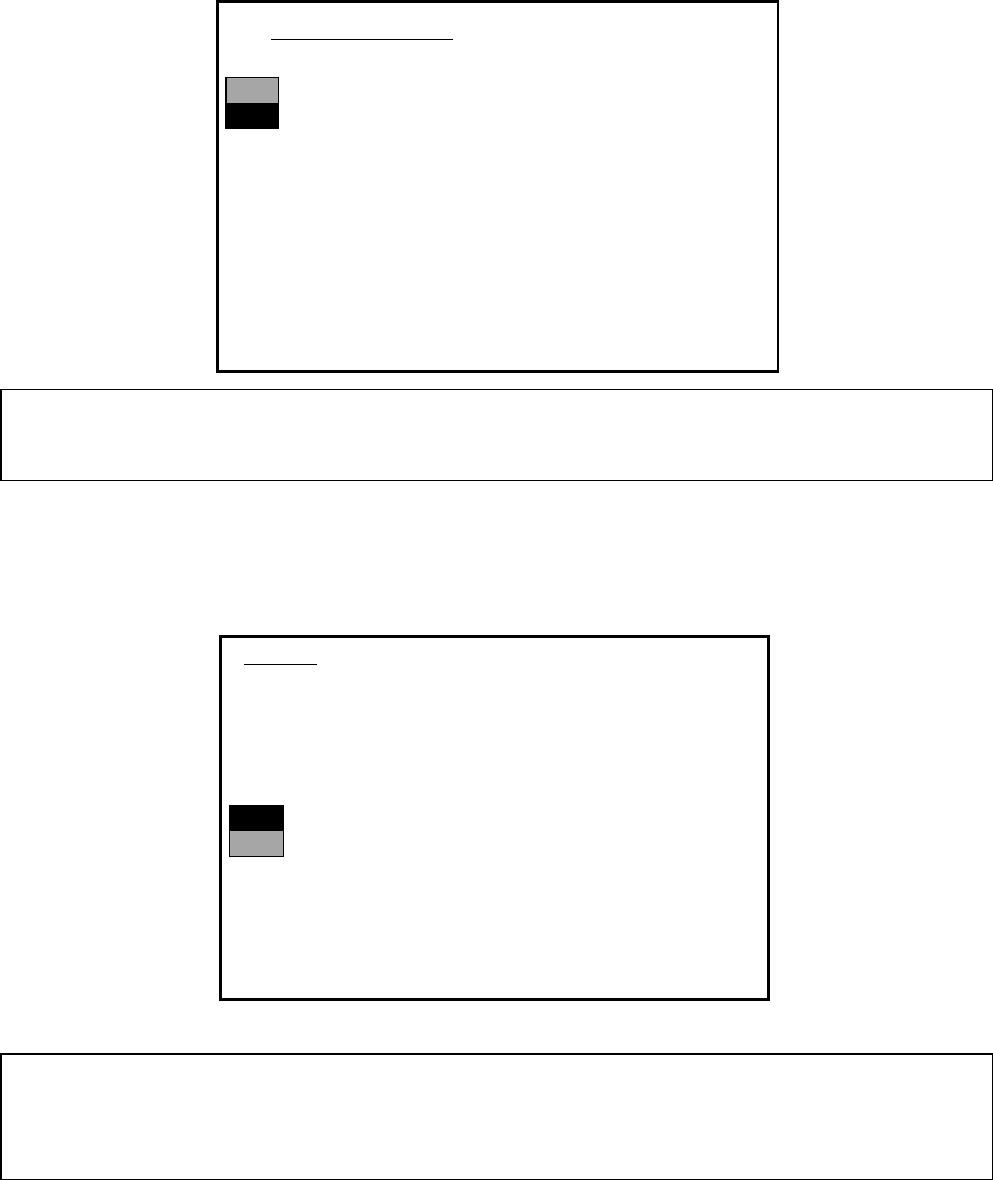
• Installation is started, the following query is displayed:
>>>
>>>
-----No
-----Yes
1. WARNING
installation of RMOS operating system will only save files keeping machine data.
A
ll other files of user’s interrest have to be saved on floppy disc by user manually.
Otherwise these files will bedeleted.
Continue RMOS Installation Job?
Use the [Up Arrow] [Down Arrow] [Pg Up] [Pg Dn] keys to move the highlight bar to select the
button you prefer.
Press [Enter] to activate your selection
• Use the cursor keys to select whether you wish to continue ("Yes") with the installation or to abort ("No").
WARNING!
Only the Machine Data will be saved. All user data will be deleted. Save your user data to diskettes, if
necessary.
63 of 104
Software Version Description, Station Software Version 407.05 07/2008 Edition
• Confirm your selection with <RETURN>.
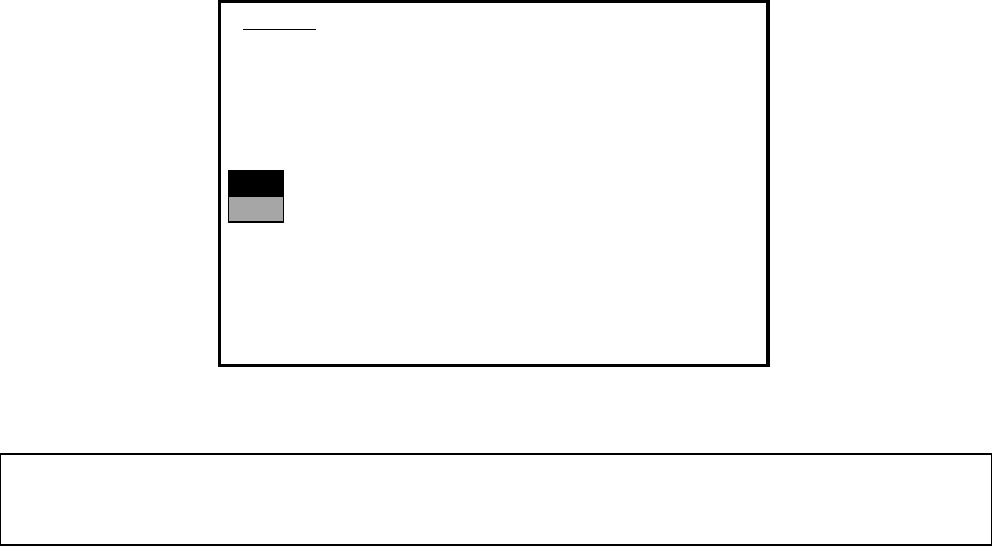
• If you have selected "Yes", the installation will be continued, and the following display will appear on the
screen.
>>>
>>>
-----No
-----Yes
2. WARNING
Drive ´C:´ of your hard disc will be formatted:
=> all files will be deleted.
Continue RMOS Installation Job?
Use the [Up Arrow] [Down Arrow] [Pg Up] [Pg Dn] keys to move the highlight bar to select the
button you prefer.
Press [Enter] to activate your selection
• Use the cursor keys to select whether you wish to continue with the installation or to abort.
WARNING!
Partition C: will be formatted. All data will now be deleted.
• Confirm your choice by pressing the <RETURN> key, the installation is continued.
• You will now be prompted to insert the diskette MCRMOS 80S/80F Disk -1/2- into the floppy disk drive.
• Once both diskettes have been installed, the message "Installation finished" is displayed.
The installation of the M44 operating system has thus been completed.
Now remove the diskette from the disk drive and turn the machine off and back on again.
64 of 104

Software Version Description, Station Software Version 407.05 07/2008 Edition
9.2.1.3 Changing Network Addresses
To change the Internet addresses, proceed as follows:
• Switch the machine off.
• Insert installation diskette #1 and switch the machine on.
• When the first menu appears, press key "A".
• The menu selection box for setting the Internet addresses or port IDs appears.
[X] EXIT M ENU [H] SET INTERN ET ADDRESS
[S] SET PO RT ID
PRESS KEY TO CO NTINUE [H,S,X]?
• If "H" is selected, the "\ETC\HOSTS" file will be displayed in the DOS editor.
The Internet addresses and system names valid for this station are to be entered.
Note:
On no account may ALIAS names such as "autlr", "autsr" and "localhost" be changed,
as these names are used and required by the software.
• PL EA 1 have a worldwide unique class B Internet address. This official class B Internet address is
139.10 (.x.y). Within this address range all SIPLACE LAN communications partners are operated. We
will make the correct settings for you. If you have any queries, please contact our Service dept.
9.2.1.4 Troubleshooting
In the event of the installation program being terminated prematurely, on account of a fault:
• remove the diskette from the disk drive and turn off the machine.
• Insert diskette #1 in the disk drive and turn the machine back on.
• Try to repeat the station software installation.
NOTE
If the second attempt at installing the software is also unsuccessful, please contact the Service
department in charge.
65 of 104