OM-1683-001_w.pdf - 第22页
5 OM-1683 3.1 "Line" Window This window enables the operator to check the production line operation status and operate the line. In this window , the operation status of the SIGMA Series machine (including the …
4
OM-1683
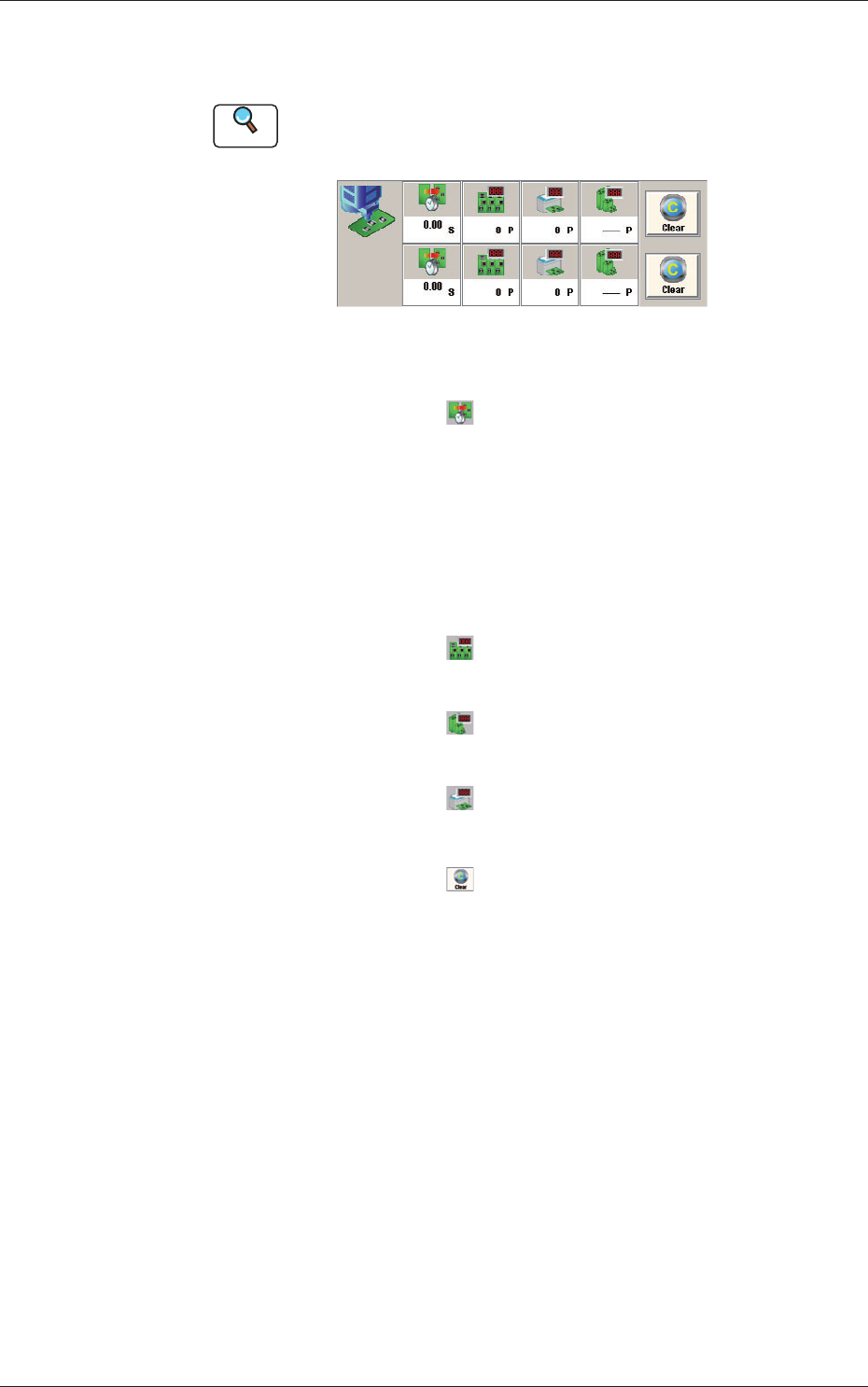
[2] Production Data
In this area, the production data for each lane is displayed.
Reference
Refer to "8. "PCB.CNT" Window" for the setting for the number of
produced PCBs.
Fig. 4 Production Data
PCB Process Time
: Displays the time required to nish one
PCB excluding the PCB in the middle of
process.
Displayed is the total time required
between the PCB receiving start and
the completion of the last component
placement.
Product PCB
: The number of produced unit PCBs is
displayed.
PCB Count
: The number of produced PCBs at present
is displayed.
Planned PCB Count
: The number of planned PCBs to be
produced is displayed.
[Clear] Button
: When pressed, this button clears the
number of produced PCBs to "0"(zero).
1103-001
3. Automatic Operation
5
OM-1683
3.1 "Line" Window
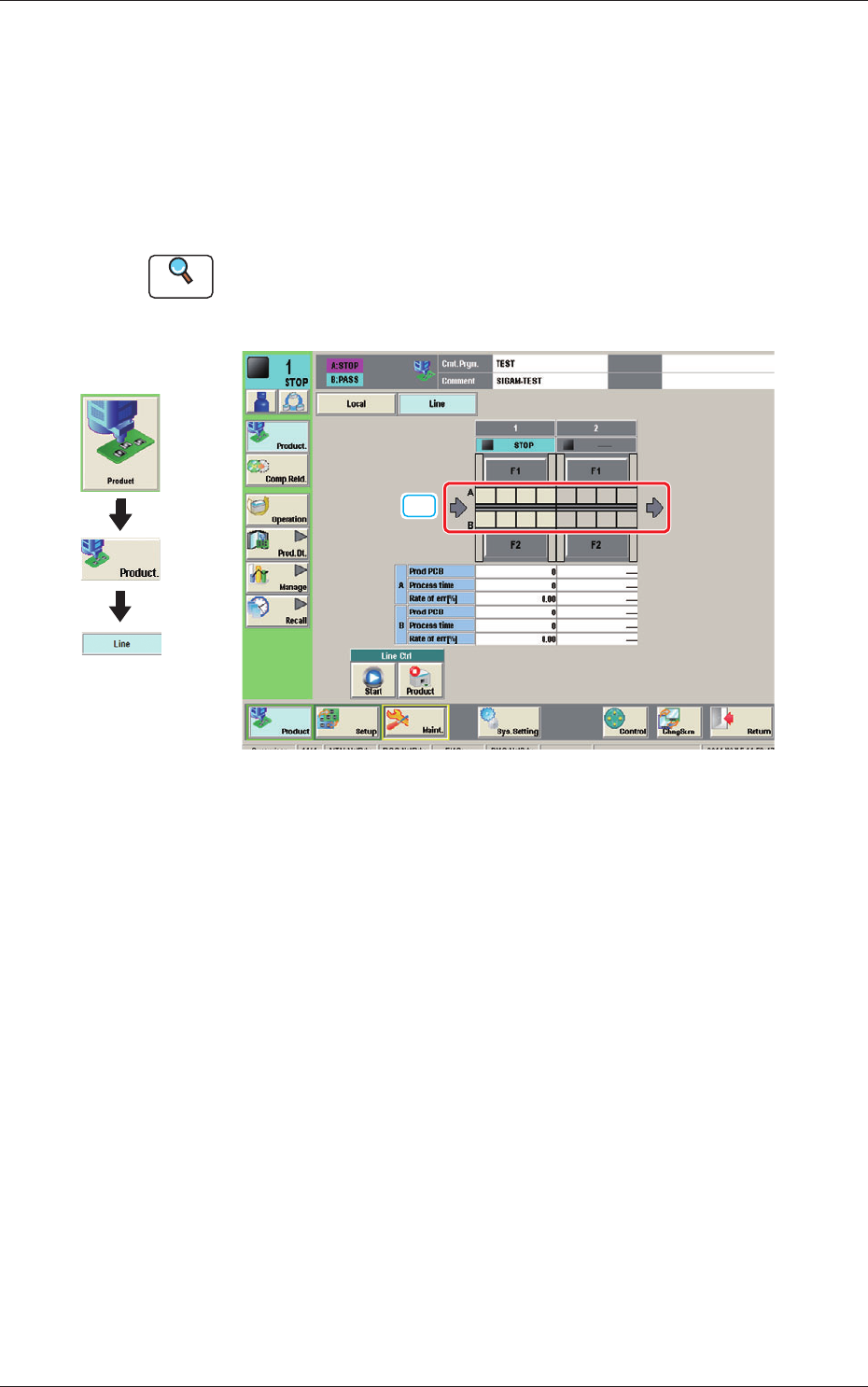
This window enables the operator to check the production line operation
status and operate the line.
In this window, the operation status of the SIGMA Series machine (including
the printer) set in the line conguration, and PCB transfer unit graphic image
are displayed.
Reference
Refer to "2.2 "Line" Window" in Chapter 1, Volume 2, in the SIGMA-G5
main machine instruction manual for the information other than for dual
transfer.
[1] [1]
Fig. 5 Line Window
[1] PCB transfer section
In this area, the current PCB transfer status in each lane is displayed.
Green
: PCB present
Gray
: PCB absent
Graphic
Development
1103-001
3.1 "Line" Window
6
OM-1683
3.2 "Run Mode" Tab Sheet
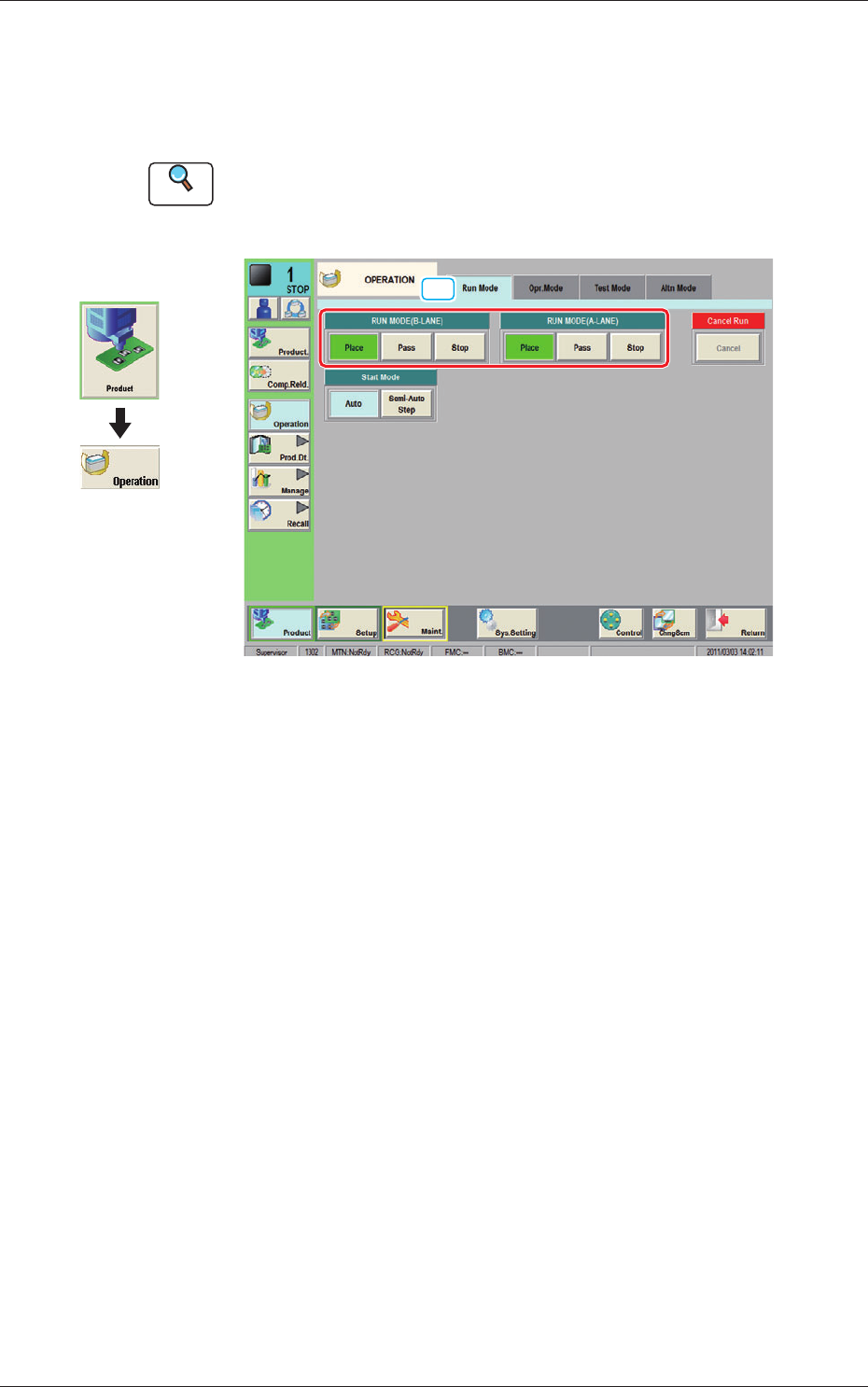
This tab sheet enables the operator to designate the operation mode for each
lane.
Reference
Refer to "4.1 "Run Mode" Window" in Chapter 1, Volume 2, in the
SIGMA-G5 main machine instruction manual for the information other
than for dual transfer.
[1]
Fig. 6 Run Mode
[1] "Run Mode" Selection Buttons (A or B Lane)
Press either one of the following buttons to select the desired run mode.
[Place] Button
:
Select this button to set the machine in the "PLACE
(Automatic Operation)" mode.
[Pass] Button
: Select this button to set the machine in the "PASS" mode.
In the "Status" display section on the upper area of the "Product." window, the
changed operation mode is displayed.
Graphic
Development
1103-001
3.2 "Run Mode" Tab Sheet