OM-1273-004_w.pdf - 第95页
2-29 AJK-ML T-ID (6) Move the object traverse drawing position for the manual alignment operation with the image movement buttons until it is located at the center of the crosshair . (7) Press the button in the recogniti…
2-28
AJK-MLT-ID
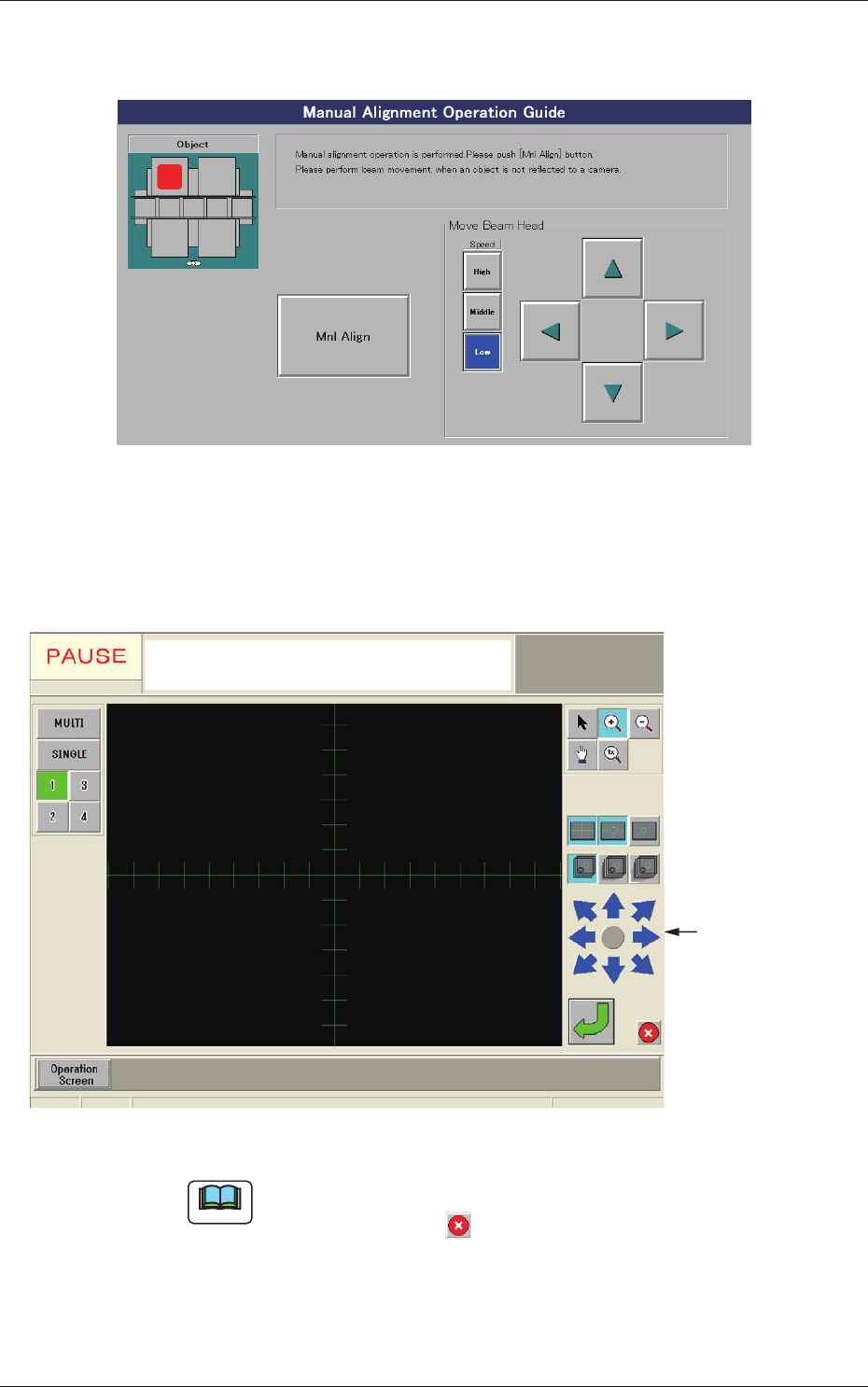
(4) When the [Teach Start] button is pressed, the "Manual Alignment
Operation Guide" window appears.
Fig. B20 "Manual Alignment Operation Guide" Window
(5) When the [Mnl Align] button is pressed, a recognition window
appears, making it possible to perform the manual alignment
operation.
Image Movement
Buttons
Fig. B21 Recognition Window
Note
When an image of the object for the manual alignment cannot be captured
by the camera, press the button in the recognition window. The "Manual
Alignment Operation Guide" window resumes. Perform a beam movement
operation for the adjustment.
0806-001
3.4 Teaching Operation
2-29
AJK-MLT-ID
(6) Move the object traverse drawing position for the manual alignment
operation with the image movement buttons until it is located at the
center of the crosshair.
(7) Press the
button in the recognition window to determine the
position.
The recognition window closes and the "T
raverse Axis Draw"
window resumes.
(8)
The results of the teaching operation appear in the text boxes
entitled "Adj" in the "Traverse Axis Draw" window.
(9)
Whenthe[End]buttonispressed,the"ConrmationtoSaving"
dialog box opens, asking you to answer if the data should be saved
or not.
When
the[Yes]buttonispressed,thedataisreectedonthe
component library data is written over the previous one.
Pressing the [No] button cancels the data save operation.
0806-001
3.4 Teaching Operation
2-30
AJK-MLT-ID
3.4.2 "Teach Standard Tray Pos" Window
This window can be used to correct the tolerance between the traverse mark
and standard tray positions.
To set the correction values as traverse X/Y offsets, perform a manual
alignment operation to specify the standard tray position.
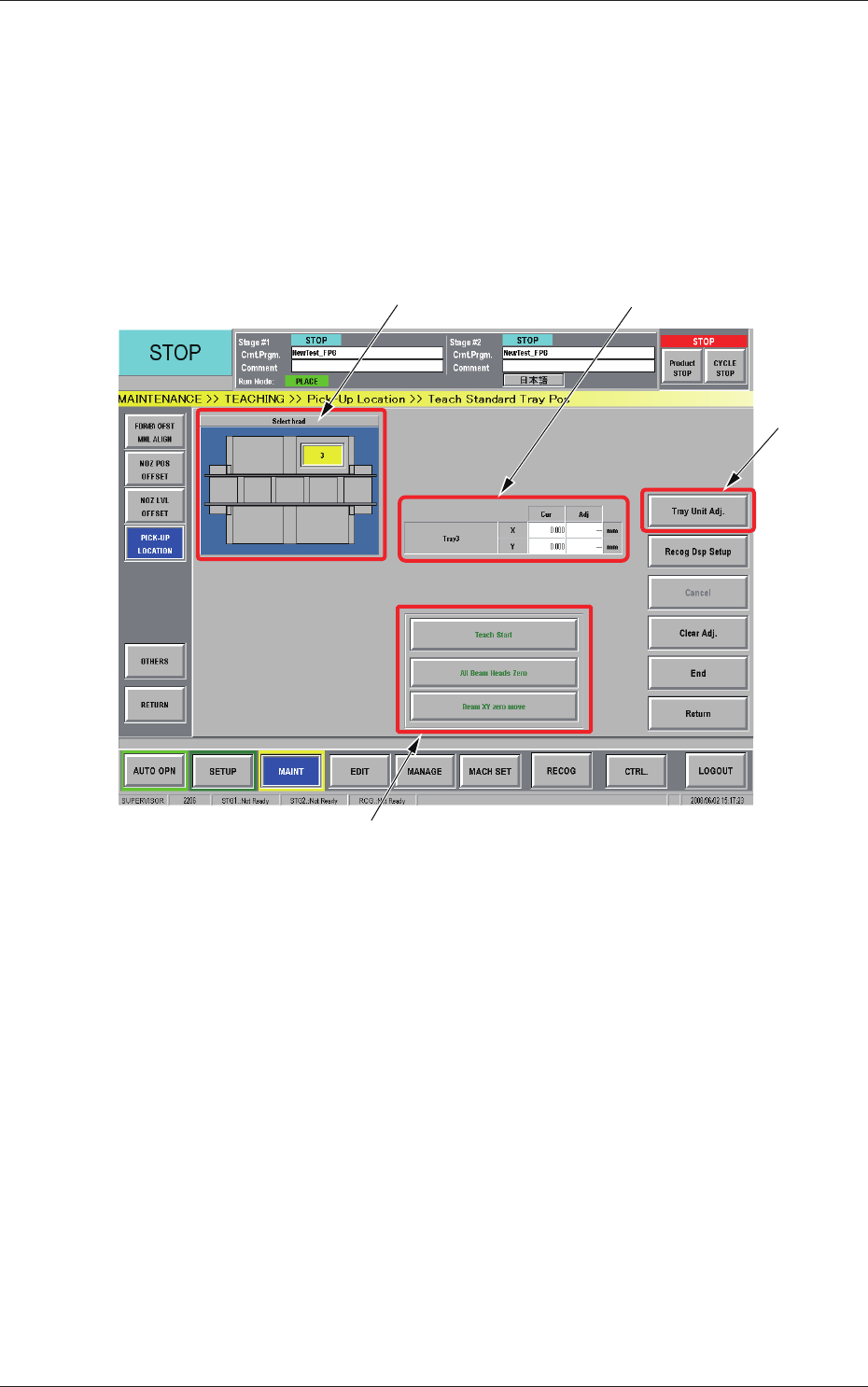
When the [Teach Standard Tray Pos] button is pressed in the "Pick-Up
Location" window, the "Teach Standard Tray Pos" window appears.
[2]
[1]
[4]
[2]
Fig. B23 "Teach Standard Tray Pos" Window
[1] Head Selection Buttons
Each head in the graphic image of the machine is provided with a
button function.
The installed multi-layer tray feeders are displayed, making it possible
for the operator to select one of the feeders.
[2] Tray3
Displayed are the current values that indicate the position of Tray #3.
After a teaching operation is performed, the results appear in the text
boxes entitled "Adj".
Cur :
Values before Teaching Operation
Adj :
Results of Teaching Operation
0806-001
3.4 Teaching Operation