00198260-01_IM_SQL_Server_2016_EN.pdf - 第11页
SQL Server 2016 / I nstallation Manual 12/2016 Edition 11 ► Enter or verify the product key. ► Click the Next > button to continue. The SQL Server License Term s window is displayed. Figure 4-5: SQL Server Licens e Te…
SQL Server 2016 / Installation Manual 12/2016 Edition
10
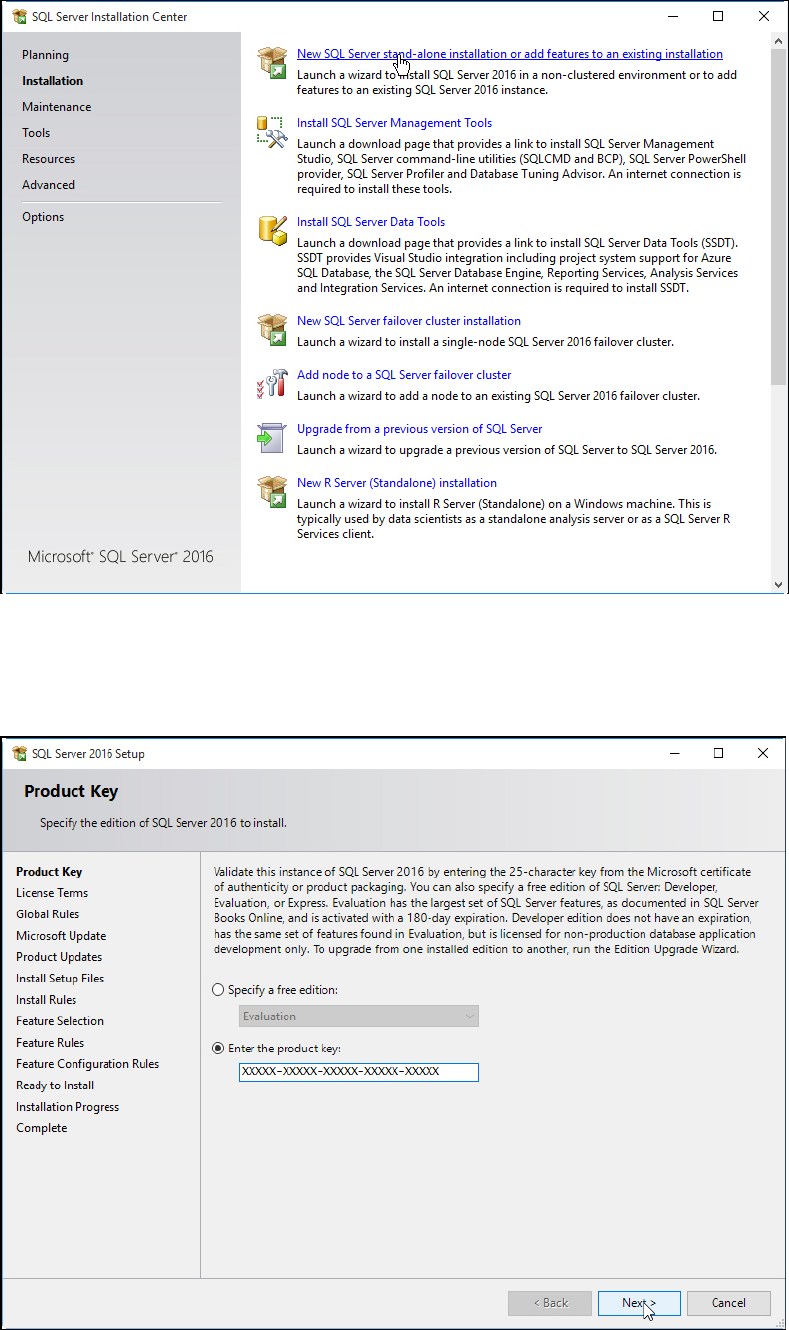
The Installation window is displayed.
Figure 4-3: Installation window of SQL Server Installation Center
► Click the New SQL Server stand-alone installation or add features to an existing installation
link.
The Product Key window is displayed.
Figure 4-4: Product Key window of SQL Server Setup
SQL Server 2016 / Installation Manual 12/2016 Edition
11
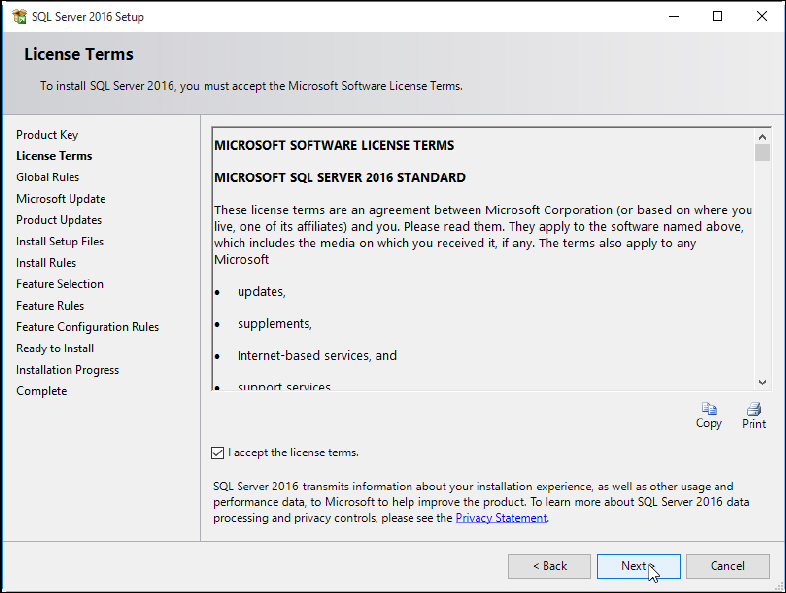
► Enter or verify the product key.
► Click the Next > button to continue.
The SQL Server License Terms window is displayed.
Figure 4-5: SQL Server License Terms window
► Click the I accept the license terms check box.
► Click the Next > button.
SQL Server 2016 / Installation Manual 12/2016 Edition
12
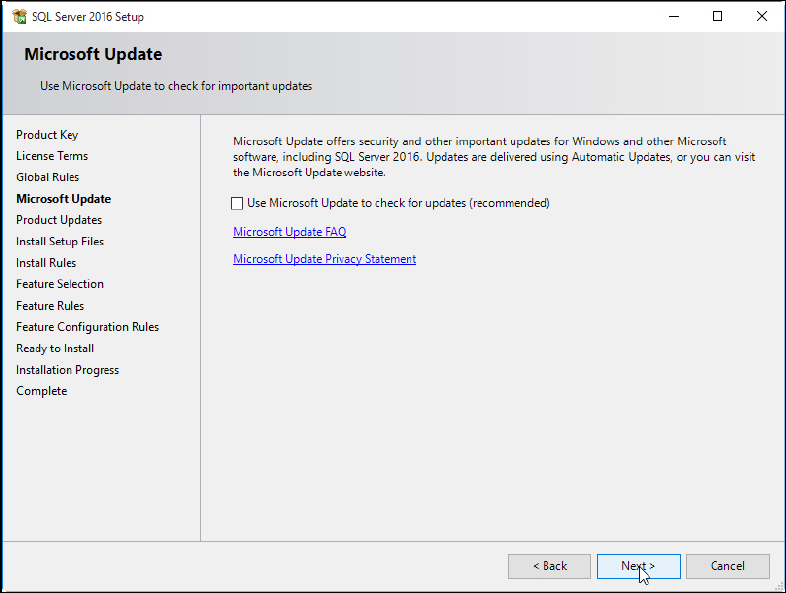
The Microsoft Update window is displayed.
Figure 4-6: Microsoft Update window
► Deselect the Use Microsoft Update to check for updates (recommended) check box to ensure
that you install the version as delivered on the media only.
► Click the Next > button.