00198260-01_IM_SQL_Server_2016_EN.pdf - 第12页
SQL Server 2016 / I nstallation Manual 12/2016 Edition 12 The Microsoft Update window is displayed. Figure 4-6: Microsoft Update wind ow ► Deselect the Use Mic rosoft Update to check f or updates (recommended) chec k box…
SQL Server 2016 / Installation Manual 12/2016 Edition
11
► Enter or verify the product key.
► Click the Next > button to continue.
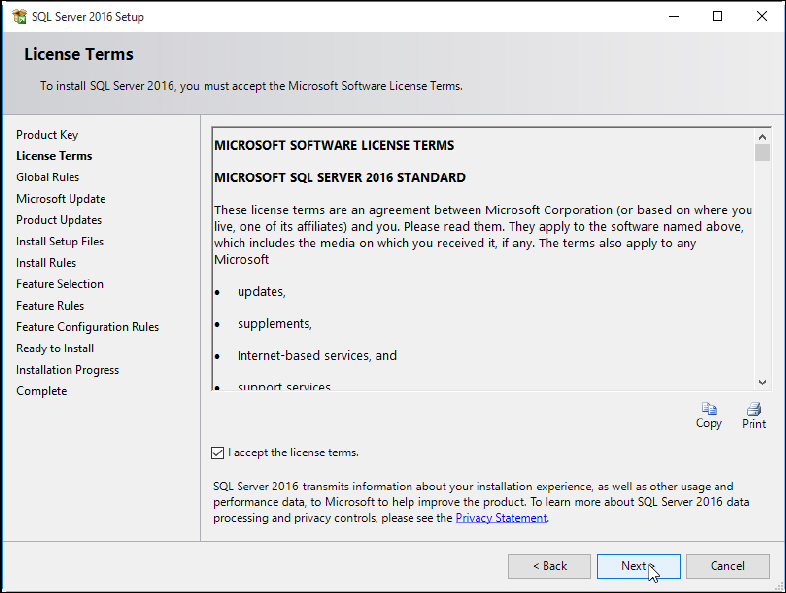
The SQL Server License Terms window is displayed.
Figure 4-5: SQL Server License Terms window
► Click the I accept the license terms check box.
► Click the Next > button.
SQL Server 2016 / Installation Manual 12/2016 Edition
12
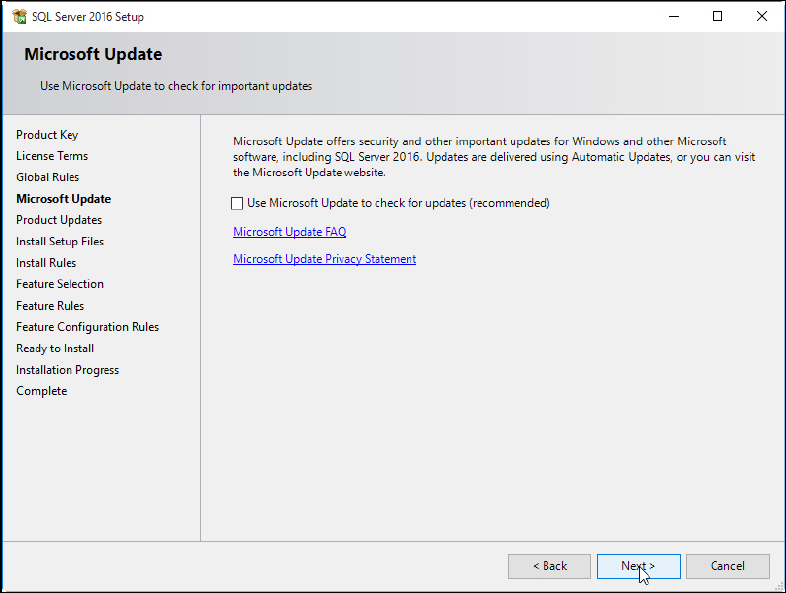
The Microsoft Update window is displayed.
Figure 4-6: Microsoft Update window
► Deselect the Use Microsoft Update to check for updates (recommended) check box to ensure
that you install the version as delivered on the media only.
► Click the Next > button.
SQL Server 2016 / Installation Manual 12/2016 Edition
13
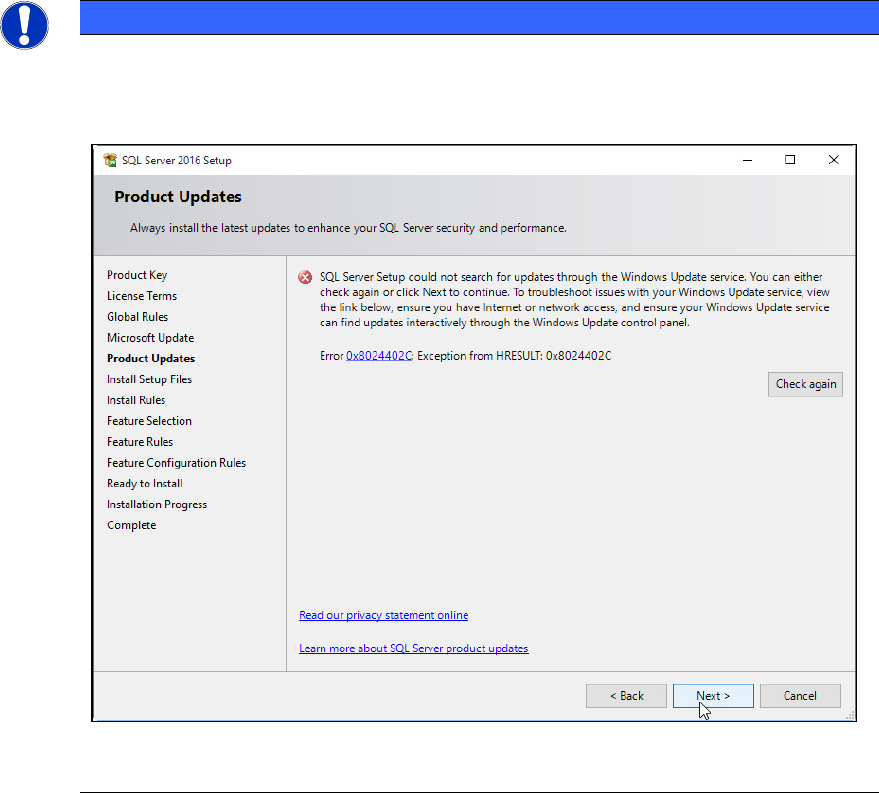
NOTICE
Possible error message
If you did not immediately deselect the previously mentioned check box, the following
error message may be displayed if you do not have connection to the Internet.
Figure 4-7: Error message without Internet connection
► In this case, ignore this message.
The SQL setup now installs its setup files.