00198260-01_IM_SQL_Server_2016_EN.pdf - 第23页
SQL Server 2016 / I nstallation Manual 12/2016 Edition 23 After installati on has finished, the Complete wi ndow is displayed. Figure 4-21: Setup completed ► Examine the status of all features – they should be Suc ceeded…
SQL Server 2016 / Installation Manual 12/2016 Edition
22
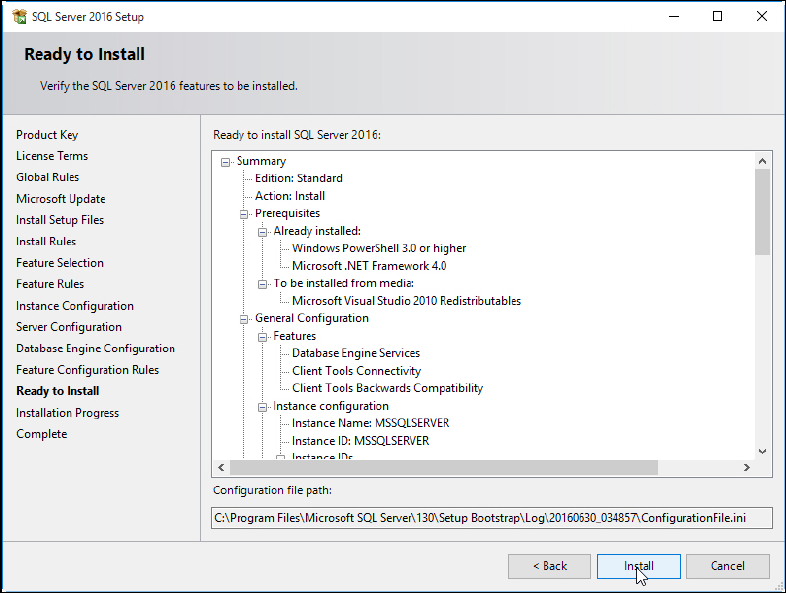
The Ready to Install window is displayed.
Figure 4-20: Ready to Install window
► Klick the Install button.
The installation starts.
► Wait for the installation to complete. This may take 30 minutes or more.
SQL Server 2016 / Installation Manual 12/2016 Edition
23
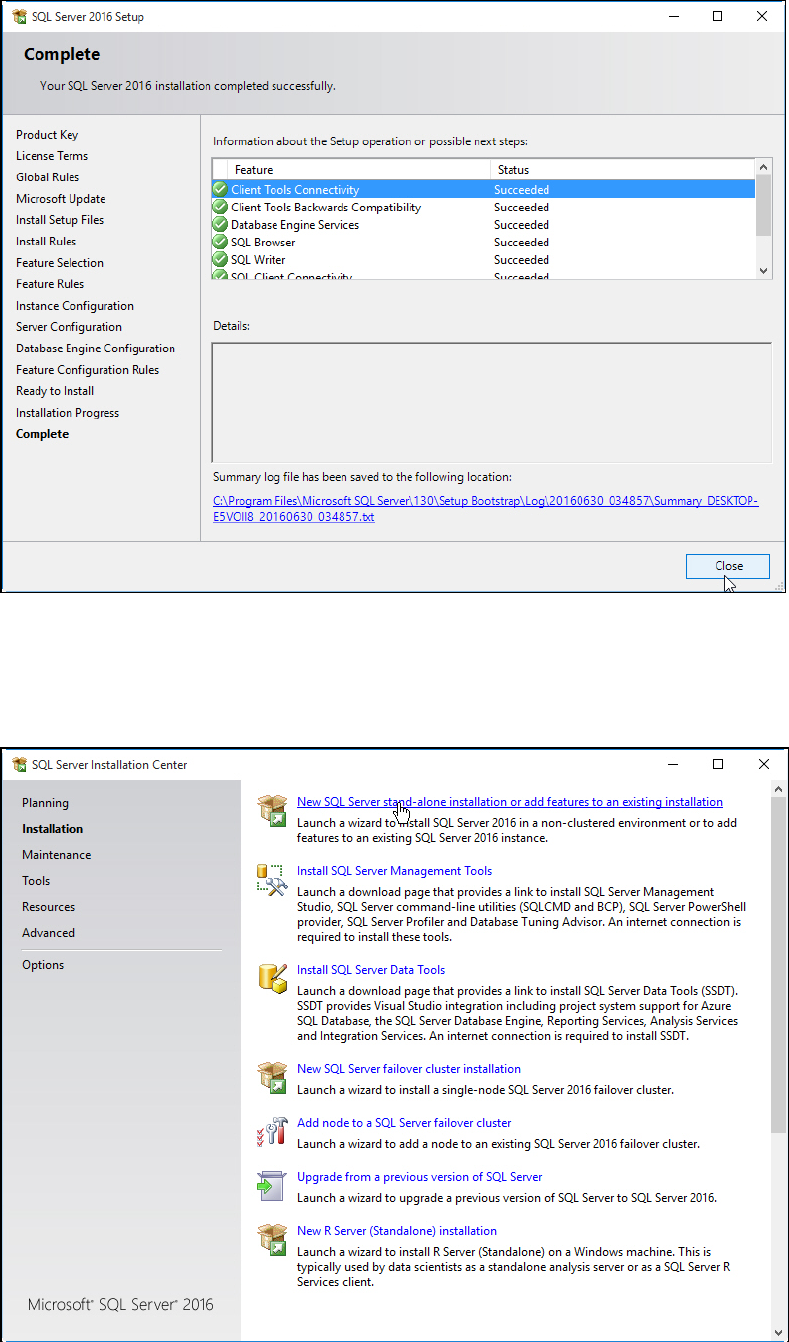
After installation has finished, the Complete window is displayed.
Figure 4-21: Setup completed
► Examine the status of all features – they should be Succeeded.
► Click the Close button to close the setup.
You return to the initial window.
Figure 4-22: Closing the initial window
SQL Server 2016 / Installation Manual 12/2016 Edition
24
► Close the window by clicking the X in the right upper corner.
► Restart the computer to ensure proper function of your SQL installation.
► Continue with the following section which describes how to install SQL Server Management
Studio.