00198260-01_IM_SQL_Server_2016_EN.pdf - 第28页
SQL Server 2016 / I nstallation Manual 12/2016 Edition 28 The installation begi ns and the progress is di splayed. Figure 4-28: Installation s tarted ► Accept any possibly appearing User Account Co ntrol message by click…
SQL Server 2016 / Installation Manual 12/2016 Edition
27
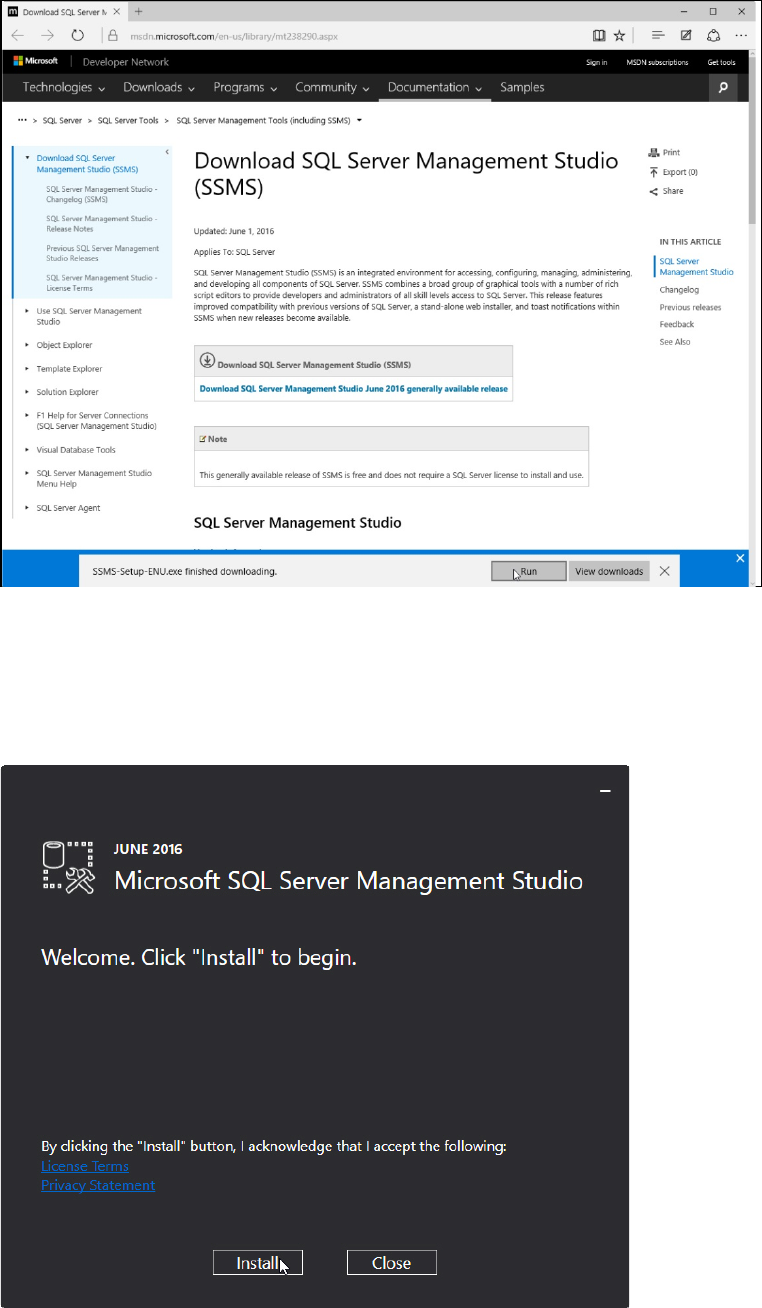
The Download SQL Server Management Studio window is displayed.
Figure 4-26: Download SQL Server Management Studio window
► Select the available release (here: Download SQL Server Management Studio June 2016
generally available release) for download.
► Click the Run button.
The SQL Server Management Studio installation wizard is displayed.
Figure 4-27: SQL Server Management Studio installation wizard
► Click the Install button.
SQL Server 2016 / Installation Manual 12/2016 Edition
28
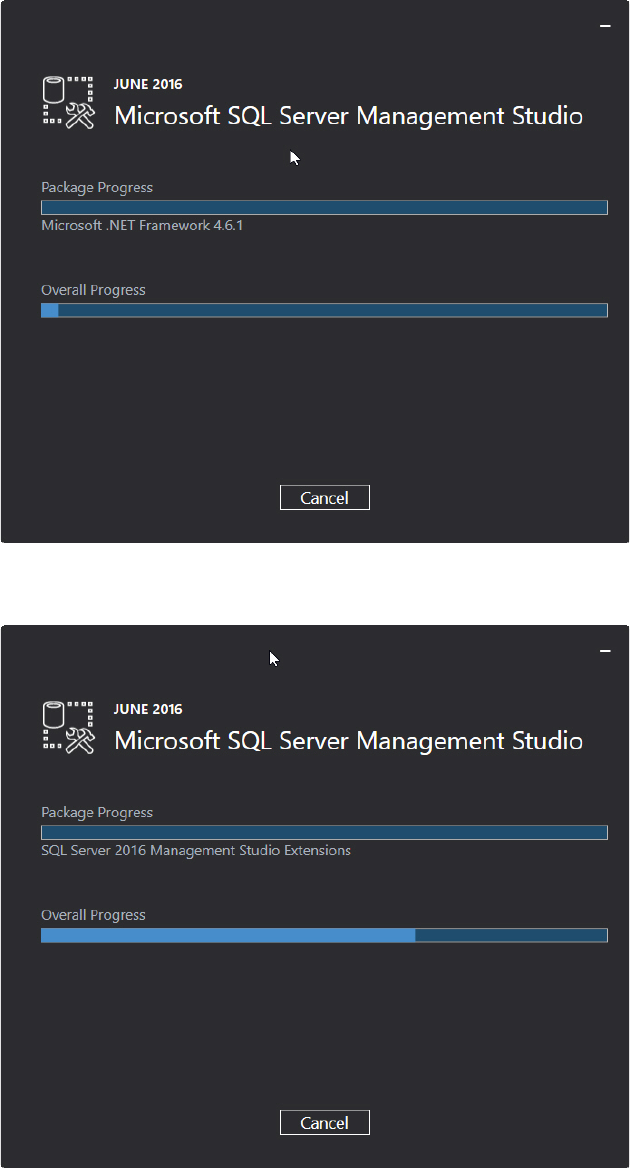
The installation begins and the progress is displayed.
Figure 4-28: Installation started
► Accept any possibly appearing User Account Control message by clicking its Yes button.
Figure 4-29: Progress displayed
SQL Server 2016 / Installation Manual 12/2016 Edition
29
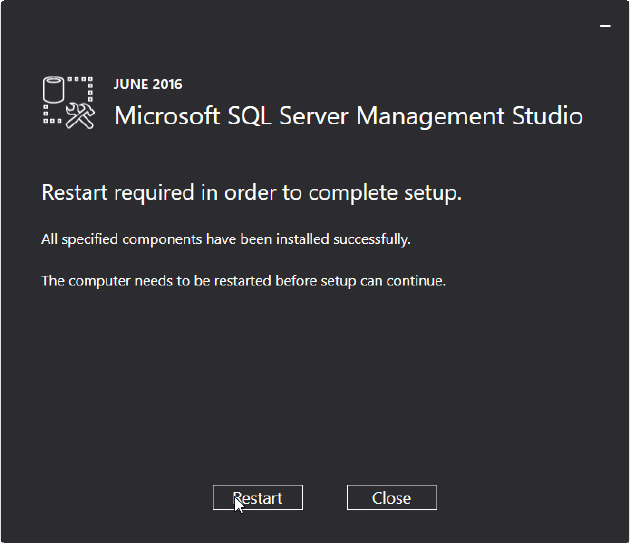
The following window is displayed after successful installation.
Figure 4-30: Installation completed
The computer has to be restarted for the changes to take effect.
► Click the Restart button.
► Continue with the following chapter which describes additionally settings.