00198260-01_IM_SQL_Server_2016_EN.pdf - 第31页
SQL Server 2016 / I nstallation Manual 12/2016 Edition 31 The SQL Server Configuration Manager is displayed. ► On the left side, ex pand each group and select each Client Pro tocols entry. Figure 5-2: S QL Server Configu…
SQL Server 2016 / Installation Manual 12/2016 Edition
30
5 After Installation
This chapter describes how to perform some additionally required and optional settings after the
SQL installation and how to define settings you missed to set during the installation.
5.1 Additionally Required Settings
5.1.1 TCP/IP Network Protocol Enabled
After installation, you have to verify that the TCP/IP network protocol is enabled for communication.
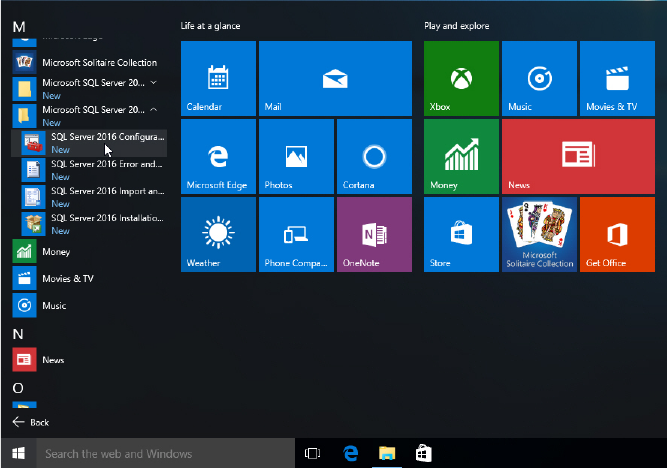
► Click the Start/Windows button.
► Expand the All apps group.
► Expand Microsoft SQL Server 2016
► Select SQL Server 2016 Configuration Manager.
Figure 5-1: Selecting SQL Server 2016 Configuration Manager
► Accept any possibly appearing User Account Control message by clicking its Yes button.
SQL Server 2016 / Installation Manual 12/2016 Edition
31
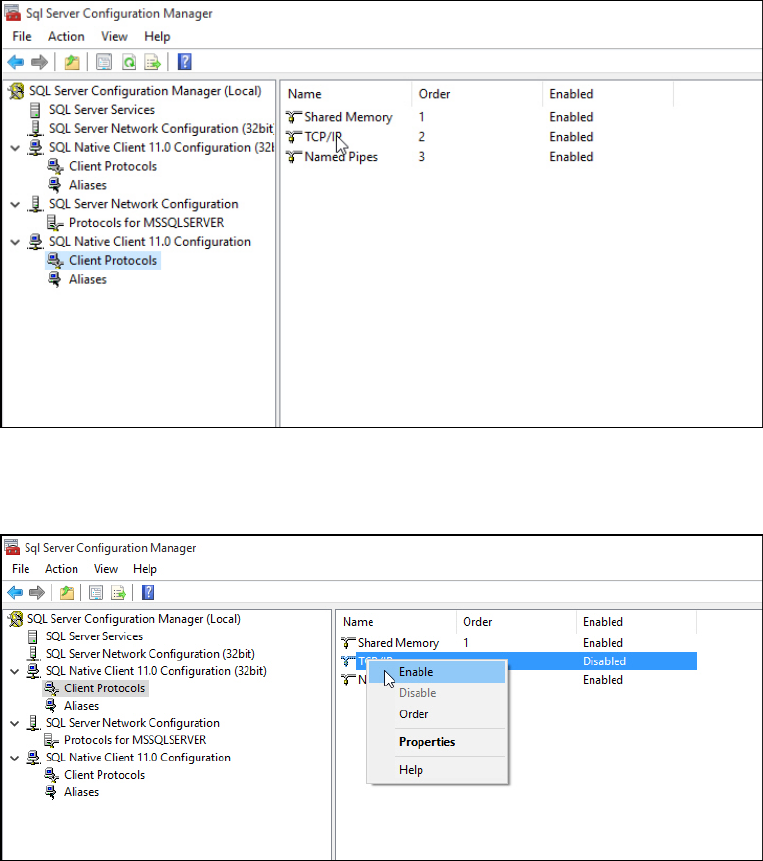
The SQL Server Configuration Manager is displayed.
► On the left side, expand each group and select each Client Protocols entry.
Figure 5-2: SQL Server Configuration Manager
► Ensure that TCP/IP is Enabled. If you need to change the setting to Enabled, right- click the
entry and select Enable.
Figure 5-3: Enabling TCP/IP
► After you have changed the settings, click the X in the upper right corner to close the SQL
Server Configuration Manager.
► Restart your computer for the changes to take effect.
SQL Server 2016 / Installation Manual 12/2016 Edition
32
5.2 Optional Settings
5.2.1 Windows Fibers Disabled
After installation you have to verify that the Windows Fibers setting is disabled.
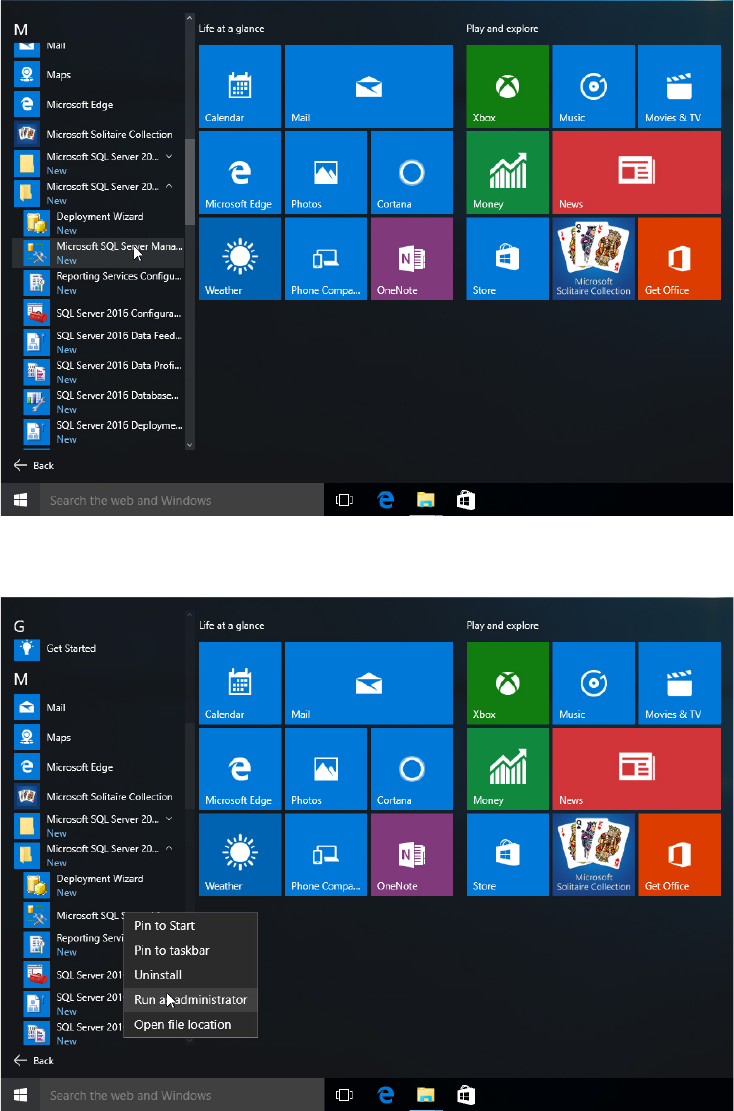
► Click the Start/Windows button.
► Expand the All apps group.
► Expand Microsoft SQL Server 2016
► Select Microsoft SQL Server 2016 Management Studio.
Figure 5-4: Selecting SQL Server 2016 Management Studio
► Right- click the Microsoft SQL Server 2016 Management Studio.
Figure 5-5: Starting SQL Server 2016 Management Studio