00198260-01_IM_SQL_Server_2016_EN.pdf - 第40页
SQL Server 2016 / I nstallation Manual 12/2016 Edition 40 5.3 Missing Settin gs 5.3.1 Assigning SQL SysAdmin Role to the Administ rators Group If you have missed to assign SQL SysAdmin permi ssions to the administr ators…
SQL Server 2016 / Installation Manual 12/2016 Edition
39
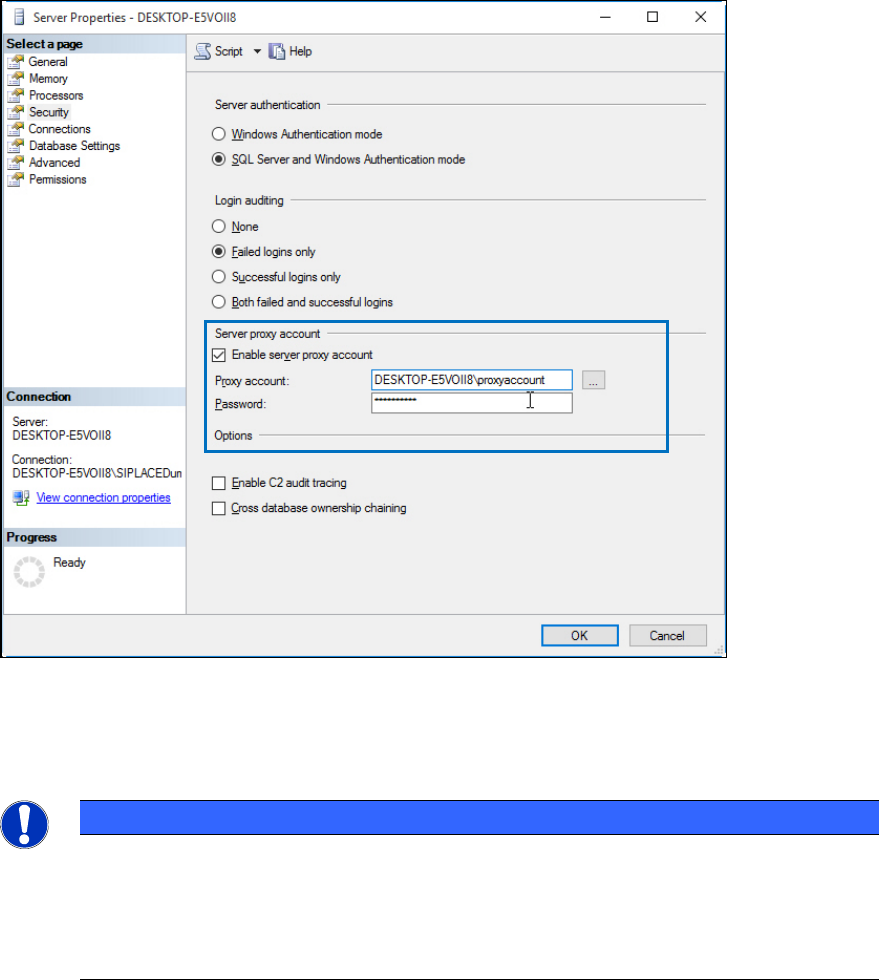
Figure 5-15: Security options – defining proxy account
► Select the Enable server proxy account check box.
► Enter your proxy account information.
NOTICE
See product documentation for details
Since this is only a general SQL installation documentation, we cannot provide further
information on the proxy account to be used! Please refer to the documentation of your
ASM product to get more information if this setting is required and which account you
have to specify.
► Click the OK button.
SQL Server 2016 / Installation Manual 12/2016 Edition
40
5.3 Missing Settings
5.3.1 Assigning SQL SysAdmin Role to the Administrators Group
If you have missed to assign SQL SysAdmin permissions to the administrators group during the
SQL installation, some ASM setups might have problems connecting to your SQL Server.
This section describes how to solve this problem.
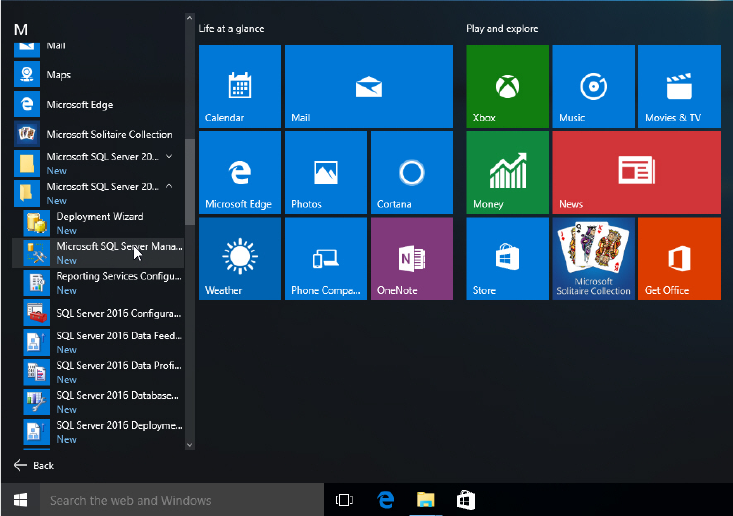
► Click the Start/Windows button.
► Expand the All apps group.
► Expand Microsoft SQL Server 2016
► Select Microsoft SQL Server 2016 Management Studio.
Figure 5-16: Selecting SQL Server 2016 Management Studio
SQL Server 2016 / Installation Manual 12/2016 Edition
41
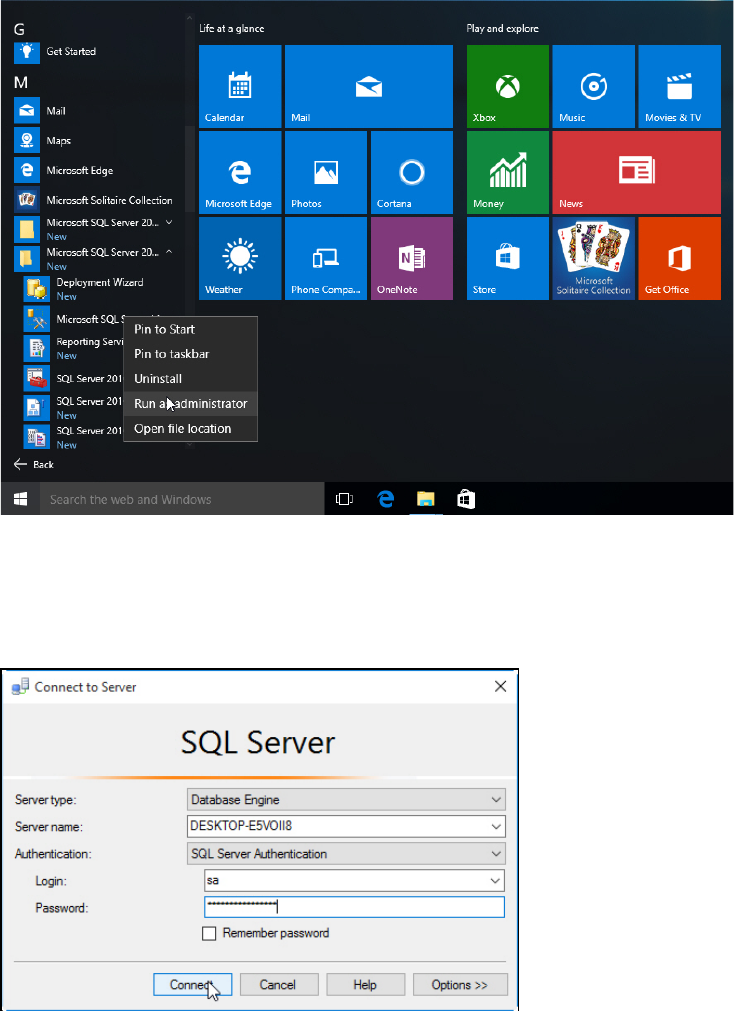
► Right- click the Microsoft SQL Server 2016 Management Studio.
Figure 5-17: Starting SQL Server 2016 Management Studio
► Select Run as administrator.
► Accept any possibly appearing User Account Control message by clicking its Yes button.
SQL Server 2016 Management Studio starts and the Connect to Server window is displayed.
Figure 5-18: Connecting to the SQL instance using SQL Authentication
► Ensure that the correct SQL instance is entered as Server name:.
The correct naming is <ComputerName>\<InstanceName> for user defined instances. If you
installed a default SQL instance (internal name MSSQLSERVER), you only have to enter the
computer name instead.
► Ensure that SQL Server Authentication is selected (since the administrators group does not
have proper permissions).
► Enter the Login and Password for the sa user (SysAdmin).
► Click the Connect button to connect to the SQL instance.