00198260-01_IM_SQL_Server_2016_EN.pdf - 第9页
SQL Server 2016 / I nstallation Manual 12/2016 Edition 9 4.2 Installing S QL Server 201 6 Standard Edition Follow the instructi ons below for the manual inst allation of SQL Server 201 6 St andard Edition . ► Ensure that…

SQL Server 2016 / Installation Manual 12/2016 Edition
8
4 Installation
4.1 SQL Server 2016 Prerequisites on Windows 8.1 and Windows
Server 2012 R2
In order to install SQL 2016 on Windows 8.1 or Windows Server 2012 R2, there are some patches
required to be installed before.
The following two patches need to be installed:
– KB2939087 – download link: https://support.microsoft.com/en-us/kb/2939087
– KB2975061 – download link: https://support.microsoft.com/en-us/kb/2975061
After that, you will have to install a set of patches in a certain order.
► Please follow the following link, download all patches and consider installing the updates in the
order as mentioned in the section "Install Instructions".
http://www.microsoft.com/en-us/download/details.aspx?id=42334
SQL Server 2016 / Installation Manual 12/2016 Edition
9
4.2 Installing SQL Server 2016 Standard Edition
Follow the instructions below for the manual installation of SQL Server 2016 Standard Edition.
► Ensure that you have installed the SQL Server 2016 Prerequisites as described in section 4.1.
► Close all other applications before you start the installation.
► Double-click the Setup package in the root directory of the DVD.
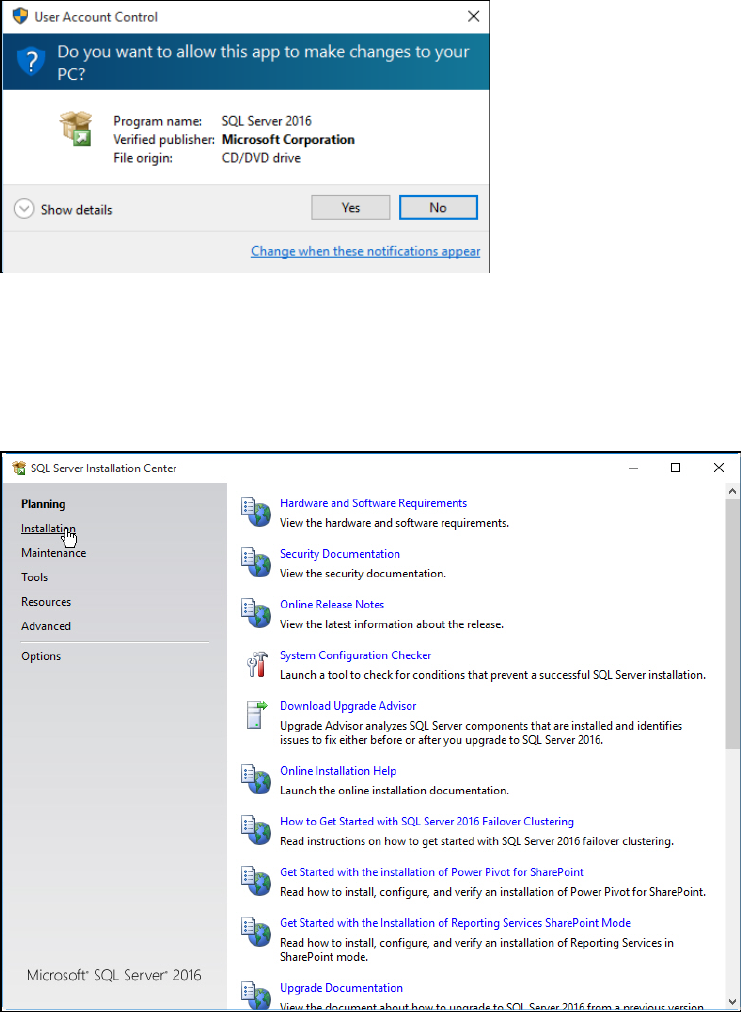
The UAC (User Account Control) warning may occur:
Figure 4-1: User Account Control warning message
This message informs you that the started application requires permissions above the standard
user (in this case administrative permissions).
► Click the Yes button.
The SQL Server Installation Center is displayed.
Figure 4-2: SQL Server Installation Center
► Click Installation on the left side.
SQL Server 2016 / Installation Manual 12/2016 Edition
10
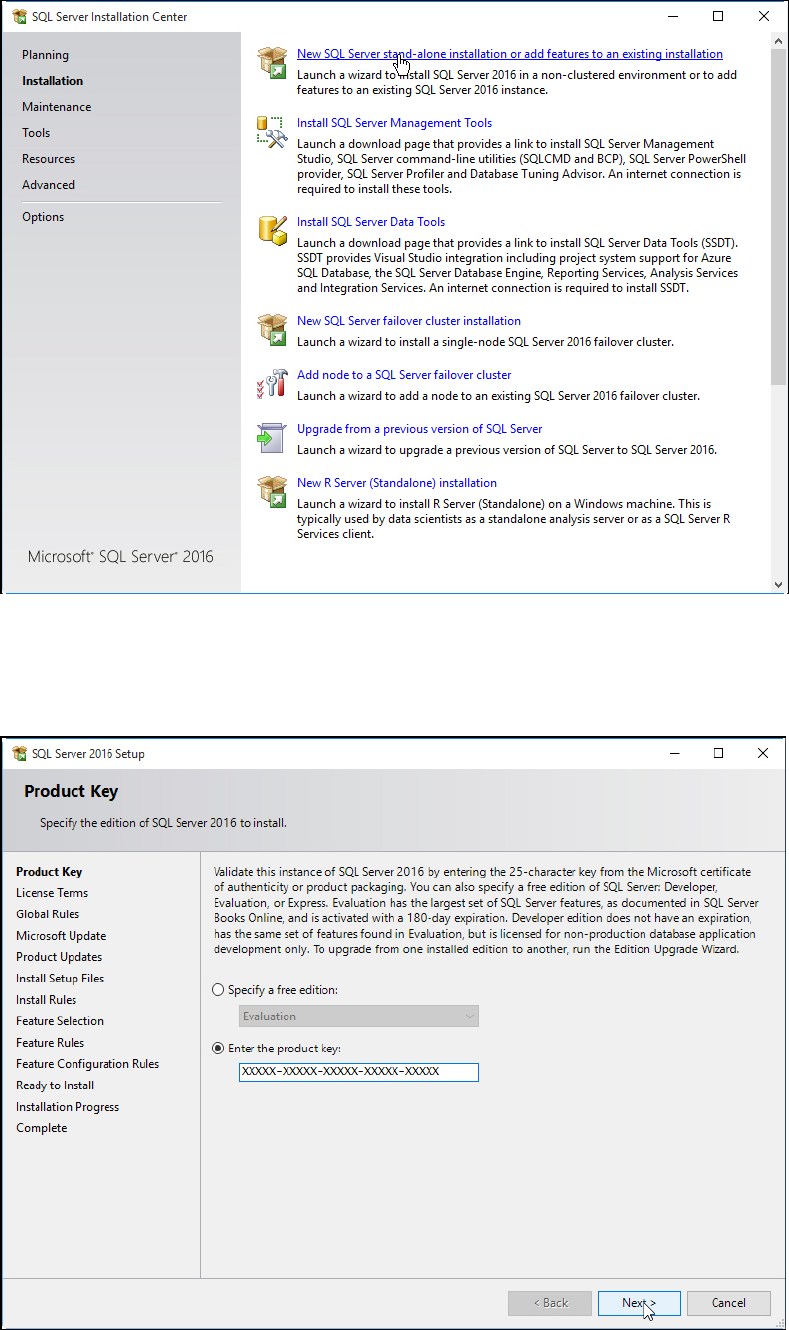
The Installation window is displayed.
Figure 4-3: Installation window of SQL Server Installation Center
► Click the New SQL Server stand-alone installation or add features to an existing installation
link.
The Product Key window is displayed.
Figure 4-4: Product Key window of SQL Server Setup