00198611-01_IM_712.0_R18-2_EN.pdf - 第23页
Station Software Ver sion 712.0 (R18 - 2) / Installation Manual 11/2018 Edition 23 5.2 Performing BI OS Update/ Settings on the St ation / Coplan / Fe eder Computers The image files for the B IOS update/BIOS set tings an…
Station Software Version 712.0 (R18-2) / Installation Manual 11/2018 Edition
22
5 Setting up the Station Computer
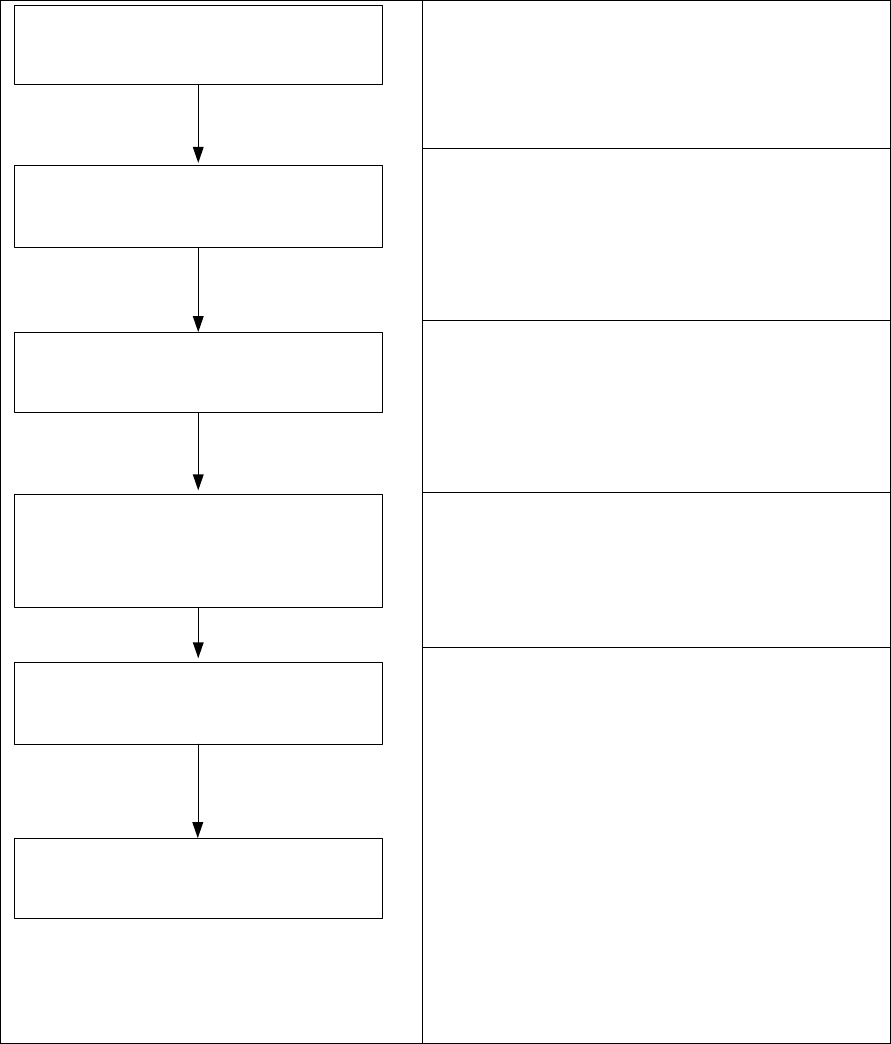
5.1 Installation Sequence
Back up the machine data
BIOS update on the station computer
Perform BIOS update
Install Windows operating system for the
station computer
(including selection of the computer
configuration and installation of the touch
screen)
Install station software
and additional programs
BIOS settings on the station computer
Perform BIOS settings
Finish the installations
Please refer to section 5.2.
Please refer to section 5.2.
See separate Installation Manual for details on
installing the Windows operating system (WES7
or Win10), item no. [00198622-xx].
For details on calibrating the touchscreen, please
refer to section 5.3.3.
Please refer to sections 5.4, 5.5, 5.6 and chapter
6.
Figure 5-1: Installation sequence

Station Software Version 712.0 (R18-2) / Installation Manual 11/2018 Edition
23
5.2 Performing BIOS Update/Settings on the Station / Coplan / Feeder
Computers
The image files for the BIOS update/BIOS settings and the corresponding installation instruction
(readme file) are available on the V1.0 BIOS CD that can be ordered via the service technician or
downloaded from the ASM Software Download Center. For more information, see separate
Installation Manual for details on installing the Windows 7 system, item no. [00197737-xx].
5.3 Preparations before Installing the Software
5.3.1 Requirements
Requirements for installing the station software, Coplan computer software or feeder computer
software:
– The Windows Embedded Standard 7 SP1 (32-bit or 64-bit) or Windows 10 IoT (64-bit) must
be installed on the station computer and in two-computer operation on the Coplan computer or
feeder computer (see "Installation Manual Operating System Windows Embedded Standard 7 /
Windows 10 IoT", item no. [00198622-xx]).
– The "SIPLACE Windows Embedded Standard 7 Configurator" version 2.3.1 or higher or
"SIPLACE Windows 10 Configurator" must have been run on the station computer.
Selection: hardware type and usage – Station/Vision.
The computer configuration must be selected, and the touch screen calibrated. You must be
logged in as Administrator in order to be able to carry out this work.
– The station computer must be equipped with at least 2 GB memory (RAM) with WES 7, 32-bit
and 4 GB memory (RAM) with WES7 or Win10, 64-bit respectively. If necessary, station
computers in the field must be exchanged or upgraded with a memory extension. Please refer
to the Technical Information TI2014-09E04.
– Also observe the requirements in section 6.2.1 that must be met when installing the Coplan
computer software or feeder computer software via remote connection.
– The station software setup requires .NET Framework 4.6.1. If not installed, it must be installed
manually before the station software installation starts. Please refer to section 5.3.2.
Station Software Version 712.0 (R18-2) / Installation Manual 11/2018 Edition
24
5.3.2 Installing .NET Framework
The station software setup requires .NET Framework 4.6.1 for successful installation. The setup
checks whether the framework is installed or not. If not, the framework must be installed manually
before the station software installation starts. Please also refer to section 5.4.1.
The corresponding NetFramework4.6.1.exe file can be found on the installation DVD in the root
folder. .NET Framework 4.6.1 is compatible to all previous 7xx versions.
► Log in under the ASM_Admin user account.
► Insert the installation media.
► Open Windows Explorer.
► Double-click the NetFramework4.6.1.exe file to start installing .NET Framework.
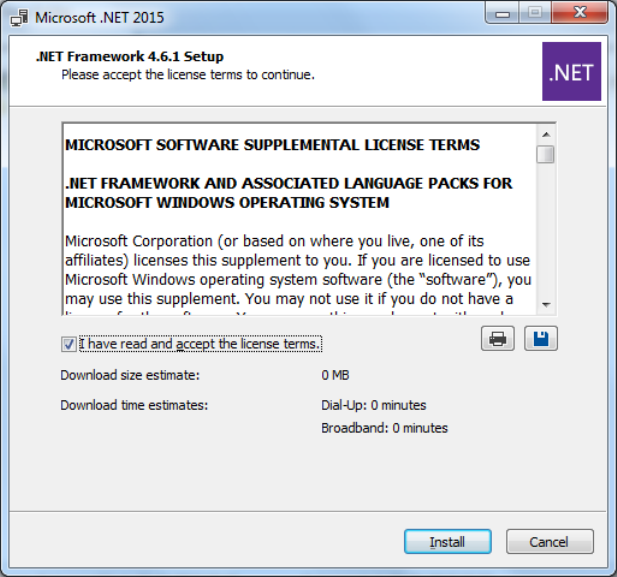
The .NET Framework 4.6.1 Setup dialog box is displayed.
Figure 5-2: Installing .NET Framework 4.6.1
► Accept the license terms.
► Click the Install button.
Usually, a restart of the system is required after this installation.