00198611-01_IM_712.0_R18-2_EN.pdf - 第25页
Station Software Ver sion 712.0 (R18 - 2) / Installation Manual 11/2018 Edition 25 5.3.2.1 Error Handling The following error m essage may be di splayed after starting the . NET Framew ork installation. Figure 5-3: Not e…
Station Software Version 712.0 (R18-2) / Installation Manual 11/2018 Edition
24
5.3.2 Installing .NET Framework
The station software setup requires .NET Framework 4.6.1 for successful installation. The setup
checks whether the framework is installed or not. If not, the framework must be installed manually
before the station software installation starts. Please also refer to section 5.4.1.
The corresponding NetFramework4.6.1.exe file can be found on the installation DVD in the root
folder. .NET Framework 4.6.1 is compatible to all previous 7xx versions.
► Log in under the ASM_Admin user account.
► Insert the installation media.
► Open Windows Explorer.
► Double-click the NetFramework4.6.1.exe file to start installing .NET Framework.
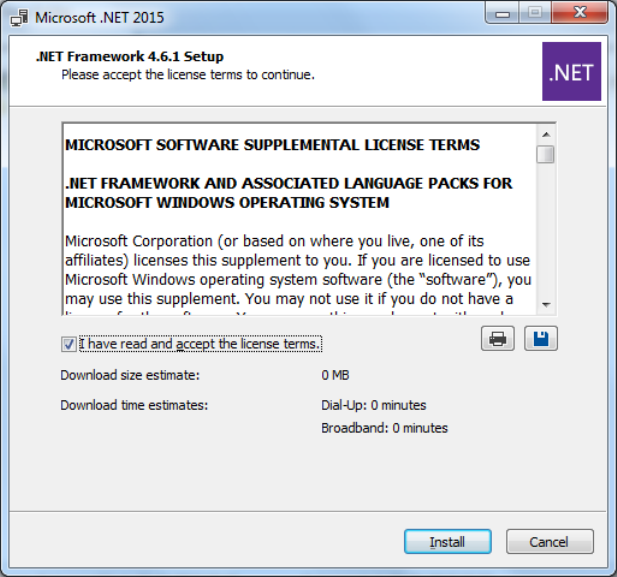
The .NET Framework 4.6.1 Setup dialog box is displayed.
Figure 5-2: Installing .NET Framework 4.6.1
► Accept the license terms.
► Click the Install button.
Usually, a restart of the system is required after this installation.
Station Software Version 712.0 (R18-2) / Installation Manual 11/2018 Edition
25
5.3.2.1 Error Handling
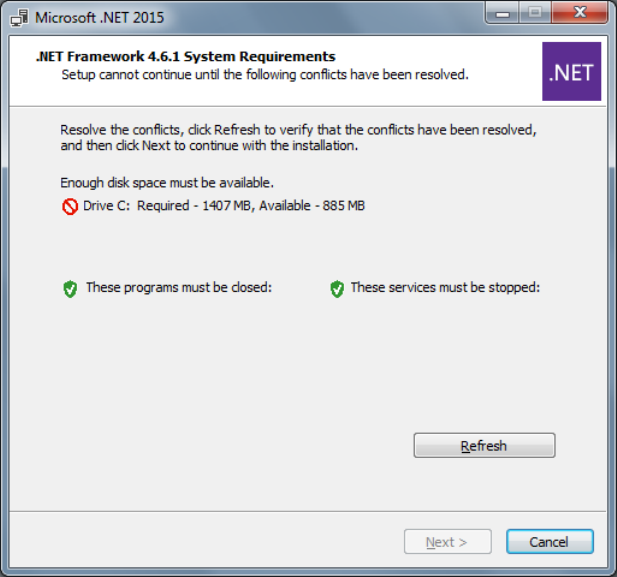
The following error message may be displayed after starting the .NET Framework installation.
Figure 5-3: Not enough free disk space
In this case, there is not enough free disk space on the "C:" drive to install .NET Framework 4.6.1.
At least 5 GB free disk space is recommended for the "C:" drive.
► Delete unneeded files to create free disk space on the "C:" drive.
► Click the Refresh button to verify that the conflict has been solved.
► Click the Next button to continue with the installation.
Station Software Version 712.0 (R18-2) / Installation Manual 11/2018 Edition
26
5.3.3 Calibrating the Touch Screen
The touch screen must be installed by the software configurator during the operating system
installation. If the calibration does not start automatically after installation:
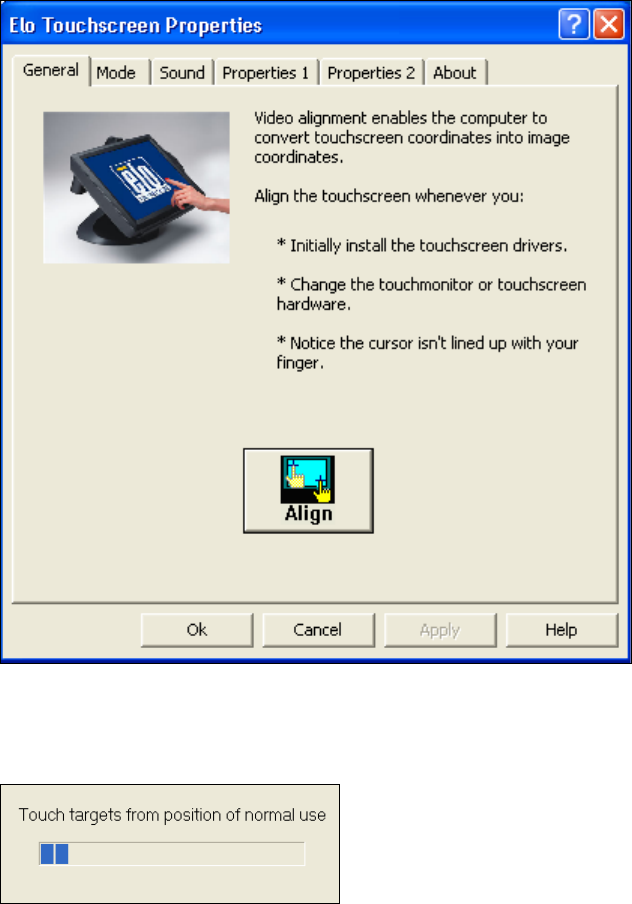
► Select Start – All Programs – Elo to go to EloTouchscreen Properties:
Figure 5-4: Elo Touchscreen properties
► Click the Align button.
The following message then appears:
Figure 5-5: Instruction for the screen to be calibrated
► Follow the instructions on the screen.
► Thereafter, disable the sound for the computer in the Control Panel. Otherwise, the computer
beeps each time the screen is touched.