00198611-01_IM_712.0_R18-2_EN.pdf - 第33页
Station Software Ver sion 712.0 (R18 - 2) / Installation Manual 11/2018 Edition 33 The Ready to install dialog box is disp layed again. Figure 5-14: Ready for installati on ► Click the Install button to start the install…
Station Software Version 712.0 (R18-2) / Installation Manual 11/2018 Edition
32
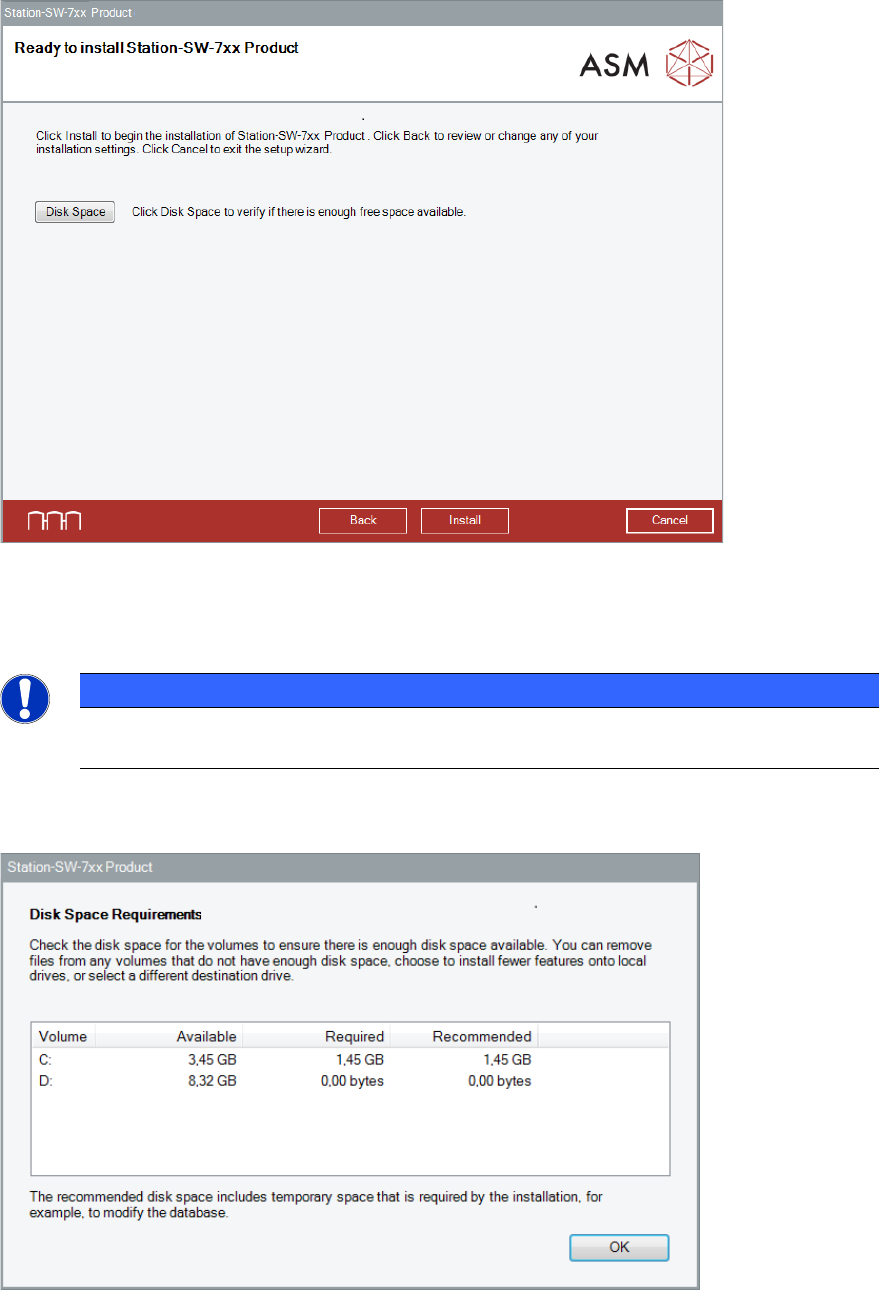
The station software is now ready to be installed. The following dialog box is displayed.
Figure 5-12: Checking disk space
Before installing, you can check the available, required and recommended disk space (per drive) to
perform the installation.
NOTICE
For installation and optimal functionality of the machine later on, a free disk space of at
least 5 GB is recommended on the "C:" drive.
► Click the Disk Space button.
The Disk Space Requirements dialog box is displayed.
Figure 5-13: Disk space requirements
► Click the OK button.
Station Software Version 712.0 (R18-2) / Installation Manual 11/2018 Edition
33
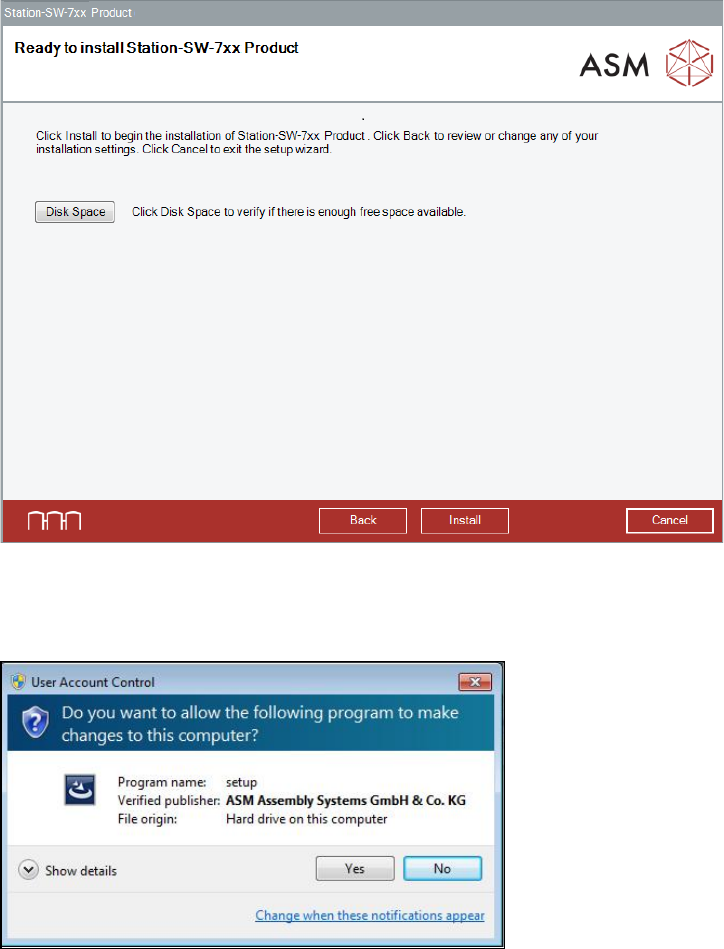
The Ready to install dialog box is displayed again.
Figure 5-14: Ready for installation
► Click the Install button to start the installation.
If User Account Control is enabled, the following dialog boxes are additionally displayed.
Figure 5-15: User Account Control
► Click the Yes button to allow the ASM Software installation.
Station Software Version 712.0 (R18-2) / Installation Manual 11/2018 Edition
34
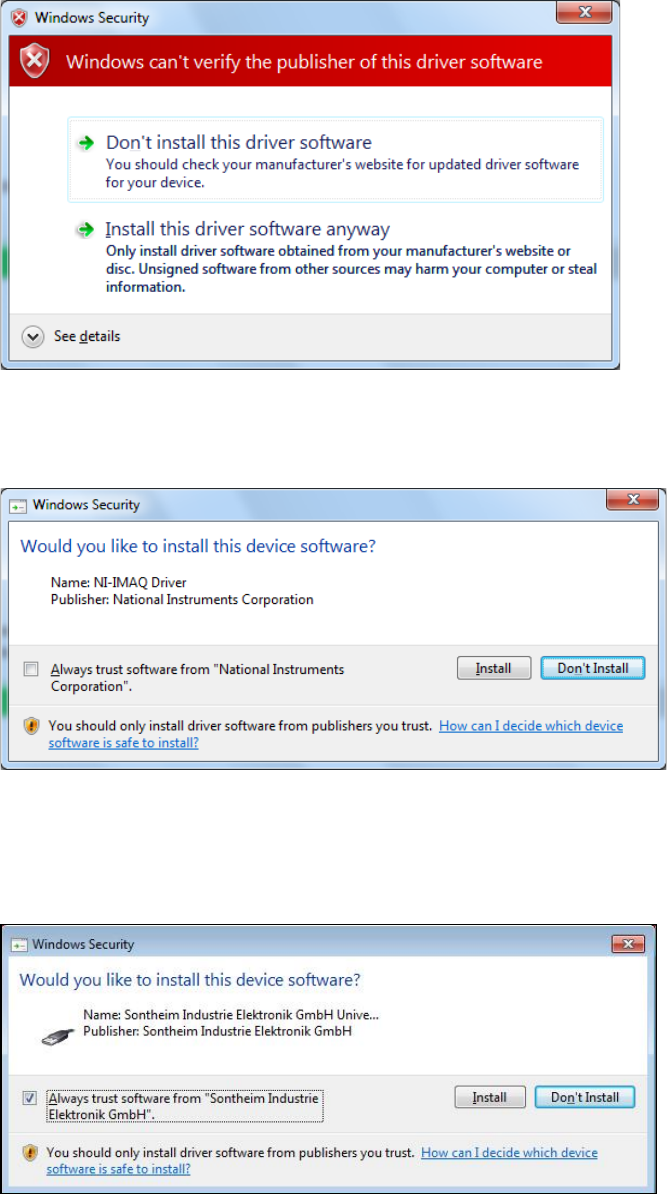
If Windows cannot verify the publisher of the driver software, the following dialog box is displayed.
Figure 5-16: Verifying driver software
► Select the Install this driver software anyway option.
► If an NI-IMAQ driver is connected, the following dialog box is displayed.
Figure 5-17: Installation driver software for NI-IMAQ Driver
► Activate the Always trust software from "National Instruments Corporation" field.
► Click the Install button to install the corresponding driver software.
If a Sontheim device is connected, the following dialog box is displayed.
Figure 5-18: Installing driver software for Sontheim device, part 1
► Activate the Always trust software from "Sontheim Industrie Elektronik GmbH" field.
► Click the Install button to install the corresponding driver software.